Using multiple services in one MCP server
In addition to Zoho Mail service, you can configure other Zoho Services also to the Zoho Mail MCP server. If your workflow involves multiple Zoho applications such as Zoho Desk, Zoho Cliq, Zoho CRM, you can add them to a single MCP server configuration.
Why use multiple services in one MCP server?
When an AI assistant connects to an MCP server, it first establishes a secure connection to the server, verifies your account, retrieves the tool list, and maintains the session context while processing your requests.
If multiple Zoho services are added to a single MCP server, the AI assistant follows the above steps only once.
If each Zoho service is configured on a separate server, the AI assistant has to repeat the above steps for each server it needs to use. This can increase the overall response time.
How to enable multiple Zoho services in a single server?
- Sign in to your Zoho MCP using your Zoho Mail account.
- Click Create New MCP server to create a new server or open an existing server to expand it with new Zoho services.
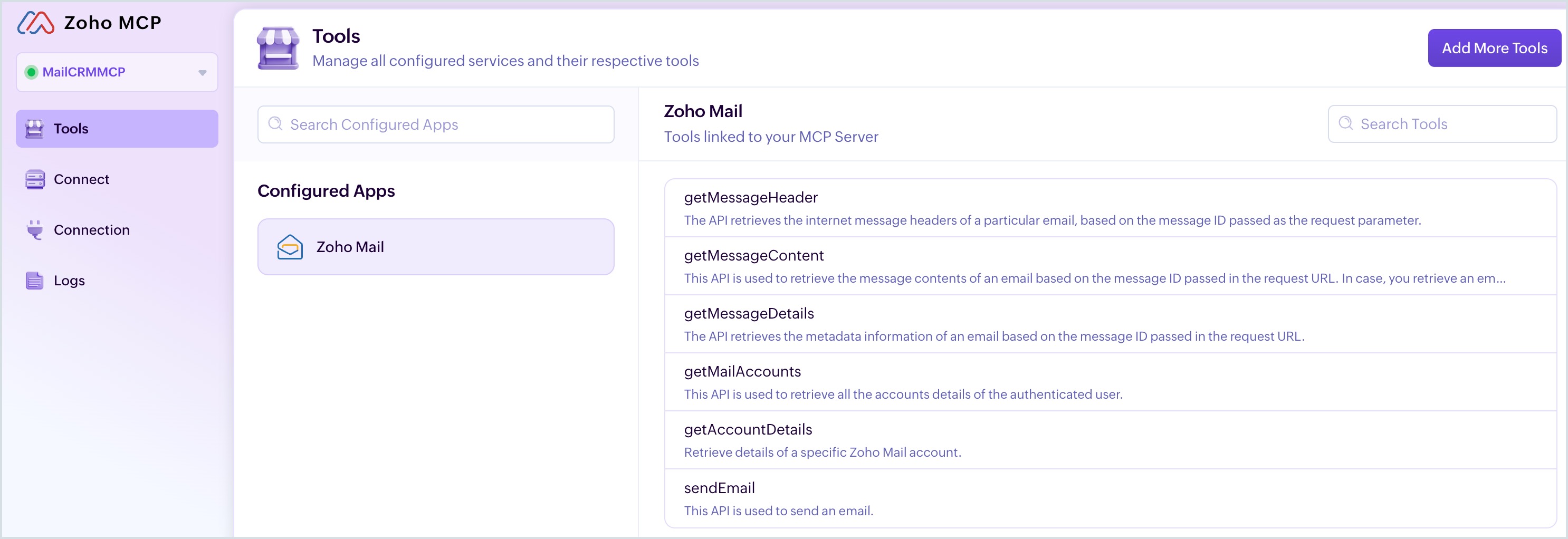
- Click Add More Tools. A list of Zoho products appears.
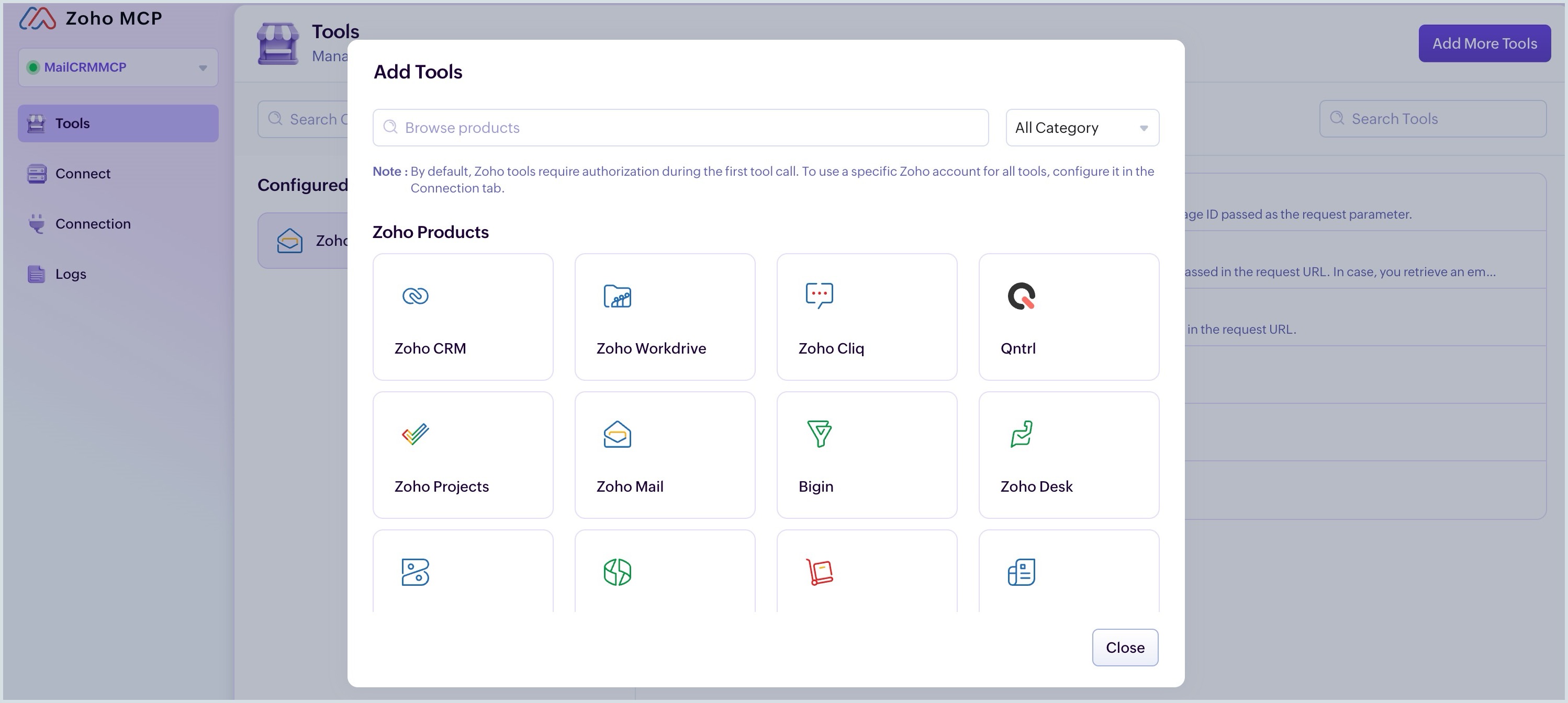
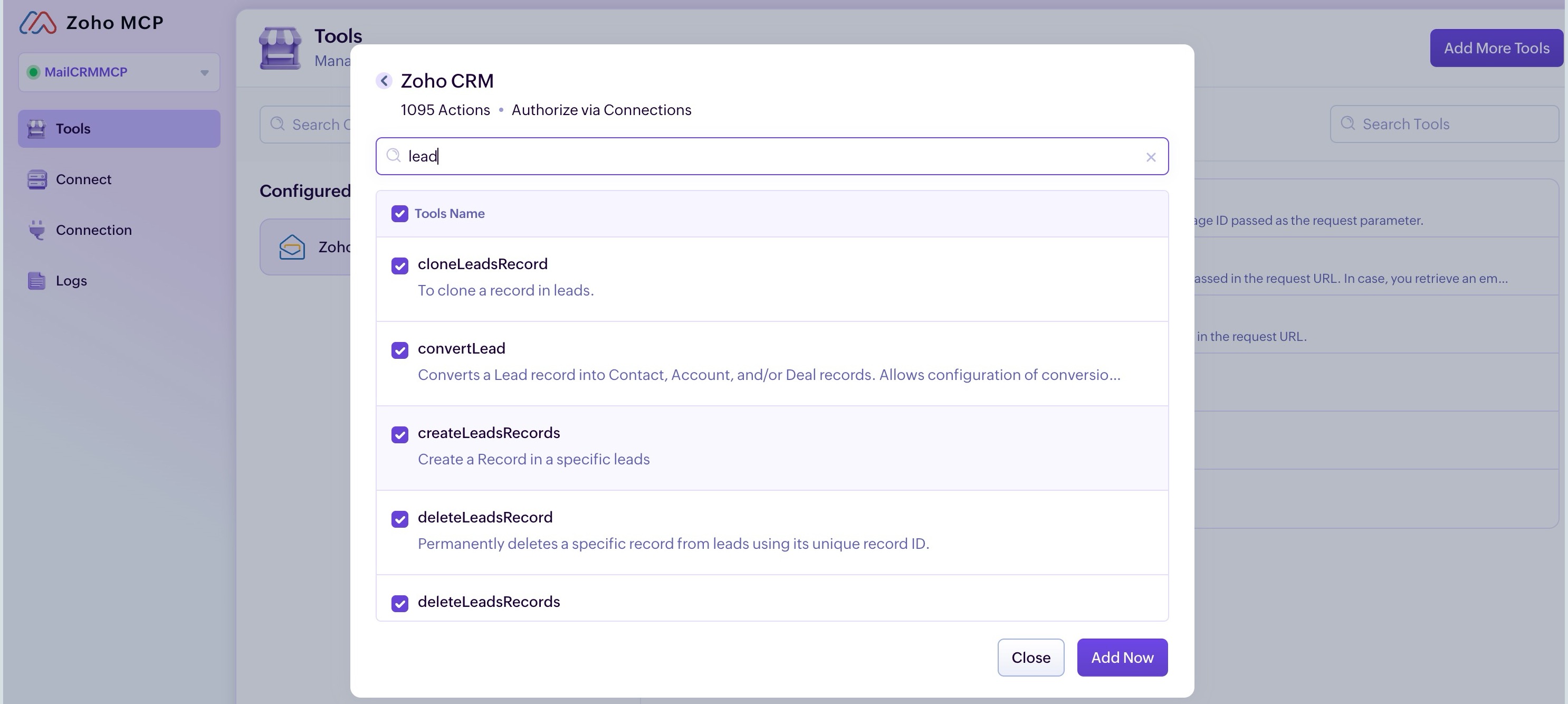
- Select the required product(s) like Zoho Cliq, Zoho Desk, and Zoho CRM. Select the required tools within each product, and click Add Now.
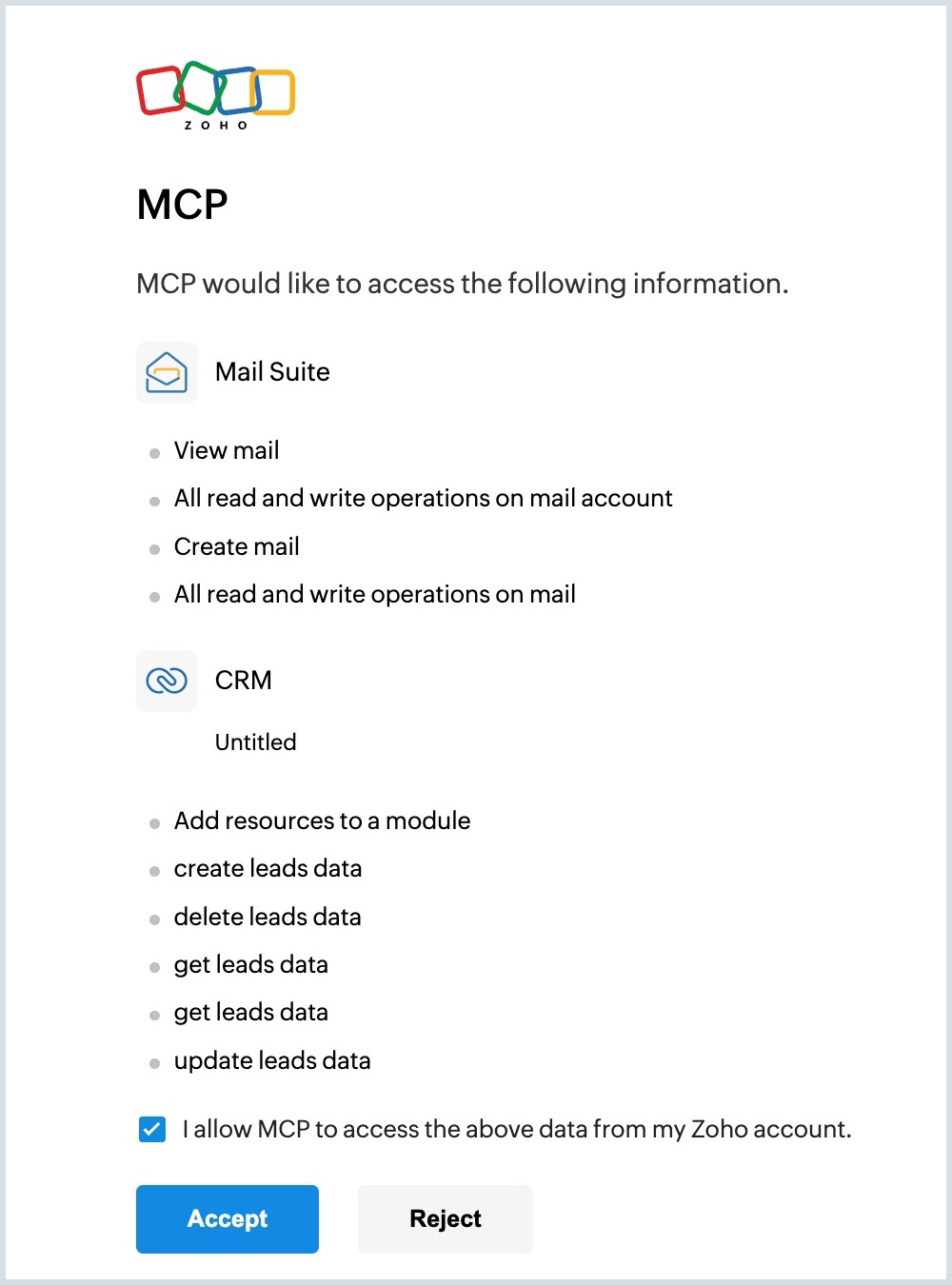
- Review and accept the OAuth scopes on the Zoho MCP Authorization screen.
If you are adding a new server to the MCP client, refer to the Zoho MCP configuration page.
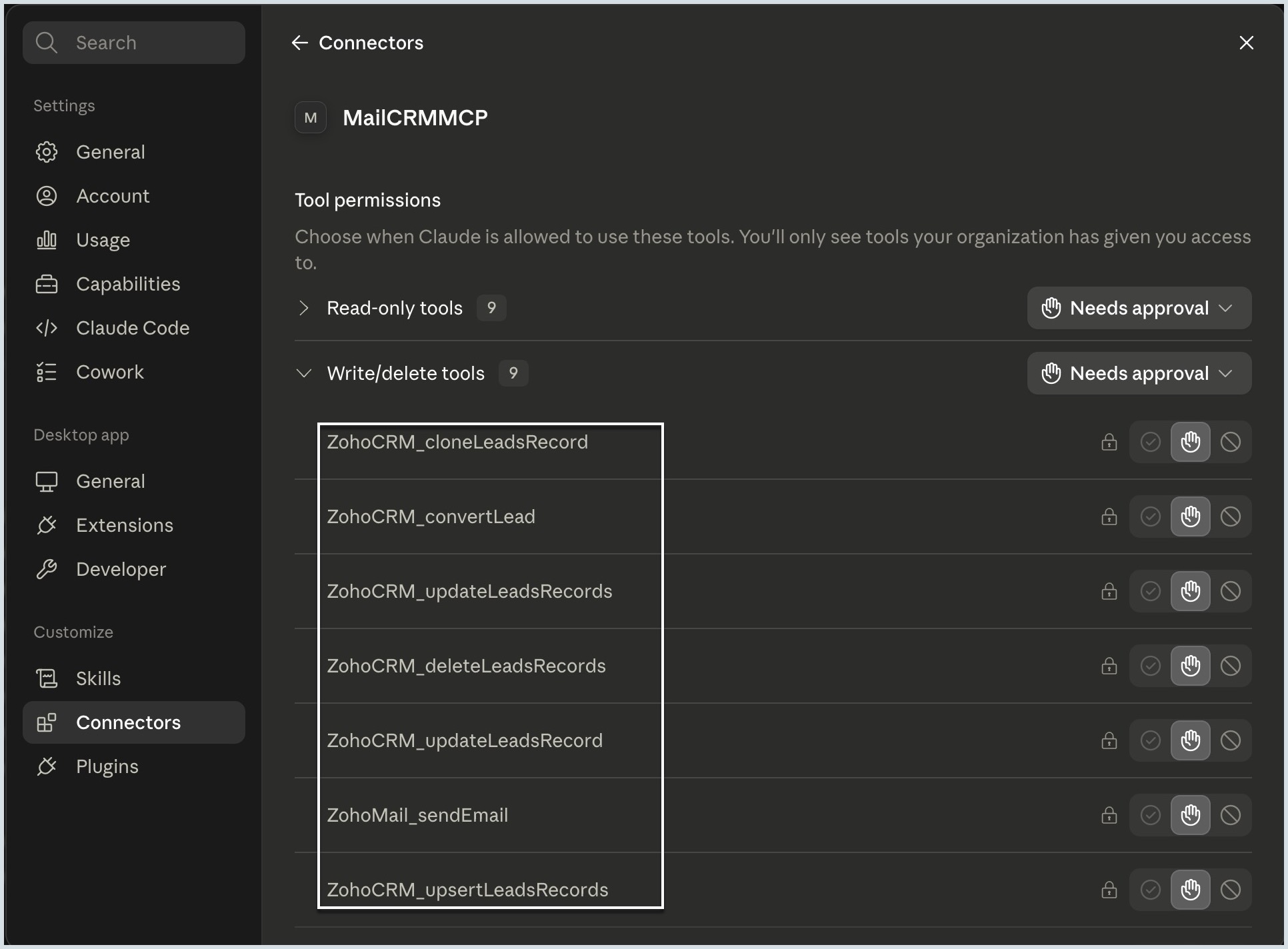
If you are expanding an existing server, the MCP server URL remains the same. Re-authenticate the existing server configuration in your MCP client (ChatGPT, Claude, Gemini, VSCode, etc.,) to pick the newly added tools.
Some tips while using unified servers
Add only the required tools
Ensure you select only the tools required for your planned actions. Selecting only the necessary tools helps AI assistants to provide faster and accurate results.
Group services by workflow, rather than by user
If your workflow regularly uses Zoho services like Zoho Mail, Zoho CRM and Zoho Projects, group them into a single MCP server.
Re-authenticate on adding new services
If you are adding new services to an existing MCP server, re-authenticate the server in the MCP client. Because the clients do not automatically detect the new tools.
Create a new server when the tool list grows
Zoho MCP recommends creating a new server when the number of tools in a server exceeds 300. This helps the MCP client execute the actions accurately.
Sample multiple service workflow
Let us consider that a user has sent a complaint email about a recently purchased product. The support team has created an MCP server with Zoho Mail, Zoho Cliq, Zoho CRM, and Zoho Desk tools added in it. The support team provides the following prompt to initiate the process of solving the problem.
Prompt:
Check the unread emails, get the complaint email, raise a ticket in Desk with the subject and details from the email. Take all the purchase details from CRM using the sender email address. Post the created ticket details in the team channel #supportteam. Send an email to the customer that their complaint is looked after by the support team and will be responding shortly.
Zoho Mail – The AI assistant reads the email and identifies it as a complaint mail.
Zoho Desk – A support ticket is created in Zoho Desk using the details from the email.
Zoho CRM – The purchase details are retrieved from CRM using the email address and details in the email.
Zoho Cliq – This ticket details are sent as a message in the support team channel.
Zoho Mail – A reply email is sent to the customer including the support ticket number and its status.
As these tools are grouped into a single server, the MCP client establishes a single connection and executes the actions in the same session context. This reduces the response time and the chances of errors due to session switching or connection establishment. If they were available as separate servers, the connection and session creation must be repeated four times.
When are separate servers useful?
- Group-level access: If the finance team needs Books, support team needs Desk, and sales team needs CRM, individual servers let them access only the tools they require.
- Frequent updates: If a specific Zoho service receives frequent updates, having it as a separate server doesn’t affect the other services.
- Failure isolation: If one of the MCP servers encounters an issue, in case of unified server, the whole setup may fail. With separate servers, only the affected MCP server becomes unavailable. Other MCP servers continue to operate without disruption.
- Restricted access: If you want to restrict access to a user to only one Zoho service, say Zoho Mail without giving them visibility to other services, separate servers are the best choice. You cannot restrict the user from using other Zoho services that are added within the same server.
- Sensitive data: Any Zoho services handling sensitive data must be isolated in separate servers, and handed over to the appropriate users.