Connect multiple Zoho accounts in one MCP client
If you manage multiple Zoho Mail accounts, such as personal and work account or multiple work mailboxes, you can connect all of them to the same MCP client and work without switching accounts or logging in and out.
Why should I connect multiple Zoho Mail accounts in an MCP client?
- Personal and work accounts – If you use both a personal email account (you@zoho.com) and an organization email account (office@zoho.com), you can configure them in the same MCP client and manage them through prompts from a single place.
- Shared or team inboxes – If your team uses a shared inbox, you can manage the shared inbox and your work inbox at one place.
- Multiple roles – If you play multiple roles (like project head and a support lead) within your organization, and each role has an individual inbox, you can connect both to the same MCP client and manage them accurately.
How to setup multiple Zoho accounts in an MCP client
- Create an account in Zoho MCP console for each Zoho Mail account you want to manage.
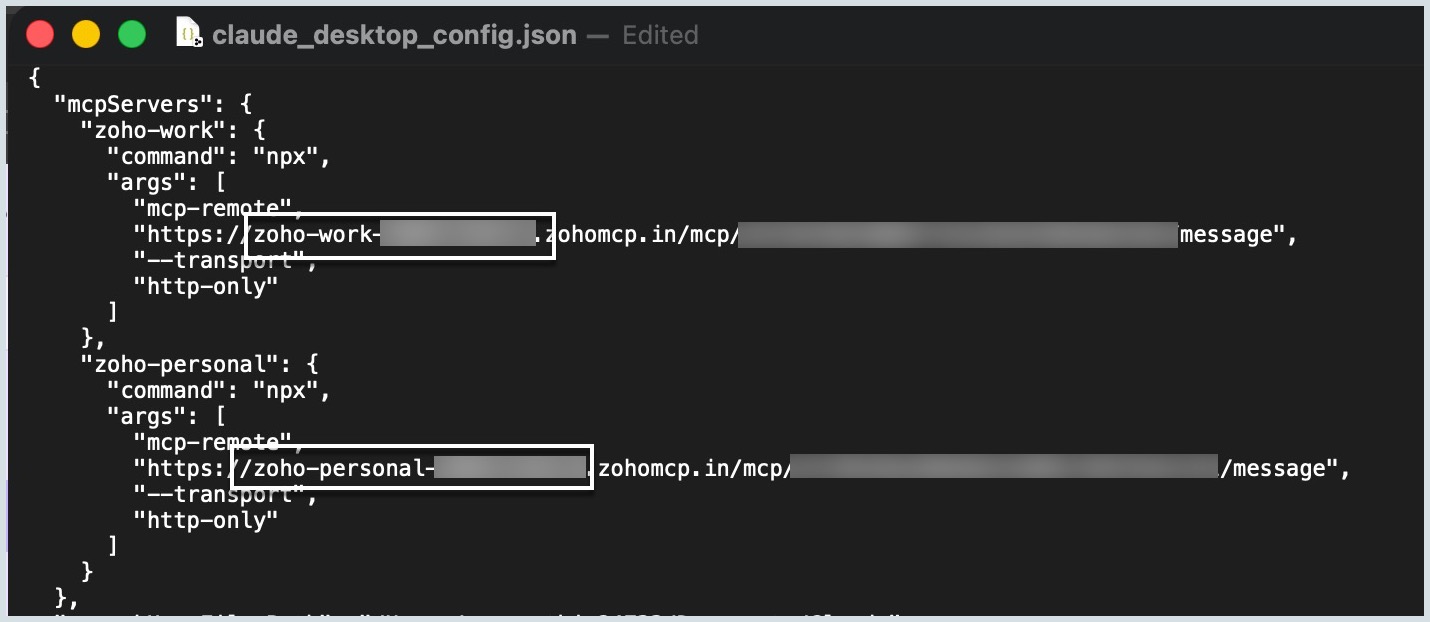
- Copy the MCP server URL for each account and add them as comma-separated entries in your AI assistant’s configuration file.
- Review and accept the OAuth scopes of each account on the Zoho MCP authorization screen.
The following screen appears for Personal account authorization.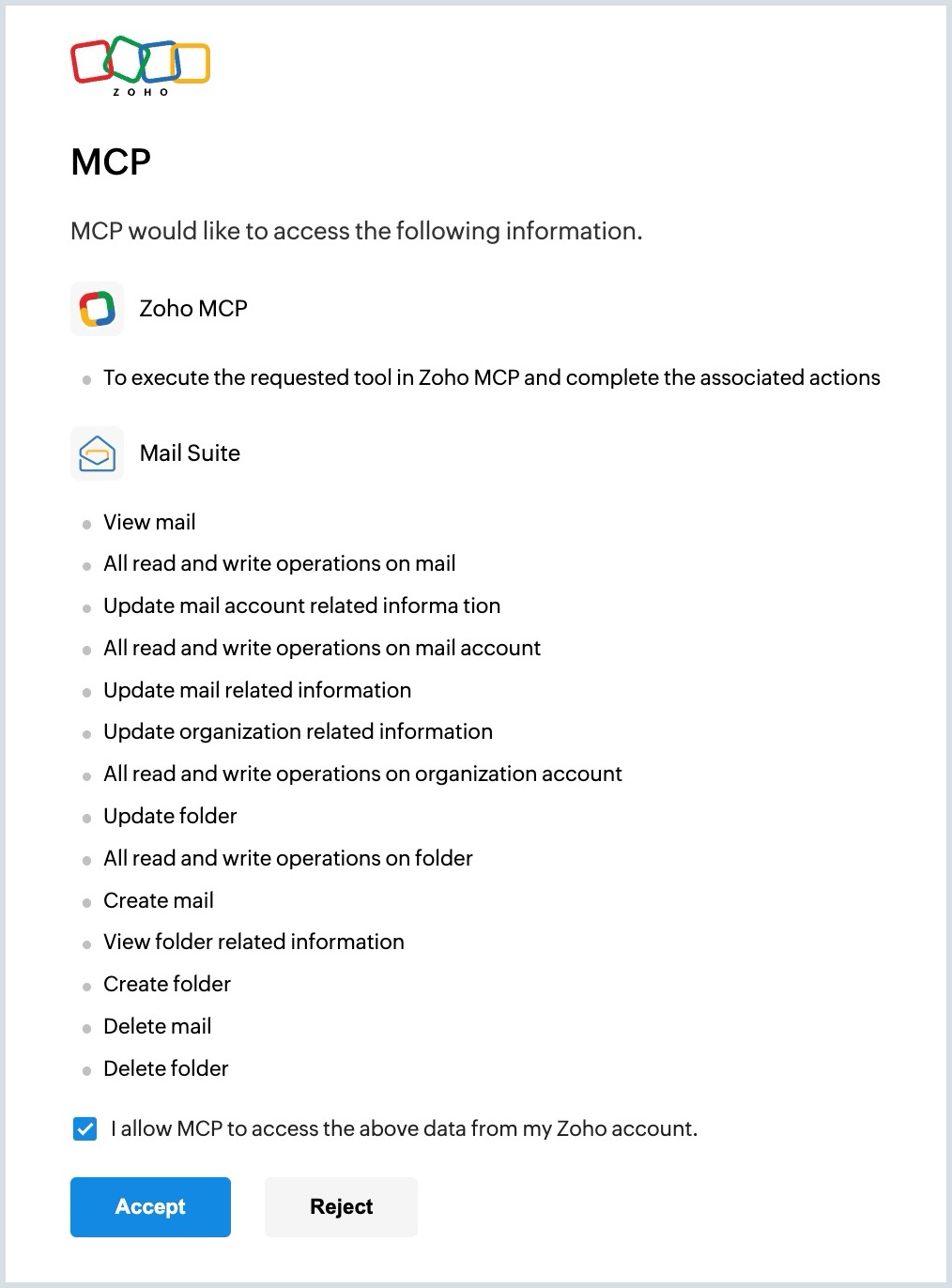
The following screen appears for Work account authorization.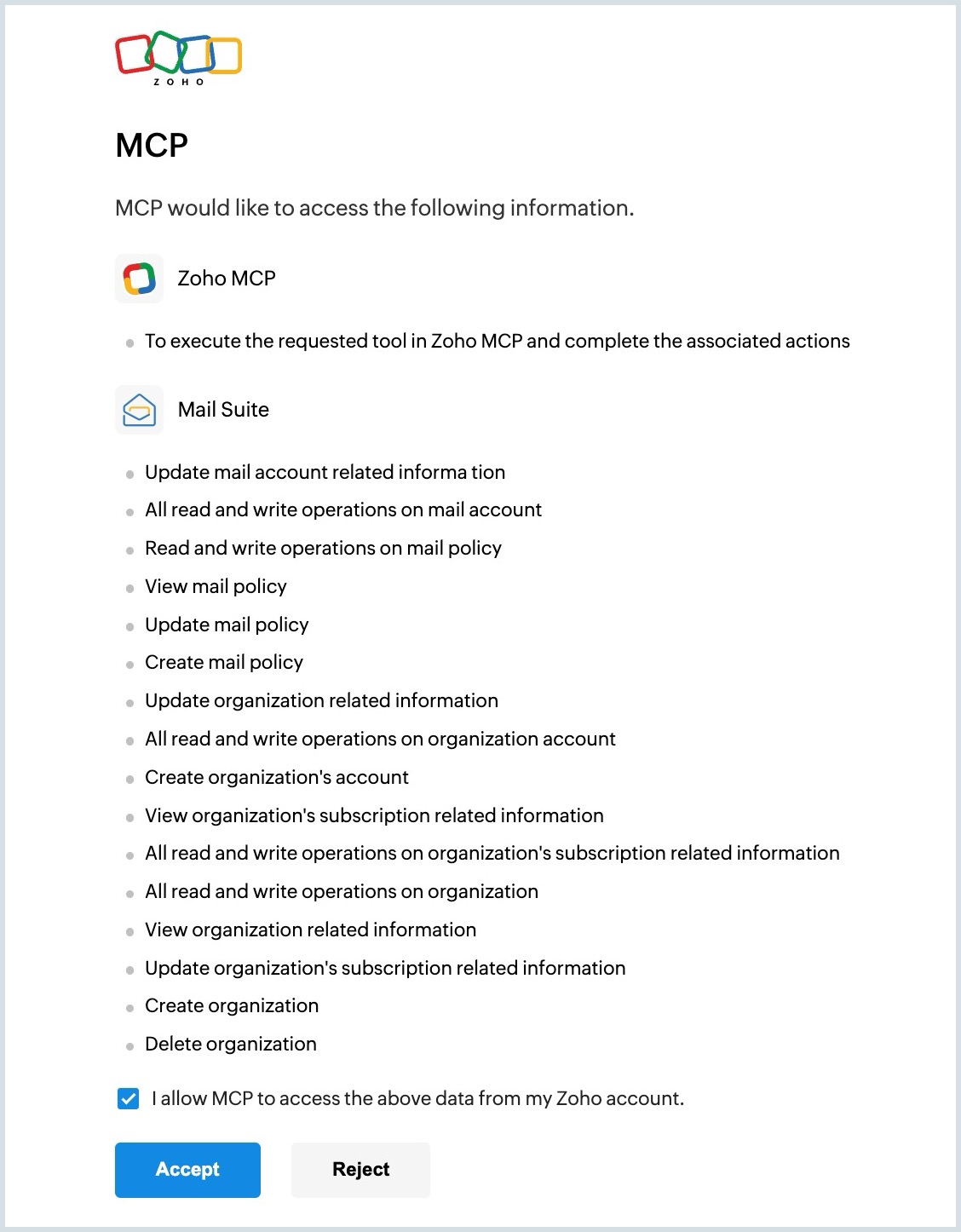
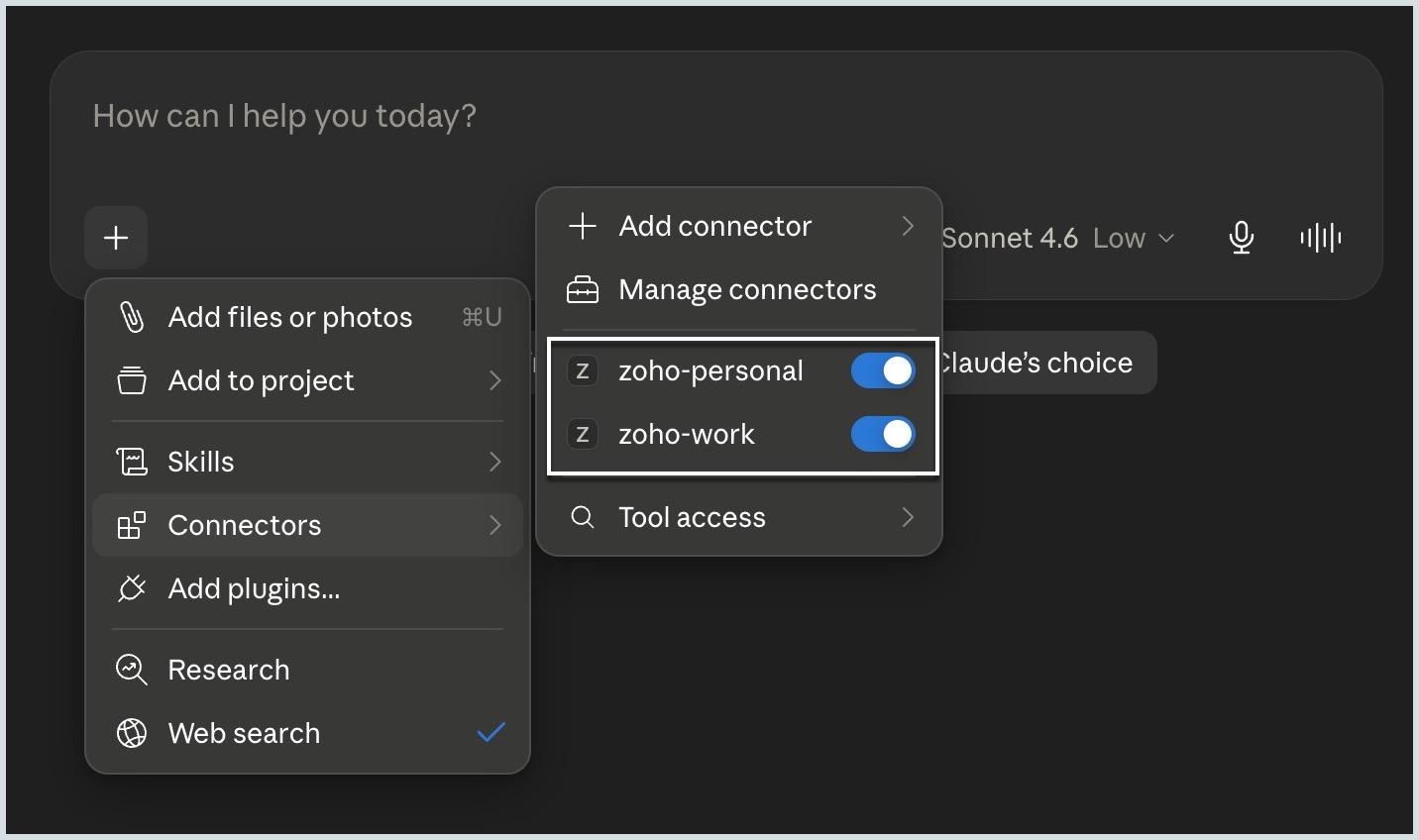
- Once the setup is available, all the configured accounts will appear under the Connectors section of the AI assistant. You can enable or disable them as needed.