- HOME
- More
- Best practices
- What BYOD means for email security: the risk of unmanaged devices
What BYOD means for email security: the risk of unmanaged devices
- Published : November 26, 2026
- Last Updated : November 26, 2026
- 2 Views
- 11 Min Read

Article Highlights
- BYOD moves the first contact with every email threat onto devices you can't inspect, and not every user will agree to enrol.
- When you can't manage the device, the mailbox becomes the perimeter. You still control what is delivered, who signs in, what is downloaded, what leaves, and what is retained.
- Risk follows one email through five stages: arrival, opening, caching and sync, forwarding and saving, and offboarding. Each has a control at the email layer.
- Admins can limit what an unmanaged device holds, but they can't control its apps, updates or screenshots. Assume anything stored on it could be exposed.
- Layer the protections: mailbox controls for everyone, device protections where users enrol, and a BYOD policy that is enforced, including offboarding and retention.
It’s Friday night. A finance manager receives an email on her personal phone. It looks like a payment query from a regular vendor. She taps the link to check the invoice, signs in on the page that opens, and goes about her evening.
Nothing on that phone belongs to her employer. No gateway scanned the link, no policy questioned the sign-in, and nobody will know until the vendor questions why the payment was never made.
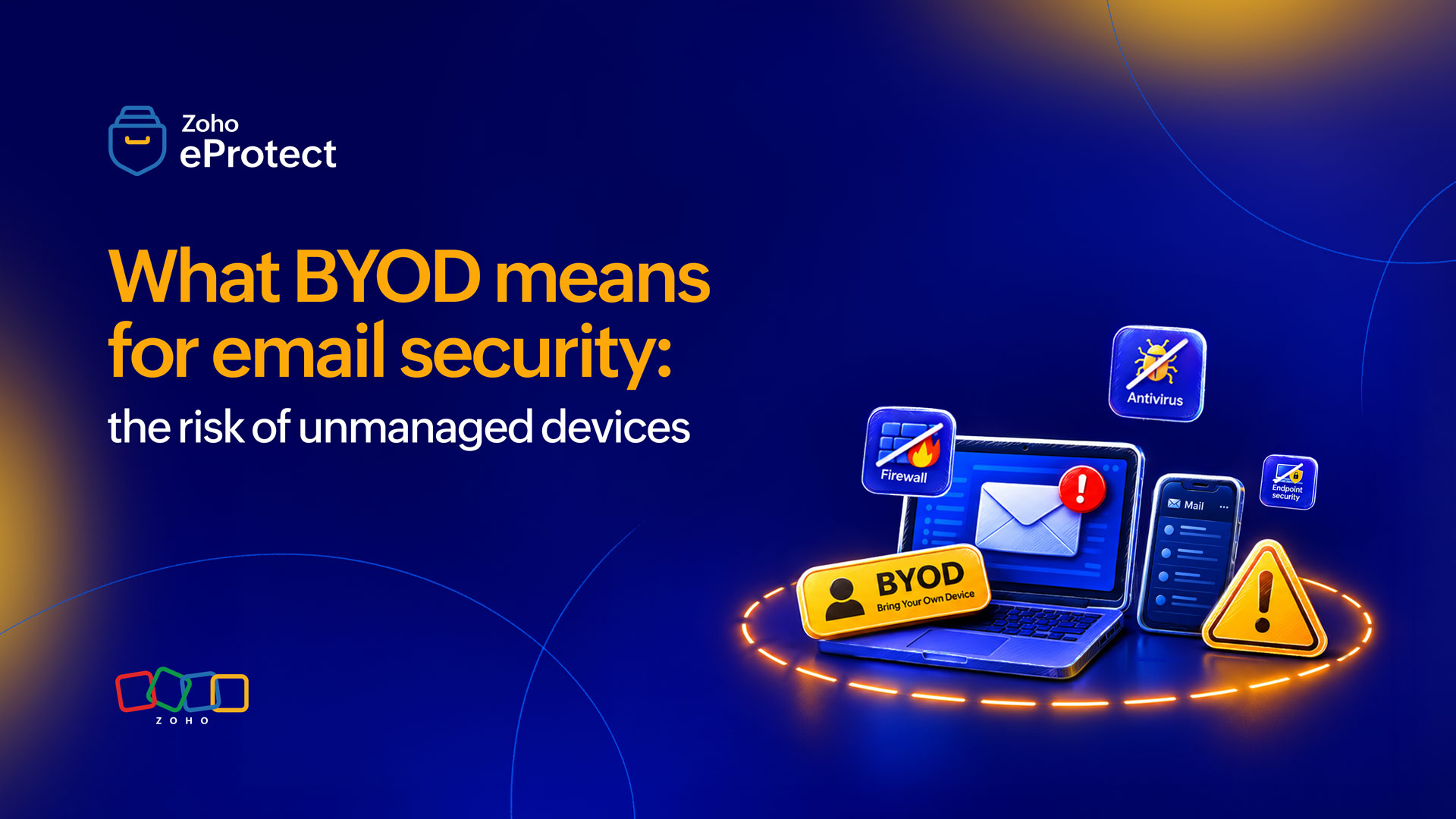
That’s what BYOD means for email security in practice. BYOD, short for bring your own device, lets employees use personal phones, tablets or laptops the company doesn’t own to read work email and access files and apps. It cuts hardware costs and employers like it. It also moves the first contact with every email threat onto a device that can’t be inspected.
BYOD works well when everyone complies by the drafted policy and enrolls their devices. However, contractors, part-timers, and senior leaders are often reluctant. For such users, protection should begin from the mailbox.
This article follows a single email through five stages on a personal phone, the risks associated with BYOD, and the protection measures that can be taken by administrators.
What is BYOD?
BYOD is the practice of using personal devices for work. Those devices are unmanaged when the company doesn't enroll them, configure them, or control what else runs on them. Attackers pay attention to unmanaged devices because they’re easier to strike.
Verizon’s 2026 Data Breach Investigations Report found that mobile-centric social engineering succeeds 40% more often than traditional email phishing. Think fake texts and voice calls. That figure is about texts and calls, not email on phones, but it shows where attackers are heading. A breach is also expensive wherever it starts. IBM’s 2026 Cost of a Data Breach Report puts the global average at $4.99 million.
The risks of BYOD for email security
BYOD risk reaches well beyond the inbox. Many of these risks work at the endpoint-level.
| Risk | How it shows up | Why BYOD makes it worse |
| Phishing and social engineering | Fake invoices, QR codes, link-based lures and texts that lead to a sign-in page. | Personal devices often lack gateway filtering, web filtering and endpoint protection. |
| Credential theft and account takeover | A stolen password or session token opens the mailbox, and often the wider suite. | Without conditional access, an unknown device looks the same as a trusted one. |
| Email data leakage | Forwarding to personal accounts, saving to personal drives, pasting into chat or AI tools. | Personal apps sit one tap away from work mail. |
| Lost or stolen devices | Cached mail, attachments, and signed-in apps exposed to whoever holds the phone. | Remote wipe is only possible on enrolled devices, and owners may resist a full wipe. |
| Malware and malicious apps | Unvetted apps with access to notifications, storage or screen content. | The company can’t control what gets installed. |
| Outdated operating systems | Unpatched flaws let attackers reach data on the device. | Updates depend on the owner’s habits, and older phones stop receiving them. |
| Insecure networks | Public Wi-Fi and shared hotspots expose sessions to interception or fake login pages. | Personal devices connect anywhere, with no company VPN or DNS filtering. |
| Shared and family devices | Children, partners, or friends use the device that holds work mail. | Work and personal use mix, often with no separate profiles. |
| Shadow IT and shadow AI | Staff use unapproved cloud storage, messaging, and AI tools with work content. | Data moves easily on a device the company cannot inspect. |
| Mixed personal and work data | A wipe or search risks touching personal photos, messages, and files. | Privacy expectations limit what the company can enforce. |
| Compliance exposure | Regulated or confidential data sits on a device you cannot audit. | Access, retention, and logging rules are hard to prove on unmanaged devices. |
| Lost records and weak audit trail | Mail deleted on a phone, or user actions the company cannot see. | Fewer logs exist, so investigations rely on guesswork. |
| Leftover data after offboarding | Cached mail, saved files, and forwarding rules remain on the device. | There’s no guaranteed way to retrieve or erase them. |
| Inconsistent enforcement | Some users enroll, others do not, and exceptions pile up. | Two classes of device carry different controls and unclear ownership. |
Why BYOD email security starts at the mailbox
On a managed laptop, you can patch the operating system, install endpoint protection and wipe the machine if it goes missing. On a personal phone, you can do none of that without the owner’s consent.
What you still control sits in the mail system itself:
- What gets delivered to the mailbox.
- Who can sign in, and from what kind of device.
- What can be downloaded, cached, or synced.
- What can be sent out, and to where.
- What is kept, and for how long.
Those five controls map neatly onto the life of one email. Follow it from arrival to the day the employee leaves, and the gaps in a typical BYOD setup become easy to see.
Stage 1: Arrival
On a managed laptop, a suspicious email usually passes through several layers of protection. On a personal phone, the mail app may be the only layer. Links open in whichever browser the user prefers, with no web filtering behind it.
QR codes make this worse. A QR code in an email is often an image, so it can slip past link scanning. The user scans it with a phone camera, and the destination opens over mobile data, outside any corporate network control.
The email-layer control is filtering before delivery. Say the mail server checks links at the time of click, inspects attachments, and looks inside images for QR codes. Then the threat is handled before it reaches any device. Enforcing SPF, DKIM, and DMARC on inbound mail, and flagging lookalike domains and display-name impersonation, adds to that. The protection travels with the mailbox, not with the phone.
Stage 2: Opening
Small screens hide the details that help people spot a fake. Many mobile mail apps show only the display name, not the sender address. Users cannot hover over a link to preview it. Long subject lines get cut off. People read fast, between meetings or on a commute.
You cannot change how the app displays a message, but you can change the message. External sender banners are added to the body, so they appear on every device. Warnings on first-time senders and lookalike domains work the same way. Link rewriting adds a check at the moment of the click, which helps when the user cannot see the destination.
Assume that some people will still be fooled, and limit what a stolen password can do. MFA, preferably phishing-resistant, narrows the damage. Conditional access rules that treat unknown devices differently from known ones have the same advantage. A credential typed into a fake page shouldn’t be enough to open the full mailbox from a device the company has never seen.
Stage 3: Caching and sync
Once an email is opened, it doesn’t stay on the server. Mail apps cache messages for offline reading. Attachments get downloaded and opened in third-party viewers. Files land in a downloads folder, and personal cloud backups may copy the lot overnight.
None of this can be wiped remotely from an unmanaged device. If the phone is lost, sold, or handed down, the copies go with it.
The email-layer answer is to decide what an unmanaged device is allowed to hold. Conditional access policies can let unmanaged devices reach mail only through a browser, with downloads and offline sync blocked. Where the mail platform supports it, app protection policies can limit copy, paste, and save-as inside the mail app.
Attachment handling matters, too. Previewing a file in the browser, shortening the sync window, and encrypting sensitive attachments with expiry or revocation all reduce what lingers on the device. The exact options depend on your mail platform, so check what yours supports before you write them into policy.
Stage 4: Forwarding and saving
Email data leakage often looks harmless. An employee forwards a message to a personal address to read it on a bigger screen. Another saves an attachment to a personal drive, or pastes a thread into a messaging app or an AI chat tool to summarize it. Nobody intends harm. The data still leaves.
DLP rules on outbound mail catch a good share of this. They can detect sensitive content such as payment details, customer records, or ID numbers, then warn, block, or route the message for review. Blocking automatic forwarding to external addresses closes another common route. Encryption and rights controls on sensitive messages keep protection attached after the message is shared.
Email archiving plays a different role. It keeps an independent copy of mail traffic, so when something does leave, you can see what was sent, by whom, and when. Without that record, an investigation relies on whatever the user remembers.
Stage 5: Offboarding
When an employee leaves, the company closes the account. The copy on their personal phone doesn’t close with it. Cached mail may stay readable. Saved attachments remain. A forwarding rule set up months earlier may keep sending new mail to a personal address.
BYOD offboarding needs its own email checklist. Revoke active sessions and tokens immediately, not at the end of the notice period. Remove app passwords and turn off legacy protocols such as POP and IMAP where they’re not needed. Review and remove forwarding rules. Then move the mailbox to an archive with defined retention, so the company keeps the record.
Retention matters for a second reason. If an employee deletes mail on a personal phone, it shouldn’t vanish from the company’s records. Archiving, retention rules, and legal hold keep that history intact, whatever happens on the device.
What an admin can and can’t control
A policy that promises too much fails quietly, so it helps to be clear about the limits.
On an unmanaged device, you can control who signs in and whether the device is known. You can control what’s delivered and what leaves by email. If your platform allows it, you can control what is downloaded or synced. You can also end active sessions and set what is retained.
You can’t control which other apps are installed, whether the operating system is up to date, or whether malware on the phone is reading notifications. You cannot stop a family member from borrowing the phone, or someone from photographing the screen. You can’t dictate backup settings, either.
The practical stance is to limit what an unmanaged device can hold, and to treat anything it does hold as potentially exposed. For the most sensitive mail, keep access web-only or require an enrolled device.
How to reduce BYOD email risk: A practical checklist
No single control covers BYOD. Layer them, and match each layer to what the user will accept. Start with the controls that apply to everyone, then add device protections where people enroll.
Mailbox controls for every user
- Filter inbound mail before delivery, including links, attachments, and QR codes.
- Require MFA for every sign-in, preferably phishing-resistant.
- Use conditional access to treat unknown devices differently from known ones.
- Allow web-only access on unmanaged devices, with downloads and offline sync blocked.
- Apply DLP to outbound mail and block automatic forwarding to external addresses.
- Archive mail and set retention, so records don’t depend on any one device.
- Turn off legacy protocols and app passwords where you can.
Device protections where users enrol
- Require a passcode or biometric lock, with automatic screen lock.
- Require device encryption and a minimum operating system version.
- Use app protection to keep work data inside the mail app, with selective wipe of that app only.
- Use separate work profiles on devices that support them.
- Block rooted or jailbroken devices.
- Enable remote lock for lost devices, and remote wipe where the owner has consented.
People and policy
- Write a short BYOD policy that states what’s allowed, what’s monitored, and what happens on exit. Get written acknowledgement.
- Tell staff plainly what the company can and cannot see on a personal device. Clear limits improve enrolment.
- Train people on mobile phishing, including texts, calls, and QR codes.
- Make it easy to report a lost phone, and ask for reports straight away.
- Warn about public Wi-Fi, and offer a VPN or advise mobile data for sensitive work.
- Run an email offboarding checklist, and test it on a mock leaver.
Common gaps in BYOD policies
Most written BYOD policies cover passcodes, lost devices, and acceptable use. But the most common gaps are in the implementation phase.
1. Policies are signed but not enforced. A line saying staff must not forward work mail means little without a rule that blocks it.
2. Everyone is treated the same way. A contractor on an unmanaged laptop and an enrolled employee carry different risks and need different access.
3. They ignore the mailbox. Forwarding rules, legacy protocols, and app passwords rarely appear in a BYOD policy, yet they decide what a personal device can reach.
4. Offboarding doesn’t cover everything. It covers hardware and badges, but not cached mail or live sessions.
5. Retention is left out. The company’s record of a conversation depends on what a user chooses to delete.
6. Testing stops at email. Given Verizon’s finding on social engineering, phishing simulations should also cover texts and calls aimed at personal phones.
Wrapping up
BYOD isn’t going away, and for many small and mid-sized companies, it’s the only practical option. The real question isn’t whether to allow it, but what an unmanaged device is allowed to touch.
Treat the mailbox as the perimeter. Filter before delivery, so threats never reach the phone. Tighten sign-in for unknown devices. Limit what can be cached and downloaded. Apply DLP to what leaves. Archive and retain what matters. Revoke access cleanly when people leave.
To start with, audit auto-forwarding rules. Check what unmanaged devices can download. Run your offboarding steps on a mock leaver and see what’s left behind. BYOD email security is rarely one big control. It’s built from small, specific decisions at every stage of an email’s life.
When you can’t manage the device, the mailbox is where you can still protect your organization. Zoho eProtect is a cloud-based email security and archiving solution that detects email threats across on-premise and cloud accounts. It is also the security solution that powers Zoho Mail, trusted by millions of users.
Frequently asked questions
The biggest risks are phishing, insider threats, and account takeover, email data leakage, and lost or stolen devices. Personal devices often lack gateway filtering, so malicious links, QR codes, and fake sign-in pages reach users directly. Work mail also moves easily into personal accounts and apps, leading to records being lost when they reside on just one device.
A BYOD email policy should define which users and devices are covered and what access each gets. It should set minimum device requirements for enrolled devices and stricter mailbox rules for unmanaged ones. It should also cover forwarding and saving, what the company can monitor, lost-device reporting, offboarding steps, and retention.
An unmanaged device is a phone, tablet, or laptop that the organization doesn’t own, enroll, or configure. IT cannot enforce passcodes, push updates, install security tools, or wipe it remotely. Under BYOD, most personal devices fall into this group. Contractor and partner devices often do, too. A device enrolled in management is at least partly managed.
Personal devices put work email next to personal apps, and data moves between them with a tap. Employees forward messages to private accounts, save attachments to personal drives, or paste content into messaging and AI tools. Offline copies can also sit in app caches and cloud backups. Most leaks are unintentional, which is why they rarely trigger alerts.
Cached mail, attachments, and signed-in sessions may be exposed, especially if the screen lock is weak. If the device is enrolled, an admin can lock it or wipe the work data. If not, the priority is to revoke sessions, reset the password, and review recent mailbox activity. Quick reporting by the employee makes the biggest difference.