



Other Actions in Employees
Bulk Edit Employees’ Reporting To
Here’s how you can edit the employees’ reporting to:
- Go to People on the left sidebar.
- Click Employees.
- Select the employees for whom you want to change the reporting to.
- Select Assign Reporting To to change the reporting to of the selected employees from the top pane.
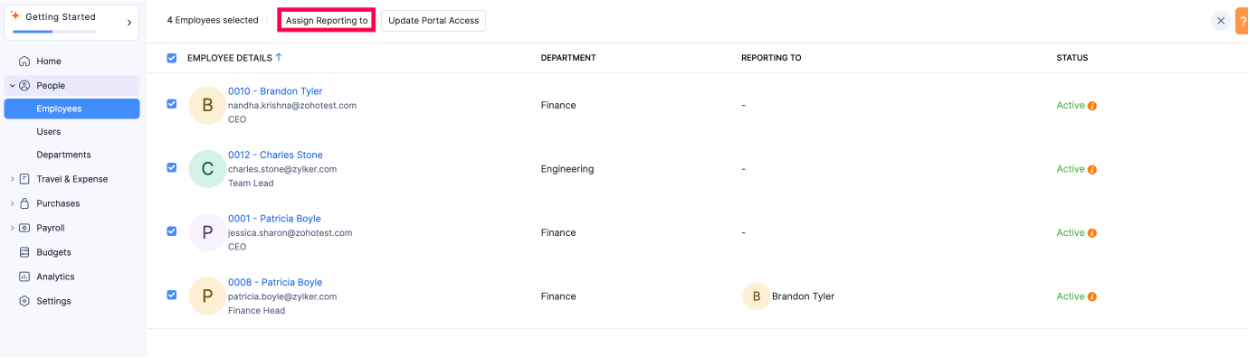
- Click Save.
Bulk Edit Employees’ Portal Access
Here’s how you can edit the employees’ portal access:
- Go to People on the left sidebar.
- Click Employees.
- Select the employees for whom you want to update the portal access.
- Select Update Portal Access to update the portal access of these employees from the top pane.
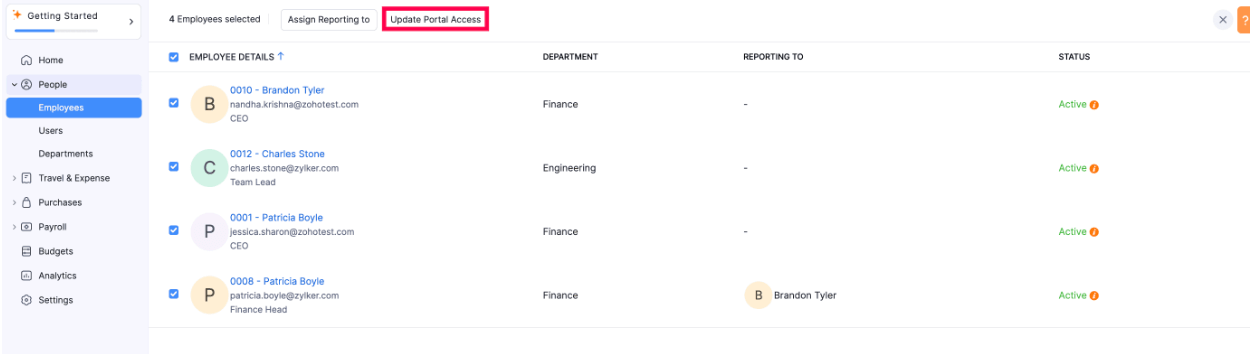
- Click Save.
Import Employee Data
Here’s how you can import employee data to Zoho Spend:
- Go to People on the left sidebar.
- Click Employees.
- Click the More icon in the top right corner.
- Select Import Data.
- Select the type of details to import from the dropdown.
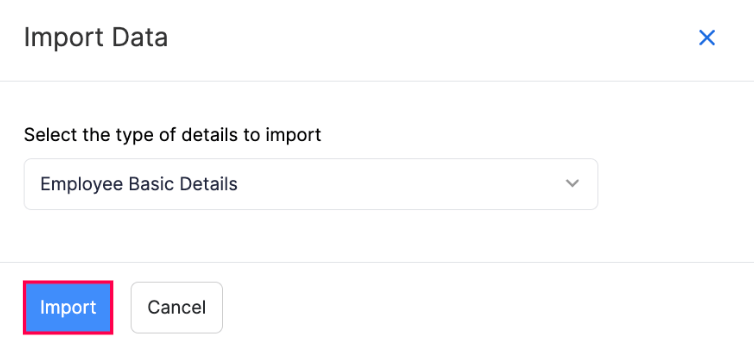
- Click Import.
Note: You can import data in these formats:
- CSV - Comma Separated Value
- TSV - Tab Separated Value
- XLS (XLSX) - Microsoft Excel
Maximum file size: 5MB
- Drag and drop the file you want to import.
- Select how you want to handle duplicate files, you can choose to either Overwrite or Skip the duplicate file.
- Select the Character Encoding from the dropdown.
- Click Next.
- Check the mapping of the fields and click Next.
- Click Import.
Export Employee Data
Here’s how you can export your employees’ data:
- Go to People on the left sidebar.
- Click Employees.
- Click the More icon in the top right corner.
- Select Export Data.
- Select the type of details to export from the dropdown.
- Select the type of employees you want to export from the Filter By dropdown.
- Select the export format from the dropdown.
- Check the Protect this file with a password checkbox and enter the password if you want to export the employee data securely.
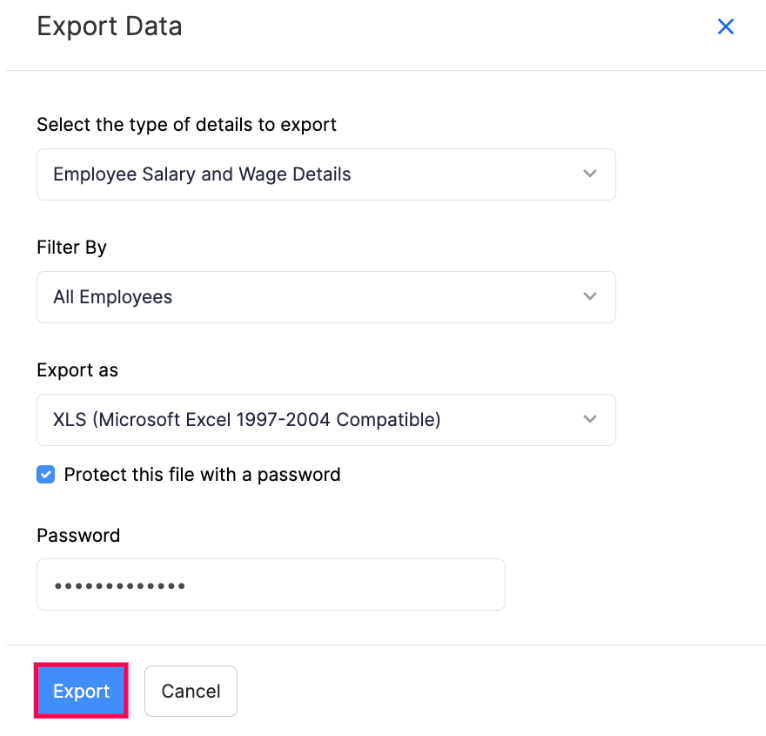
- Click Export.
Delete an Employee
You can delete an employee from Zoho Spend if they are not part of any current or completed pay runs. Here’s how:
- Go to People on the left sidebar.
- Click Employees.
- Click the employee that you want to delete.
- Click the More icon in the top right corner.
- Select Delete Employee.
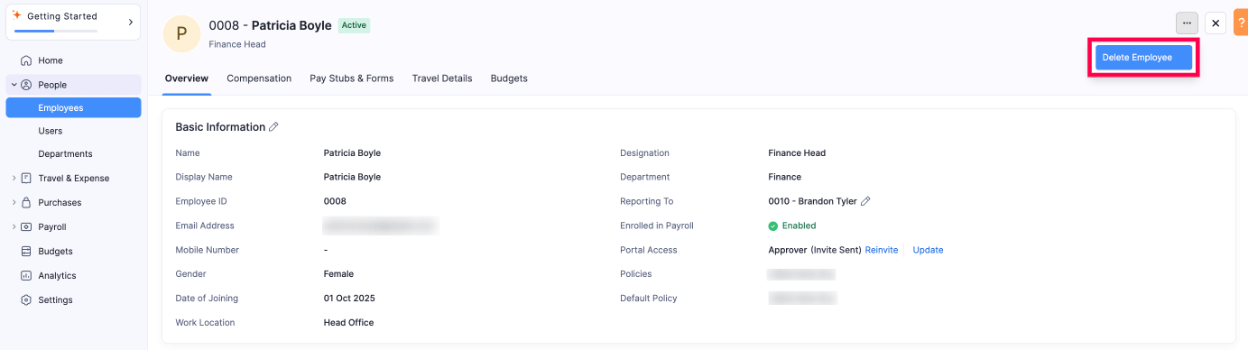
- Confirm your action by clicking Yes in the pop-up.