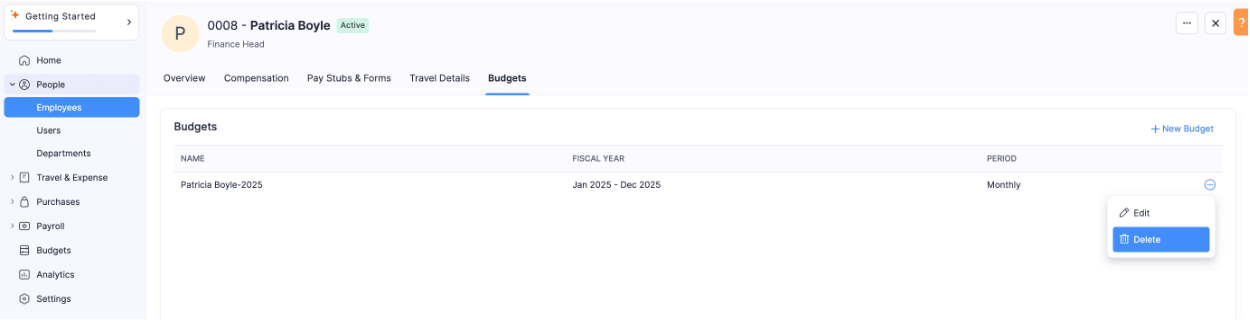


Manage Employee Profile
An employee’s information is split into five sections in Zoho Spend: Basic Information, Compensations, Pay Stubs and Forms, Travel Details, and Employee Budget. Learn how to manage the employee profile to ensure that your employees’ information remains accurate and up-to-date.
Overview
In the Overview page of an employee’s profile, you can view and manage an employees’ Basic Information, Personal Details, Tax Details, and Payment Information.
View and Edit Basic Information
Here’s how you can edit the basic information of your employee:
- Go to People on the left sidebar.
- Click Employees.
- Click the employee’s profile.
- Click the Edit icon next to Basic Information.
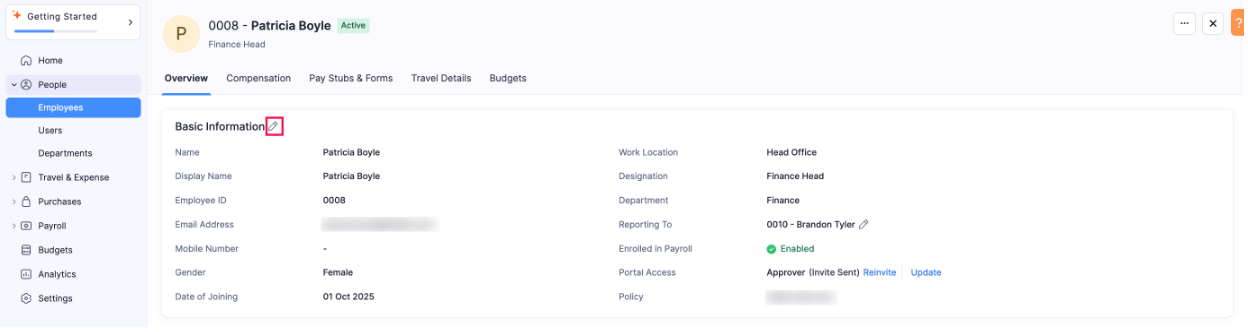
- Make the necessary changes and click Save.
Reinvite Employee to Portal
You can reinvite your employee to their portal. Here’s how:
- Go to People on the left sidebar.
- Click Employees.
- Click the employee’s profile.
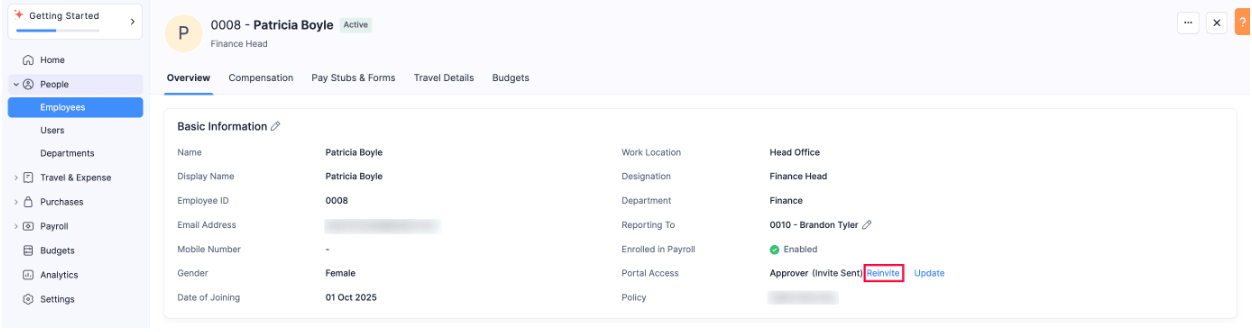
- Click Reinvite next to Portal Access.
Update Portal Access for Employee
You can also update the role with which your employee can access their portal. Here’s how:
- Go to People on the left sidebar.
- Click Employees.
- Click the employee’s profile.
- Click Update next to Portal Access.
- Update the Portal Access role and the Policy for your employee.

- Click Update.
Edit Reporting To of an Employee
You can edit the reporting to of your employee from the employee profile. Here’s how:
- Go to People on the left sidebar.
- Click Employees.
- Click the employee’s profile.
- Click the Edit icon next to Reporting To.
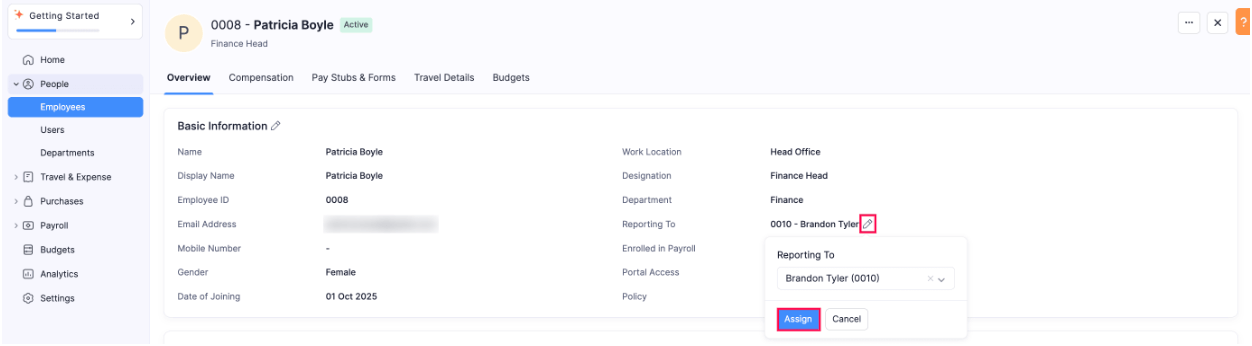
- Select the user from the dropdown and click Assign.
View and Edit Personal Details
Here’s how you can edit the personal details of your employee:
- Go to People on the left sidebar.
- Click Employees.
- Click the employee’s profile.
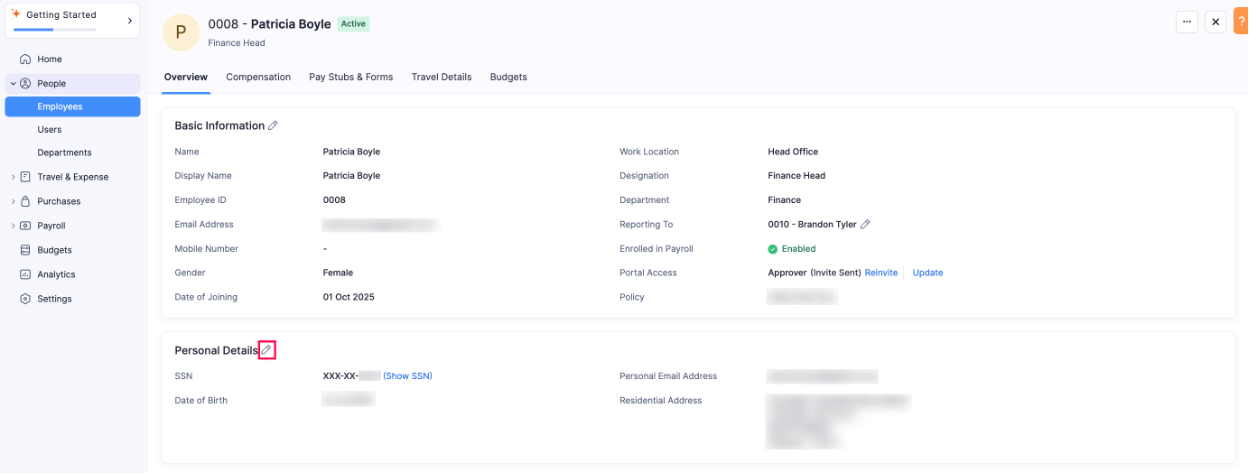
- Click the Edit icon next to Personal Details.
- Make the necessary changes and click Save.
View and Edit Tax Details
Here’s how you can edit the tax details of your employee:
- Go to People on the left sidebar.
- Click Employees.
- Click the employee’s profile.
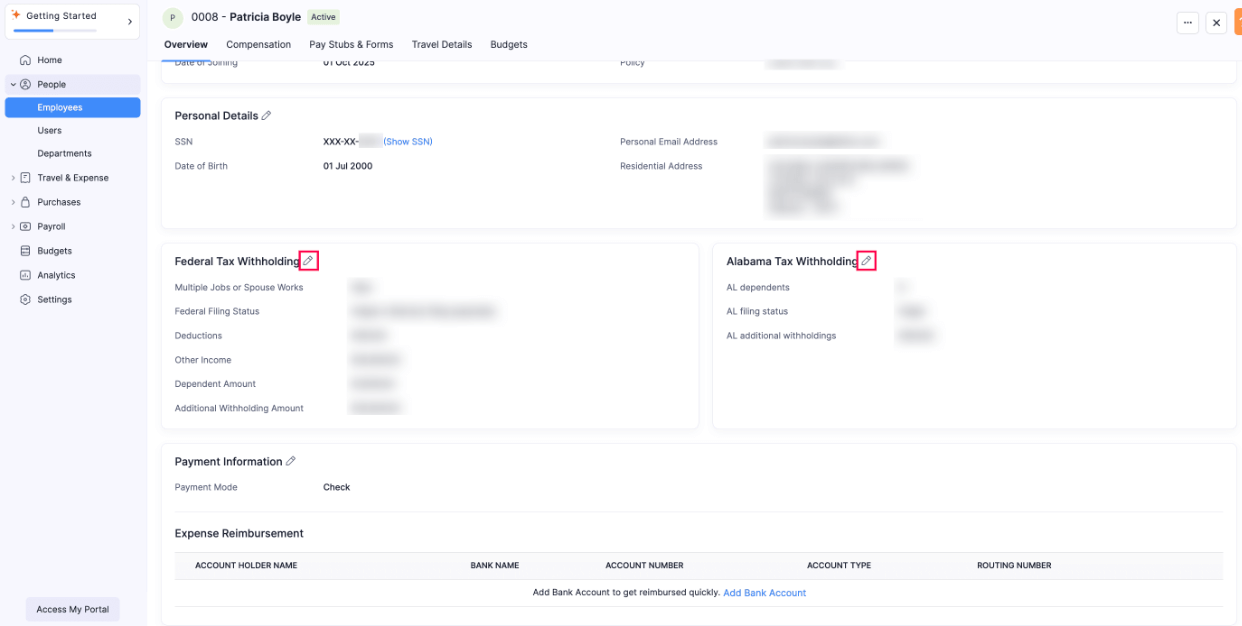
- Click the Edit icon next to the respective tax type.
- Make the necessary changes and click Save.
View and Edit Payment Information
Here’s how you can edit the payment information of your employee:
- Go to People on the left sidebar.
- Click Employees.
- Click the employee’s profile.
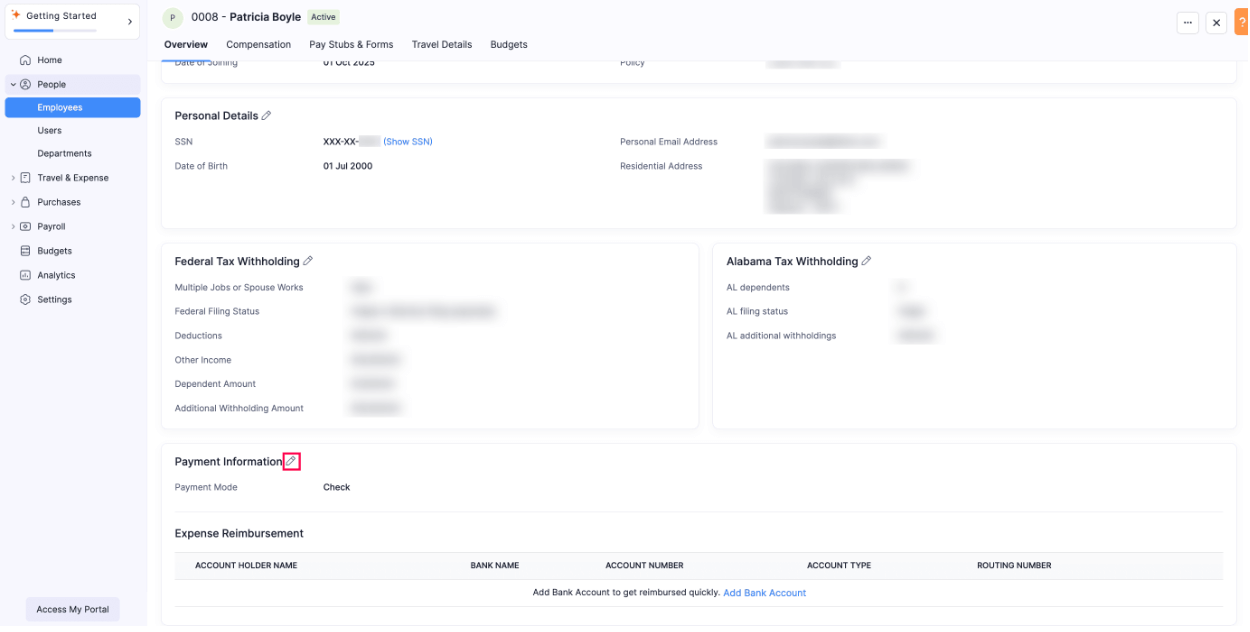
- Click the Edit icon next to Payment Information.
- Make the necessary changes and click Save.
Add Expense Reimbursement Bank Account for an Employee
You can add your employees’ bank account to reimburse the employees’ expenses, if they are not enrolled to payroll. Here’s how:
- Go to People on the left sidebar.
- Click Employees.
- Click the employee’s profile.
- Click Add Bank Account.
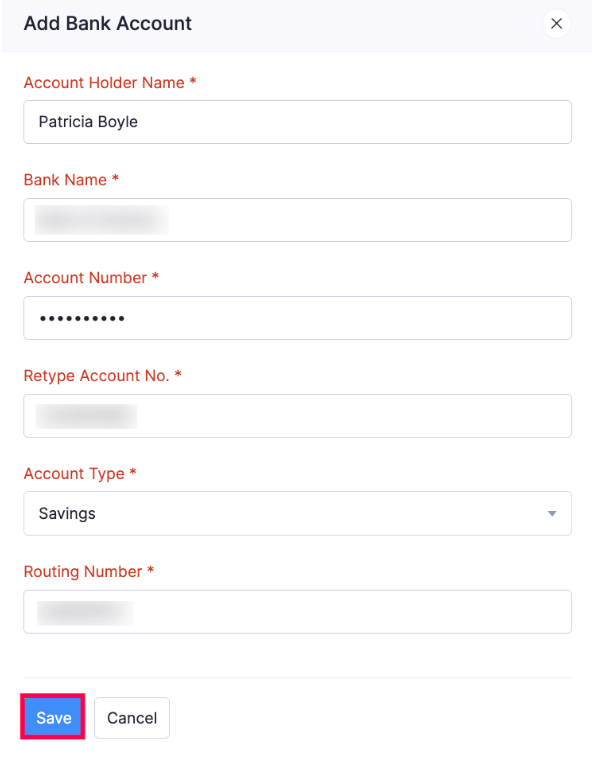
- Enter the Account Holder Name, Bank Name, Account Number, Retype Account No., Account Type, and Routing Number.
- Click Save.
Compensation
Edit Salary and Wages of Employees
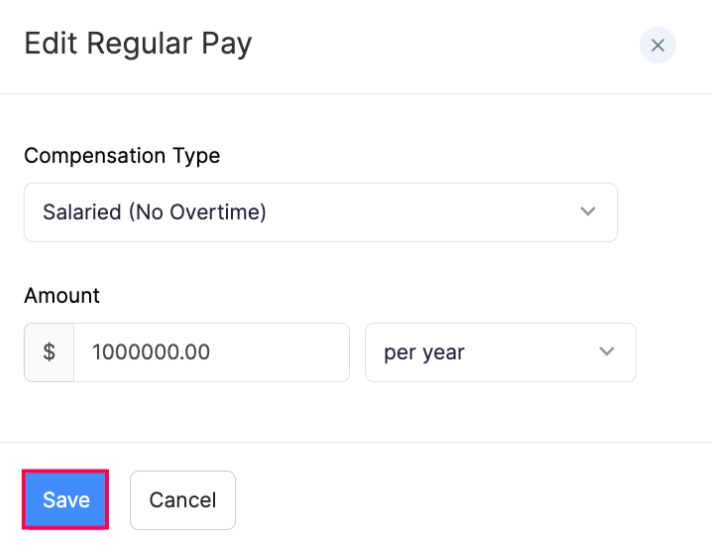
Here’s how you can edit the salary and wages of your employees:
- Go to People on the left sidebar.
- Click Employees.
- Click the employee’s profile.
- Go to the Compensation tab.
- Click Edit next to the salary details.
- Make the necessary changes and click Save.
Assign Benefits to an Employee
Here’s how you can assign benefits to an employee:
- Go to People on the left sidebar.
- Click Employees.
- Click the employee’s profile.
- Go to the Compensation tab.
- Click Benefits.
- Select the Benefit Name from the dropdown.
- Select the Contribution Frequency from the dropdown.
- Enter the Employees’ Contribution.
- Enter the Employer’s Contribution.
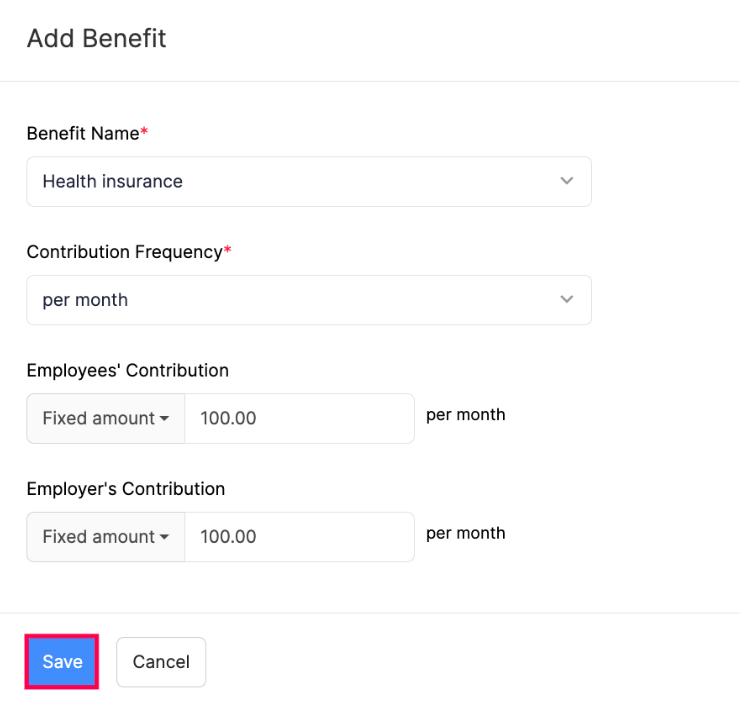
- Click Save.
Add New Benefit for an Employee
Here’s how you can add another benefit for an employee:
- Go to People on the left sidebar.
- Click Employees.
- Click the employee’s profile.
- Go to the Compensation tab.
- Click + Add New next to Benefits.
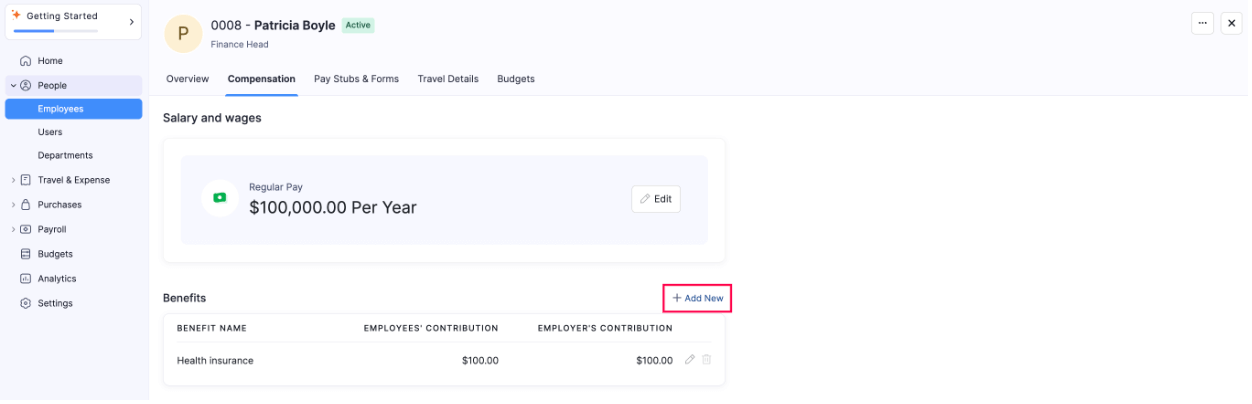
- Add a new benefit and click Save.
Edit a Benefit
Here’s how you can edit the benefit assigned to an employee:
- Go to People on the left sidebar.
- Click Employees.
- Click the employee’s profile.
- Go to the Compensation tab.
- Click the Edit icon next to the benefit.
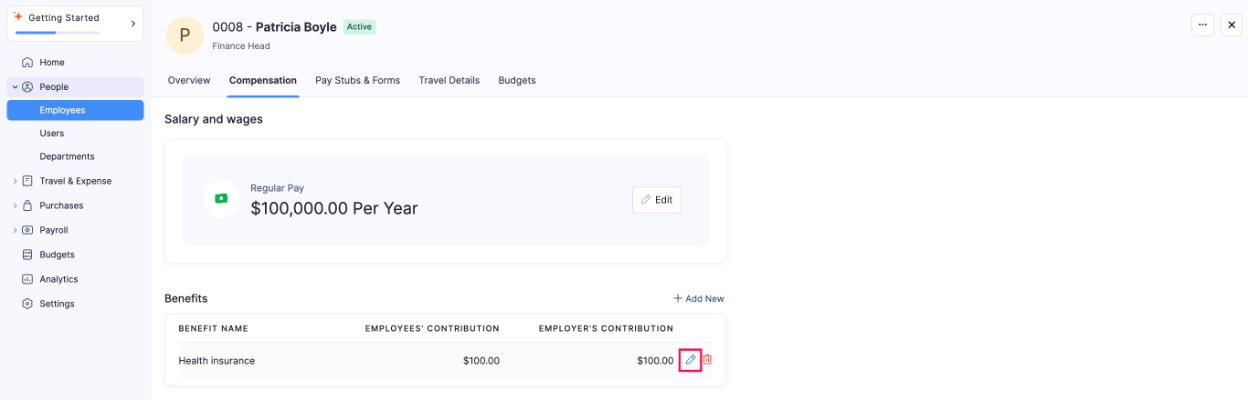
- Make the necessary changes and click Save.
Delete a Benefit
Here’s how you can delete the benefit assigned to an employee:
- Go to People on the left sidebar.
- Click Employees.
- Click the employee’s profile.
- Go to the Compensation tab.
- Click the Delete icon next to the benefit.

- Confirm your action by clicking Yes in the pop-up.
Assign Deductions to an Employee
Here’s how you can assign deductions to an employee:
- Go to People on the left sidebar.
- Click Employees.
- Click the employee’s profile.
- Go to the Compensation tab.
- Click Deductions.
- Select a Deduction from the dropdown.
- Enter the Amount. You can either deduct a percentage of gross pay or a fixed amount.
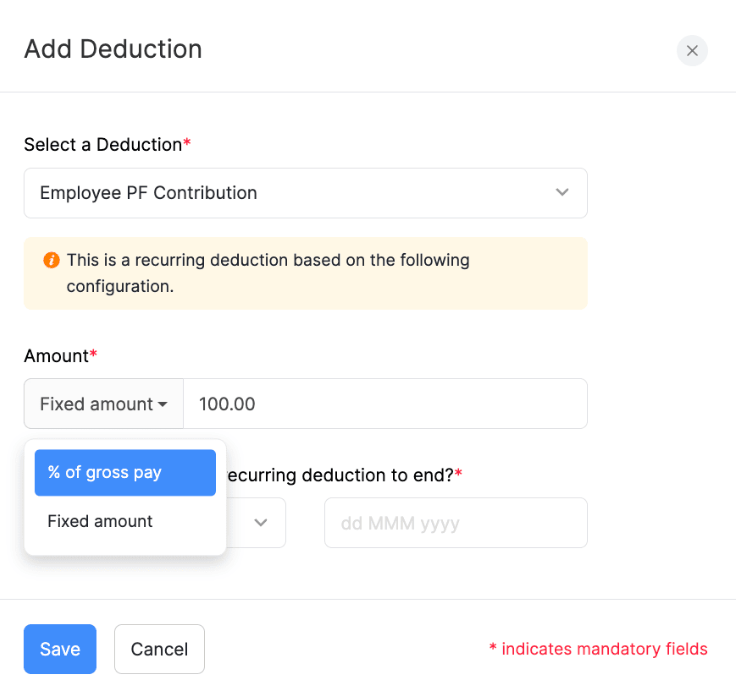
- Select when you want this recurring deduction to end. You can choose if you want the deduction to end on a selected date, end on recovering a specific amount, or never end from the dropdown.
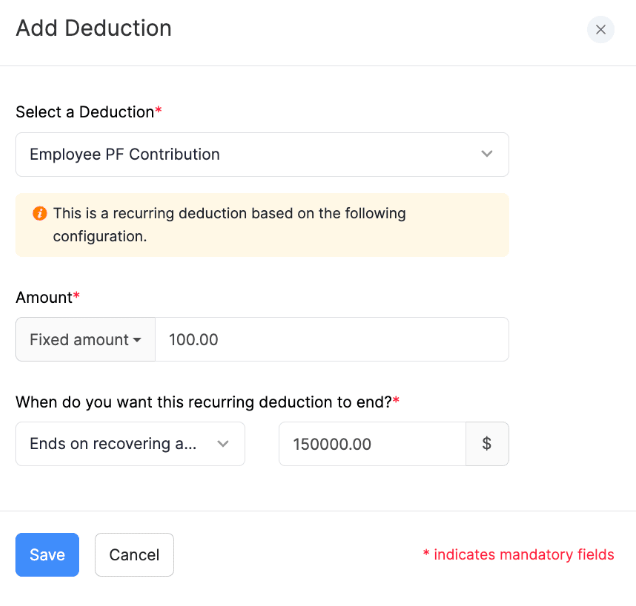
- Click Save.
Add New Deduction for an Employee
Here’s how you can add another deduction for an employee:
- Go to People on the left sidebar.
- Click Employees.
- Click the employee’s profile.
- Go to the Compensation tab.
- Click + Add New next to Deductions.
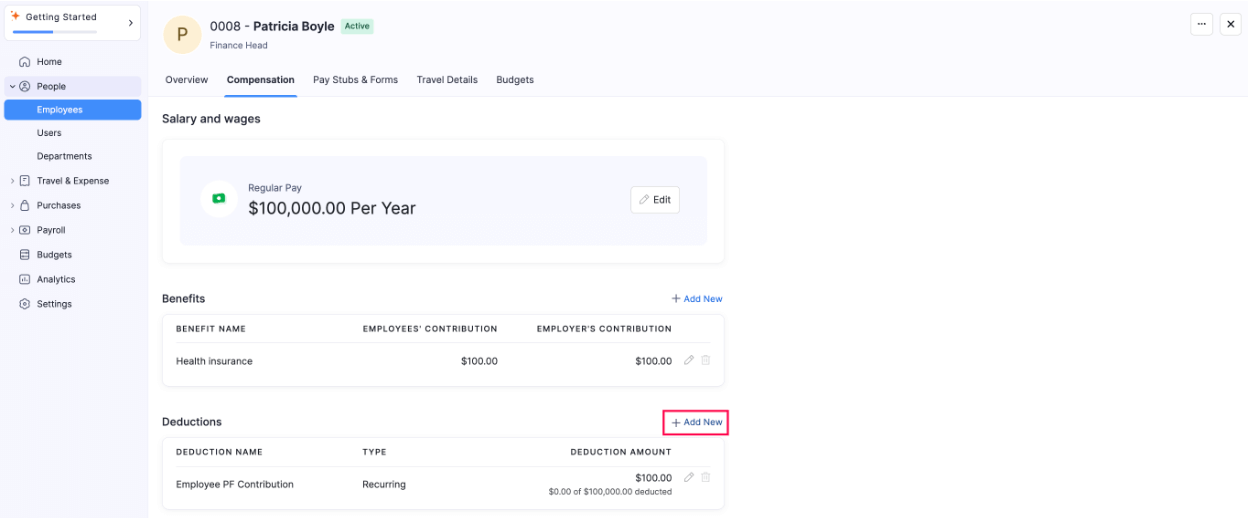
- Add a new deduction and click Save.
Edit a Deduction
Here’s how you can edit the deduction assigned to an employee:
- Go to People on the left sidebar.
- Click Employees.
- Click the employee’s profile.
- Go to the Compensation tab.
- Click the Edit icon next to the Deductions.
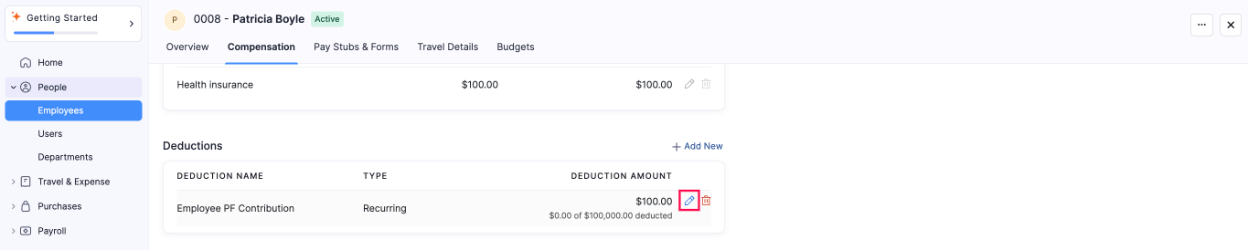
- Make the necessary changes and click Save.
Delete a Deduction
Here’s how you can delete the deduction assigned to an employee:
- Go to People on the left sidebar.
- Click Employees.
- Click the employee’s profile.
- Go to the Compensation tab.
- Click the Delete icon next to the Deductions.

- Confirm your action by clicking Yes in the pop-up.
Assign Sick Leave Policy for an Employee
Here’s how you can assign sick leave policy for an employee:
- Go to People on the left sidebar.
- Click Employees.
- Click the employee’s profile.
- Go to the Compensation tab.
- Click Sick Leave Policy.
- Select the Earning Method from the dropdown.
- Add the number of hours.
- Enter the Current Balance.
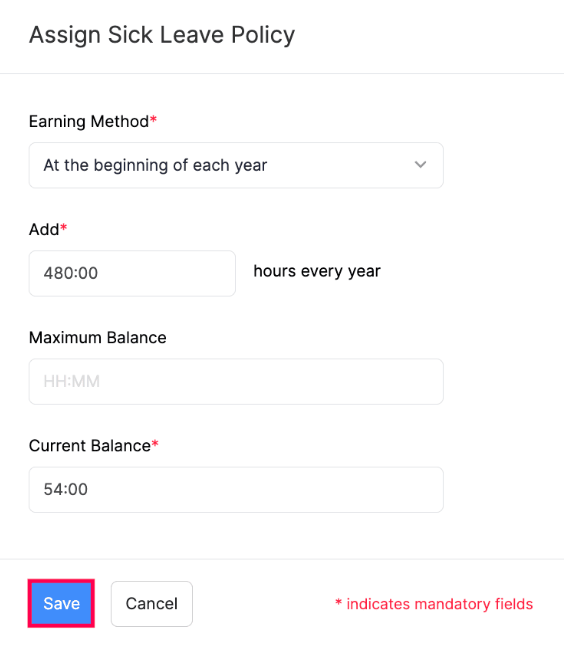
- Click Save.
Edit Sick Leave Policy for an Employee
Here’s how you can edit the sick leave policy of an employee:
- Go to People on the left sidebar.
- Click Employees.
- Click the employee’s profile.
- Go to the Compensation tab.
- Click the Edit icon next to the Sick Leave Policy.
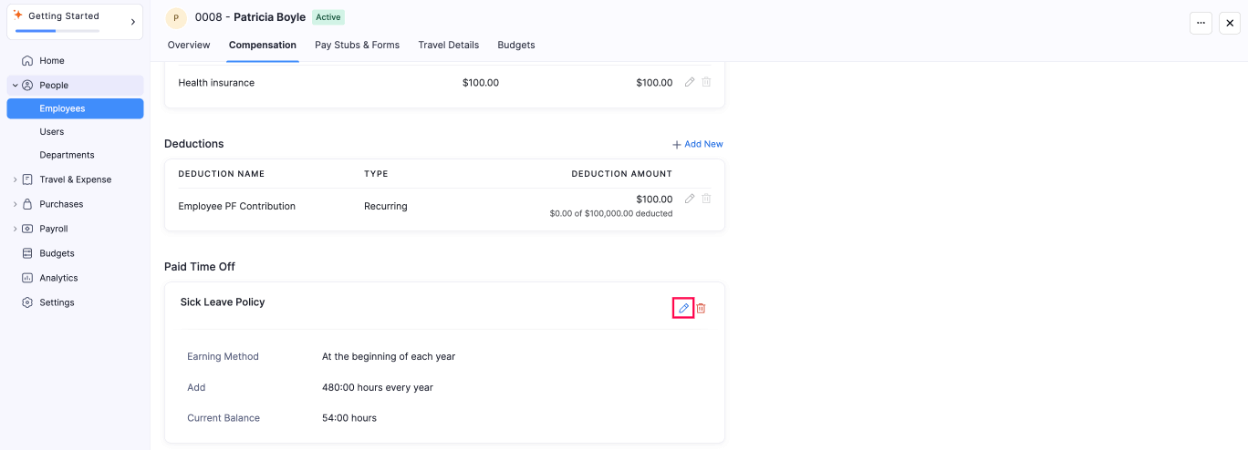
- Make the necessary changes and click Save.
Delete Sick Leave Policy for an Employee
Here’s how you can delete the sick leave policy of an employee:
- Go to People on the left sidebar.
- Click Employees.
- Click the employee’s profile.
- Go to the Compensation tab.
- Click the Delete icon next to the Sick Leave Policy.
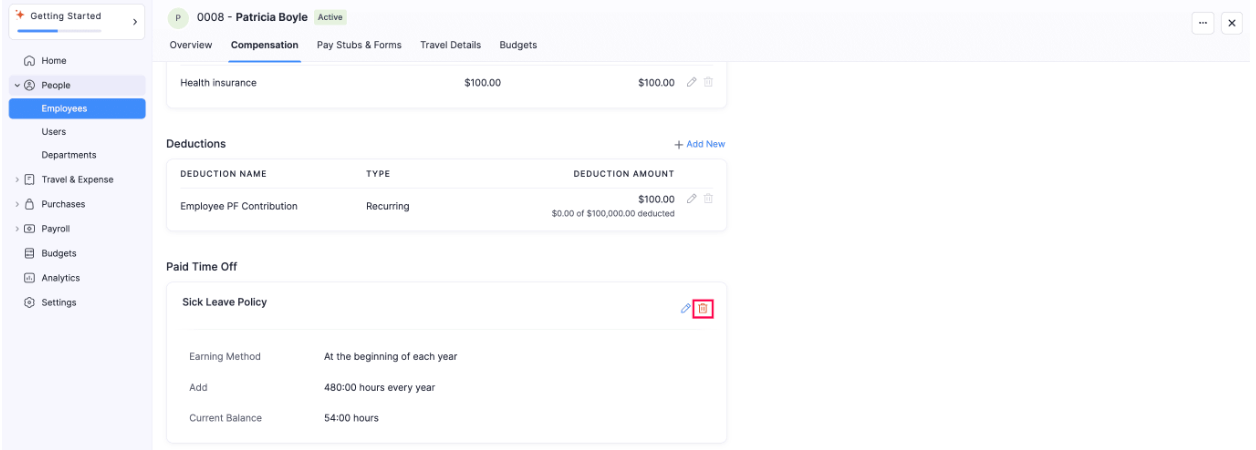
- Confirm your action by clicking Yes in the pop-up.
Assign Vacation Leave Policy for an Employee
Here’s how you can assign vacation leave policy for an employee:
- Go to People on the left sidebar.
- Click Employees.
- Click the employee’s profile.
- Go to the Compensation tab.
- Click Vacation Leave Policy.
- Select the Earning Method from the dropdown.
- Add the number of hours.
- Enter the Current Balance.
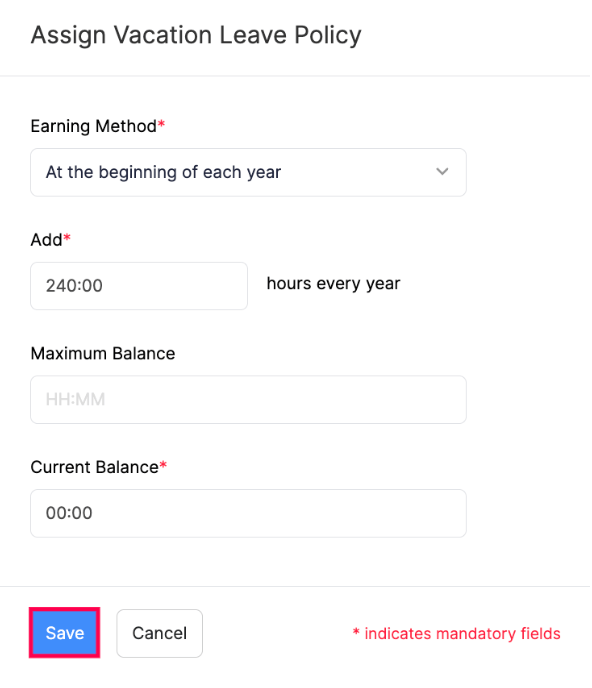
- Click Save.
Edit Vacation Leave Policy for an Employee
Here’s how you can edit the vacation leave policy of an employee:
- Go to People on the left sidebar.
- Click Employees.
- Click the employee’s profile.
- Go to the Compensation tab.
- Click the Edit icon next to the Vacation Leave Policy.
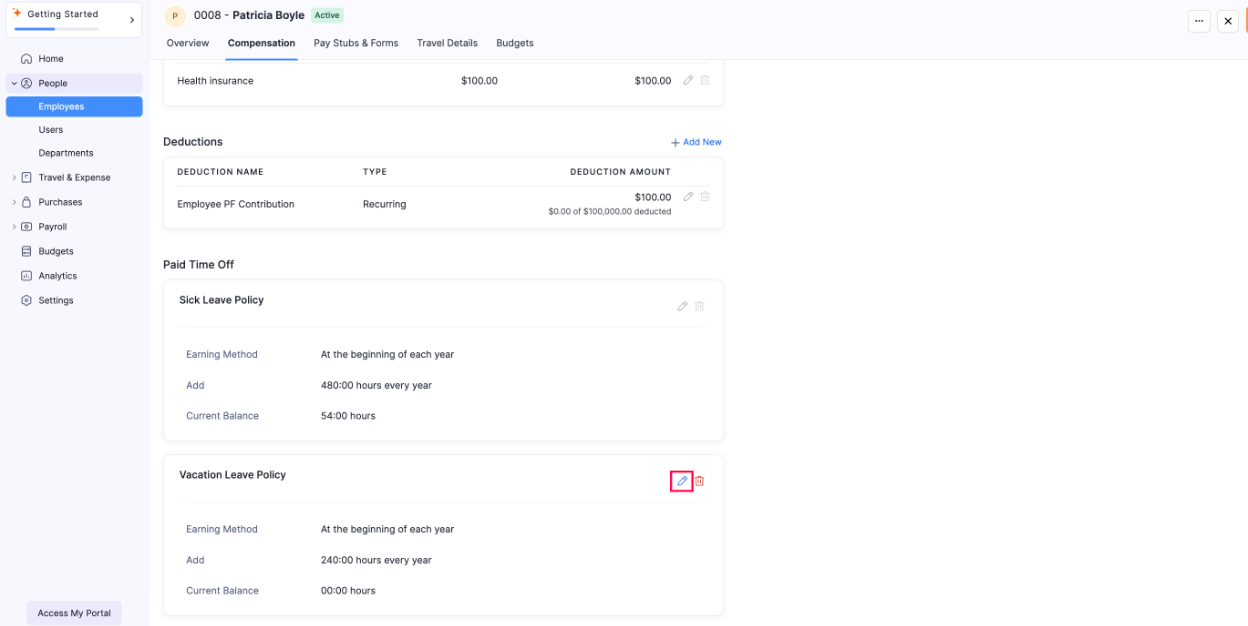
- Make the necessary changes and click Save.
Delete Vacation Leave Policy for an Employee
Here’s how you can delete the vacation leave policy of an employee:
- Go to People on the left sidebar.
- Click Employees.
- Click the employee’s profile.
- Go to the Compensation tab.
- Click the Delete icon next to the Vacation Leave Policy.
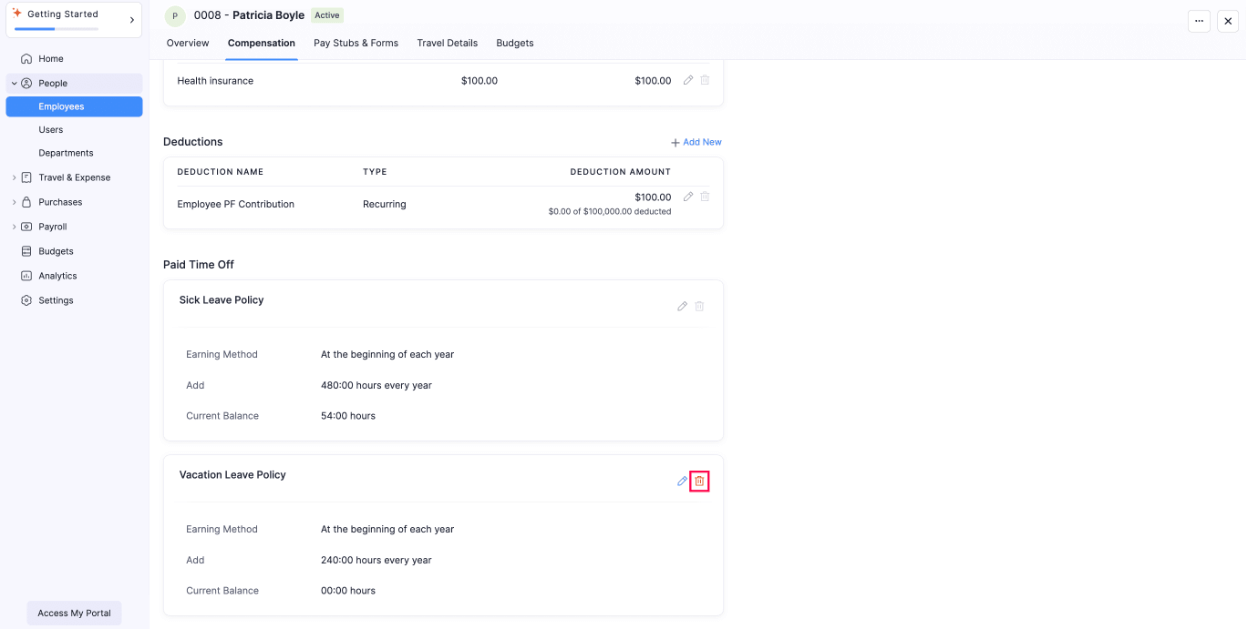
- Confirm your action by clicking Yes in the pop-up.
Pay Stubs and Forms
View your employees’ recent pay stubs and forms. Click on the dropdown next to fiscal year and select the year to view pay stubs for each fiscal year.
Travel Details
Once your employee has configured their travel profile and loyalty programs, you can view them here.
Employee Budget
Learn how to view, create, and manage an employee’s budget.
View Employee Budget
Here’s how you can view the employees’ budget:
- Go to People on the left sidebar.
- Click Employees.
- Click the employee’s profile.
- Go to the Budgets tab. View your employees’ budget or create a new budget for this employee.
Add New Employee Budget
Here’s how you can add another budget for the employee:
- Go to People on the left sidebar.
- Click Employees.
- Click the employee’s profile.
- Go to the Budgets tab.
- Click + New Budget.
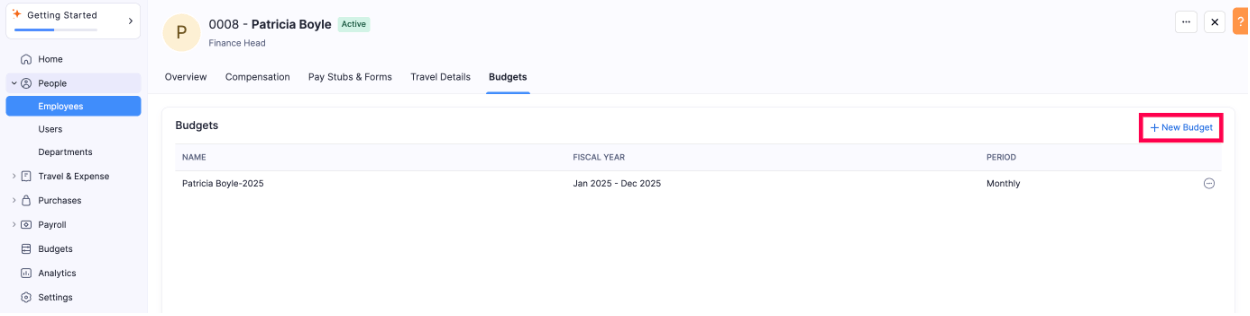
- Add the Employee Budget and click Save.
Edit Employee Budget
Here’s how you can edit the employee’s budget:
- Go to People on the left sidebar.
- Click Employees.
- Click the employee’s profile.
- Go to the Budgets tab.
- Hover over the budget you want to edit and click the More icon next to it.
- Click Edit.
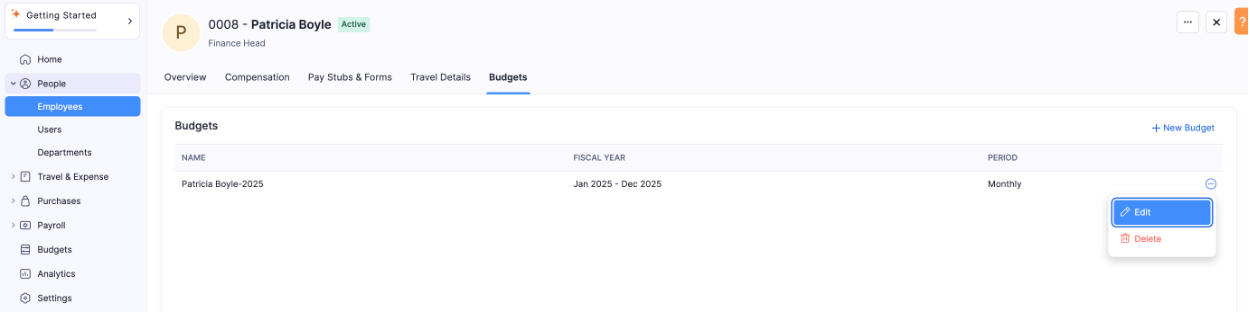
- Make the necessary changes and click Save.
Delete Employee Budget
Here’s how you can delete the employee’s budget:
- Go to People on the left sidebar.
- Click Employees.
- Click the employee’s profile.
- Go to the Budgets tab.
- Hover over the budget you want to delete and click the More icon next to it.
- Click Delete.