



Add Employees
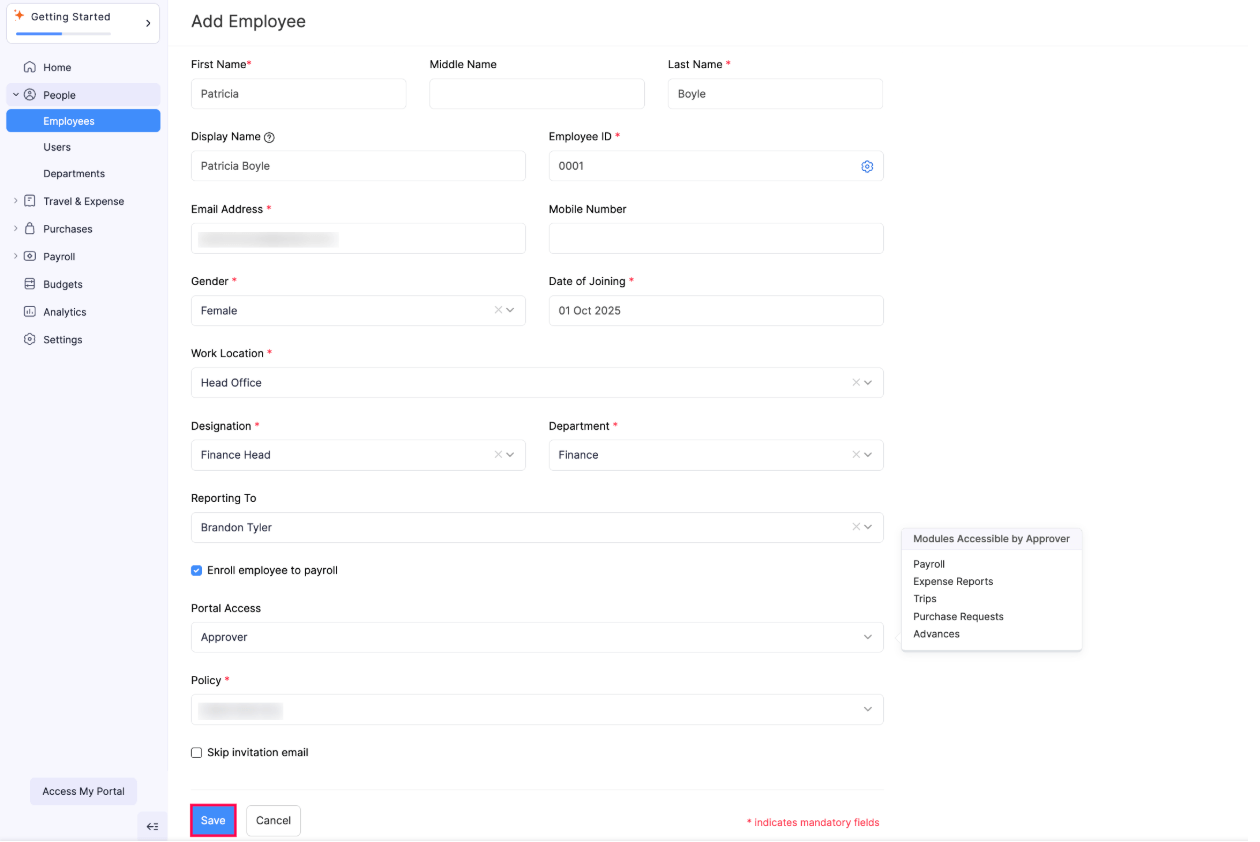
Here’s how you can add an employee in Zoho Spend:
- Go to People on the left sidebar.
- Click Employees.
- Click Add Employee in the top right corner.
- Enter the First Name and Last Name of your employee.
- Provide a Display Name for your employee.
- Enter the Employee ID of your employee.
- Click the Gear icon next to the Employee ID field to enable or disable the auto-generation of employee IDs. Choose if you want to Auto-generate your employee IDs or Manually enter the employee IDs by clicking the checkbox and click Save.
- Enter the Email Address of your employee.
- Provide the Mobile Number, Gender, and Date of Joining of the employee.
- Select the Work Location of your employee from the dropdown.
- Select the Designation and Department of your employee.
- Select who your employee reports to from the Reporting To dropdown.
- Check the Enroll Employee to Payroll checkbox to enroll your employees to payroll.
- Select the role with which your employee can access their employee portal from the Portal Access dropdown. Select No Access if you do not want to provide access to portal for this employee.
Note: Employees for whom you’ve provided access to the employee portal, can access their portal using the dedicated Zoho Spend Employee Portal apps available in Android and iOS.
- Click Save.
Complete Employee Profile
Note: These steps are applicable only if you’ve enabled the Enroll Employee to Payroll option when adding the employee.
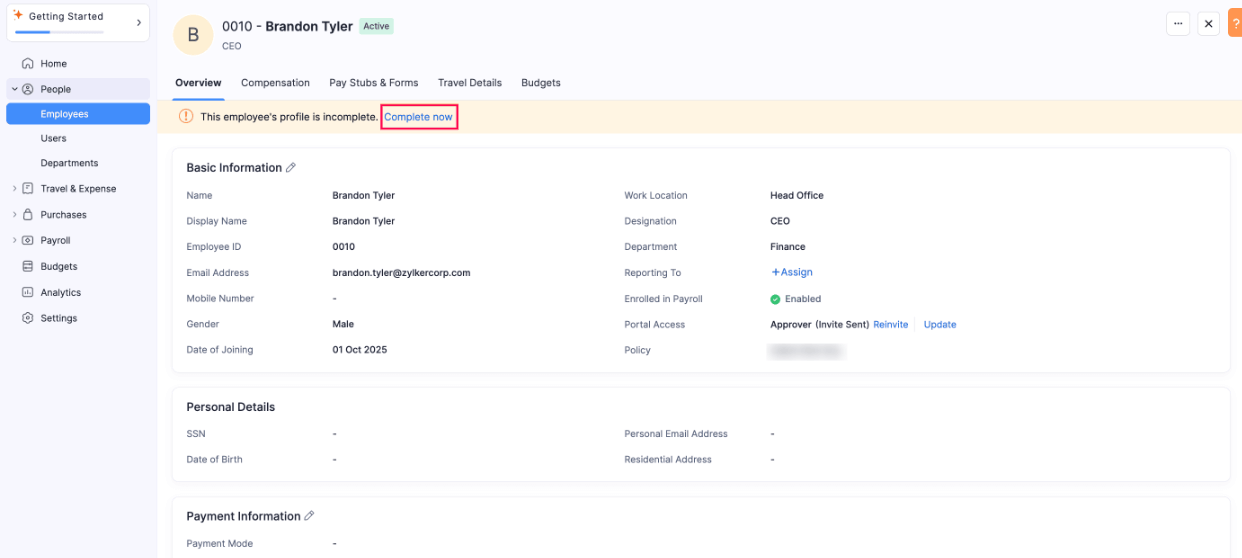
Once you’ve entered the basic details of your employee, you can proceed to complete their profile. Here’s how:
- Go to People on the left sidebar.
- Click Employees.
- Click the employee’s profile.
- Click Complete Now in the top pane.
Compensation
- Select the Compensation Type from the dropdown.
- Enter the compensation Amount for your employee.
- If the Compensation Type is Paid by the hour, enter the hourly wage you pay your employee.
- If the Compensation Type is Salaried (No Overtime), you can choose to either pay the employee compensation amount per year or per hour by clicking the dropdown at the end of the Amount field.
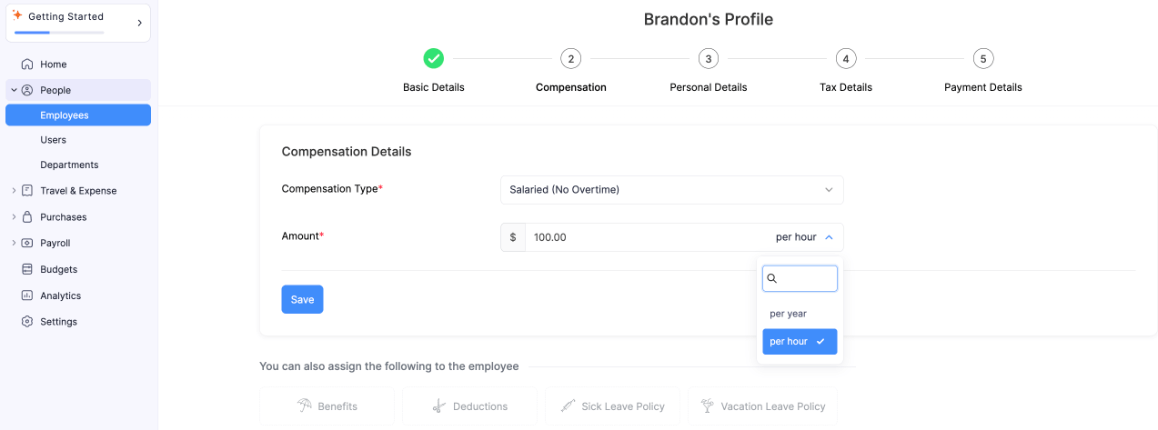
- Click Save.
- You can also assign Benefits, Deductions, Sick Leave Policy and Vacation Leave Policy for this employee.
- Click Save and Continue.
Personal Details
- Enter the SSN (Social Security Number) of your employee.
- Select the Date of Birth of your employee.
- Provide the Personal Email Address of your employee, if required.
- Enter the Residential Address of your employee.
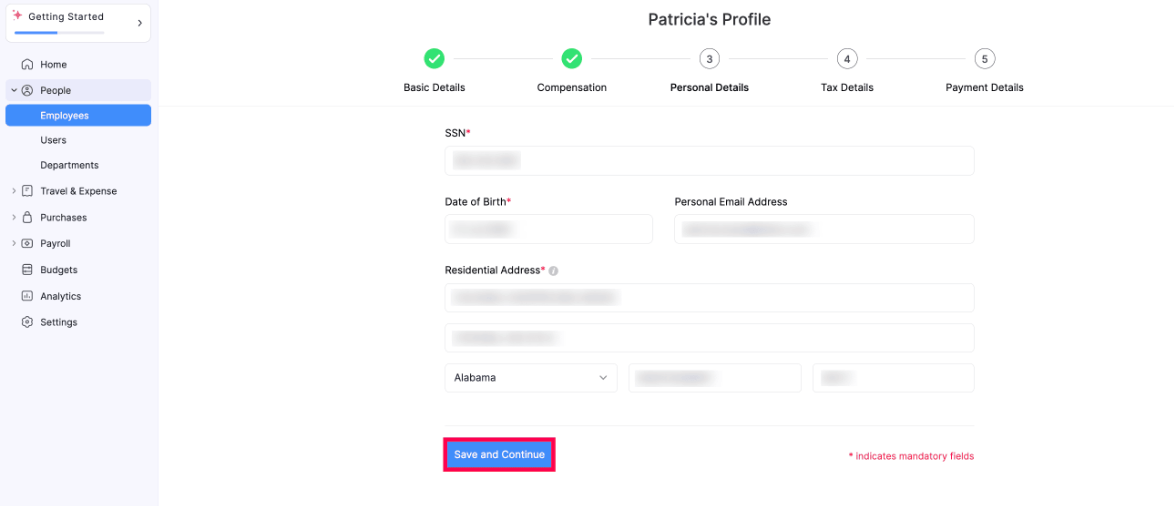
- Click Save and Continue.
Tax Details
Provide the employee’s federal tax and state tax details.
Federal Tax Setup
1. 2019 or Earlier or 2020 or Later -
- Choose 2019 or Earlier if:
- You have a valid Form W-4 submitted by the employee before 2020.
- The employee hasn’t submitted the latest version of Form W-4.
- Choose 2020 or Later for new hires (employees who join on or after 1 January 2020) and existing employees who submit the latest version of Form W-4.
2. Multiple Jobs or Spouse Works - Select this if the employee holds more than one job. You can find this information in Step 2 of the employee’s Form W-4.
3. Federal Filing Status - Select the employee’s federal filing status:
- Single or Married, filing separately
- Married filing jointly or Qualifying surviving spouse
- Head of Household
- Non-resident Alient
You can find this information in Step 1(c) of the employee’s Form W-4.
4. Dependent Amount - Enter the total amount that the employee wants to claim for their dependents. You can find this information in Step 3 of the employee’s Form W-4.
5. Additional Withholding Amount - Enter the additional tax amount that the employee wants to be withheld for each pay period. You can find this information in Step 4(c) of the employee’s Form W-4.
6. Other Income - Enter the income amount that the employee is expecting from other sources like interests, dividends, and retirement income. You can find this information in Step 4(a) of the employee’s Form W-4.
7. Deductions - Enter the amount of deductions other than the standard deduction amount that the employee wants to claim. You can find this information in Step 4(b) of the employee’s Form W-4.
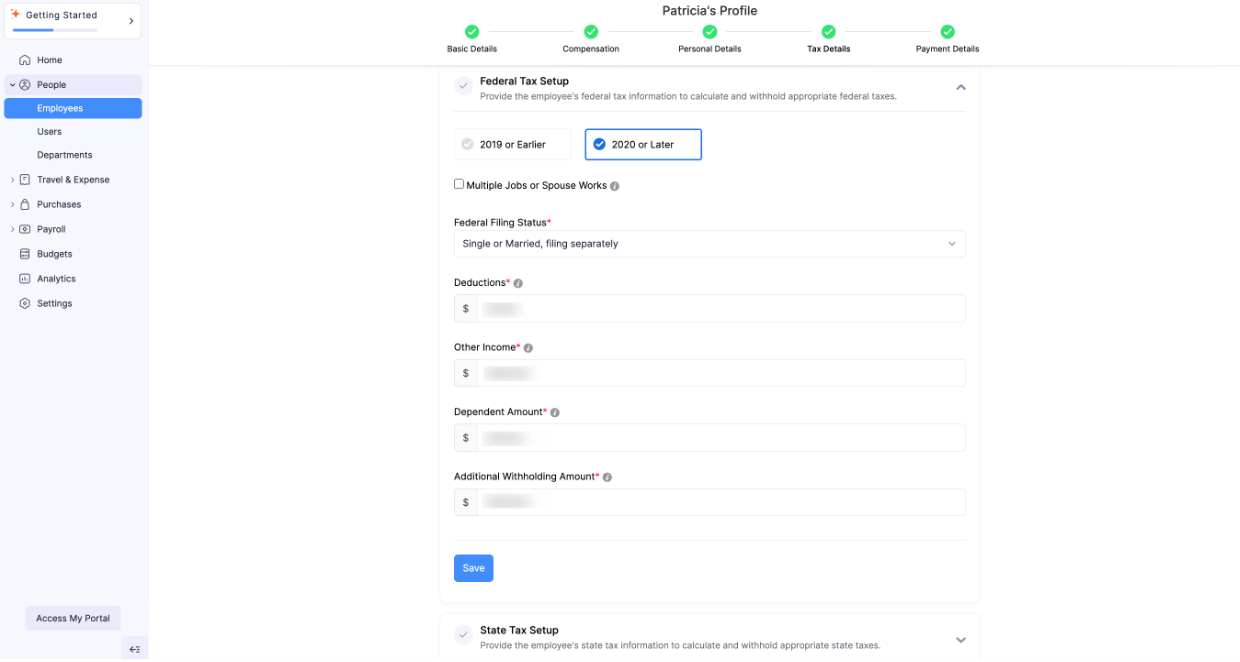
- Click Save.
State Tax Setup
- Provide the employee’s state tax details, such as their state filing status, allowance details, and so on. The information collected in this section varies for different states. Click Save.
- Provide the information required in the Additional Information section. The information collected in this section varies for different states. Click Save.
Payment Details
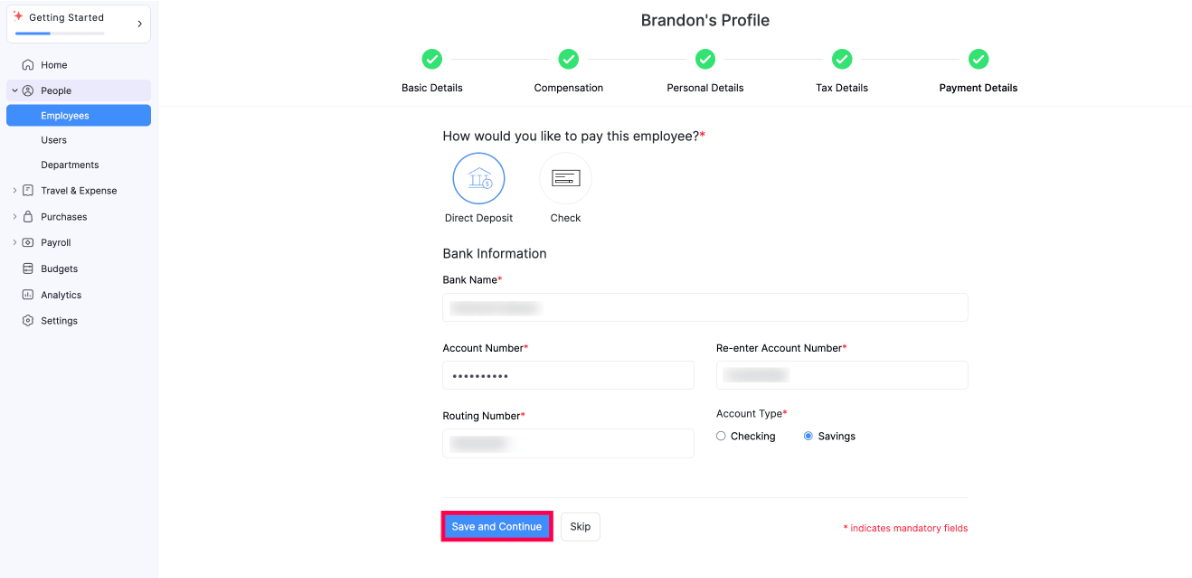
Select how you’d like to pay your employee. You can choose either Direct Deposit or Check.
Direct Deposit
Enter the information of the bank in which the employee holds an account and wants to receive payments from you:
- Enter the Bank Name.
- Enter the Account Number.
- Re-enter the Account Number in the next field.
- Enter the 9-digit Routing Number.
- Choose the Account Type: Checking or Savings.
- Click Save and Continue.
Check
You’ll need to pay your employees via check and then record payments manually for each payroll.
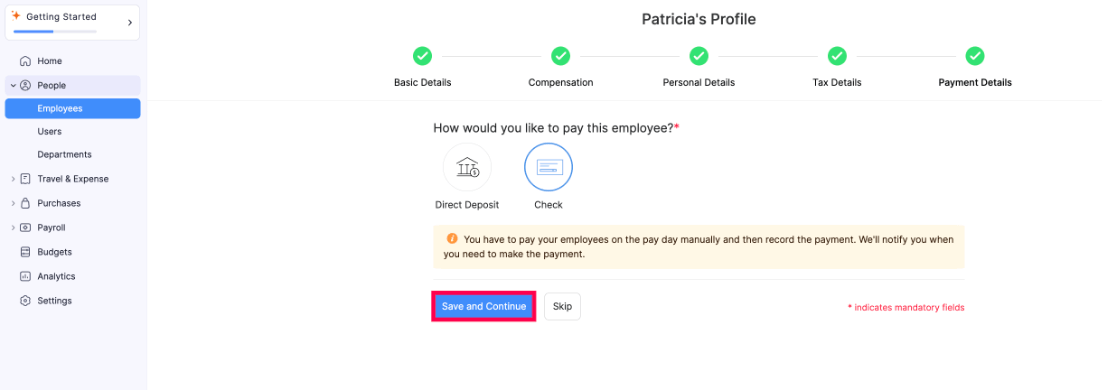
- Click Save and Continue.
The employee’s profile will be added to Zoho Spend.