

Self-Employment Summary

If your business is registered as Sole Trader and your revenue is less than £50,000, you must file your returns with HMRC using the Self-Employment Summary. In Zoho Books, you can generate a detailed Self-Employment Summary report for the income and expenses your business incur, and use it to file your returns with HMRC (His Majesty’s Revenue & Customs).
Note: If your business’s annual revenue is £50,000 or more, you can choose to submit your quarterly updates to HMRC using Making Tax Digital for Income Tax.
Generate Self-Employment Summary Report
To generate the Self-Employment Summary report in Zoho Books:
- Log in to your Zoho Books organisation.
- Go to Reports on the left sidebar.
- Scroll down to Taxes, and select Self-Employment Summary, or find it using the search bar at the top of the page.
The report will be displayed.
Configure Accounts
You can also configure the accounts that needs to be included in the respective boxes. By default, certain accounts are automatically selected. However, you can exclude them and include new accounts, based on how you track the transactions in Zoho Books.
To configure accounts in this report:
Go to Reports on the left sidebar.
Scroll down to Taxes, and select Self-Employment Summary, or find it using the search bar at the top of the page.
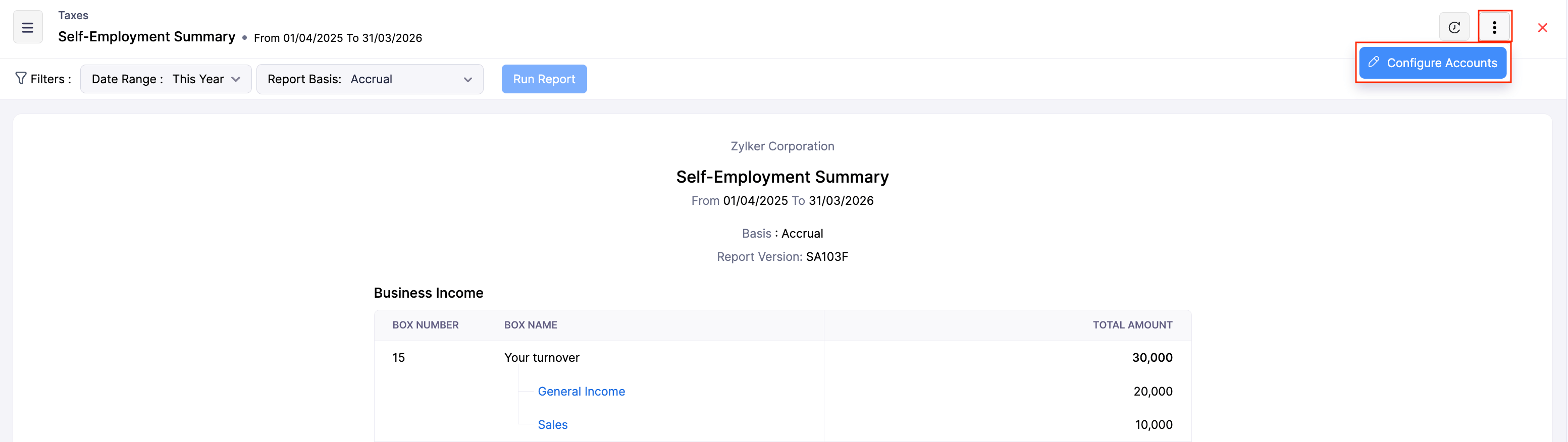
In the next page, click the More icon in the top right corner, and select Configure Accounts from the dropdown.
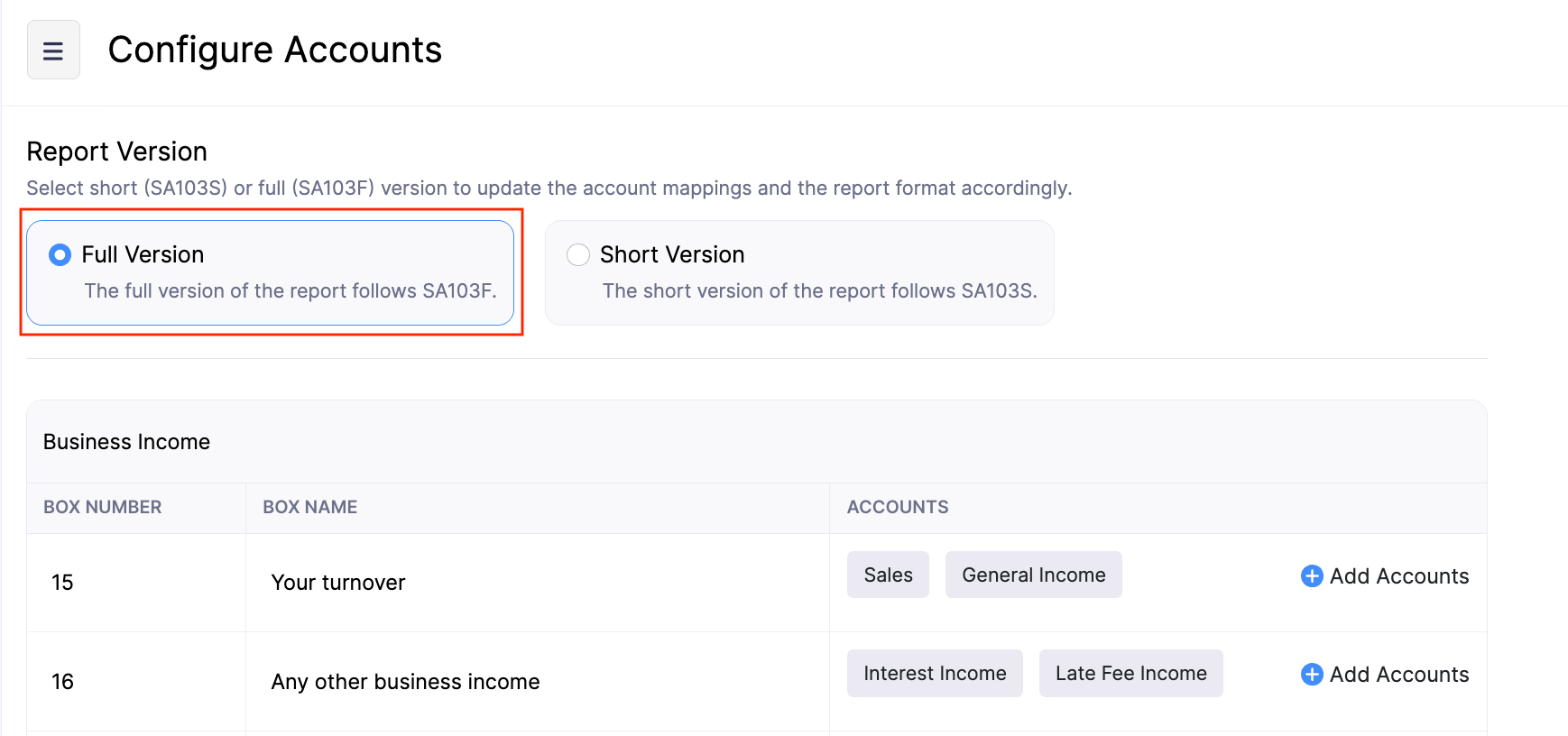
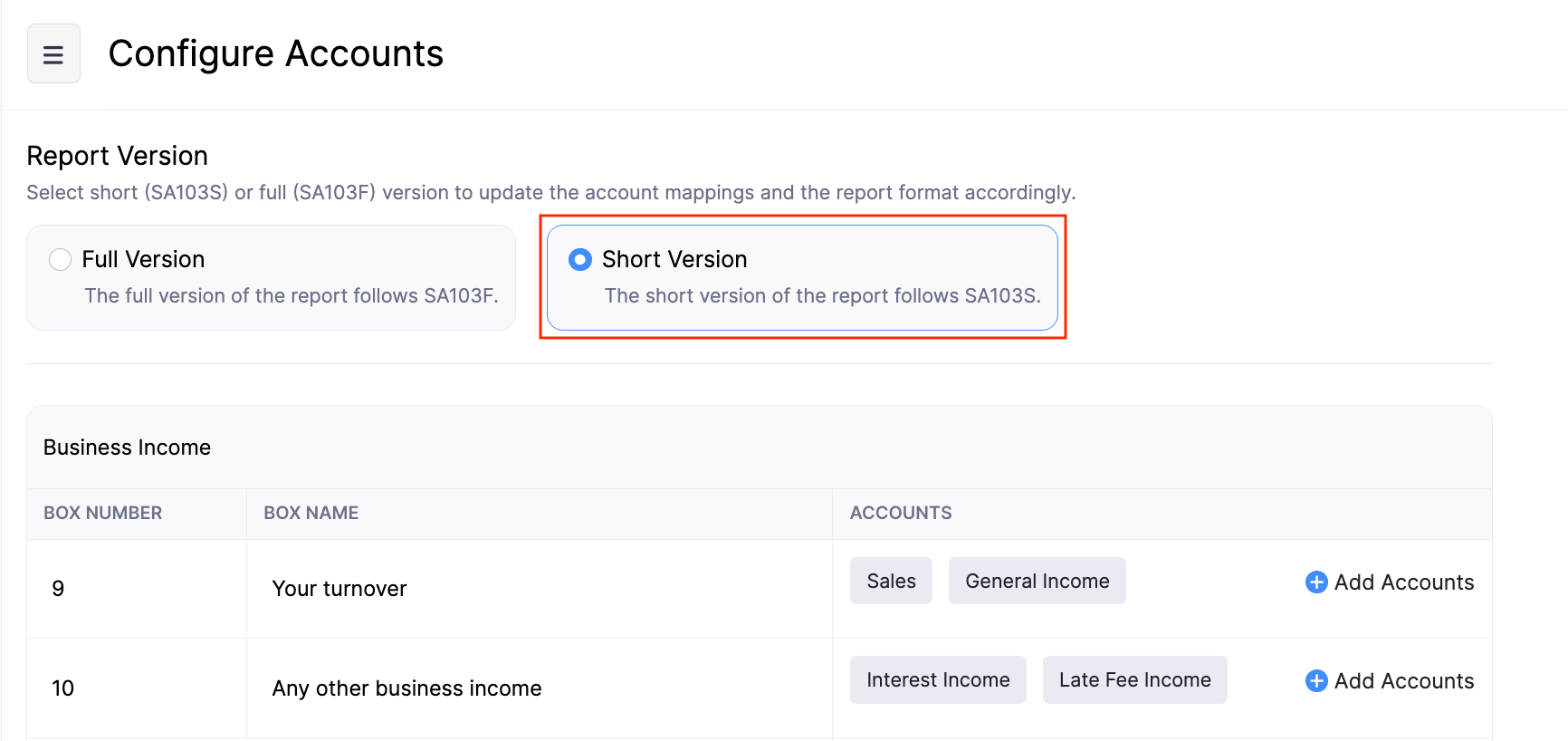
In the next page, select whether you want to configure accounts for Full Version (SA103F) or Short Version (SA103S).
Insight:
- SA103S: Use this form if you run small or simple businesses. Report your income and basic expenses, so HMRC can calculate your taxes quickly.
- SA103F: Use this form if you run larger or complex businesses. Report detailed income, expenses, and other business information for an accurate tax calculation.
Once selected, the list of accounts selected for the respective box will be displayed. To update the list of accounts:
- Click + Add Accounts next to the respective box.
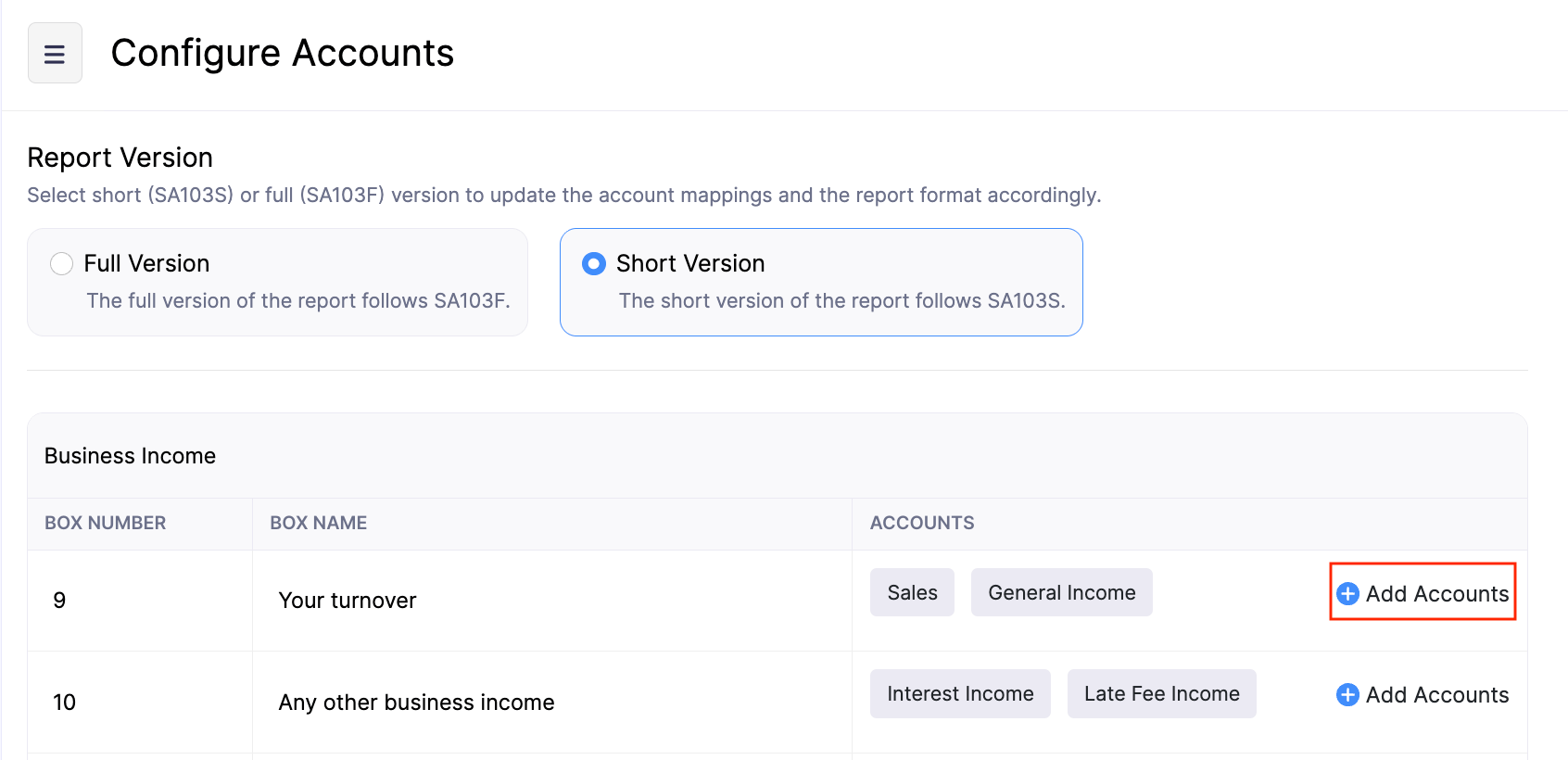
- In the Configure Accounts pop-up, select the required accounts, and click Update.
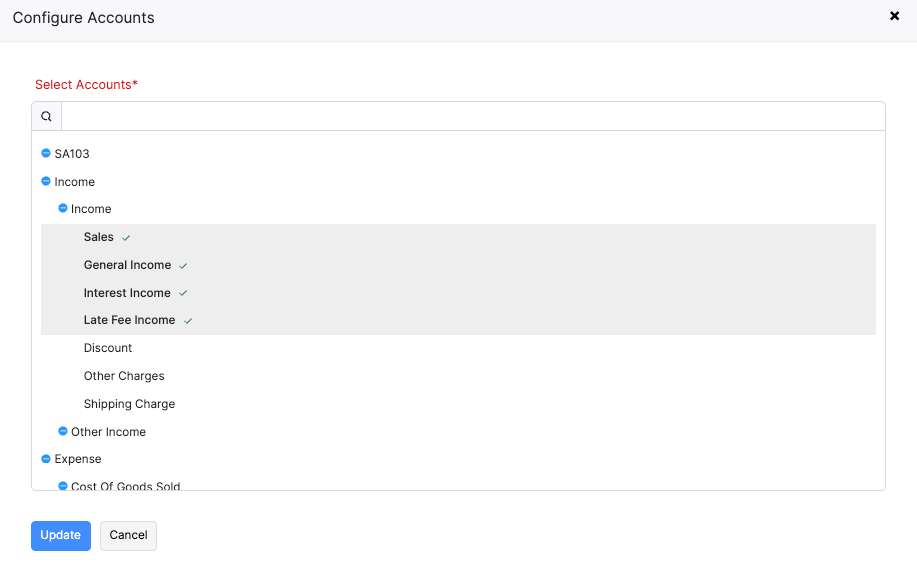
Once you’ve configured accounts for the required boxes, click Save.
The accounts will be configured based on your preferences.
Filter Report
You can filter the report based on their date range and the report basis. To do this:
Go to Reports on the left sidebar.
Scroll down to Taxes, and select Self-Employment Summary, or search for the report using the search bar at the top of the page.
In the next page, click the Date Range dropdown at the top of the page, and choose when you want to generate the report.
Click the Report Basis dropdown at the top of page and choose whether to generate the report either on the Cash or Accrual basis.
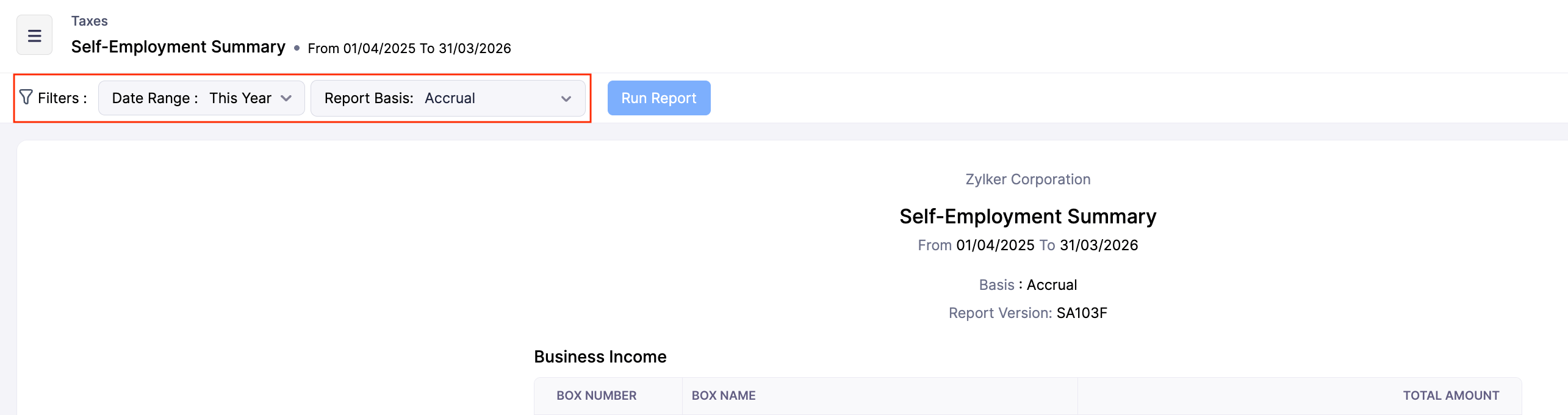
Click Run Report.
The report will be generated based on the applied filters.
 Yes
Yes