


Create Trips
You can create trips and submit them for approval in Zoho Spend. In this help document, you’ll learn how to set your trip preferences and create a trip request.
Set Trip Preferences
While creating a trip, you may have some fields for which you might fill in the same details every time. You can prefill such details by setting default values for your trips. So every time, you create a trip, the fields will be pre-filled with the default values you’ve set.
For example, you might not change your meal preference for your trips so often. So, selecting your meal preference every time you create a trip request can become redundant. You can now set the meal preference for your trips as the default values while creating a trip.
Note: You can set default values for all the fields present while creating a trip, including the custom fields.
Here’s how you can set default values for your trips:
- Go to My Settings on the left sidebar.
- Navigate to the Preferences tab.
- Click Configure under Trips.
- Select the fields and enter the values.
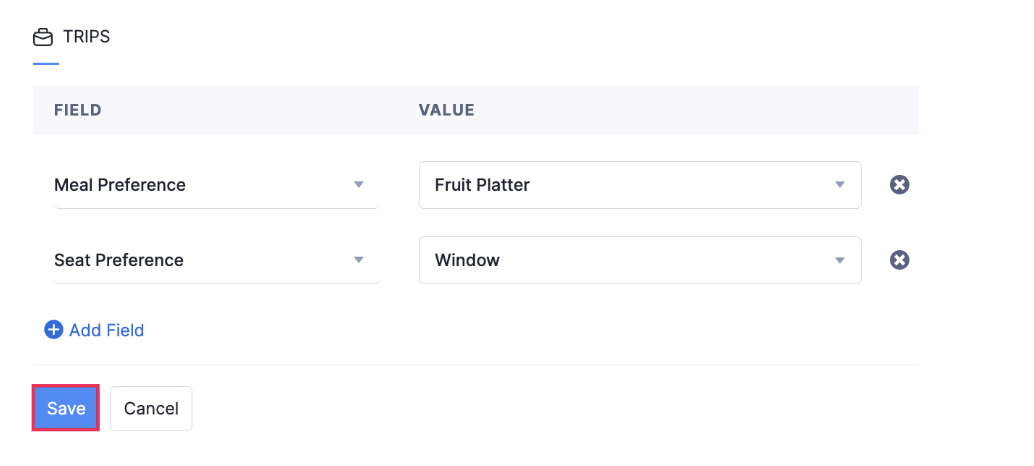
- Click Save.
Create a Trip Request
Before you go on a business trip, your organization might require you to submit a detailed trip request. A trip request will include details such as the business purpose of your trip, the destination, duration, and the itinerary.
Create a Trip Request
First, you need to create a trip request. Here’s how you can do it:
- Go to Trips under Travel & Expense on the left sidebar.
- Click + New Trip.
- Enter the required details in the trip request form.
- Travel Type - Specify if the travel is Domestic or International.
- Trip Name - Provide a name for your trip request.
- Destination Country - Select the country you will be travelling to and where most of your stay will be.
- Is Visa required? - Mention whether the destination city requires a Visa or not. This field will be displayed if it is an International trip, and you can mark this option only when the company helps the employees with the Visa acquiring process.
- Business Purpose - Many organizations mandate that the purpose of the trip is mentioned in the request. Use this field to mention the reason for the trip.
- Customer - If you are embarking on the trip for a particular customer, select that customer from the dropdown.
- Project - Select the project for which you will be traveling.
- Billable - If this trip is billable to the selected project or customer, mark this option.
- Other Travellers - If you have any other travellers traveling with you, select them.
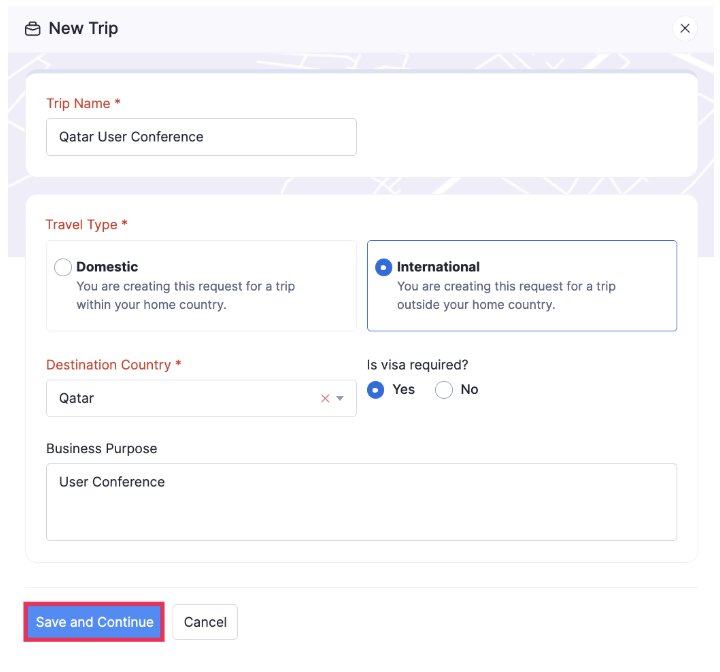
- Click Save and Continue. You’ll be redirected to the trip details page where you can add your itineraries.
Add Itineraries
Once you’ve created a trip request with your basic details, you can proceed to plan your itineraries on the trip details page. In the Itinerary tab, click the itinerary you want to add to your trip.
Note: You must add at least one itinerary to submit a trip, unless it’s an international trip requiring a visa.
Flight Itinerary
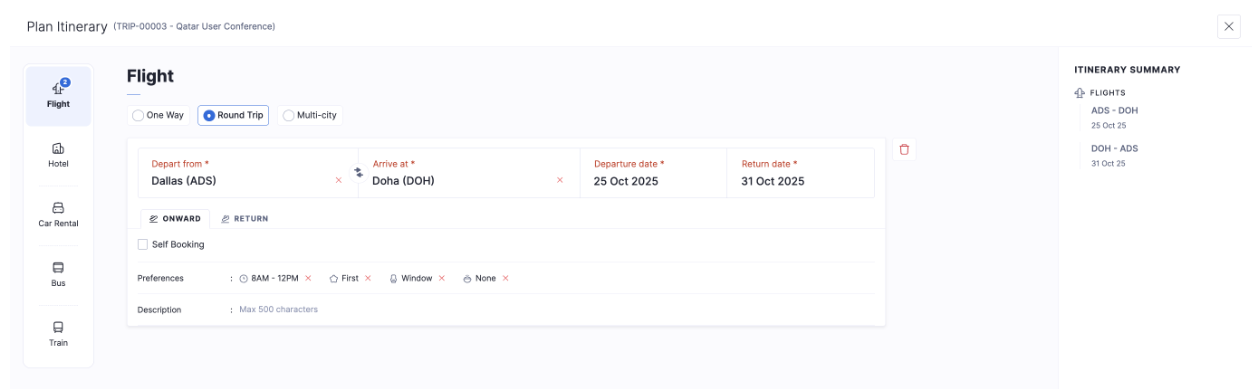
Mention the relevant details in the itinerary if flight booking is required.
- One Way - If you’re not sure about your return date and you want your travel agent to book a one-way ticket to the destination city, choose this option.
- Round Trip - Select this option if you’re traveling to your destination city and returning back from the same city.
- Multi-city - Choose this option if you have to take a side trip to another city for business purposes while you’re on the trip. Tickets will be booked to and fro your destination city and also, for the side trip you will be taking. Flight Reservations - Enter details like the departure date, from and to city names, and a short description to book a flight for your trip.
- Self Booking - If you’re going to book a flight externally, outside Zoho Spend, check this option.
- Preferences - If you have any preferences for your flight time, class, seat, and meals, choose them from the provided options.
- Personal - If you are going to make a personal side trip, check this option.
- Description - Provide a small description regarding the requirements in your flight, if needed.
- In case you want to delete an itinerary, click the Delete icon on the right side if you want to delete the itinerary.
- If you want to add another flight to your itinerary, click + Add Flight.
- Once you add your itineraries click Save. Your itineraries will be saved.
Hotel Itinerary
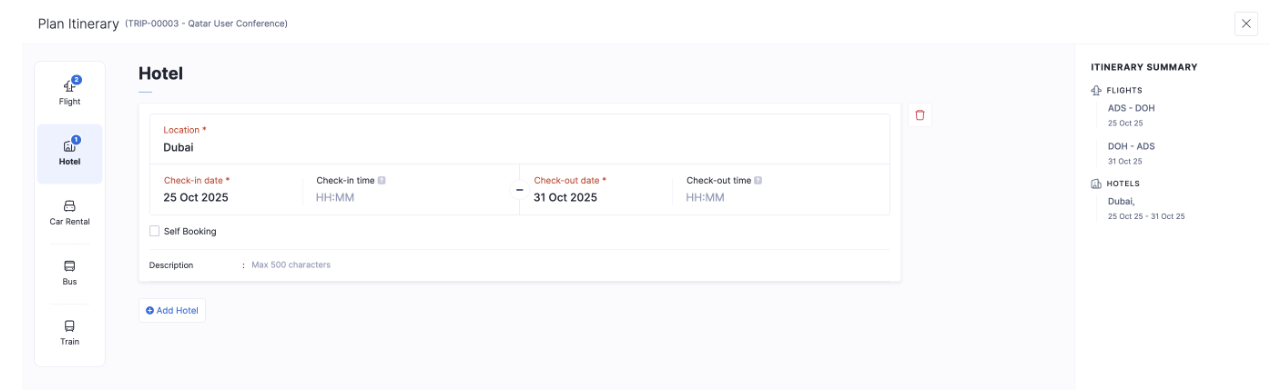
Mention the relevant details in the itinerary if hotel booking is required.
- Location - Mention the location at which you will require a hotel.
- Check-in Date - Mention the date you will check-in to the hotel.
- Check-in Time - Mention the time at which you will check-in to the hotel.
- Check-out Date - Mention the date you will check-out of the hotel.
- Description - Provide a small description regarding the requirements in your hotel, if needed.
- Personal - If you are going to make a personal side trip and you require a hotel, check this option.
- Self Booking - If you’re going to book a hotel externally, outside Zoho Spend, check this option.
- In case you want to delete an itinerary, click the Delete icon on the right side if you want to delete the itinerary.
- If you want to add another hotel to your itinerary, click + Add Hotel.
- Once you add your itineraries click Save. Your itineraries will be saved.
Car Rentals
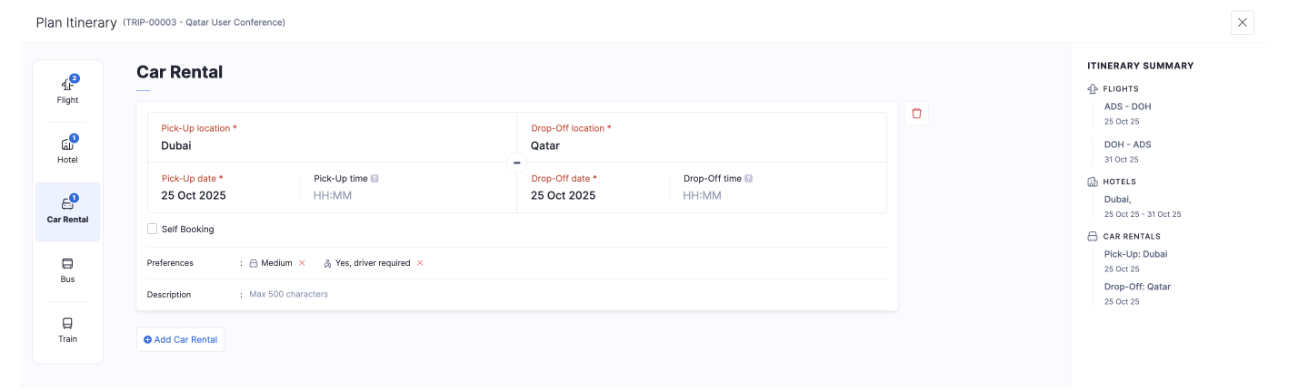
Mention the relevant details in the itinerary if car rental booking is required.
- Pick-up Location - Enter the location you want to be picked-up from.
- Drop-off Location - Enter the location you want to be dropped at.
- Pick-up Date and Time - Enter the date and time of pick-up in the respective fields.
- Drop-off Date and Time - Enter the date and time of drop in the respective fields.
- Personal - If you are going to make a personal side trip, check this option.
- Self Booking - If you’re going to book a car rental externally, outside Zoho Spend, check this option.
- Description - Provide a small description regarding the requirements in your car rental.
- In case you want to delete an itinerary, click the Delete icon on the right side if you want to delete the itinerary.
- If you want to add another car rental to your itinerary, click + Add Car Rental.
- Once you add your itineraries click Save. Your itineraries will be saved.
Bus, Train, and Ferry
Mention the relevant details in the itineraries if booking for bus, train, or ferry is required.
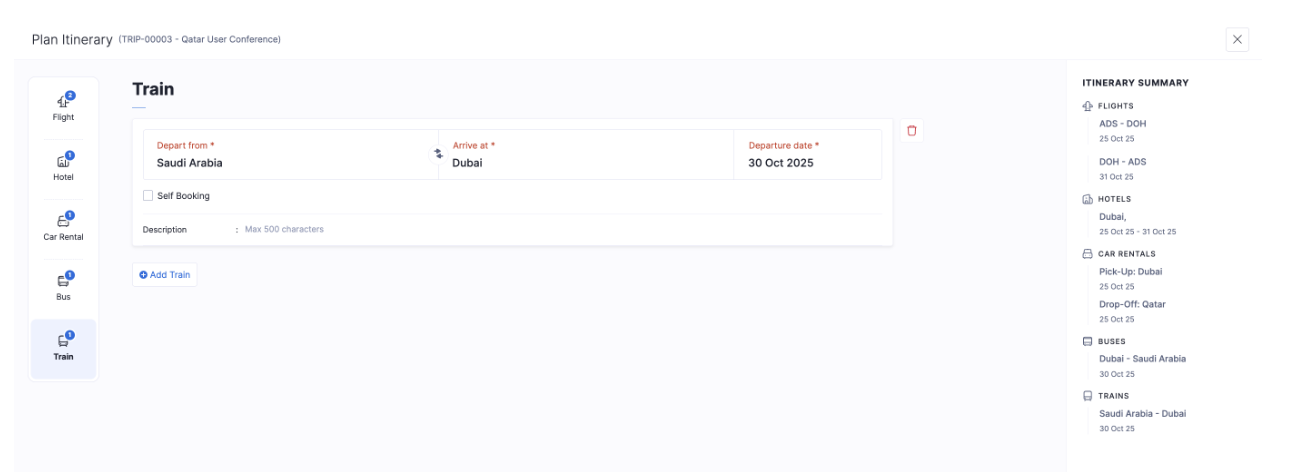
- Train - If you’re travelling to your destination by train, mention details such as the from and to city names, departure date, and a short description to book tickets for travel using the train.
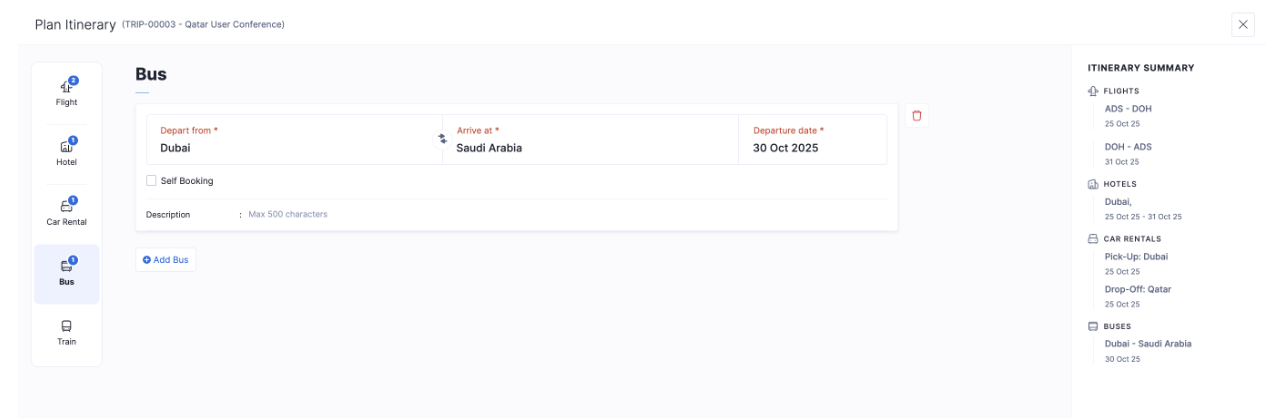
- Bus - If you want to travel by bus, mention the from and to city names, departure date, and a short description to book tickets for travel using the bus.
- Ferry - If you want to travel to your destination by ferry, mention the from and to city names, departure date, and a short description to book the ferry.
- Personal - If you are going to make a personal side trip, check this option.
- Self Booking - If you’re going to book a train, bus, or ferry externally, outside Zoho Spend, check this option.
- In case you want to delete an itinerary, click the Delete icon on the right side if you want to delete the itinerary.
- If you want to add another bus, train, or ferry to your itineraries, click + Add Bus, + Add Train, and + Add Ferry respectively.
- Once you add your itineraries click Save. Your itineraries will be saved.