Other Actions in Users
In this help document, you’ll learn the other actions you can perform on the users in your organization.
Search a User
If you want to locate a particular user from the list of users, you can search for the user. Here’s how:
- Go to People on the left sidebar.
- Click Users.
- Click the Search icon in the right corner.
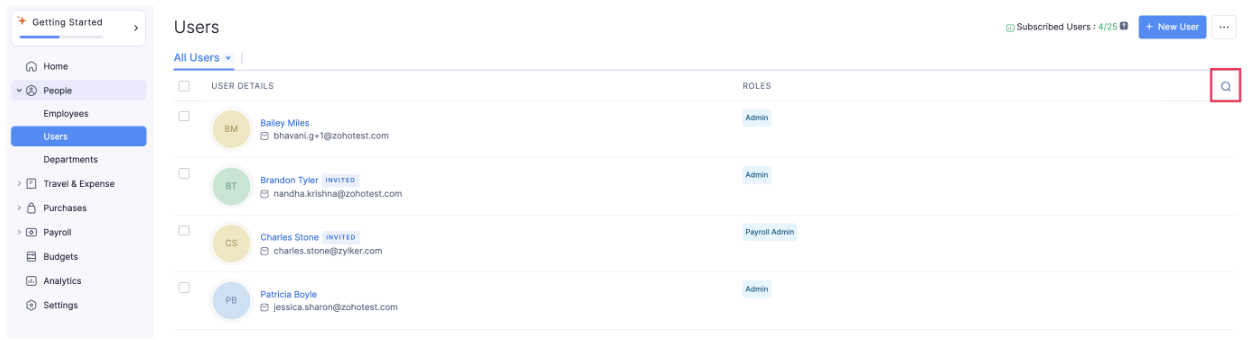
- You can enter any of the field value of the particular user that you want to view.
- Click Search.
Bulk Update Users
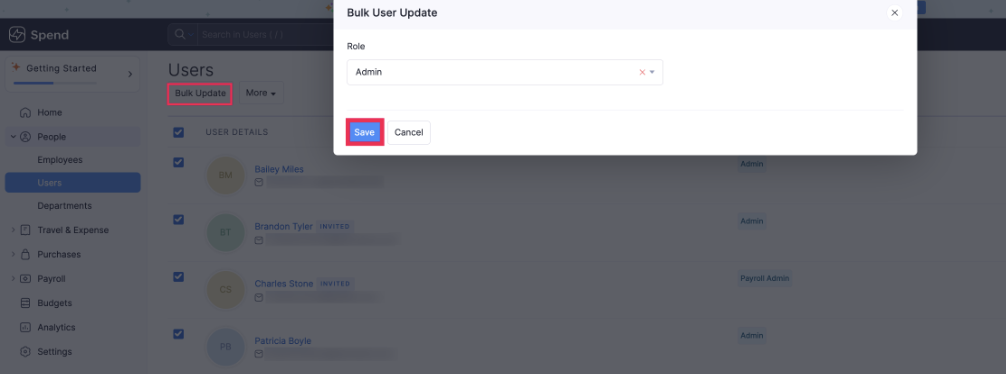
If you need to update the user role for multiple users at once, you can use the bulk update option. Here’s how:
- Go to People on the left sidebar.
- Click Users.
- Select the users for whom you want to update the user role.
- Click Bulk Update from the top pane.
- Select the role from the dropdown and click Save.
Bulk Invite Users
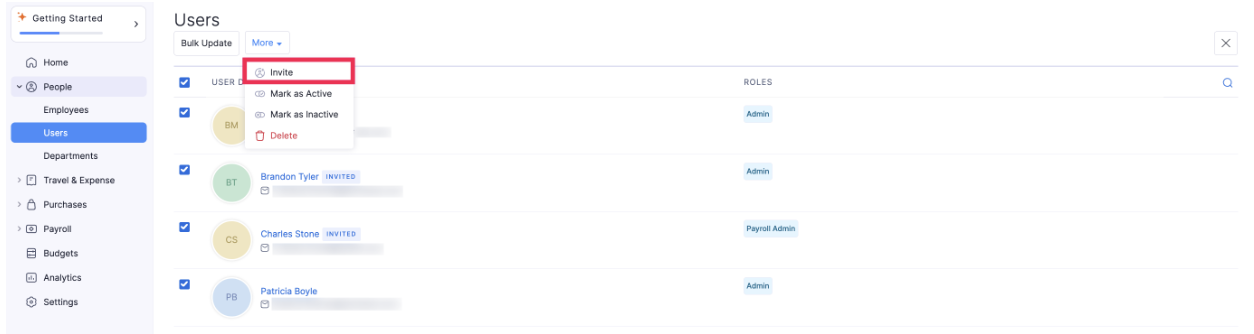
Here’s how you can send invite to multiple users at once:
- Go to People on the left sidebar.
- Click Users.
- Select the users in the Invited status.
- Click More from the top pane.
- Click Invite.
Mark Users as Active in Bulk
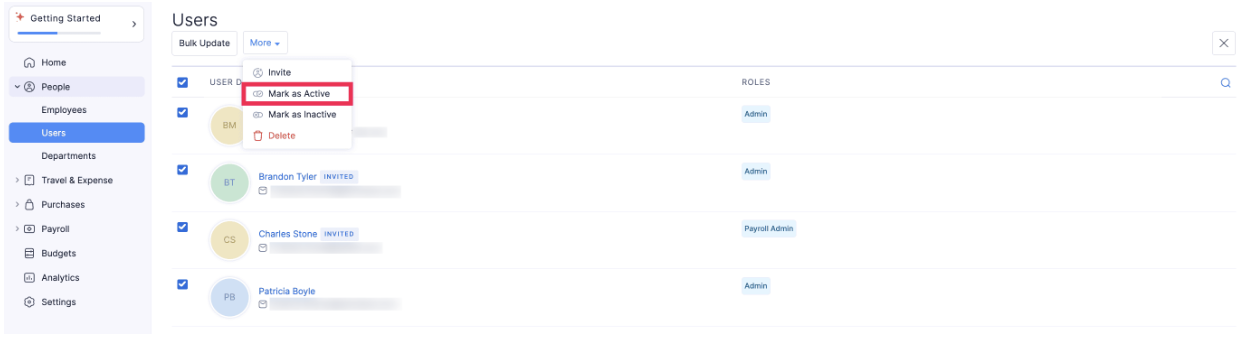
Here’s how you can mark multiple users as active at once:
- Go to People on the left sidebar.
- Click Users.
- Select the users that you want to mark as active.
- Click More from the top pane.
- Click Mark as Active.
Mark Users as Inactive in Bulk
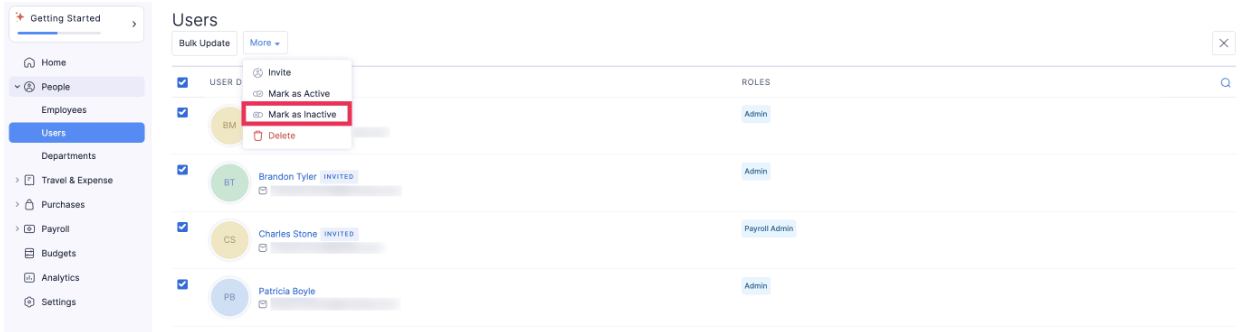
Here’s how you can mark multiple users as inactive at once:
- Go to People on the left sidebar.
- Click Users.
- Select the users that you want to mark as inactive.
- Click More from the top pane.
- Click Mark as Inactive.
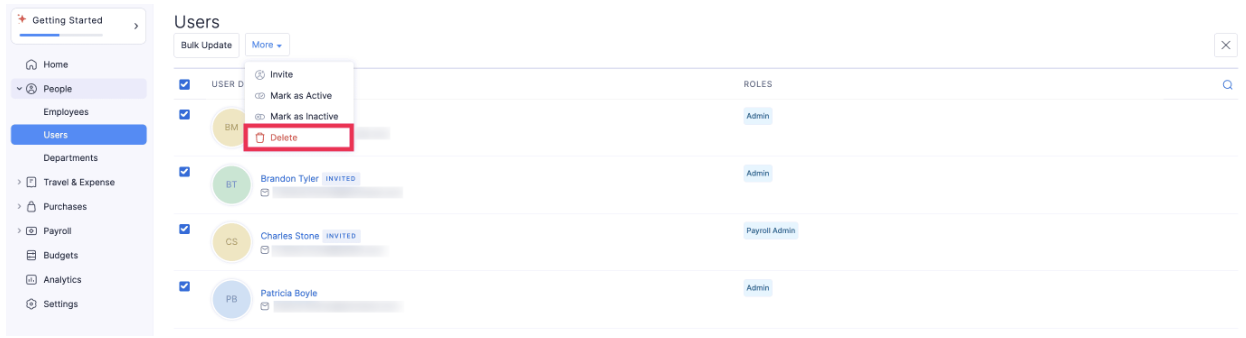
Delete Users in Bulk
Here’s how you can delete multiple users at once:
- Go to People on the left sidebar.
- Click Users.
- Select the users that you want to delete.
- Click More from the top pane.
- Click Delete.