


Add Users
Here’s how you can add a user to Zoho Spend:
- Go to People on the left sidebar.
- Click Users.
- Click + New User in the top right corner.
- Enter the Name of the user.
- Enter the Email Address of the user.
- Select the Roles of the user from the dropdown. You can select multiple roles for your user. In Zoho Spend, there are seven default user roles that define the level of access and permissions for each user:
- Admin (or) Super Admin: Unrestricted access to all modules and Settings.
- AP Admin: Unrestricted access to all Purchases modules except Request for Quotes.
- AP Staff: Create, submit, and approve transactions for all Purchases modules except Request for Quotes.
- Travel & Expense Admin: Unrestricted access to all Travel and Expense modules.
- Payroll Admin: Unrestricted access to all Payroll modules.
- Procurement Admin: Unrestricted access to Vendors, Items, Purchase Requests, Request for Quotes, Purchase Orders, and Purchase Receives modules. Can view Bills and Vendor Payments.
- Procurement Staff: Create, submit, and approve transactions for Vendors, Items, Purchase Requests, Request for Quotes, Purchase Orders, and Purchase Receives modules. Can view Bills and Vendor Payments.
If you have added any custom user roles, they will also be listed in the Roles dropdown.
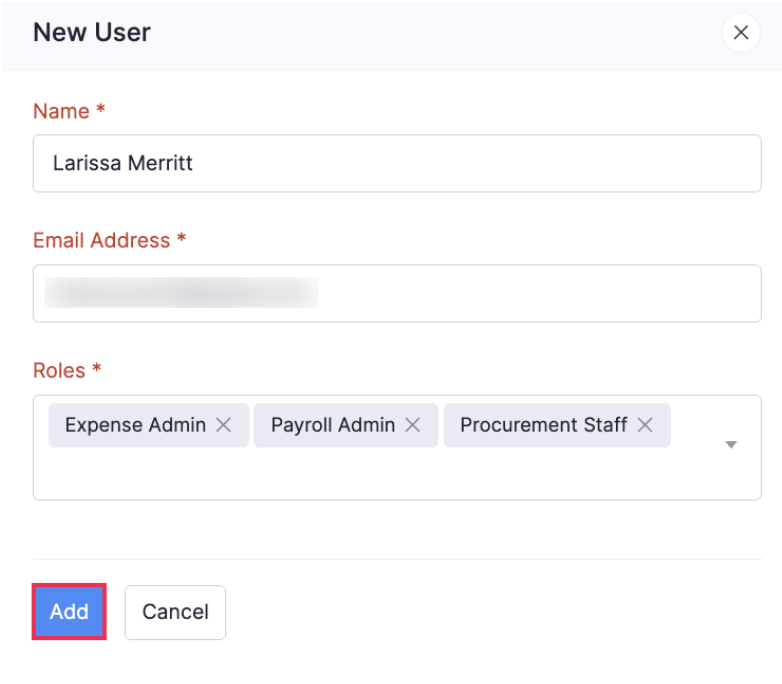
- Click Add.