


Departments
If you have different departments and teams in your business, you can add them as departments in Zoho Spend and assign the departments to the respective employees.
You can also assign a department head for each department, and configure workflows such that a notification will be sent to the department head on submission or creation of a record.
Add Departments
Here’s how you can add a department in Zoho Spend:
- Go to People on the left sidebar.
- Click Employees.
- Click + New Department in the top right corner.
- Enter the Department Name.
- Enter the Department Code.
- Select the Department Head from the dropdown.
- Provide Description, if necessary.
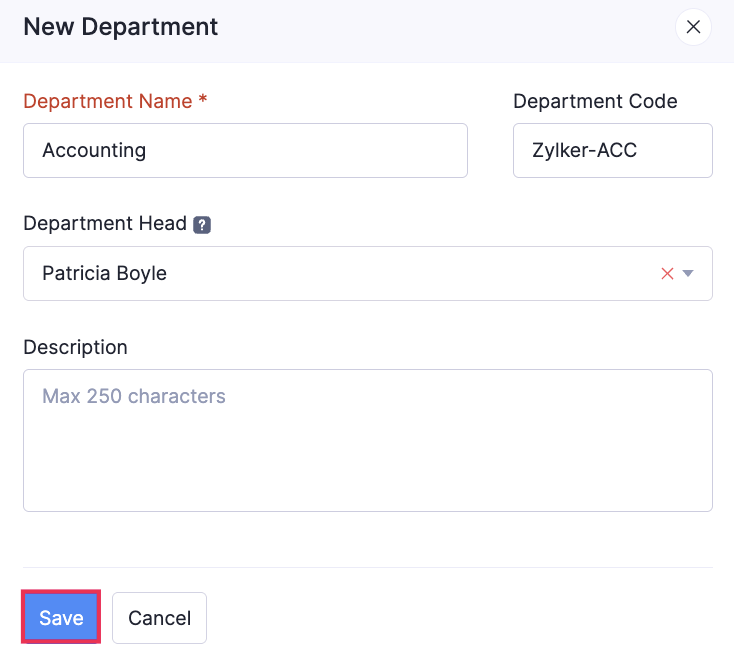
- Click Save.
A new department will be created. You can now assign this department to the employees.
Import Departments
You can import departments in the following formats:
- CSV - Comma Separated Values
- TSV - Tab Separated Values
Here’s how you can import departments:
- Go to People on the left sidebar.
- Click Employees.
- Click the More icon at the top right corner of the page.
- Select Import Departments.
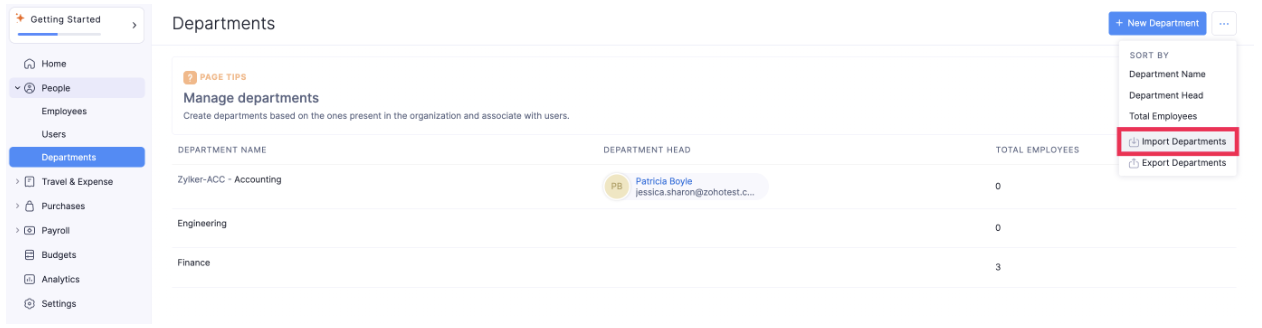
- Drag and drop a file or choose a file from your desktop or cloud account.
- If you want to upload another file instead of the selected file, click Replace File and choose another file.
- Click Next.
- In the next step, the best match for each field in Zoho Spend will be auto-mapped with the fields in the imported file. If there are unmapped fields, you can map them manually.
- If you want to save the mapping for future use, mark the Save these selections for use during future imports option. Click Next.
- The data in the unmapped fields will not be imported into Zoho Spend. If you want to map those fields, click Previous and map the unmapped fields.
- Once you have mapped all the relevant fields, click Import to import the departments into Zoho Spend.
Edit Department
Here’s how you can edit a department:
- Go to People on the left sidebar.
- Click Employees.
- Hover over the department you want to edit and click the More icon.
- Select Edit.
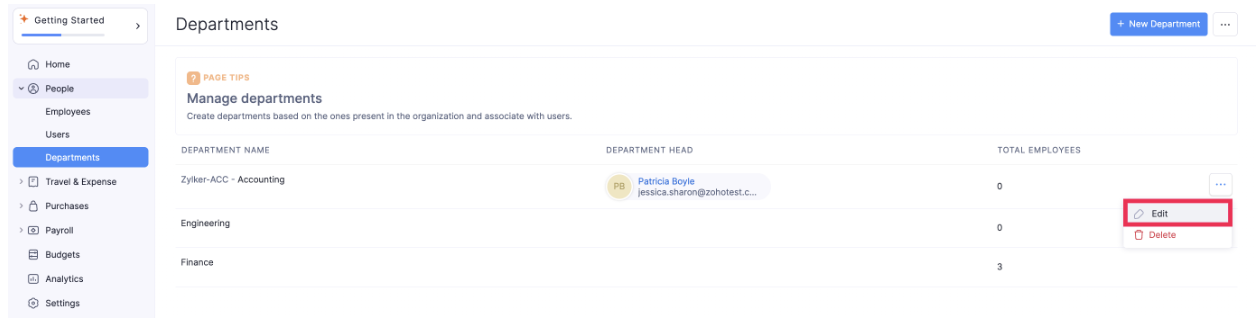
- Make the necessary changes and click Save.
The department’s details will be updated.
Export Departments
You can export the departments in two formats:
- CSV - Comma Separated Values
- XLS (XLSX) - Microsoft Excel
Here’s how you can export departments:
- Go to People on the left sidebar.
- Click Employees.
- Click the More icon at the top right corner and select Export Departments.
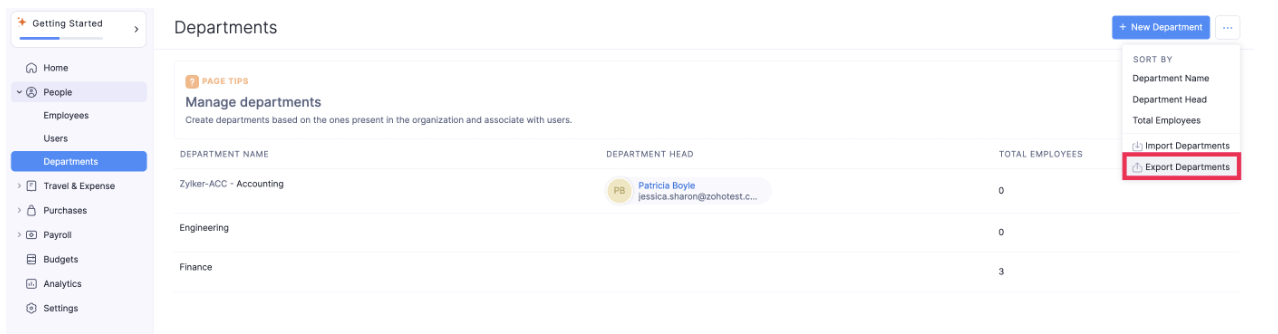
- Select the format in which you want to export the departments [CSV or XLS (XLSX)].
- If you want to secure the report with a password, mark the I want to protect this file with a password option and provide a password in the Password field.
- Click Export to download the data to your computer.
Delete Department
Note: You cannot delete the departments that are already assigned to employees. Instead, you can edit the employees’ details by removing the associated department and then delete the department.
Here’s how you can delete a department:
- Go to People on the left sidebar.
- Click Employees.
- Hover over the department you want to delete and click the More icon.
- Select Delete.
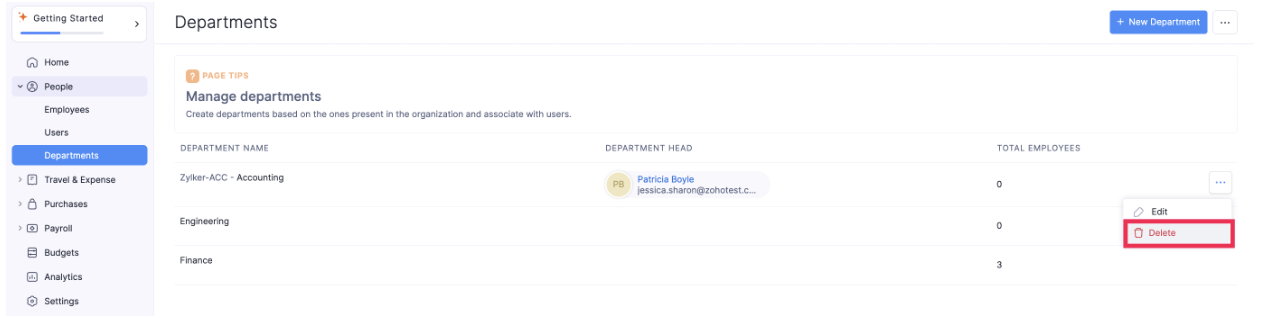
- Confirm your action by clicking Delete again in the pop-up.