


Integrate Zoho Spend With Zoho Books
Zoho Books is a comprehensive cloud accounting platform that helps businesses manage their finances, automate bookkeeping tasks, and stay on top of their cash flow.
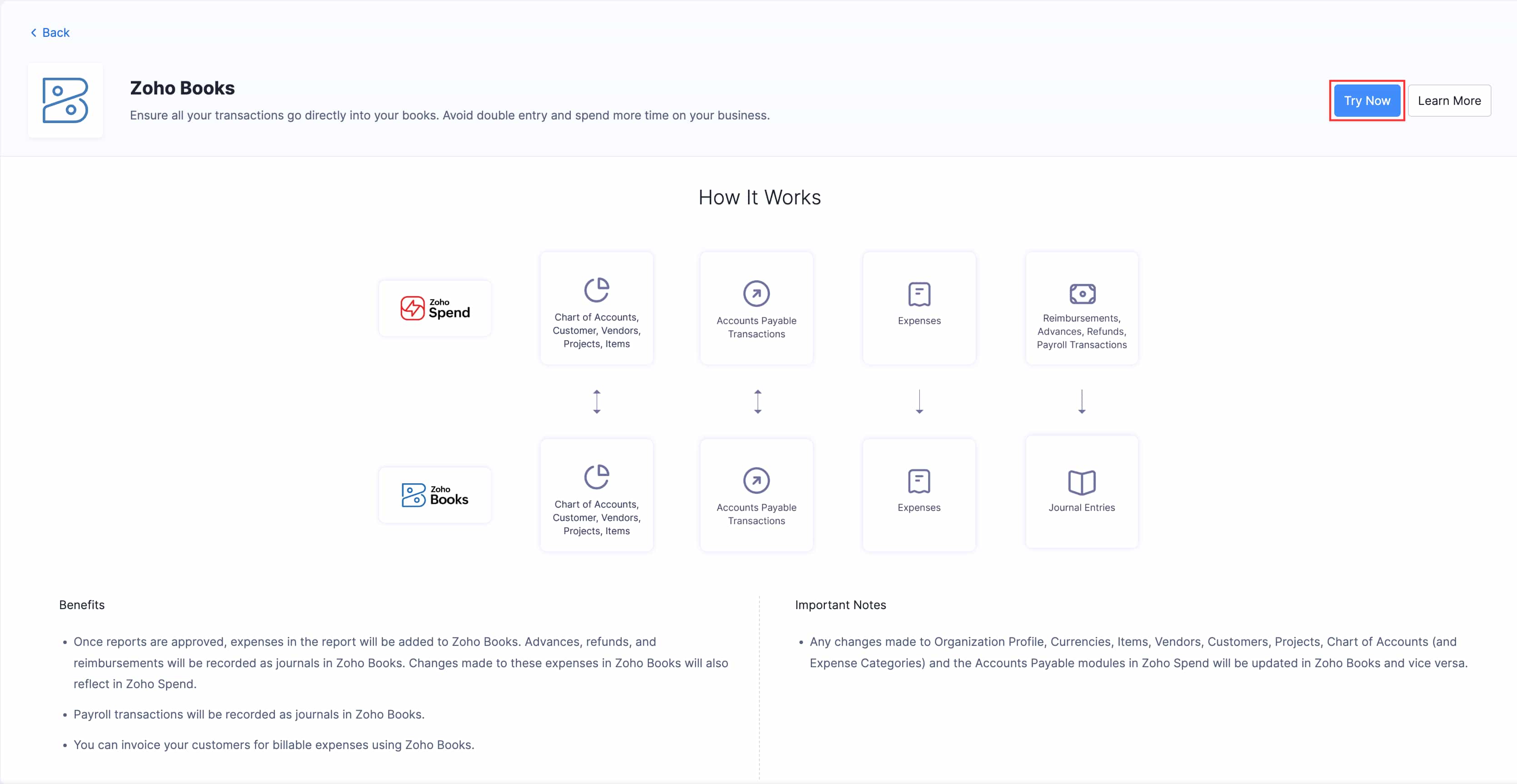
Integrating Zoho Spend with Zoho Books connects your spend management processes with your accounting system, ensuring that all expenses, reimbursements, advances, refunds, payroll transactions and accounts payables transactions recorded in Zoho Spend are automatically reflected in Zoho Books. This integration helps you maintain accurate books, eliminate manual data entry, and gain complete visibility into your company’s spending.
Benefits
- Once reports are approved, expenses in the report will be added to Zoho Books. Advances, refunds, and reimbursements will be recorded as journals in Zoho Books. Changes made to these expenses in Zoho Books will also reflect in Zoho Spend.
- Payroll transactions will be recorded as journals in Zoho Books.
- Any changes made to Organization Profile, Currencies, Items, Vendors, Customers, Projects, Chart of Accounts (and Expense Categories) and the Accounts Payable modules in Zoho Spend will be updated in Zoho Books and vice versa.
- You can invoice your customers for billable expenses using Zoho Books.
Set Up the Integration
Zoho Spend does not require any steps for it to be integrated with Zoho Books. Our system automatically links both the organizations, provided the same organization exists in both apps.
Note:
- You can connect one Zoho Books organization with only one Zoho Spend organization at a time.
- Once you set up the integration, you cannot disable it since both apps share the common base.
To integrate Zoho Spend with Zoho Books:
- Go to Settings on the left sidebar.
- Click Zoho Apps under Integrations.
- Click Zoho Books in the All Integrations tab.
- Click Try Now in the top right corner.
- If you do not have a Zoho Books organization, a new one will be created automatically. A quick setup process will help you get started with the organization.
- If you have the same Zoho Spend organization in Zoho Books, you’ll be redirected to that organization.
View Approved Expenses in Zoho Books
To view approved expenses from Zoho Spend in Zoho Books:
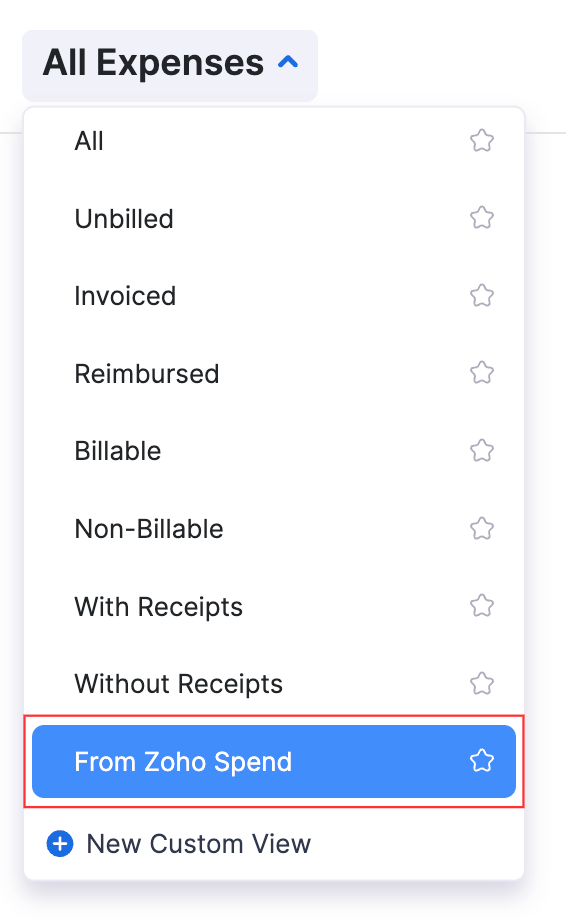
- Click Expenses under Purchases on the left sidebar.
- Click the filter drop-down at the of the page.
- Select From Zoho Spend filter to see the list of approved expenses from Zoho Spend.
View Advances and Reimbursments in Zoho Books
You can view your employees advances and reimbursements in your Zoho Books organization. Here’s how:
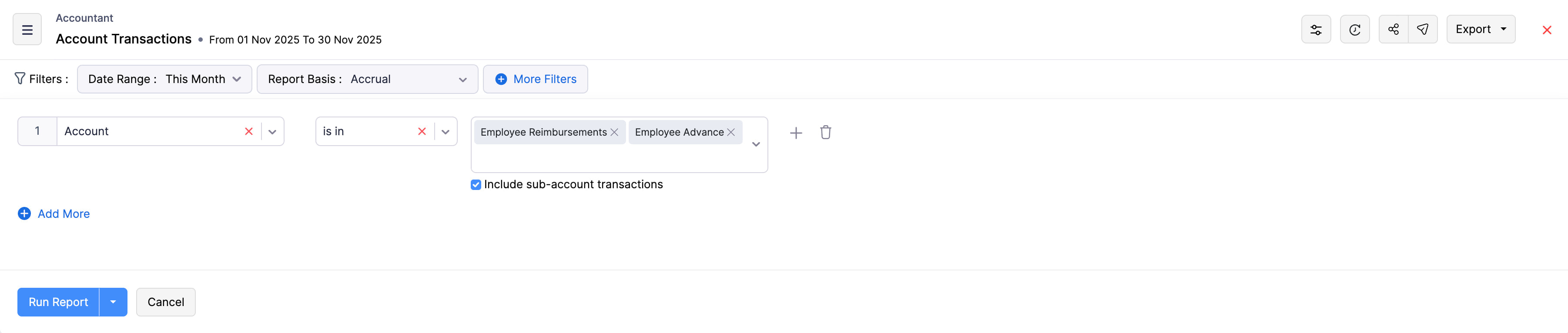
- Go to the Reports on the left sidebar.
- Click Accountant under Report Category.
- Click Account Transactions under Accountant.
- Click More Filters at the top.
- Click Account in the first dropdown, is in in the second dropdown, and Employee Advances and Employee Reimbursements in the third dropdown from the left.
- Click Run Report.
Record Reimbursement from Zoho Books
You can also record reimbursements from Zoho Books. Here’s how"
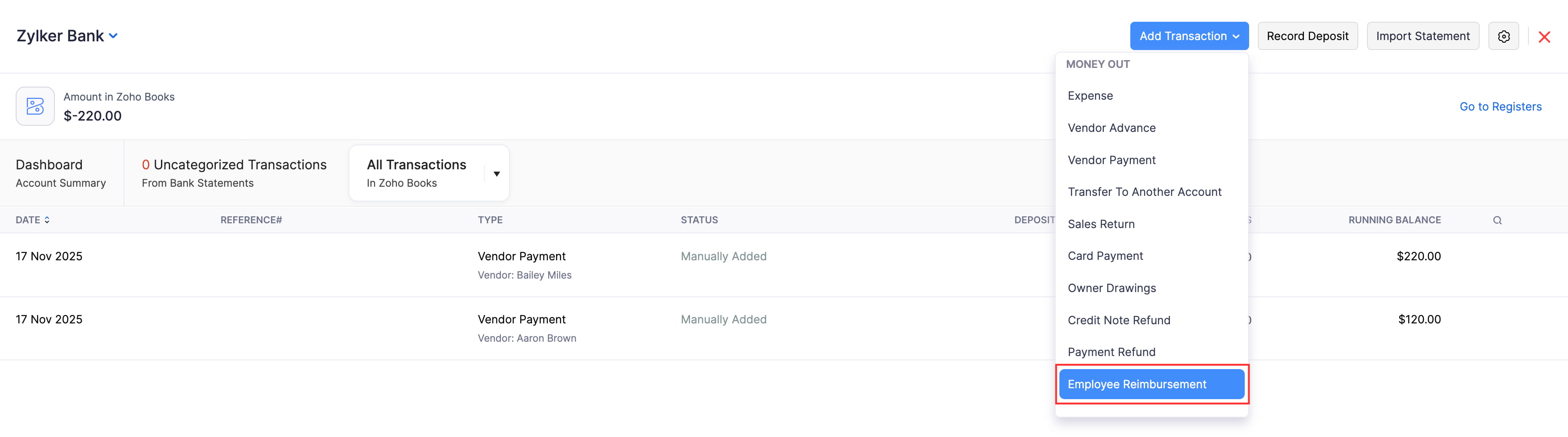
- Go to Banking on the left sidebar.
- Select the bank account through which reimbursements are done.
- Click Add Transaction in the top right corner and select Employee Reimbursement.
- You will see an Employee Reimbursement form on the right side of the page.
- On selecting an Employee’s name from the drop down, you will see a list of approved expense reports belonging to the employee, awaiting reimbursement.
- Select the report you want to reimburse and click Save.
Match and Categorize Transactions
Expense reports that are reimbursed manually will be tagged as Manually Added transactions. However, on importing bank statements into Zoho Books, there arises a need to categorize the statement lines or match it with an existing transaction (reimbursed manually).
Here’s how you can match manually reimbursed expense reports with the transactions in Zoho Books:
- Go to Banking on the left sidebar.
- Select the bank account containing uncategorized transactions.
- Click an uncategorized transaction, and you will see a list of transactions that can be matched with your uncategorized transaction.
- On finding a transaction that can be matched, click Select.
- Click Match to match the transaction.
If the statement line does not have a matching transaction, or you do not want to associate it with an existing transaction, then you can categorize it manually using Categorize Manually option located below the list of transactions.
- Select Employee Reimbursement under Category.
- Choose the name of the employee and the report with which you want to associate your uncategorized transaction.
- Click Save. Your transaction will be categorized*.
Match Expense Categories under Chart of Accounts
The expense categories created under the Categories module of Zoho Spend (Settings > Travel & Expense > Categories) is automatically added under the Chart of Accounts section of Zoho Books. This saves you from re-creating the same category under Zoho Books.
Note: Newly created Chart of accounts will be an active category in Zoho Spend on checking the Show in Zoho Spend as an active account option in Zoho Books. Otherwise it will be visible as an inactive category in Zoho Spend. However, you can enable the inactive category. (To enable: Navigate to Settings > Travel & Expense > Categories > Click the filter drop-down in the top left corner and select Inactive Categories > Select the category > Enable).
Sync Merchants and Vendors
If you want to use the vendors in Zoho Books to create expenses in Zoho Spend, you can contact support@zohospend.com and we will enable the sync. Once the sync is enabled, all the vendors in Zoho Books will be available as merchants in Zoho Spend, while the existing merchants in Zoho Spend will be deleted.
After the sync, if you create a merchant in Zoho Spend, it will be pushed as a vendor to Zoho Books automatically. Similarly, when you create a vendor in Zoho Books, it will be pushed as a merchant to Zoho Spend automatically.
Journal Entries for Pay Runs in Zoho Books
After integrating Zoho Spend with Zoho Books, Zoho Spend will automatically post journal entries in Zoho Books when you approve a pay run. If you want to view the journal entries, navigate to Manual Journals under the Accountant module in Zoho Books.
However, you have the flexibility to disable posting journal entries for a pay run, if required.
To disable posting journal entries:
- Got to Pay Runs under Payroll on the left sidebar.
- Click Process Pay Run next to your upcoming pay run.
- Click Approve Payroll in the top right corner.
- Unscheck Post Journal Entries.
- Click Approve Payroll.
Now, your payroll will be approved without journal entries being posted in Zoho Books.
Payroll Reports in Zoho Books
After enabling the Zoho Books integration, you will gain access to a new set of reports in Zoho Books related to Payroll:
- Payroll Summary
- Benefits Summary
- Employee Deductions
- Payroll Tax Summary
- Payroll Tax Payments
Once journal entries are posted in Zoho Books, the following reports will be primarily affected:
- Business Overview reports
- Profit and Loss
- Balance Sheet
- Accountant reports
- General Ledger
- Journal Report
- Trial Balance