


Create Custom Modules
Let’s take a look at how you can create a custom module and add the required fields and tables in Zoho Spend.
You must first create a custom module to start recording data. Here’s how:
- Go to Settings on the left sidebar.
(OR)
Click Settings in the top right corner of the page. - Click Overview under Custom Modules.
- Click Create Module in the top right corner.
- In the Module Details section:
- Enter a Module Name to identify your custom module.
- Enter a Plural Name which will be used as the plural form of your module wherever necessary.
- Provide a Description for the module.
- Select the actions that can be performed by users on the custom module based on their roles from the options listed under Record Level Sharing. Zoho Spend provides you with three access levels:
- Private: Only the user who creates the custom module can view it.
- Read Only: Everyone in the organization can view the custom module. However, other users will not be able to create, edit, or delete records in the custom module.
- Read and Write: Everyone in the organization can view, create, edit, and delete the records of the custom module.
- In the Primary Field Properties section:
- Enter the Label Name of the primary field.
- Select its Data Type.
- If you want the data entered in this field to be unique, choose Yes for Prevent Duplicate Values. Otherwise, click No.
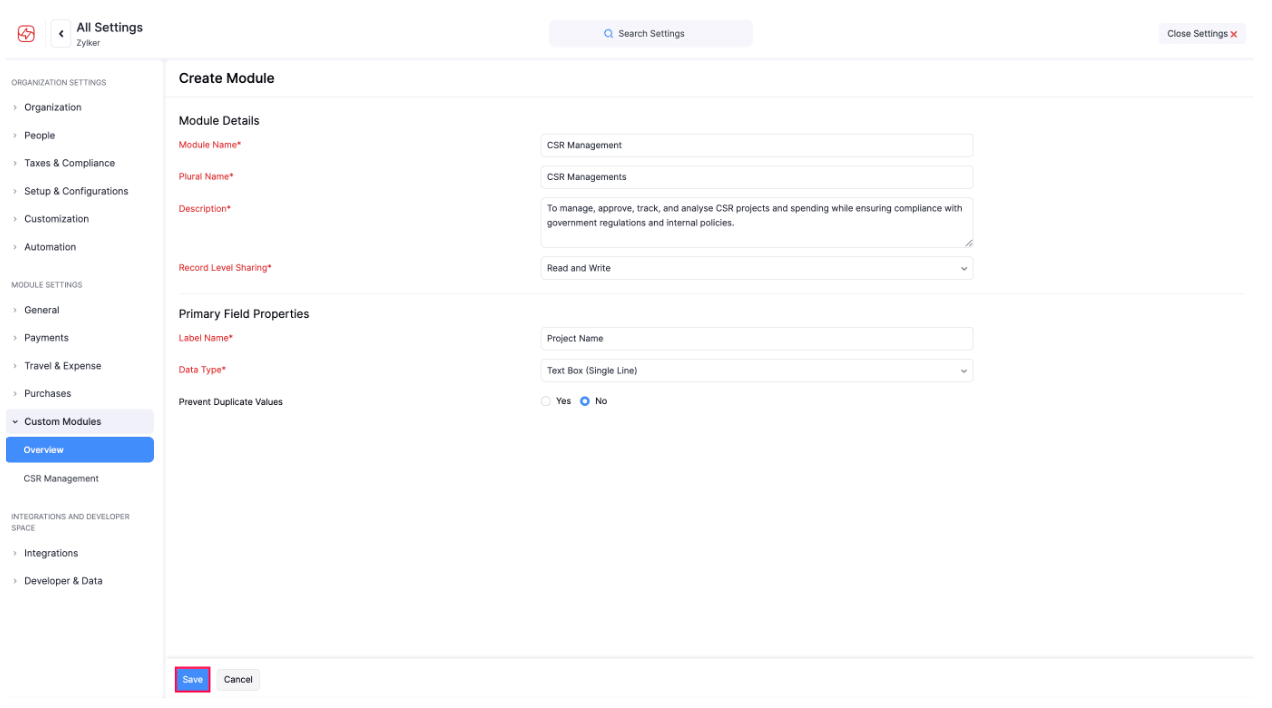
- Click Save.
Insight:
- A primary field is required to create a custom module. This field will be used to identify the custom module’s records.
- You can edit the name of the primary field later if required. However, you will not be able to delete it.
Add Fields
Once you’ve created a custom module, you can add additional fields to the custom module. Here’s how:
- Go to Settings on the left sidebar.
(OR)
Click Settings in the top right corner of the page. - Click the custom module you created under Custom Modules.
- Go to the Fields & Tables tab.
- Click Manage Fields and Tables in the top right corner. The form builder page will open.
- Drag and drop the required data type from the New Fields section on the left side of the page into the preferred section in the form.
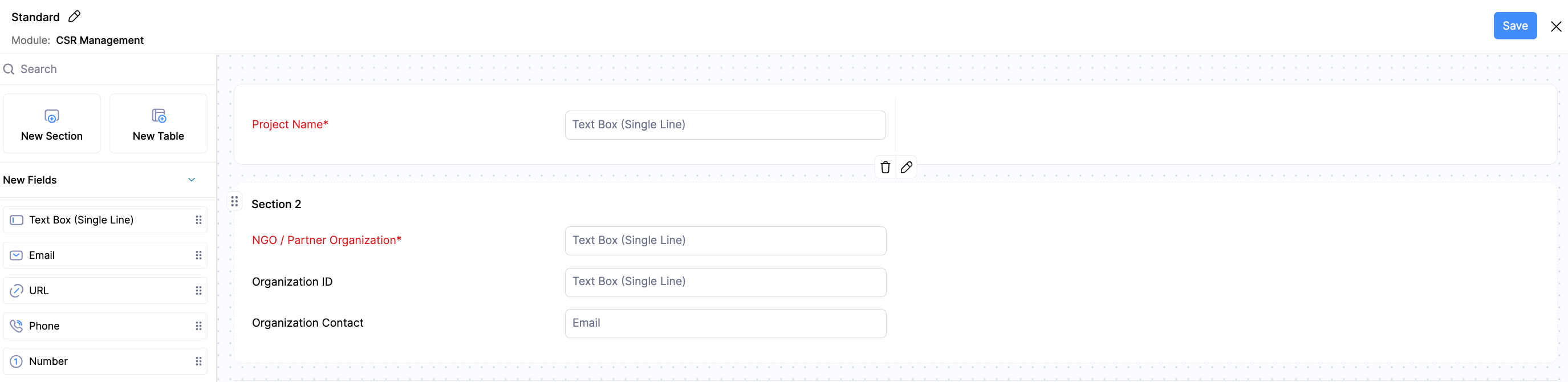
- You can edit or delete a field by hovering over it and clicking the Edit or Delete icon. However, you cannot delete the primary field.
- Enter the necessary details in the pane that appears.
- Click Done at the bottom of the page to create the field.
- Once you’ve added the required fields, click Save in the top right corner.
Add Tables
You can create tables for the custom modules you create. Inside the table, you can add the required line items. This is similar to how you add items as line items in the Item Details table while creating transactions. The table will be added as a separate section in the form, and you can add fields as columns and customize them.
Here’s how you can add tables:
- Go to Settings on the left sidebar.
(OR)
Click Settings in the top right corner of the page. - Click the custom module you created under Custom Modules.
- Go to the Fields & Tables tab.
- Click Manage Fields and Tables in the top right corner. The form builder page will open.
- Drag and drop New Table on the left side of the page into the preferred position in the form. The table will be added as a new section in the form.
- Enter the following details:
| Field Name | Description |
|---|---|
| Table Name | Enter the name of the table. |
| Table Columns | Click + New Column and select a data type for the column from the dropdown. A column will be added to the table. You can update the column name by clicking the newly created column and entering the required name. |
| Table Summary | A summary section for the details provided in the table. This is similar to the total section of a transaction. Click + Summary Field and select a data type from the dropdown. A field will be added under table summary. You can change the field name by clicking the field name text and entering the required name for the field. Aggregate is used to perform mathematical operations, such as Sum, Average, Maximum Value, or Minimum Value on the data. This is available only for the table columns of the Amount, Decimal, Integer, and Percentage data type. The Formula data type enables you to build a formula that performs calculations using predefined functions, fields, and operators. Learn more about the Formula data type. You can only use the custom module fields in the formula and not the table fields. |
| Allow reordering of rows | Check this option if you want to reorder the table rows when creating or editing records in the custom module. |
| Set the maximum number of rows allowed in this table | Check this option if you want to set the maximum number of rows that can be added to the table. |
| Is this table mandatory? | Click Yes if you want to make the table mandatory when creating or editing records. If not, click No. |
| Show in all PDFs | Click Yes if you want the table to be displayed in the custom module’s PDF templates. If not, click No. |
- You can edit or delete the table by hovering over it and clicking the Edit or Delete icon.
- Click Save in the top right corner.
The following data types are supported in table columns:
- Text Box (Single Line)
- URL
- Phone
- Number
- Decimal
- Amount
- Percent
- Date
- Date and Time
- Checkbox
- Dropdown
- Lookup
- Formula
- External Lookup
Add Sections
You can create sections within the form to organize fields and position them wherever you prefer. Here’s how:
- Go to Settings on the left sidebar.
(OR)
Click Settings in the top right corner of the page. - Click the custom module you created under Custom Modules.
- Go to the Fields & Tables tab.
- Click Manage Fields and Tables in the top right corner. The form builder page will open.
- Drag and drop New Section from the left pane into the preferred position in the form.
- Hover over the section and click the Edit icon to update the Section Name and select the Number of Columns.
- To add new fields, drag and drop data types from the New Fields section from the left pane of the page into the section.
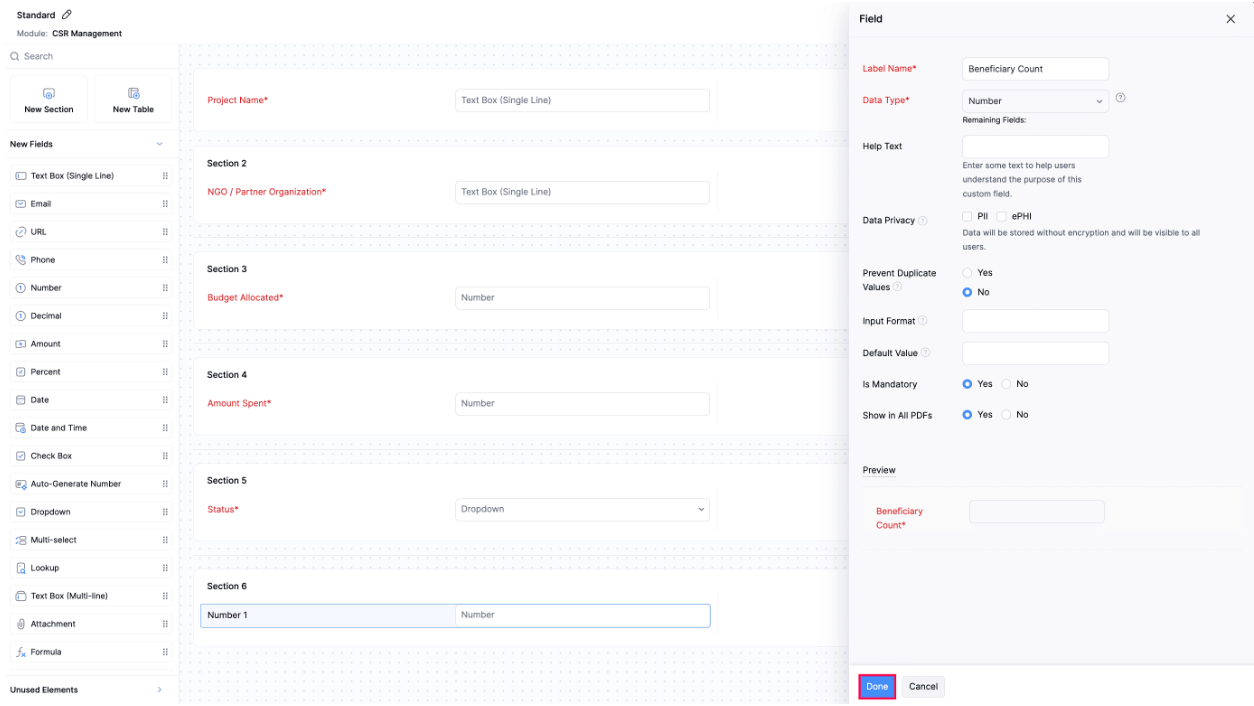
- To add existing fields, drag and drop fields from the Unused Elements section from the left pane of the page into the section.
- You can delete a section by hovering over it and clicking the Delete icon.
- Once you’ve built the form, click Save.
Add Records
Once you’ve created a custom module and added the required fields and tables, you can start creating records. Here’s how:
- Go to Custom Modules on the left sidebar.
- Select the custom module for which you want to create records.
- Click + New in the top right corner of the page.
- Enter the necessary details.
- If you’ve created a table for this custom module, add entries to the table as line items.
- If you want to add more entries to the table, click + Add Line Item below the table.
- If you’ve added fields to the Table Summary section, add the required details.
- Click Save.
Import Records and Tables
You can import a custom module’s records and tables into Zoho Spend.
Note: When importing, you can choose to import the records of the custom module or its tables. If you want to import the tables, you should first import the records and then the tables.
Here’s how you can import records and tables:
- Go to Custom Modules on the left sidebar.
- Click the More icon in the top right corner.
- Click Import {Custom Module Name}.
- Click Choose File and select the file you want to import. Or, drag and drop the file that you want to import.
Pro Tip: To know the format of the import file, including the necessary columns and data, you can download the sample file and ensure that your import file matches it.
- Select the Character Encoding and File Delimiter.
- Click Next.
- Check the mapping of the fields and click Next.
- Click Import.