


Simple Approval
Note: You can set Simple Approval only for the Advances, Purchase Orders, Purchase Receives, Bills, Vendor Credits, and Payments Made modules.
If you want the records submitted by your employees to be approved only by the admins or users with approval permission, you can choose the simple approval process.
Configure Simple Approval
Here’s how you can configure simple approval:
- Go to Settings on the left sidebar.
- Click the module for which you want to set simple approval.
- Go to the Approvals tab.
- Click Simple Approval.
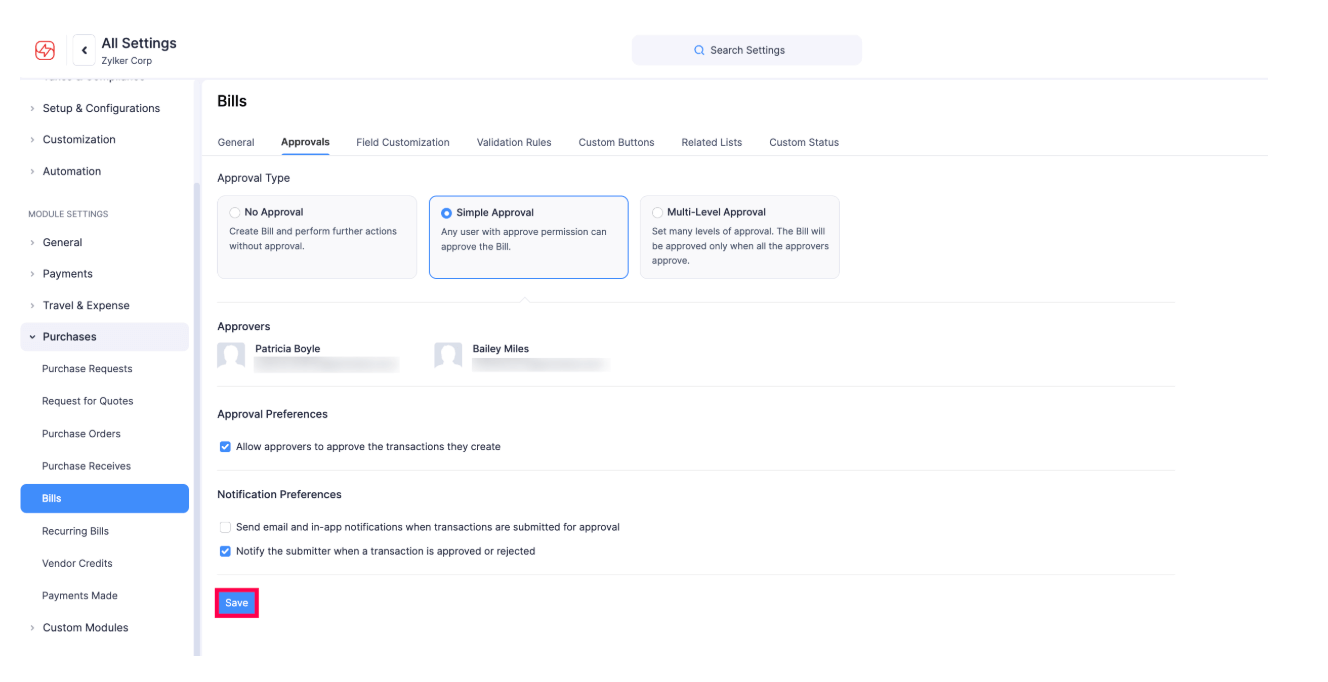
- Click Save.
Set Approval Preferences
Note: You can only set approval preferences for Purchase Orders, Purchase Receives, Bills, Vendor Credits, and Payments Made.
You can set approval preferences to allow approvers to approve the transactions they create. Here’s how:
- Go to Settings on the left sidebar.
- Click the module for which you want to set approval preferences in simple approval.
- Go to the Approvals tab.
- Click Simple Approval.
- Mark the Allow approvers to approve the transactions they create checkbox if you want an approver to approve the transactions they create.

- Click Save.
Set Notification Preferences
Note: You can only set notification preferences for Purchase Orders, Purchase Receives, Bills, Vendor Credits, and Payments Made.
You can set notification preferences to keep the submitters and approvers notified when a transaction is submitted, approved or rejected. Here’s how:
- Go to Settings on the left sidebar.
- Click the module for which you want to set notification preferences in simple approval.
- Go to the Approvals tab.
- Click Simple Approval.
- Mark the Send email and in-app notifications when transactions are submitted for approval checkbox so that approvers get notified when they have to approve transactions.
- Mark the Notify the submitter when a transaction is approved or rejected checkbox so that the submitter is notified when their transaction is approved or rejected.

- Click Save.