Email security indicators in Zoho Mail
Zoho Mail ensures the security of the email both in transit and at rest. While the email system takes care of securing your data, you can also be informed of the authentication and encryption status of your emails right from within your mailbox. This information will give you an insight and help you to act on an email accordingly.
The email security indicators available in Zoho Mail are:
- Email authentication status indicator
- Encryption status indicator
- Sent by/ Sent via indicator
- Spam indication banners
The security indicators in Zoho Mail will help you with the following insights:
- Whether the sender's identity is authenticated and verified
- Whether the email is encrypted
- Whether the displayed sender details differ from the actual sender
- Whether the email contains any potentially suspicious elements
Email authentication status indicators
In addition to BIMI indicator icon which is shown for all BIMI authenticated domain emails you receive, a few other email authentication indicators are available for all the internal emails received from your organization domains. These are the domains that are configured and verified for sending and receiving emails on behalf of your organization.
The email authentication indicators will help you differentiate internal emails from external emails and also provide more insights on the sender authentication status of internal emails.
BIMI
BIMI (Brand Indicators for Message Identification) provides a standardized framework for organizations to display their official brand logos in email recipients' inboxes, contributing to a consistent and recognizable brand presentation in email communications. This visual representation enhances brand visibility and helps recipients quickly recognize and trust the sender's identity. Configuring BIMI reinforces email security by ensuring that only authorized senders can display the associated brand logos, thereby preventing unauthorized senders from impersonating trusted brands.
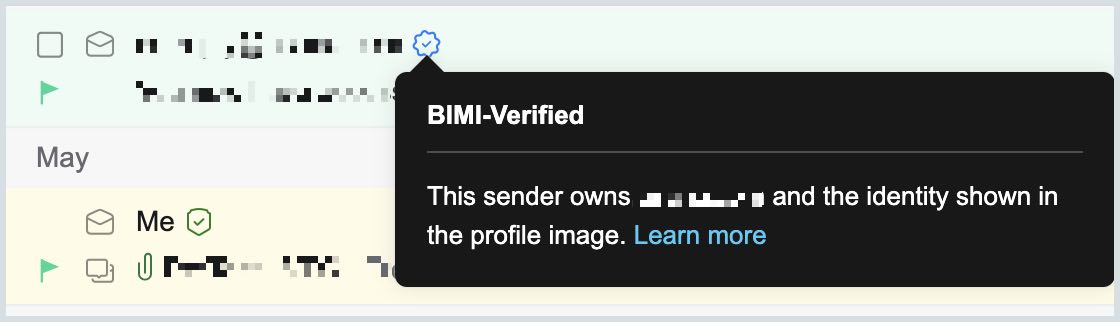
Additionally, a Blue tick will be displayed in the email listing against the sender's email address when the email is received from a BIMI-verified domain. Refer here to learn more about BIMI and configure it for your organization.
Verified sender
This indicator is displayed when an email is sent via proper authentication using an email address of a domain added and verified by your organization.
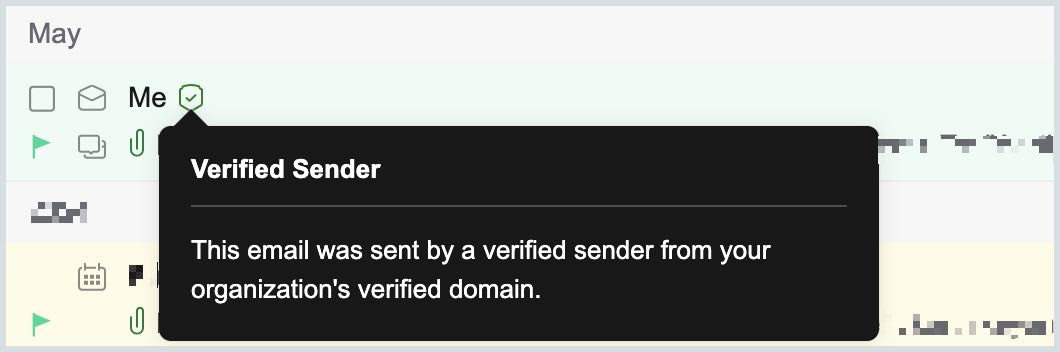
These emails could have been sent:
- By logging into the account using the account password,
- Through an email client in which the account is configured using IMAP/ POP, or
- Through an SMTP agent that require user authentication.
Verified domain
This indicator is displayed when the email is sent to you using an email address of domain added and verified by your organization via proper authentication but the sender identity could not be verified.
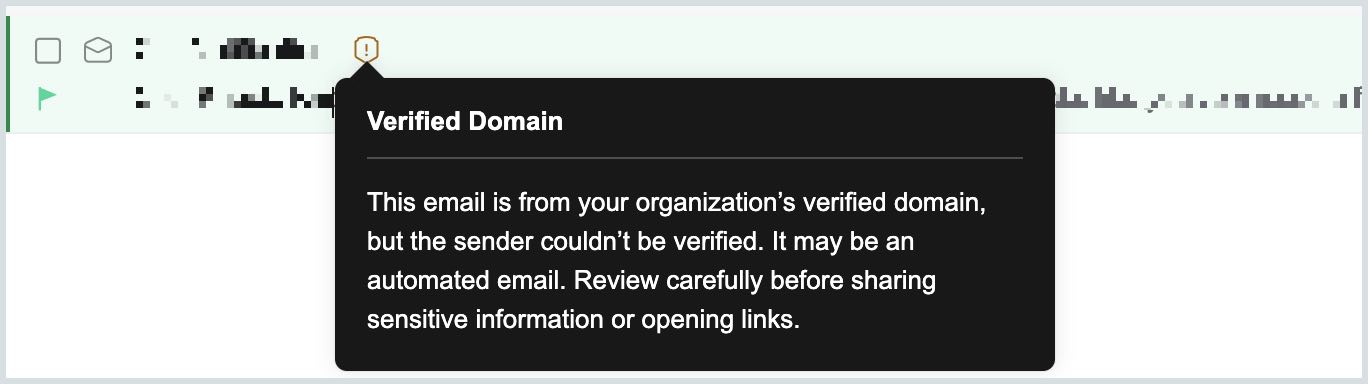
These emails could have been sent:
- By a user of the same organization using a different email service in a hybrid setup.
- By an automated email delivery system or tool in which the email address is configured as the From address.
- From any web form in which the email address is configured as the From address.
The recipient of these emails shall exercise caution before interacting with the content of the email and sharing any information as a reply to these emails. Any interaction can be done after verifying that the email is from a reliable source within the organization.
Unverified sender
This indicator is displayed when the email is sent to you using an email address of domain added and verified by your organization but the sender is not authenticated and their identity could not be verified.
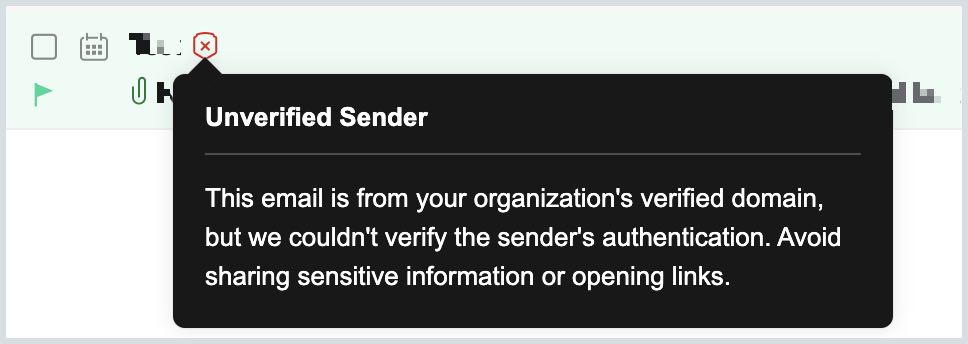
These emails fail the standard SPF and DKIM checks leading to DMARC failure. This makes the sender unauthenticated and unverified, though the email is sent from one of your organization domains.
These emails could have been sent:
- With different sender and return-path addresses that lead to SPF failure.
- Using an unauthenticated email configuration that lead to DKIM failure.
- Using any third party integration or any internal tool without proper authentication.
When you receive such emails be extra cautious and avoid sharing any sensitive information to those email addresses.
Refer to the table given below for a quick summary of the email authentication indicators in Zoho Mail:
| Indicators | Icons | Reason | Email type |
| BIMI |  | The email is sent using a sender address whose domain in BIMI verified. | All emails |
| *Verified sender |  | The email is sent using a verified sender address from your organization's verified domain. | Internal domain emails |
| *Verified domain |  | The email is sent using your organization's verified domain, but the sender couldn't be verified. It may be an automated email. Review carefully before sharing sensitive information or opening links. | Internal domain emails |
| *Unverified sender |  | The email is sent from your organization's verified domain, but we couldn't verify the sender's authentication. Avoid sharing sensitive information or opening links. | Internal domain emails |
| * - These indicators are shown for all emails sent using the domains that are configured and verified in your organization. Be cautious when such indicators are not displayed for the emails as it may be from any spoofed email addresses. | |||
Encryption Status
Email encryption keeps your email safe, and secure and prevents unauthorized access to the data sent via email. This applies to all the emails sent/ received both within and outside your organization's domain.
Incoming emails
Encryption of emails in transit helps keep your emails safe while it travels from the sender to the recipient. This protects your emails from being read by unauthorized parties, while in transit. The level of encryption of the emails you receive is displayed in the email preview pane.

The emails you receive could be encrypted using Transport Layer Security (TLS) or not encrypted at all depending on the sender's email service provider. TLS is a protocol that uses symmetric cryptography to encrypt emails in transit.
 | No encryption | The email has not been encrypted. |
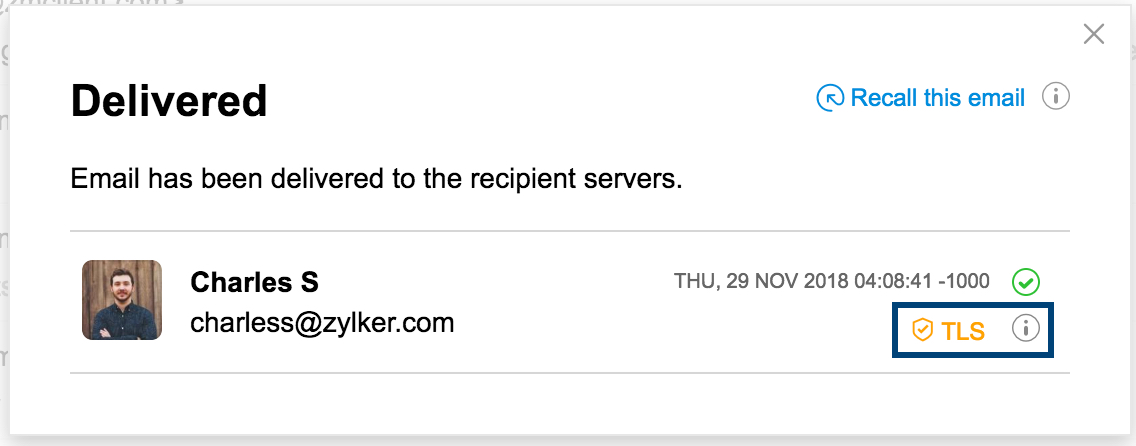
 | Standard Encryption | The email has been encrypted using TLS (Transport Layer Security). |
 | S/MIME | The email has been encrypted using S/MIME (Secure/ Multipurpose Internet Mail Extension) |
The emails sent and received using Zoho Mail are encrypted by TLS. However, in the case of sending an email to an external domain with a different email service provider, the encryption will be based on the support given by the provider. If you want to restrict the delivery of emails to users with plain security, you can opt to choose forced TLS for both incoming and outgoing emails from/ to external domains.
Learn more about Strict TLS Policy in Zoho Mail Admin Console.
Outgoing emails
You can view the level of encryption of the emails you send. Navigate to your Sent folder and click on the Delivery status icon of any delivered email. The level of encryption of the sent email is displayed in the delivery details pop-up that opens.
Sent Via - In Emails
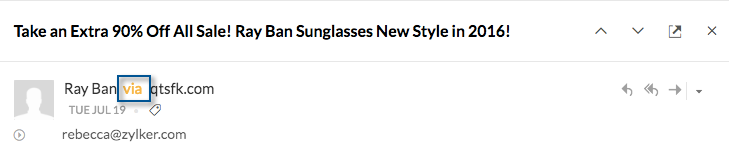
In certain cases, the 'From address' which appears in the email, may be different from the actual email address using which the email was sent. There are two possible cases:
- Genuine Cases: In genuine cases, the owner or the admin of the domain/ email address may be using another service or application, to send emails on his/ her behalf. In this case, the application will be sending emails from a third-party domain, which differs from the actual sender. (Ex: Marketing emails/ Newsletters/ etc)
- Spoofing Cases: Most of the Spam or phishing emails, are sent on the pretext of your own domain, or a domain/ contact whom you trust. In this case, the sender would not have anything to do with the domain which actually sends these emails. While most of these emails, would be identified and marked as Spam by our Spam filters, it is possible that some of these emails make way to your Inbox.
To help you identify the emails, which have the 'From' email address to be different from the actual 'Sender' email address, Zoho Mail provides the 'Sent Via' information along with the actual sender information in the email preview pane. You can click the 'Via' link to view the original sender of the email.
Zoho Mail, being a secure email service, provides you this information, to protect you from misleading emails, sent using a different email address, under a disguise of some of your contacts.
Click the small triangle below to view the original sender details of the email.
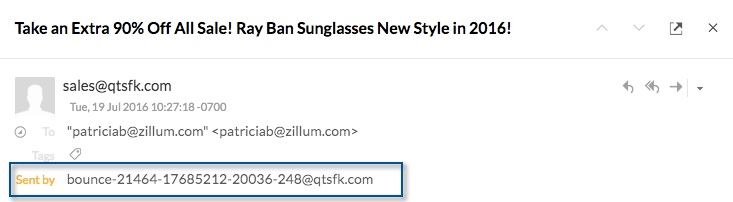
In cases where you notice this difference in the actual email address and the From address in the email, you can be extra cautious and avoid disclosing any important information by replying to the email or following any instructions in the email.
Spam Warning
Unverified Sender
Unauthenticated and suspicious emails are automatically identified by Zoho Mail. A warning message is displayed in the Preview of these unauthenticated emails with options to Report Spam or to Trust the sender. This warning label can appear in different scenarios:

- Unconfirmed Sender - When the actual sender is not the same as the person/ company who appears to send the email.
- Spam check fail - When the email fails DMARC/ SPF/ DKIM checks.
You can click on the Report Spam to mark the email as Spam or the Trust this Sender option in case the email is from a genuine sender.
Email contains web pixel(s)
In some cases, an email containing a web pixel can be used for tracking a recipient when they open the email. Such emails are detected by Zoho Mail and a warning message is displayed.

Note:
Report Spam option will not be available for Shared emails and emails in Shared folders or Spam folder.
In case a genuine email is in the spam folder you can undo it based on the reason it was marked as spam and prevent it from happening again by following the instructions in this help document for spam reasons.
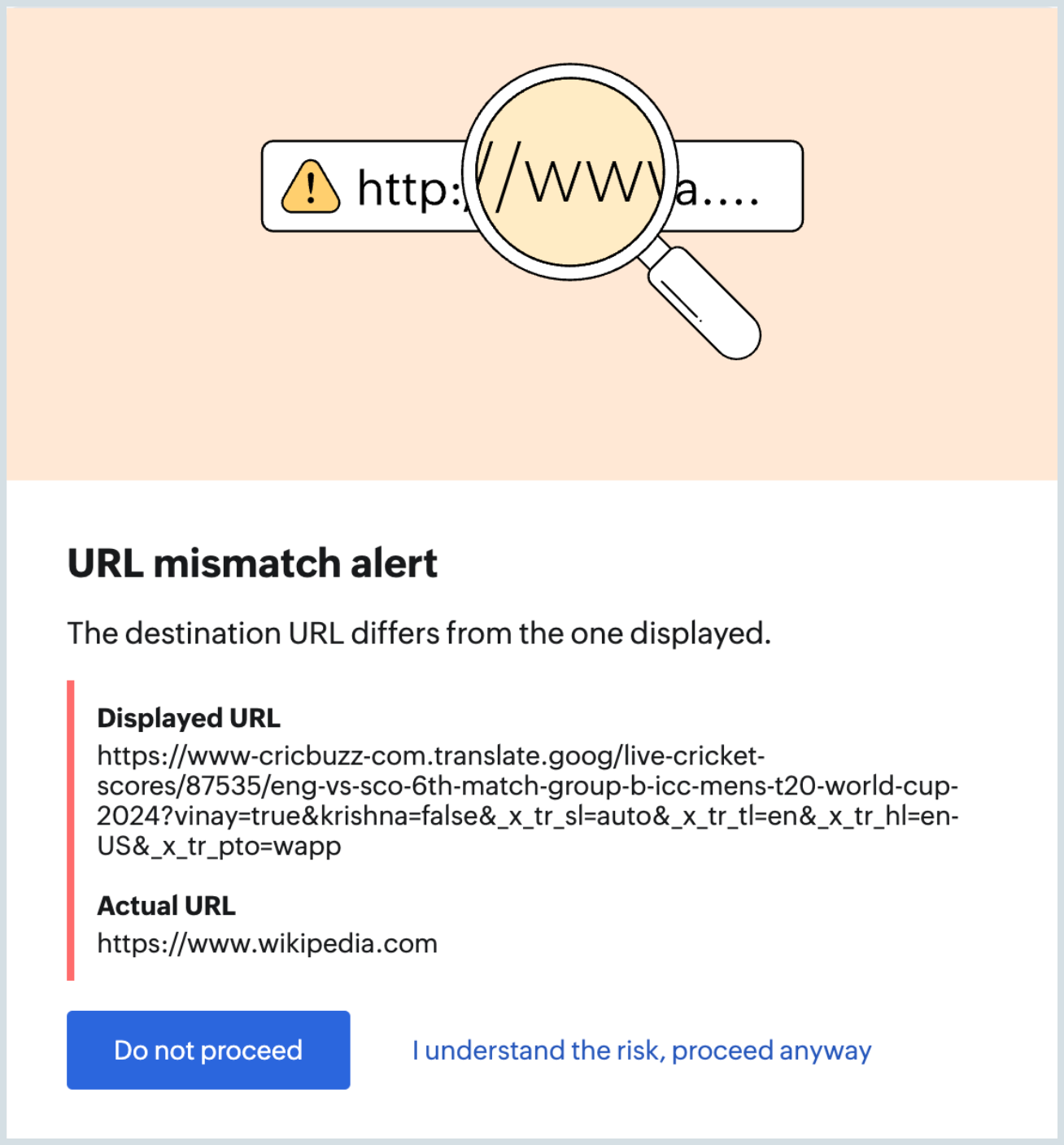
Mismatched URL
When an email contains a URL where the displayed link text and actual URL are different, it can indicate a phishing attempt and other malicious activities. To address this, Zoho Mail provides you with spam alerts which are designed to display both the displayed link and the actual URL. This allows you to assess the legitimacy of the links before interacting with them.