OAuth 2.0 User Guide
Table of Contents
OAuth 2.0 overview
Zoho Mail REST API uses OAuth 2.0 for secure authentication and authorization. OAuth 2.0 enables third-party applications to access resources without requiring the end user to repeatedly authenticate. By obtaining user consent, OAuth 2.0 allows applications to perform predefined API calls securely, ensuring data protection while enhancing user convenience.
If you're developing a custom application or customizing Zoho Mail features for specific business needs, OAuth 2.0 ensures secure access to Zoho Mail data through API integration.
Glossary
The following terms are used throughout this guide:
| Parameter | Description |
|---|---|
| Client application | Third-party application that users access through their Zoho account |
| End user | Person who uses the client application |
| Zoho Authorization Server | Zoho Accounts server that authenticates users and issues authorization codes and tokens |
| Access token | Short-lived OAuth token used to access protected Zoho resources; valid for one hour |
| Refresh token | Long-lived token used to obtain new access tokens without requiring the user to authenticate again |
| Scopes | Permissions that define the data and actions an access token can access |
Refer to the OAuth 2.0 glossary section to understand more about the terms used here.
How does OAuth 2.0 work?
The following steps will help you understand the OAuth 2.0 authentication process:
- The end user accesses the client application.
- The client application initiates authorization by sending a request for authorization code, mentioning the required scopes.
- The Zoho server prompts the end user to authorise the client application to access the end user's data within the mentioned scopes.
- The end user authorizes the client application.
- The Zoho server sends the authorization code to the client application.
- The client application requests the Zoho server for an access token, for the mentioned scopes, in exchange for the authorization code.
- The Zoho server sends an access token ( and a refresh token, if requested).
- The client application uses the access token to access resources on behalf of the end user from the Zoho server. If the access token expires, the refresh token is used to obtain a new access token, allowing the client application to continue accessing resources seamlessly. This process repeats every time the access token expires, ensuring that the refresh token is consistently used to obtain a new access token. This cycle continues until access is explicitly revoked.

Step-by-step guide to obtaining a Zoho-oauthtoken
Note
The steps below describe the Authorization Code flow for Server-based Applications only. If you are using a different client type, refer to the relevant documentation in choosing a client type section.
The following steps explain how to obtain an OAuth token and use it to access Zoho Mail REST APIs:
- Register your app and get OAuth credentials - Register your application in the Zoho API Console and obtain the Client ID and Client Secret required for OAuth authentication.
- Request authorization code - Initiate an authorization request to Zoho's authorization server, mentioning the required scopes.
- User authorization prompt - Review the requested permissions and authorize the client application to access the required resources.
- Grant authorization - Grant access to the client application, after which Zoho redirects the user to the configured redirect URI with an authorization code.
- Exchange authorization code for access token - Exchange the authorization code with Zoho's authorization server to obtain an access token and refresh token.
- Zoho server response - Receive and securely store the access token and refresh token provided by the Zoho authorization server.
- Access Zoho Mail resources - Use the access token in API requests to securely access Zoho Mail resources based on the granted scopes.
Step 1: Register your app and get OAuth credentials
Before making any API calls, register your application in the Zoho API Console. This one-time setup provides the credentials your app uses to identify itself to the Zoho Authorization Server.
How to register?
- Go to the Zoho API Console.
- Click GET STARTED.
- Hover over and select your client type, then click CREATE NOW. If you have already added an application, click ADD CLIENT in the top-right corner.
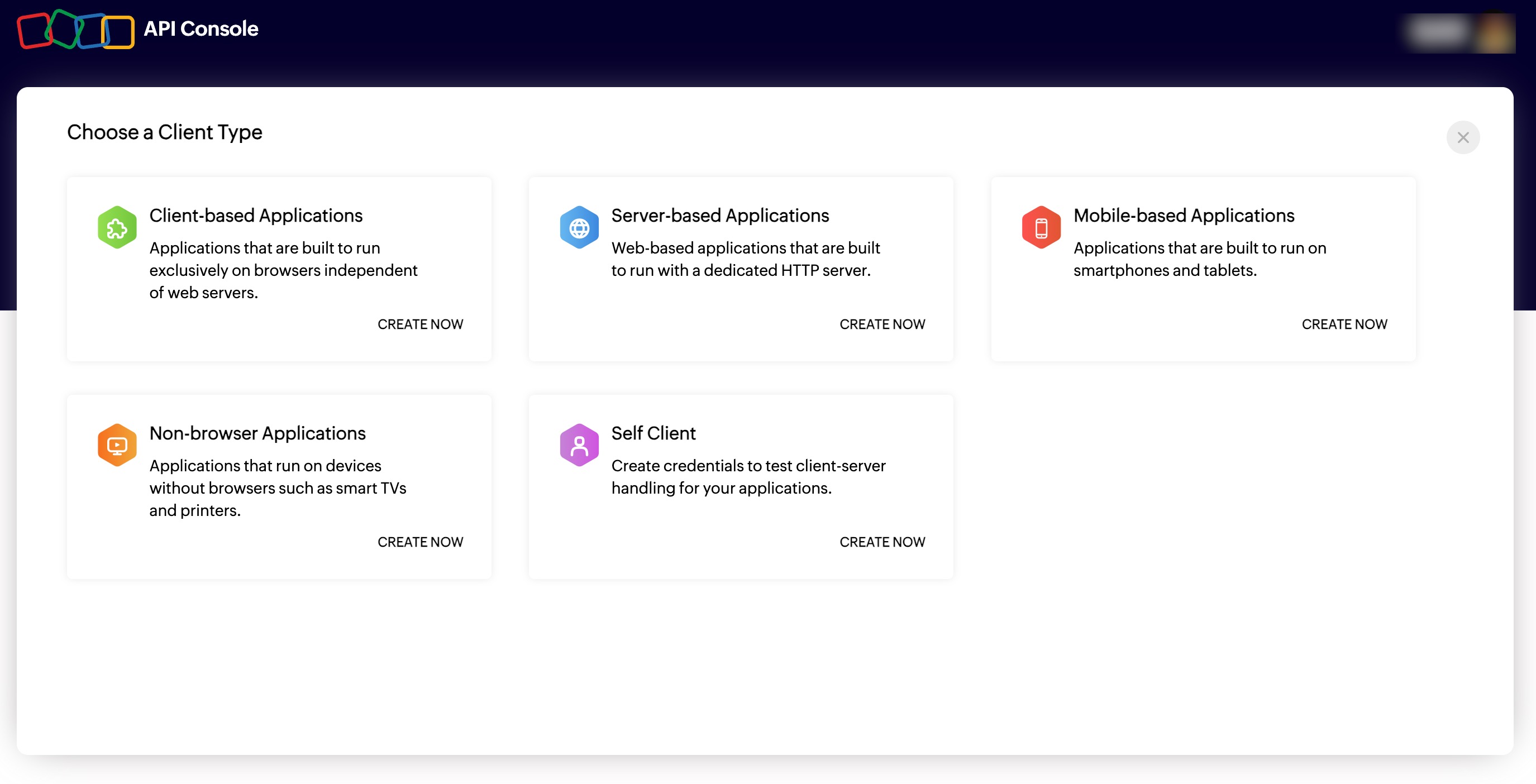
The client type determines the authorization flow your application uses to obtain tokens. Choose based on where your application runs and whether it can securely store a client secret.
Client type | Authorization flow | Description |
Implicit / Authorization Code with PKCE | For browser-based JavaScript applications with no backend server. Tokens are handled entirely in the browser. | |
Authorization Code | For web applications with a backend server. The authorization code is exchanged for tokens server-side, keeping the client secret secure. | |
Authorization Code with PKCE | For native iOS and Android applications. PKCE replaces the client secret for environments where secrets cannot be stored safely. | |
Device Authorization | For limited-input devices such as CLIs or smart TVs. The user authenticates on a separate browser-enabled device while the application polls for the token. | |
Pre-generated Authorization Code | For personal scripts and automation tools accessing your own Zoho Calendar account. No user-facing consent screen is involved. |
- Enter the below mentioned details based on the choice of client type, then click CREATE. The details required during registration depend on your client type. Use the table below to confirm which fields apply to your application:
| Client Type | Common Required Details |
|---|---|
| Client-based Application | Client Name, Homepage URL, Authorized Redirect URIs, JavaScript Domain |
| Server-based Application | Client Name, Homepage URL, Authorized Redirect URIs |
| Mobile-based Application | Client Name, Homepage URL, Authorized redirect URIs |
| Non-browser Based Application | Client Name, Homepage URL |
| Self Client | No additional details required |
Note
- Homepage URL - The full URL to your application's home page.
- Authorized Redirect URI - It is the URI of the application to which the authorization server (Zoho Accounts) sends the response back to, with the authorization code (or access token in case of client-based application) after the user grants permission through consent. The URI should begin with https:// or https://. You can add multiple redirect URIs by clicking [plus]. Example: https://www.zylker.com/oauthredirect.
- Javascript Domain - If your application is a client-based Javascript application, you must specify the Javascript domain of the application. The Javascript domain should begin with https:// or https://. You can add multiple Javascript domains by clicking [plus].
After registration, Zoho issues the following credentials for your application:
- Client ID - Unique identifier assigned to your application.
- Client Secret - Confidential key used alongside the Client ID to authenticate your application's token requests. Store it securely and do not expose it in client-side applications or public repositories.
Note
Your Client ID and Client Secret are permanent for the registered application. Store them securely and rotate the Client Secret immediately if it is ever compromised.
Step 2 : Request authorization code
You (the end-user) or your client application should initiate the authorization process by requesting an authorization code through a GET request to the Zoho authentication server via a web browser. The request must include the required scopes, client_id, response_type, and redirect_uri.
Method:
GET
Sample request format of the URL to be called via a web browser:
https://accounts.zoho.com/oauth/v2/auth?client_id={client_id}&response_type=code&redirect_uri={redirect_uri}&scope={scope}&access_type={offline or online}
Example request:
https://accounts.zoho.com/oauth/v2/auth?client_id=1000.*****5&response_type=code&redirect_uri=https://zylker.com/redirect&scope=ZohoMail.accounts.READ&access_type=offline
Query Parameters Details :
| Parameter | Type | Value | Description |
| *client_id | Unique Identifier | - | The ID that was assigned to the client application when registered. |
| *response_type | string | "code" | The type of response expected. In this case, "code" indicates an authorization code will be returned. |
| *redirect_uri | URI | - | The callback URI that was mentioned during the client application's registration. |
| *scope | string | Syntax: Servicename.scopename.Operation Example: ZohoMail.accounts.READ,ZohoMail.folders.UPDATE | Specifies the scope allowed for the client application. Has to be separated by commas. For detailed information on Scopes, click here. |
| access_type | string | "offline/online" (Default : "online") | Specifies whether a refresh token is required. "online" provides an access token only; "offline" provides both an access token and a refresh token. |
| prompt | string | "consent" | Add this parameter to reauthorize the user at each login, showing the consent screen every time. Use this parameter only when necessary. |
| state | string | - | A generated value that correlates the callback with its associated authorization request. |
* denotes mandatory parameter.
Step 3 : User authorization prompt
In response, the Zoho authentication server will prompt you (the end-user) to authorize the client application to access their data based on the specified scopes.

The screen displays the application name, the requested scopes, and the option to Accept or Deny access.
Step 4 : Grant authorization
If you (the end-user) click "Accept" in the prompt window, you authorize the client application to access your Zoho account's resources within the specified scope. Upon acceptance, the Zoho authentication server redirects you to the specified redirect_uri, including the requested authorization code "code" embedded in the URL.
Sample response format of the URL in which authorization code is received:
https://{redirect_uri}?code={authorization_code}&location={domain}&accounts-server={accounts_url}
Example response URL in which authorization code is received:
https://zylker.com/redirect?code=1000.*******77&location=us&accounts-server=https%3A%2F%2Faccounts.zoho.com
The client application retrieves the authorization code from the above URL. The authorization code is valid for 2 minutes.
- If the end user clicks Deny, the server will return an error.
Step 5: Exchange authorization code for access token
The client application should request an access token from the Zoho authentication server by sending a POST request in any API platform like Postman, embedding the authorization code received in the previous step in the URL, along with other necessary details.
Method:
POST
Sample request format in any API platform:
https://accounts.zoho.com/oauth/v2/token?code={authorization_code}&grant_type=authorization_code&client_id={client_id}&client_secret={client_secret}&redirect_uri={redirect_uri}&scope={Servicename.Scopename.Operation}
Example request:
https://accounts.zoho.com/oauth/v2/token?code=1000.****160&grant_type=authorization_code&client_id=1000.R2Z0W****Q5EN&client_secret=39c***921b&redirect_uri=https://zylker.com/redirect &scope=ZohoMail.accounts.READ
Query Parameter Details :
| Parameter | Type | Value | Description |
| *code | string | - | The authorization code was obtained from the previous step. |
| *grant_type | string | "authorization_code" | Defines the type of grant being used. In this case, it's the authorization code grant type. |
| *client_id | Unique Identifier | - | The ID that was assigned to the client application when registered. |
| *client_secret | string | - | The client application's secret, which was assigned when it was registered. |
| *redirect_uri | URI | - | The callback URI that was mentioned during the client application's registration. |
| *scope | string | Syntax: Servicename.scopename.Operation Example: ZohoMail.accounts.READ | Specifies the scope allowed for the registered client application. Has to be separated by commas. For detailed information on Scopes, click here. |
| state | string | - | It has to be maintained the same during the entire process of authorization. |
- denotes mandatory parameter.
Step 6 : Zoho server response
The Zoho server responds with an access token (and a refresh token if requested).
Sample Response Format:
{
"access_token": "{access_token}",
"refresh_token": "{refresh_token}",
"api_domain": "https://www.zohoapis.com",
"token_type": "Bearer",
"expires_in": 3600
}
Example Response:
{
"access_token": "1000.24a566***********6d276b472.86a1******883491c79a042af",
"refresh_token": "1000.f113ece**********82d02fb25e9.cc0**********8c57693baea39f",
"scope": "ZohoMail.accounts.READ",
"api_domain": "https://www.zohoapis.com",
"token_type": "Bearer",
"expires_in": 3600
}
You can store this data so that there is no need for authorization each time the end user accesses the registered client application. This completes the authentication.
Step 7 : Access Zoho Mail resources
Once your client application obtains the access token, it can access Zoho's protected resources through Zoho Mail's APIs. When the access token is provided to the Zoho's resource server, your client application will be granted access based on the scopes specified in the request. Zoho's OAuth implementation uses the Bearer authentication scheme. Therefore, the access token must be included in the Authorization header, prefixed with Zoho-oauthtoken, in every API request.
Note
The OAuth token response includes token_type as Bearer, in compliance with the OAuth 2.0 specification. However, Zoho Mail APIs require Zoho-oauthtoken as the authorization header prefix, not Bearer.
Use the following format when making API requests: Authorization: Zoho-oauthtoken {access_token}
Manage OAuth tokens
After obtaining and using the access token, your application must manage the token lifecycle to maintain uninterrupted and secure access to Zoho Mail resources. Access tokens have a limited validity period and must be renewed using the refresh token when they expire. When access is no longer required, you can revoke the refresh token to prevent further access.
Renew access token
Access tokens have a limited validity period and, in most cases, expire after one hour (3,600 seconds). Once an access token expires, the client application must use the refresh token to request a new access token for continued access. This process repeats each time the access token expires, ensuring that the refresh token is consistently used to obtain new access tokens. The cycle continues until access is explicitly revoked. Refresh tokens typically have a longer lifespan—ranging from days to months or even years—depending on the authorization server’s policy.
The client application requests a new access token from the Zoho authentication server by sending a POST request, embedding the refresh token from step 6 in the URL, along with other required details.
Method:
POST
Sample Request format of URL:
https://accounts.zoho.com/oauth/v2/token?refresh_token={refresh_token}&grant_type=refresh_token&client_id={client_id}&client_secret={client_secret}
Example URL :
https://accounts.zoho.com/oauth/v2/token?refresh_token=1000.4069dacb56*****36&grant_type=refresh_token&client_id=1000.R2Z0W***Q5EN&client_secret=39c****921b
Query Parameter Details:
| Parameter | Type | Value | Description |
| *refresh_token | string | - | The refresh token received from step 6 embedded in the URL. |
| *grant_type | string | "refresh_token" | Defines the type of grant being used. In this case, it's the refresh token grant type. |
| *client_id | Unique Identifier | - | The ID that was assigned to the client application when registered. |
| *client_secret | string | - | The client application's secret, which was assigned when it was registered. |
| scope | string | Syntax: Servicename.scopename.Operation Example: ZohoMail.accounts.READ, ZohoMail.folders.UPDATE | Specifies the scope allowed for the registered client application. Has to be separated by commas. For detailed information on Scopes, click here. |
| state | string | - | It has to be maintained the same during the entire process of authorization. |
- denotes mandatory parameter.
If the request is successful, you will receive the following response:
Sample response format:
{
"access_token": "{new_access_token}",
"expires_in": 3600,
"api_domain": "https://www.zohoapis.com",
"token_type": "Bearer"
}
In response, you have received a new Access Token. This new Access Token will also have an hour(3600 seconds) of time validity.
Revoke refresh token
When the client application no longer requires access to Zoho Mail resources, revoke the refresh token to prevent the application from obtaining new access tokens. Access tokens may also be revoked due to logout, expiration, security updates, suspicious activity, or account changes to maintain security.
The client application can request the Zoho authentication server to revoke the refresh token by sending a POST request with the refresh token.
Method:
POST
Sample Request format of URL:
https://accounts.zoho.com/oauth/v2/token/revoke?token={refresh_token}
Example URL:
https://accounts.zoho.com/oauth/v2/token/revoke?token=1000.4069dacb56*****3677
Note
Some APIs require Admin authentication for execution, while others can be executed with user authentication. Certain APIs are designed to be executed by both Admins and Users. However, the request URLs will differ based on the user's role.