How to buy Zoho Mail Premium through AWS Marketplace
If your organization already uses AWS to manage software subscriptions, you can purchase Zoho Mail Premium directly through AWS Marketplace. Your subscription, licenses, billing, and renewal settings are managed through AWS, while your email organization and mail settings continue to be managed from the Zoho Mail Admin Console.
Note
- Zoho Mail Premium is currently the only Zoho Mail plan available for purchase through AWS Marketplace.
- If you want to purchase another Zoho Mail plan or manage your subscription directly through Zoho, refer to our pricing page to choose a plan and set up your organization.
Points to note
Before purchasing Zoho Mail Premium through AWS Marketplace, note the following:
- Zoho Mail Premium is the only plan available for purchase through AWS Marketplace, and it is offered as an annual subscription.
- Your subscription, user licenses, and renewal settings are managed through AWS Marketplace.
- You can manage your Zoho Mail organization, users, domains, and mail settings from the Zoho Mail Admin Console.
Prerequisites
Make sure you have the following before purchasing Zoho Mail Premium through AWS Marketplace:
- An AWS account with the required permissions to purchase products through AWS Marketplace.
- The details required to create or connect your Zoho Mail organization.
- Access to your organization's domain and DNS settings.
- The number of Zoho Mail user licenses you want to purchase.
Subscribe to Zoho Mail Premium through AWS Marketplace
Follow these steps to purchase your Zoho Mail Premium subscription:
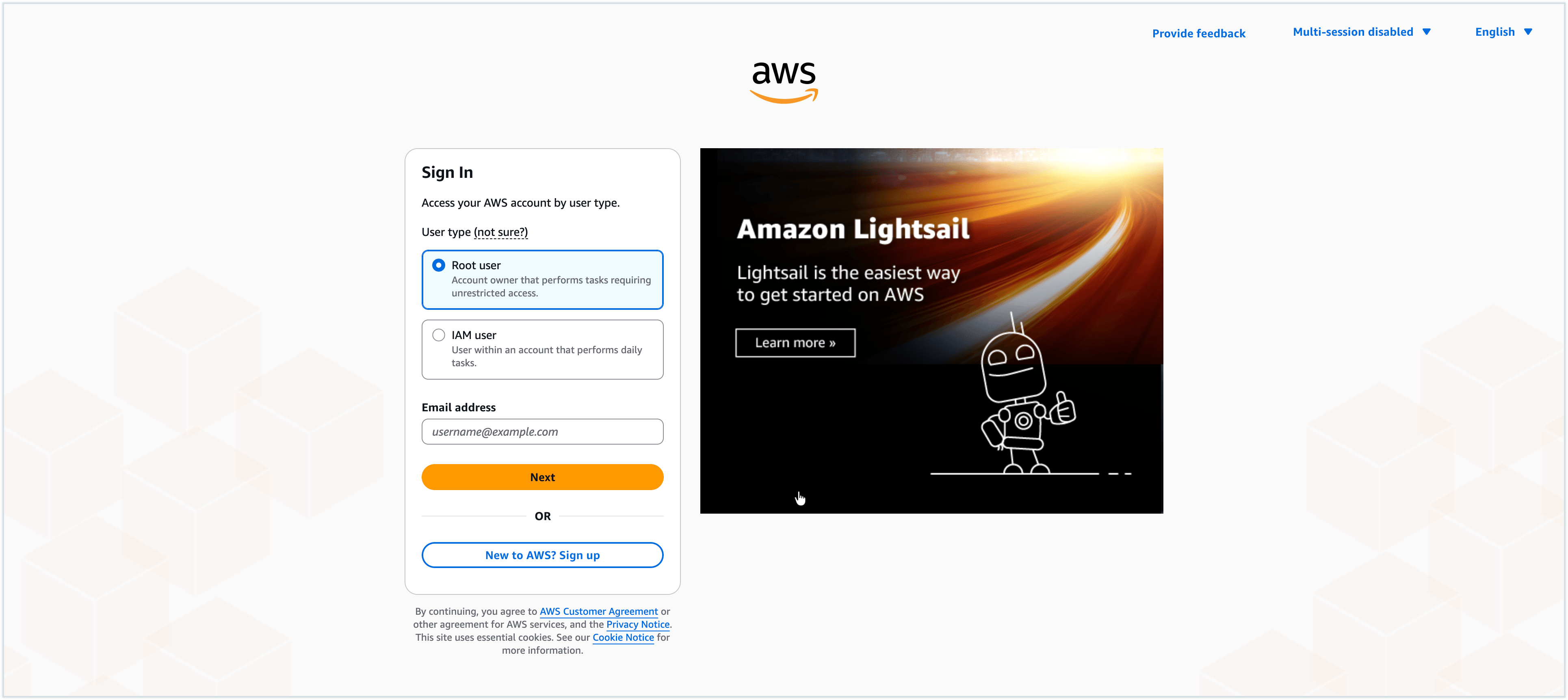
- Sign in to your AWS Marketplace account.
- In the Discover products section, search for Zoho Mail - Premium.
- Select ZohoMail - Premium from the search results.
- Review the product details, including the subscription period, pricing, and other information.
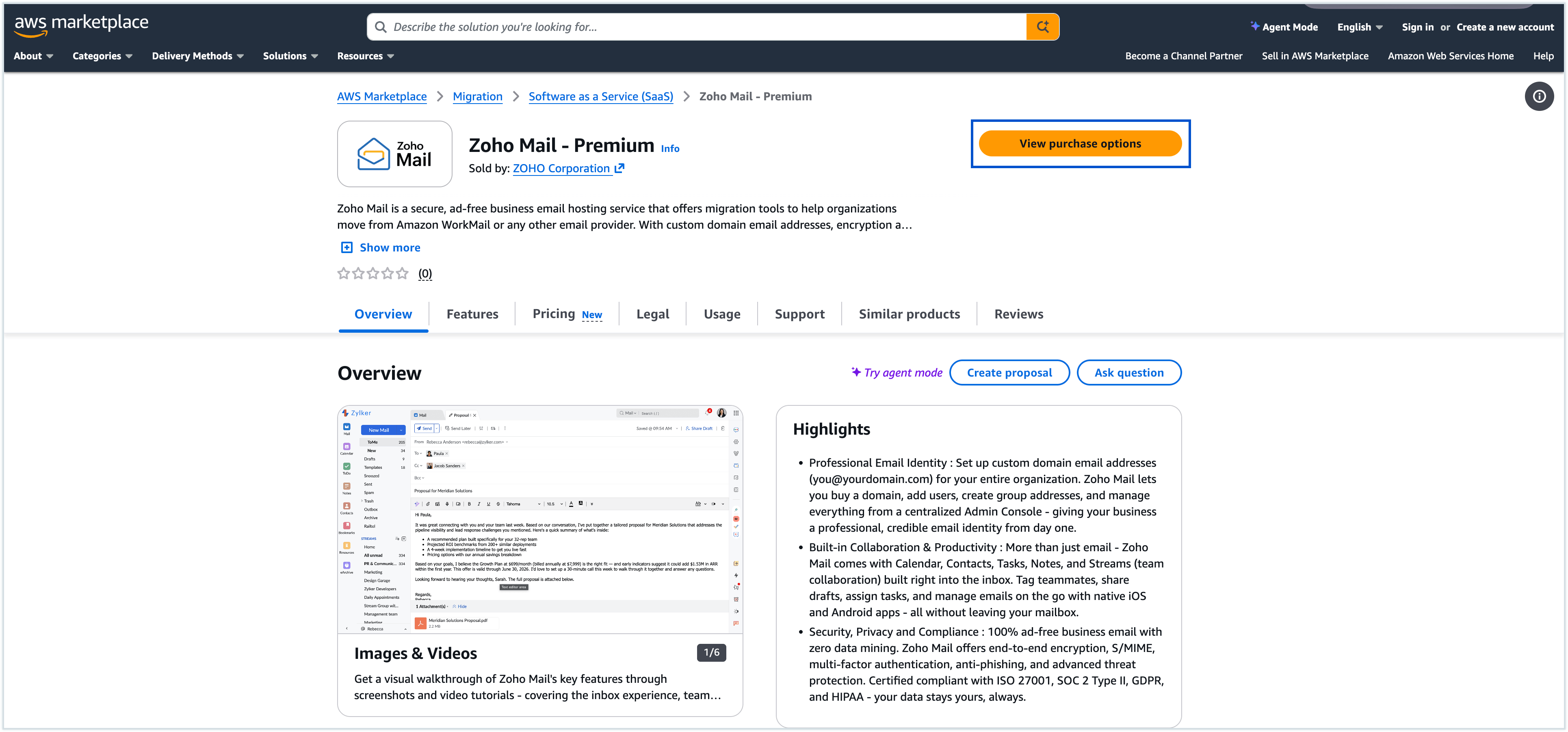
- On the product details page, click View purchase options.
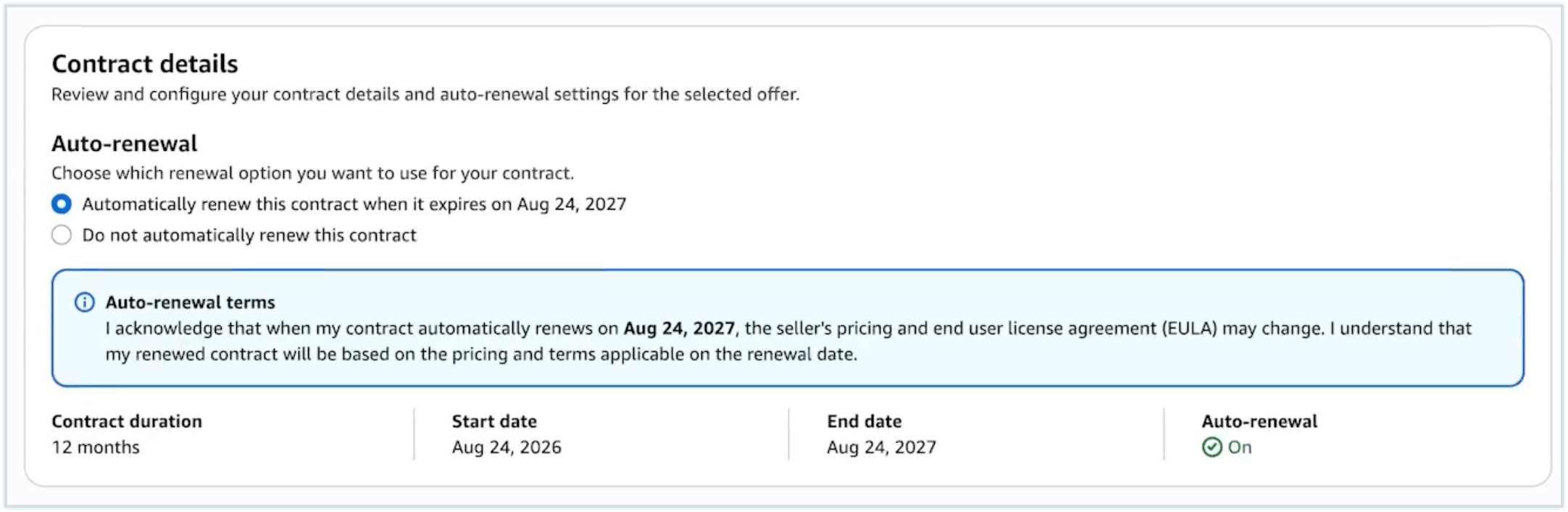
- Select the renewal option for your subscription. You can choose either automatic renewal or manual renewal.
- Under Dimensions, select Zoho Mail Premium 50 GB.
- Enter the number of Units you want to purchase. Each unit represents a user license included in the subscription.
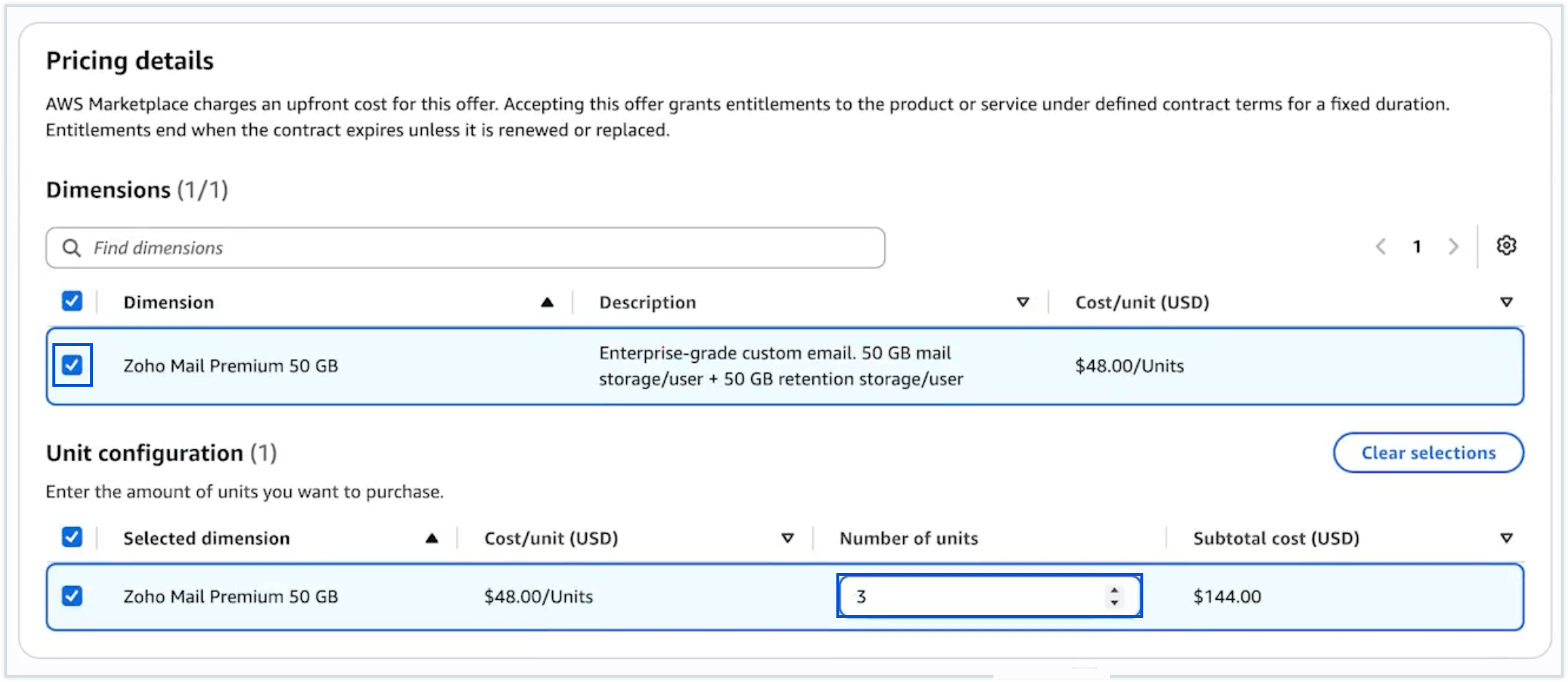
- Review the subscription details, number of licenses, and total cost.
- Click Subscribe to initiate the purchase.
- After the subscription is created, click Set up your account.
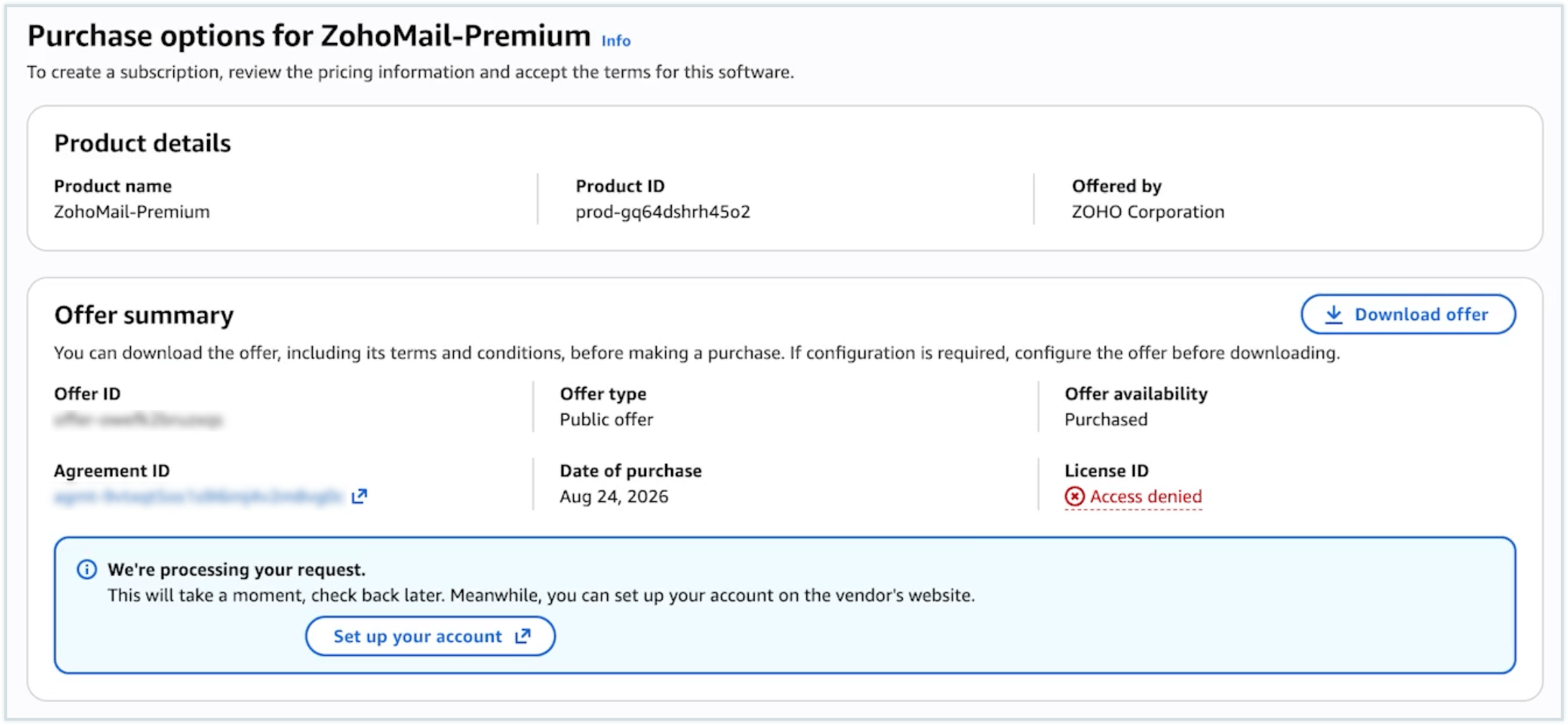
You will be redirected to the Zoho Mail Sign-in page, where you can either create a new Zoho Mail organization or connect an eligible existing organization.
Sign in to your account
After purchasing the subscription, you need to associate it with a Zoho Mail organization. You can either:
Note
- An existing organization can be connected to an AWS Marketplace subscription only if it is currently on the Zoho Mail Free plan.
- If your organization already has a paid Zoho Mail subscription, you cannot migrate that existing subscription to AWS Marketplace billing. You must create a new organization for the AWS Marketplace subscription.
Create a new Zoho Mail account
If you don't already have a Zoho Mail organization, you can create one during the setup process.
- On the Zoho Mail Sign-in page, select Create a new account.
- Click Continue.
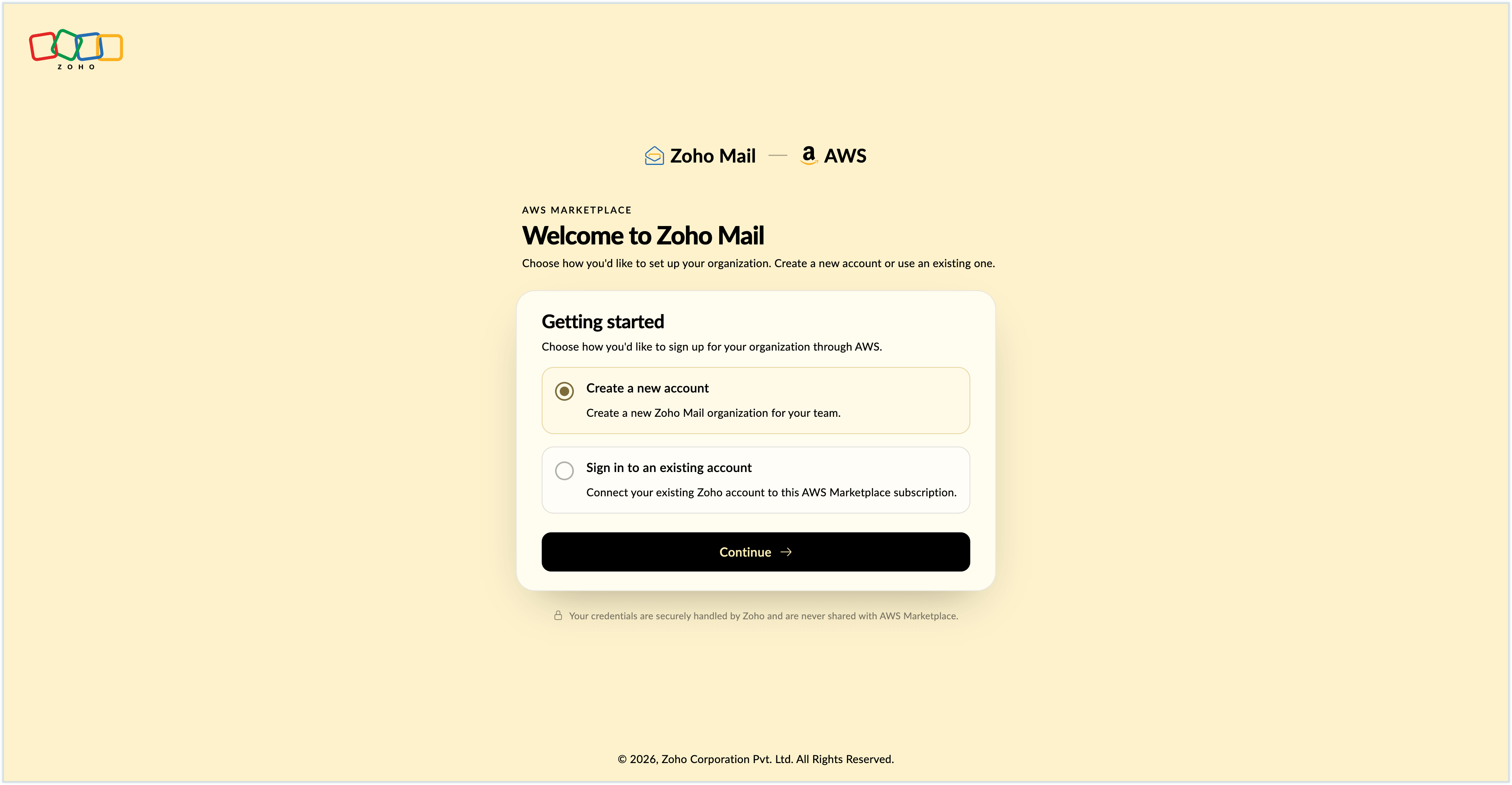
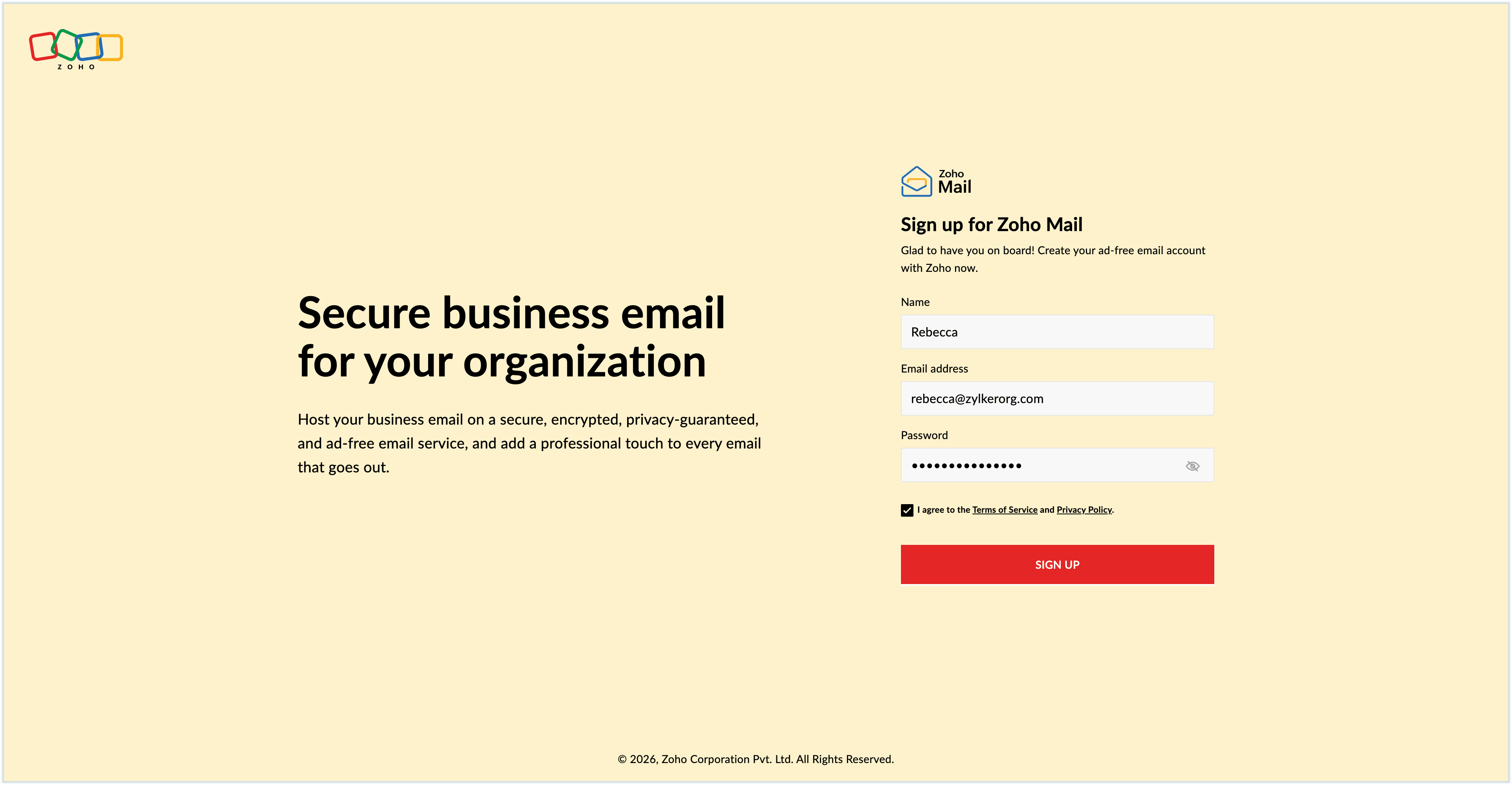
- On the Zoho Mail sign-up page, enter the required details, such as your name, email address, and password.
- Read and agree to the applicable Terms and Conditions.
- Click Sign up.
- After your account is created, click Set up my organization.
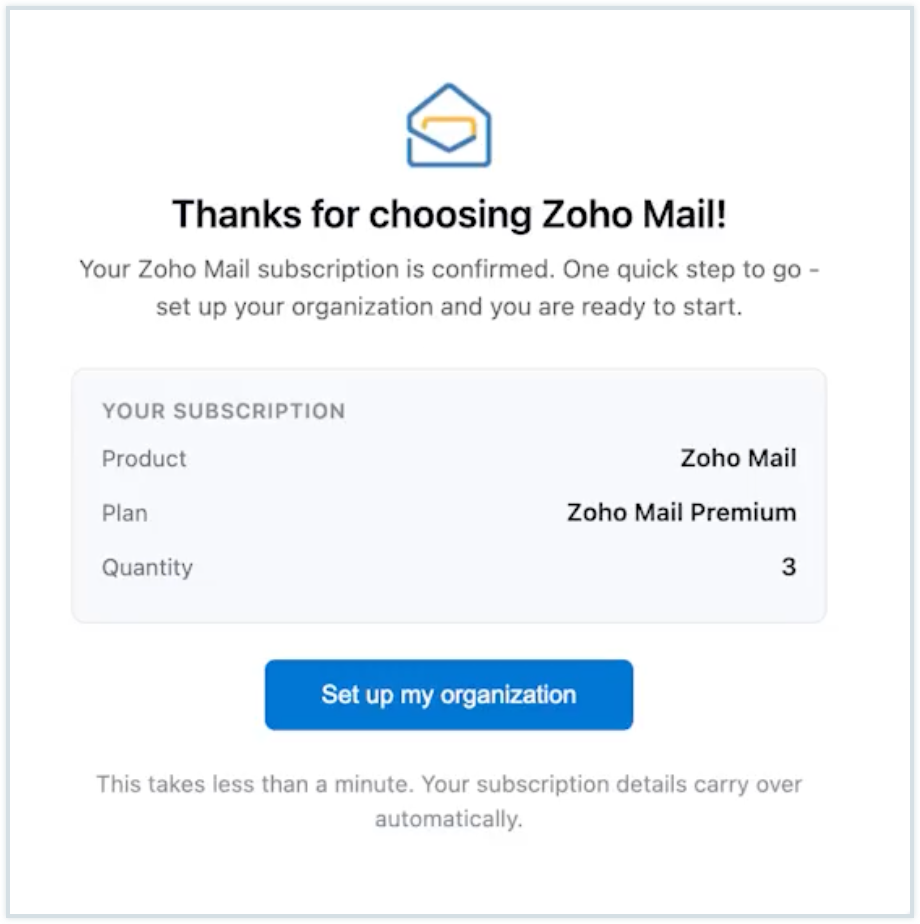
- You will be redirected to the Zoho Mail email hosting page, where you can setup your organization.
- During the initial email hosting setup, you can:
- Add and verify your domain.
- Add users to your organization.
- Create groups
- Configure the required MX, SPF, and DKIM records.
- Migrate your existing email data and setup, if required.
You can complete these configurations during the initial setup or skip them and configure them later from the Zoho Mail Admin Console.
Once you finish the setup, you will be taken to your Zoho Mail organization dashboard, where you can access the available settings and administration options.
Connect an existing Zoho Mail account
If you already have an organization on the Zoho Mail Free plan, you can connect it to your AWS Marketplace subscription. This allows you to continue using your existing organization while managing its subscription billing through AWS Marketplace.
Note
You can connect an existing Zoho Mail organization to your AWS Marketplace subscription only if it is on the Zoho Mail Free plan.
To connect your existing organization:
- On the Zoho Mail Sign in page, select Sign in to an existing account.
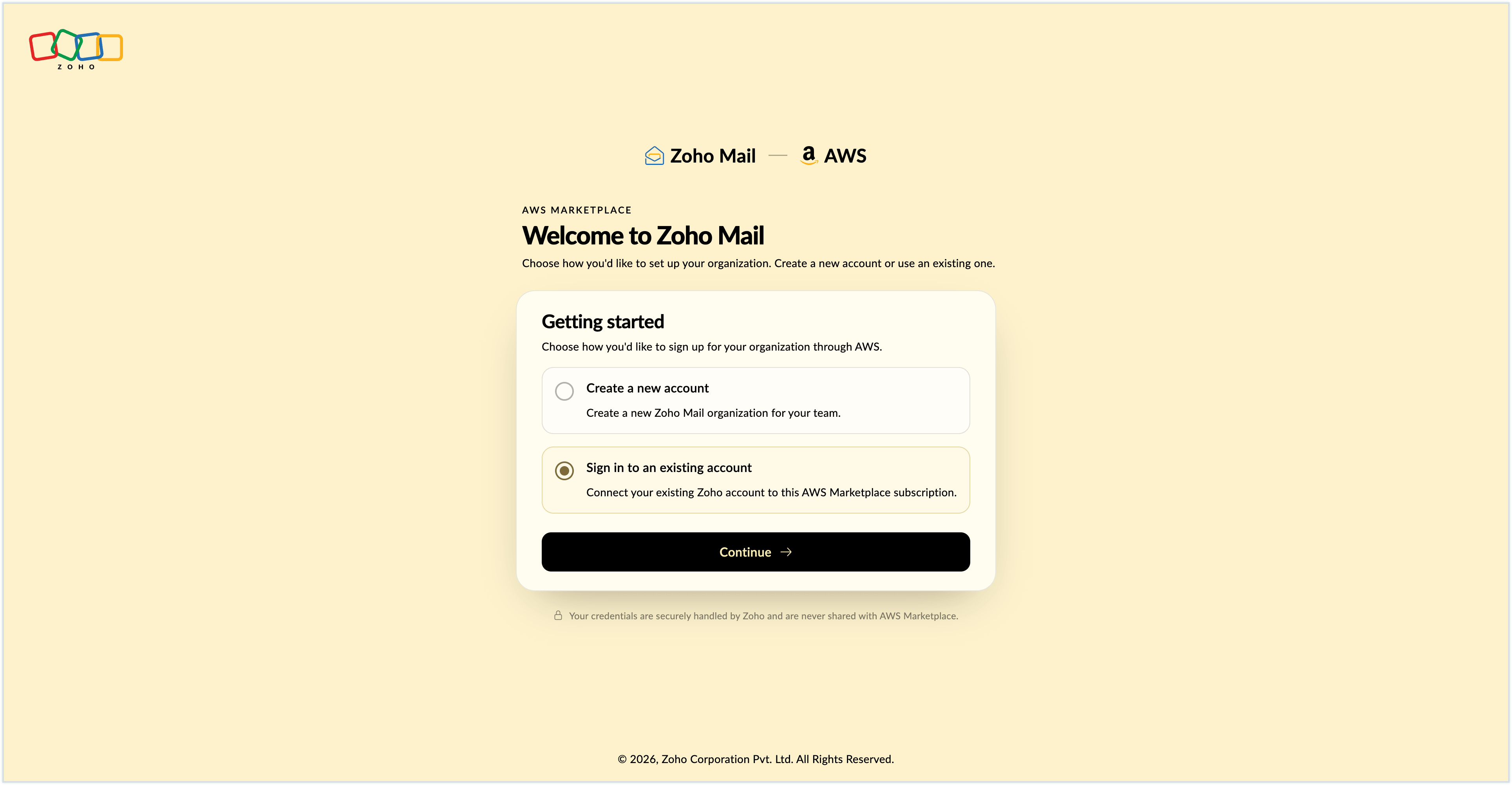
- If you are already signed in to a Zoho account, select Continue with this account.
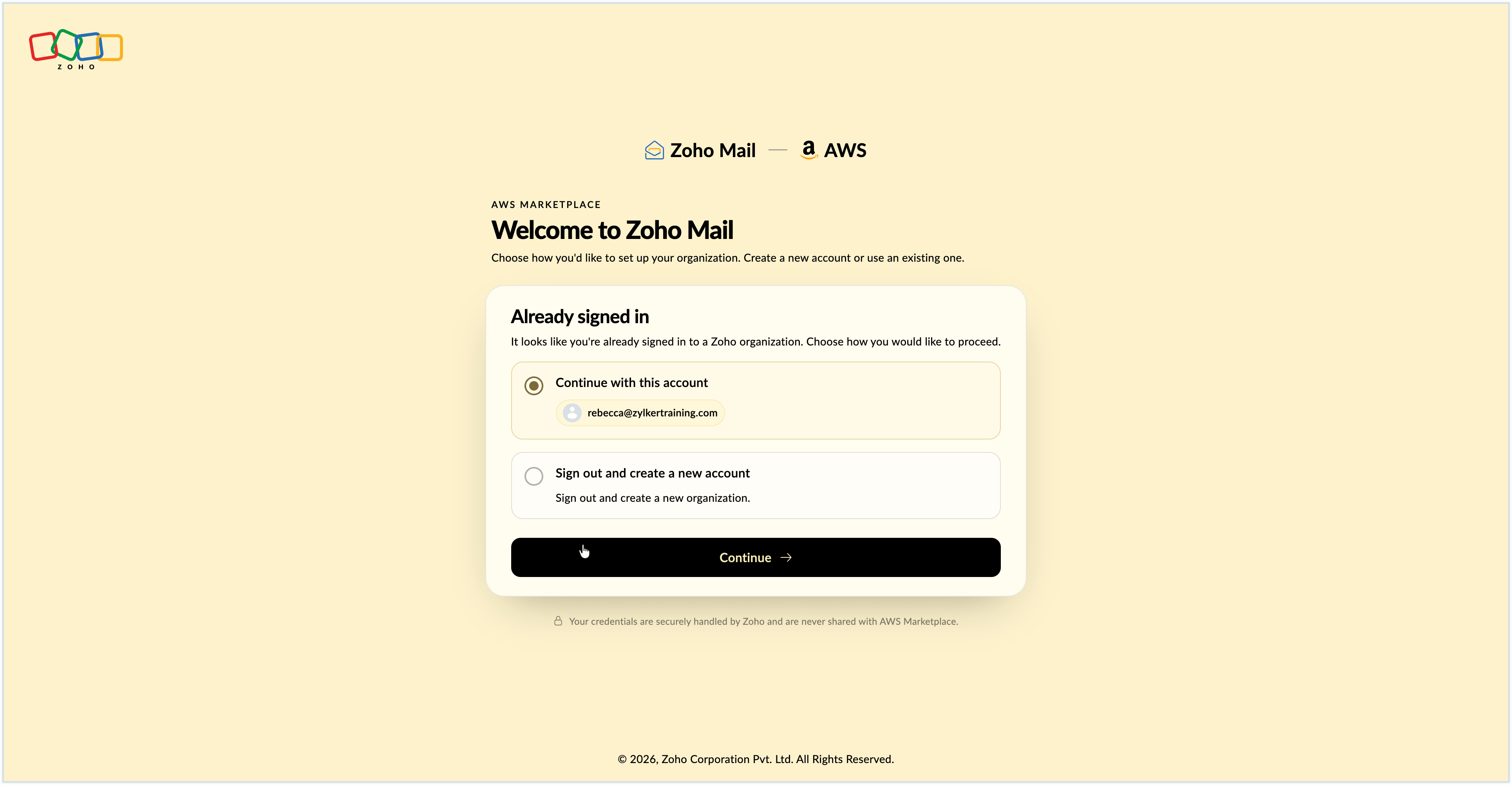
- Click Continue.
- Enter the email address and password associated with your existing Zoho Mail acccount, and click Sign in.
- Confirm that you want to connect your existing organization to the AWS Marketplace subscription.
- Complete the required account verification.
- Review the plan, subscription, and license details displayed on the screen, and click Set up my organization.
- You will be redirected to the Zoho Mail email hosting setup page. Review your organization information and complete the email hosting setup, if required.
Once the setup is complete, you will be taken to your Zoho Mail organization dashboard, where you can access the available settings and administration options.
Manage your Zoho Mail organization
Once your AWS Marketplace subscription is active and your organization is set up, you can manage your email environment from the Zoho Mail Admin Console. You can:
- Add and manage users
- Configure domains
- Create groups and aliases
- Configure mail policies and security settings
- Manage organization-wide mail settings
- Monitor and administer your Zoho Mail organization
For detailed information, refer to the relevant Zoho Mail Admin Console help pages.
You can view the details of your AWS Marketplace subscription from the Zoho Mail Admin Console:
- Sign in to the Zoho Mail Admin Console.
- Navigate to Subscription in the left pane.
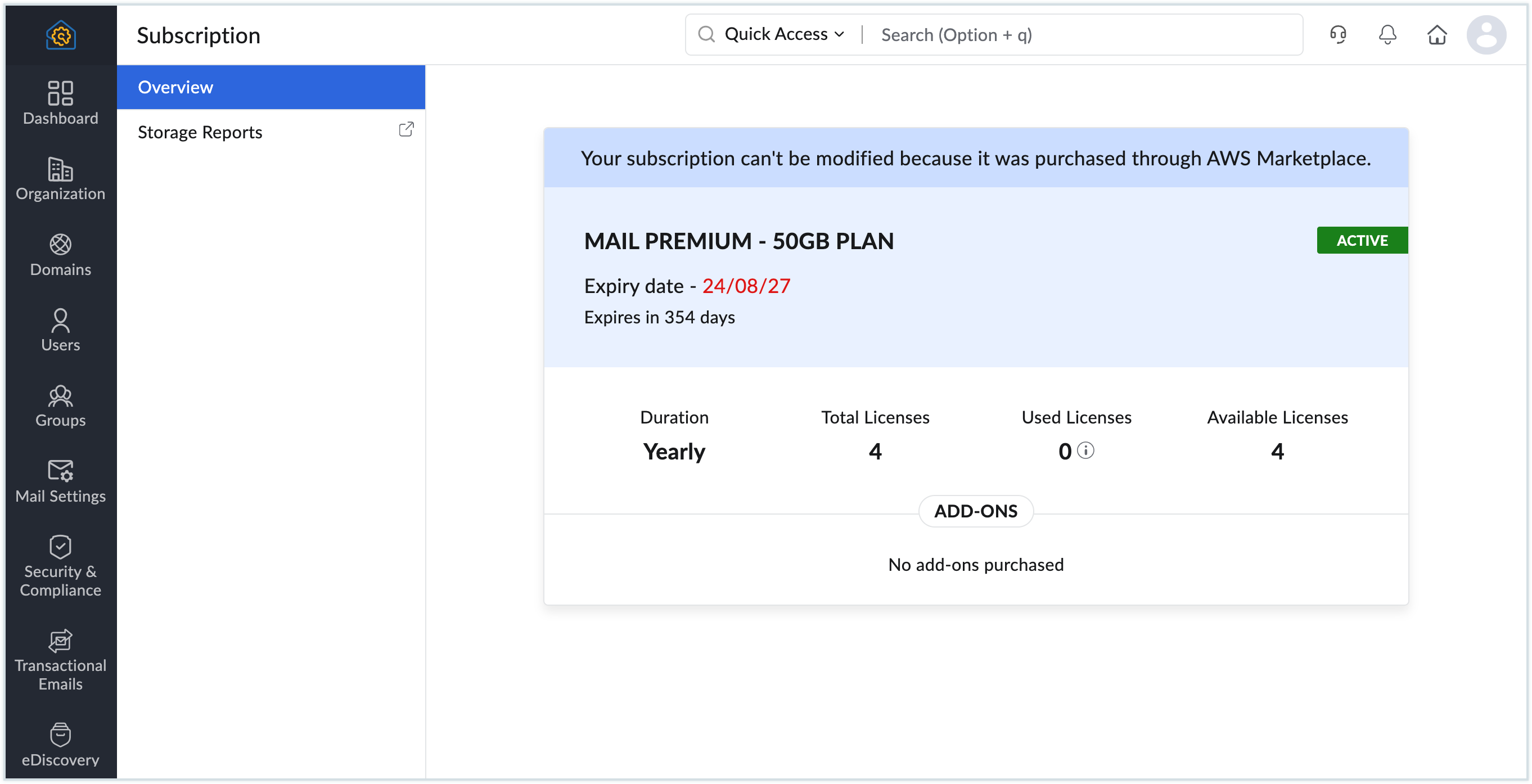
- View the details of your AWS Marketplace subscription.
If you need to make changes to the subscription, you must do so through AWS Marketplace.
Manage billing and subscription
When you subscribe to Zoho Mail - premium through AWS Marketplace, your subscription is purchased through AWS and the associated charges are billed through your AWS account. You can manage your AWS Marketplace subscription and view billing information from your AWS account. You can manage settings such as:
- Subscription renewal
- Number of user licenses
- AWS Marketplace billing information
For information about managing your AWS Marketplace subscription and billing, refer to the AWS Marketplace documentation.
Frequently asked questions
Can I subscribe to Zoho Mail directly through AWS Marketplace?
Yes. You can purchase Zoho Mail Premium directly through AWS Marketplace without setting up a separate payment process with Zoho. The subscription charges are billed through your AWS account.
Is Zoho Mail Premium available as a monthly subscription through AWS Marketplace?
No. Zoho Mail Premium is available through AWS Marketplace as a yearly subscription. A monthly subscription is not available through this offering.
Where is my Zoho Mail subscription managed?
Your Zoho Mail Premium subscription purchased through AWS Marketplace is managed through AWS Marketplace. Subscription-related changes, including changes to the number of user licenses and renewal settings, must be made through AWS Marketplace. For information about managing your Zoho Mail Premium subscription and billing, refer to the AWS Marketplace documentation.
How can I increase the number of user licenses?
You can increase the number of user licenses through AWS Marketplace. The updated license count will be automatically reflected in Zoho Mail.
How can I reduce the number of user licenses?
Currently, when you purchase Zoho Mail Premium through AWS Marketplace, you cannot reduce the number of user licenses during the subscription period. You can reduce the license count at the time of renewal.
Can I use an existing Zoho Mail organization with my AWS Marketplace subscription?
It depends on the current subscription status of your organization. If you have an existing Zoho Mail Free plan organization, you can sign in with your existing Zoho Mail account and connect the organization to the AWS Marketplace subscription during setup.
If your organization already has a paid Zoho Mail subscription, you cannot migrate that existing paid subscription to AWS Marketplace billing.
Who should I contact for billing issues?
For issues related to AWS Marketplace subscription charges, billing, invoices, or your AWS account, refer to AWS billing and Marketplace support resources.
For issues related to your Zoho Mail organization, users, domains, or mail service, contact Zoho Mail Support at support@zohomail.com.