

Data Backup

Zoho Invoice allows you to export your complete organizational data as a single compressed file. The compressed file will consist of CSV files that belong to various modules of Zoho Invoice.
Note:
- You should have Admin access to initiate a data backup in a Zoho Invoice organization.
- It may take up to 30 minutes to receive the download link after initiating a backup.
- The download link for your backed up data will expire 30 days post the date of your backup.
- Once a backup is initiated, you can’t backup your data for the next 15 days.
Backup Data
You can backup data like quotes, invoices, credit notes etc., from Zoho Invoice onto a CSV/XLS file. Here’s how:
- Go to Settings and select Data Management.
- Navigate to the Backup Data tab.
- Click Backup Your Data to initiate a backup.
- Check the email ID to which the backup data will be sent and mark the box Include Sensitive Personally Identifiable Information (PII) while backing up data.
- Click Continue to proceed further.
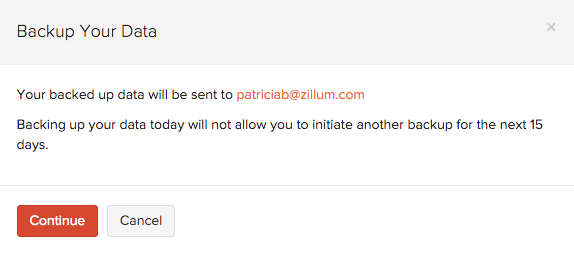
- You can see the status of your backup from the Backup History section.
After the backup is created, a download link will be sent to your registered email address. This link will contain a CSV or XLS file with all the transactions from your Zoho Invoice organization. You can download the file either from the email (if you’re logged into your Zoho account) or from Data Management in Zoho Invoice, where all backups are listed along with details of the user who initiated each backup.
Backup Documents
You can backup all the documents uploaded in your Zoho Invoice organization into a ZIP file. Here’s how:
- Go to Settings and select Data Management.
- Navigate to the Backup Documents tab.
- Click Back Up Documents to initiate a backup.
- In the pop-up that appears, click Continue.
After the backup is created, a download link will be sent to your registered email address. This link will contain a ZIP file with all the documents from your Zoho Invoice organization.
Backup Audit Trail
You can backup all your audit trail activities in your Zoho Invoice organization into a ZIP file. Here’s how:
- Go to Settings and select Data Management.
- Navigate to the Backup Audit Trail tab.
- Click Backup Your Audit Trail to initiate a backup.
- In the pop-up that appears, click Continue.
After the backup is created, a download link will be sent to your registered email address. This link will contain a ZIP file with all your audit trail activities from your Zoho Invoice organization.
 Yes
Yes