

Abandoned Cart Tracking

Abandoned Cart Tracking identifies visitors who start the checkout process on your Hosted Payment Page but leave before completing the payment. When enabled, Zoho Billing automatically sends a follow-up email with a link to resume their checkout.
Only visitors who have verified their email address on the Hosted Payment Page receive abandoned cart notification emails.
Aaron visits Zylker’s Hosted Payment Page, selects a plan, and enters their email address, but closes the browser before completing the payment. With Abandoned Cart Tracking enabled in Zylker, Zoho Billing identifies the incomplete checkout and automatically sends Aaron a reminder email with a link to resume where they left off.
Enable Abandoned Cart Tracking
To enable Abandoned Cart Tracking:
- Log in to your Zoho Billing organisation.
- Go to Settings.
- Select Hosted Payment Pages under Customization.
- Click the More icon in the top right corner.
- Select Enable Tracking.
- Click Enable Tracking again in the confirmation pop-up.
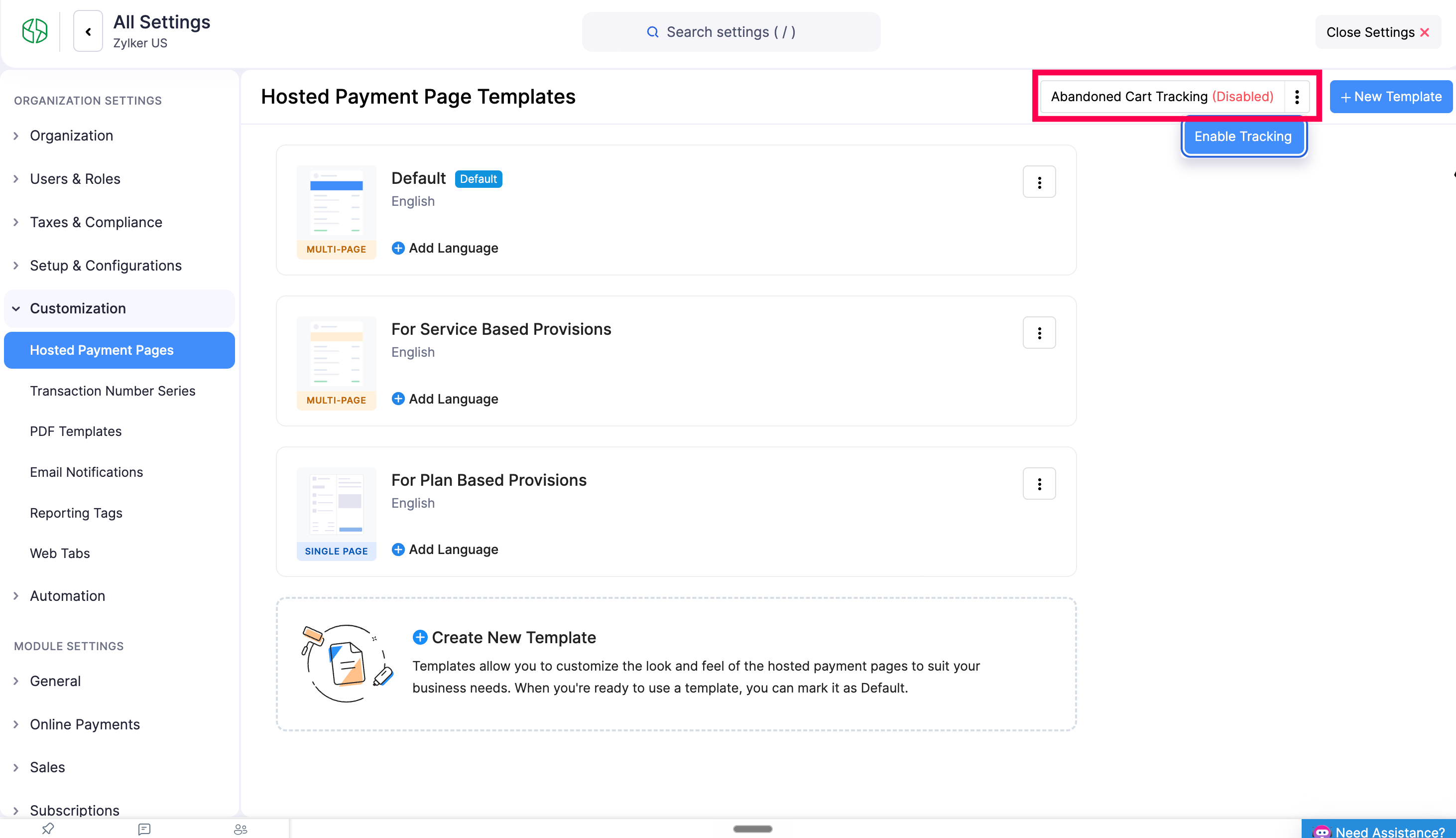
Once enabled, visitors who verify their email address but leave before completing payment will automatically receive a reminder email. The email includes a link to resume the checkout, valid for 5 days.
Edit Abandoned Cart Notifications
You can customise the content of the reminder email sent to visitors who abandon their cart.
To edit the notification email:
- Log in to your Zoho Billing organisation.
- Go to Settings.
- Select Hosted Payment Pages.
- Click the More icon in the top right corner.
- Select Edit Notifications.
- Edit the email template in the pop-up.
For more information on customising email templates, see Email Templates.
Disable Abandoned Cart Tracking
To stop sending abandoned cart emails:
- Log in to your Zoho Billing organisation.
- Go to Settings.
- Select Hosted Payment Pages.
- Click the More icon in the top right corner.
- Select Disable Tracking.
- Click Disable Tracking in the confirmation pop-up.
No further abandoned cart emails will be sent after disabling.


Ask Zia is powered by AI. Responses are helpful but not always perfect.
 Yes
Yes