



Settings - Users & Roles

In Zoho Commerce, you can manage who has access to your organization and what actions they are allowed to perform from the Users and Roles section in Settings. You can invite users and contributors, assign them specific roles, and set permissions based on their responsibilities.
Insight:
A user is anyone granted access to your Zoho Commerce organization to help manage operations like products, orders, reports, and settings. Roles can be admins, staff, or contributors.
- Admin has full access to all modules and settings.
- Staff has limited access based on permissions set by the admin.
- Contributors are users who are granted limited access to specific modules or areas of the store based on assigned roles.
Super Admin
In Zoho Commerce, the Super Admin is a privilege that is automatically assigned to the user who creates an organization. In addition to the standard admin permissions, the Super Admin has exclusive rights over other admins in an organization.
There can be only one Super Admin in an organization, and they’re same across all the Zoho Finance applications, including Zoho Invoice, Zoho Billing, Zoho Expense, Zoho Inventory, Zoho Payroll, Zoho Commerce, Zoho Checkout, Zakya, Zoho Practice, and Vikra of that organization.
Note: For existing organizations, you must manually assign a Super Admin, who is an active admin across all Zoho Finance apps in your organization.
Unique Privileges for a Super Admin
Only the Super Admin can set up the organization in other Zoho Finance applications. For example, if you’re a Super Admin in an organization that is present only in Zoho Commerce, only you can set up that organization in other Zoho Finance applications.
If an admin wants to set up the organization in other Zoho Finance applications, they must send a request, and the Super Admin must approve it.
Once an admin requests access, the Super Admin will receive an email with the request link. The link will show the list of admins who have requested access. The Super Admin can either choose to accept or reject the request.
Note: Once the request is approved, the admin can join the organization in the respective Zoho Finance application, and will continue to have the Admin role in that organization.
- Only the Super Admin can delete an organization.
Note: If you no longer want to be the Super Admin of your organization, you must assign another eligible admin to be the new Super Admin. Learn more about making another admin the Super Admin.
Super Admin can do the following operations with Users:
Add Users
You can invite new users and assign them roles based on their level of access in Zoho Commerce. Here’s how:
- Log in to Zoho Commerce.
- Click Settings in the top right corner.
- Navigate to Users under Users & Roles.
- Click Invite User in the top right corner.
- In the pop-up that appears, enter the user’s Email.
- Select the appropriate Role for the user. You can choose from the following default roles.
- Admin: Has unrestricted access to all the modules.
- Staff: Can only access modules that are assigned to them.
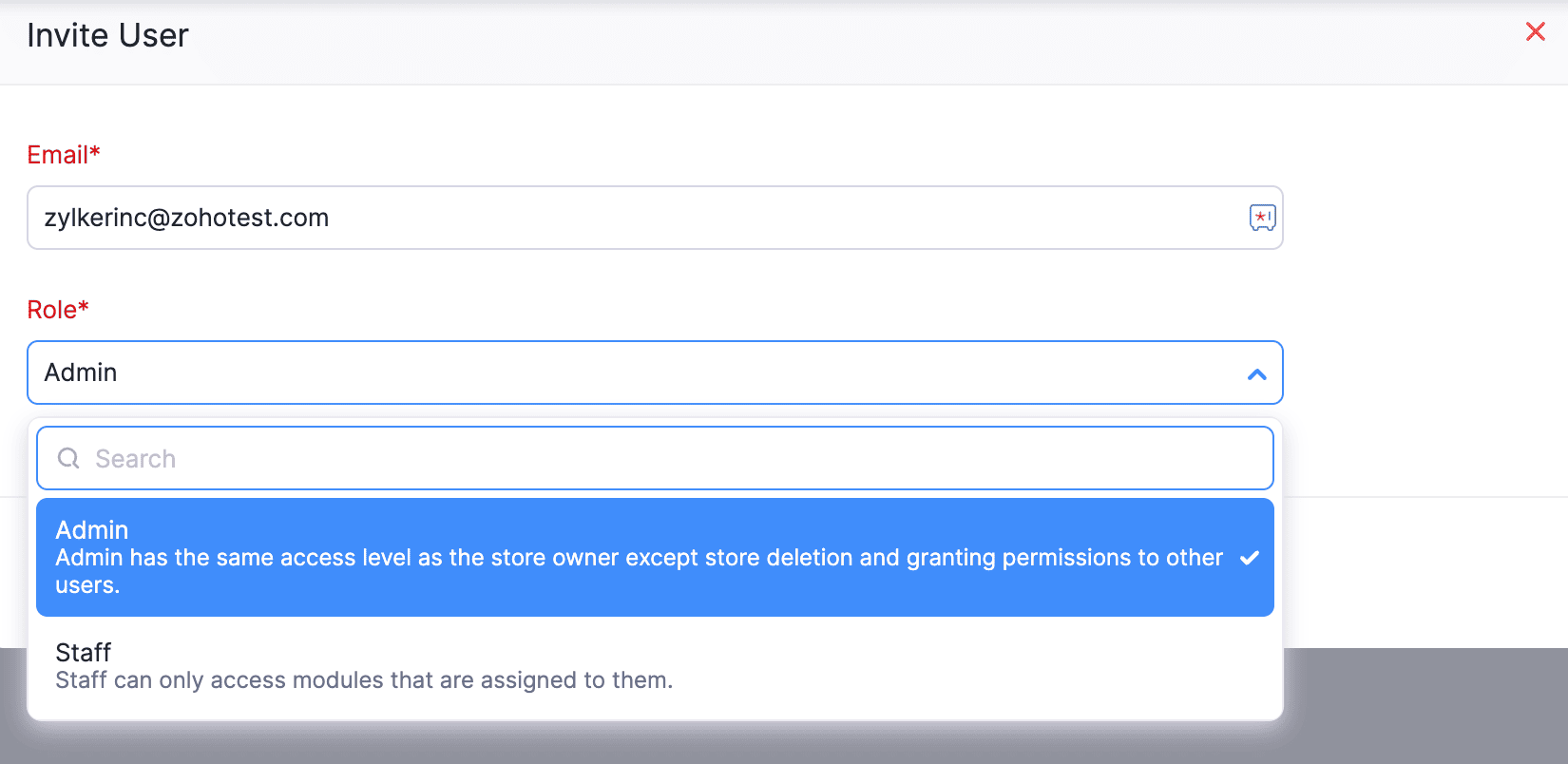
- If you select Staff, a list of modules will appear. From this list, choose the modules you want the user to have access to.
- Click Save to invite the user to your organization. The user will receive an email invite.
- The user has to open the invitation email. By clicking the Join Account link provided in the email, the user can gain access to your Zoho Commerce organization.
More Actions in Users
Assign a Super Admin to Existing Organizations
If your organization doesn’t have a Super Admin, you must assign an eligible admin as the new Super Admin. Here’s how:
Go to Settings.
Under Organization Settings, select Users under Users & Roles.
Click Assign Super Admin in the banner displayed at the top of the list page.
In the pop-up that appears, select the required eligible admin.
Click Make Super Admin. The selected admin will be assigned as the new Super Admin. All admins in your organization will receive an email about this. A pop-up will also be displayed in the app, where they can complete one of the following actions within 7 days:
Click Okay to accept the new Super Admin.
Click Revoke to remove the assigned Super Admin. This option is available to other admins in your organization.
Make Another Admin the Super Admin
To make another eligible admin as the Super Admin of your organization:
- Go to Settings.
- Select Users under Users & Roles.
- Select the admin you want to assign as the new Super Admin.
- In the pane that appears, click the More icon in the top right corner, and select Make Super Admin in the dropdown.
- In the confirmation pop-up, click Make Super Admin.
Once done, the selected admin will become the Super Admin for your organization. The new Super Admin will gain the Super Admin privileges across all Zoho Finance applications of that organization.
Mark as Inactive
You can mark a user as inactive in Zoho Commerce to temporarily disable a user’s access. Here’s how:
- Log in to Zoho Commerce.
- Click Settings in the top right corner.
- Navigate to Users under Users & Roles.
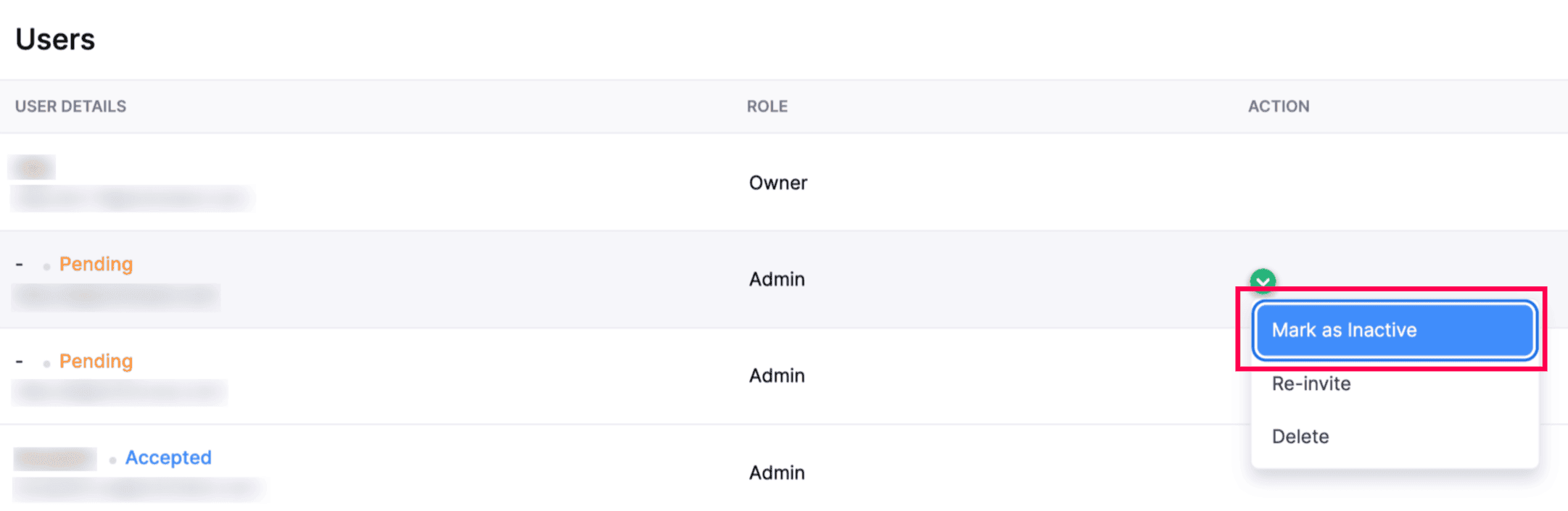
- Hover over the user you want to mark as inactive.
- Click the dropdown and select Mark as Inactive.
Re-invite User
If a user hasn’t accepted the invitation or the invite has expired, you can resend the invitation. Here’s how:
- Log in to Zoho Commerce.
- Click Settings in the top right corner.
- Navigate to Users under Users & Roles.
- Hover over the user for whom you want to resend the invite.
- Click the dropdown and select Re-invite.
Delete User
If you no longer want any user to access your organization, you can delete them. Here’s how:
- Log in to Zoho Commerce .
- Click Settings in the top right corner.
- Navigate to Users under Users & Roles.
- Hover over the user you want to delete.
- Click the dropdown and select Delete.
Add Contributors
You can grant store access to users by adding them as Contributors. Here’s how:
- Log in to Zoho Commerce .
- Click Settings in the top right corner.
- Navigate to Contributors under Users & Roles.
- Click the +New button in the top right corner.
- In the pop-up that appears, enter the user’s Email Address.
- Select the appropriate Role for the user. You can choose from the following default roles.
Admin: Can perform actions similar to that of the store owner except deleting or unpublishing the store.
Author: Can only edit the pages of the modules they have access to.
Guest: This role is similar to that of an author, but they only have access to the pages and modules of the online store.
Developer: This role is similar to that of an admin, but they only have access to the pages and modules of the online store.
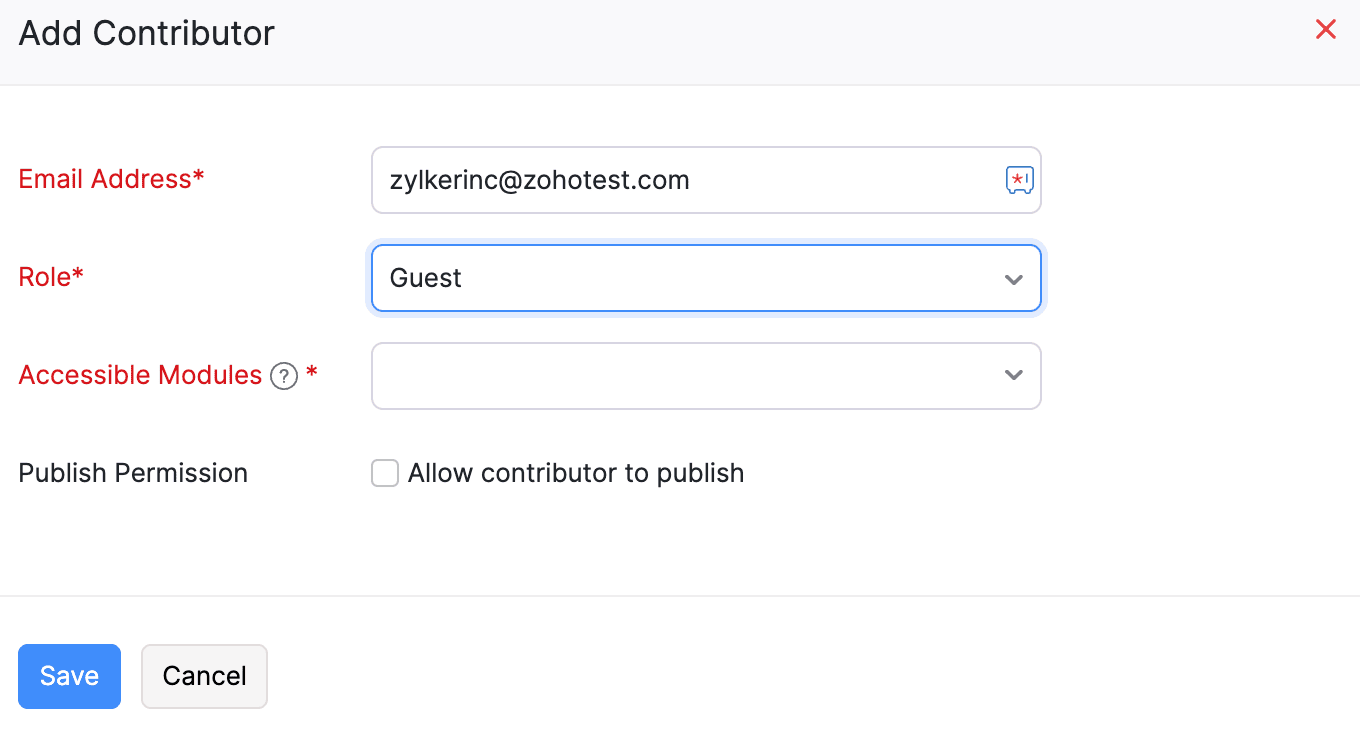
- If you select Author or Guest, you must select modules for them to access.
- Click Save to add a contributor to your organization.
You can check the status of the invite sent from the contributor’s list page.
More Actions in Contributors
Edit Profile
You can edit the owner’s profile by hovering over their name in the Contributors list page and clicking the drop-down icon that appears.
- Log in to Zoho Commerce.
- Click Settings in the top right corner.
- Navigate to Contributors under Users & Roles.
- Hover over the owner to edit the profile.
- Click the dropdown and select Edit Profile.
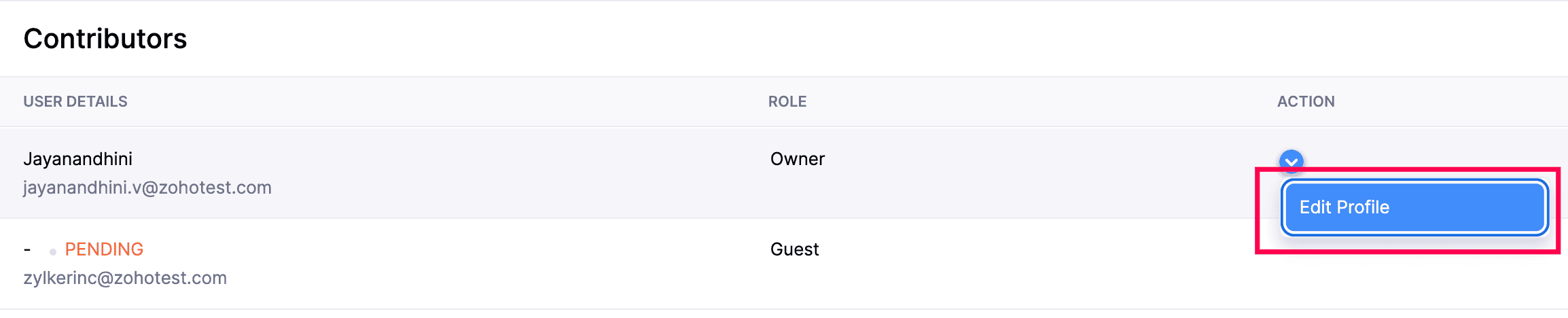
- Make the necessary changes and click Save.
Re-invite Contributor
If a user hasn’t accepted the invitation or the invite has expired, you can resend the invitation to grant them access to your Zoho Commerce store. Here’s how:
- Log in to Zoho Commerce.
- Click Settings in the top right corner.
- Navigate to Contributors under Users & Roles.
- Hover over the contribute for whom you want to re-send the invite.
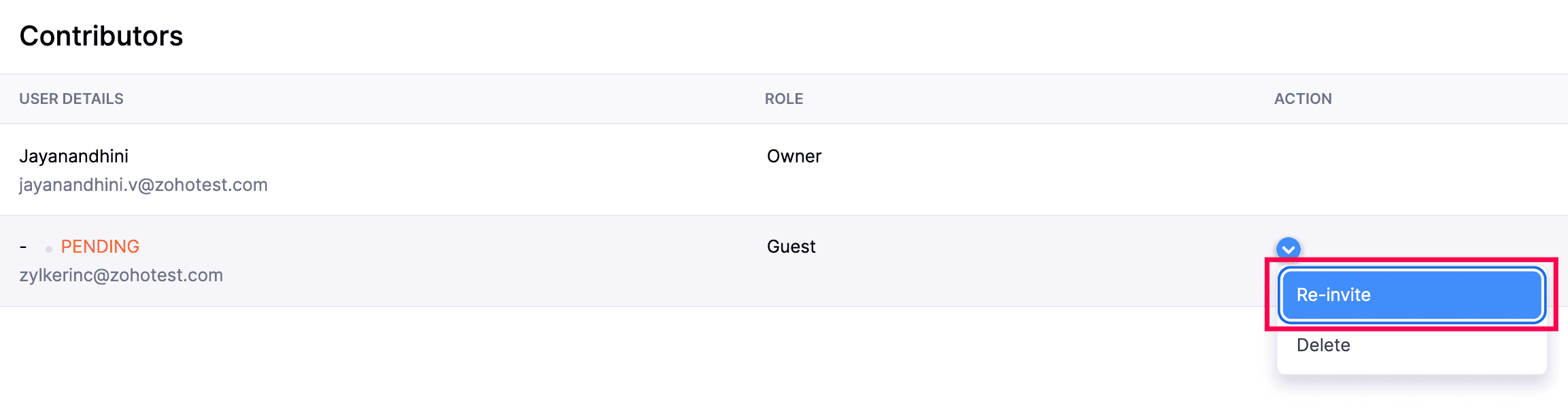
- Click the dropdown and select Re-invite.
Delete Contributor
If you no longer want any contributor to access your Zoho Commerce store, you can delete them from the Contributors list. Here’s how:
- Log in to Zoho Commerce.
- Click Settings in the top right corner.
- Navigate to Contributors under Users & Roles.
- Hover over the contributor you want to delete.
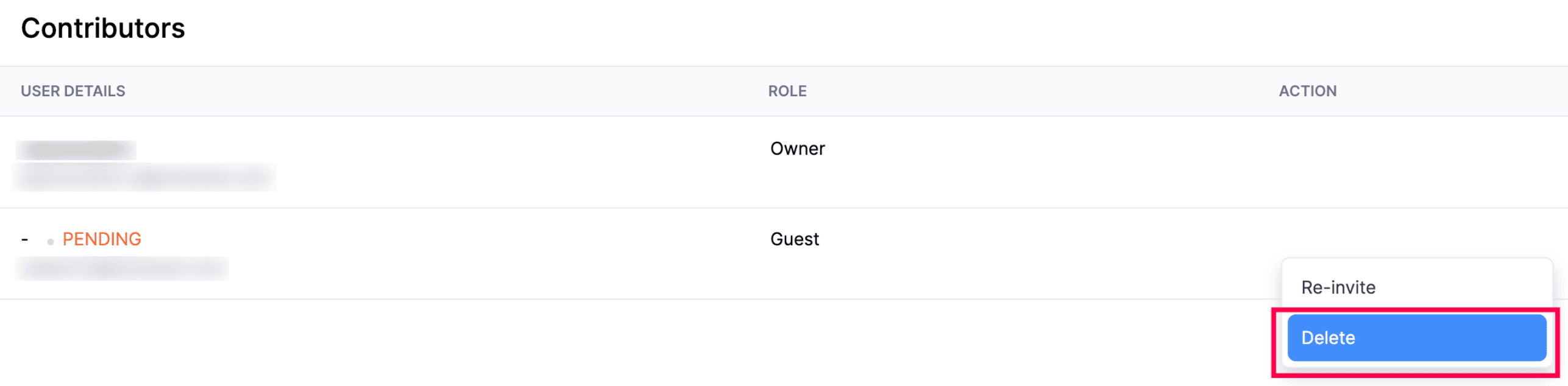
- Click the dropdown and select Delete.