



Working with Sections

Sections are the main building blocks of your online store pages. Each section is a self-contained content area - a banner, a product grid, a testimonial strip, and so on. You can add, reorder, edit, and remove sections freely.
Adding a Section
There are multiple ways to add a section:
- Insert Section - Opens the section picker panel to browse and add a pre-built section.
- Add Section Above - Adds a new section above the currently selected section.
- Add Section Below - Adds a new section below the currently selected section.
- Add Custom Section - Opens the code editor to write a custom liquid section. Refer to Custom Code for more information.
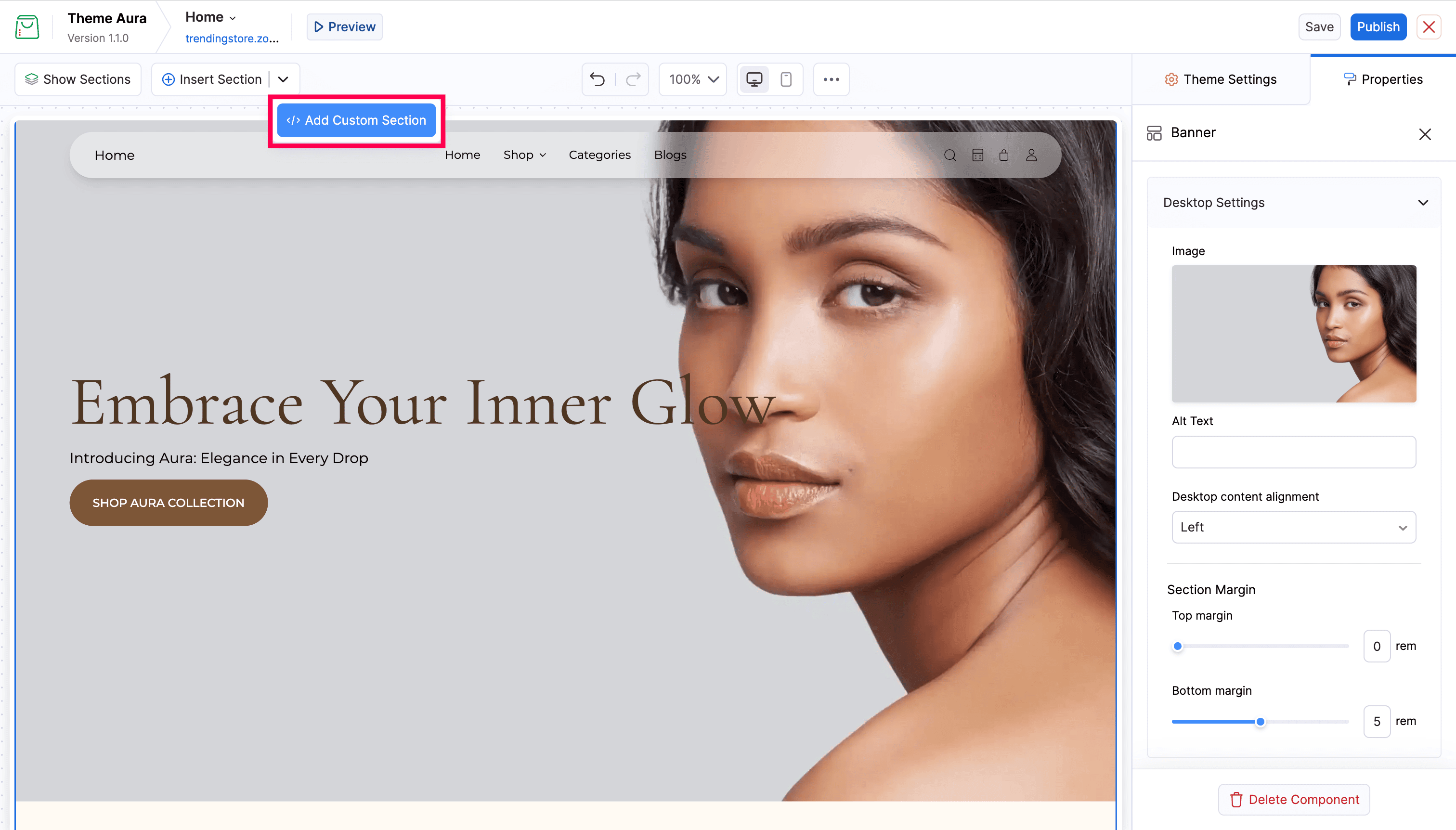
To add a pre-built section to your page, click Insert Section in the toolbar. The section picker panel opens, showing available sections organized into three tabs: Header, Template, and Footer.
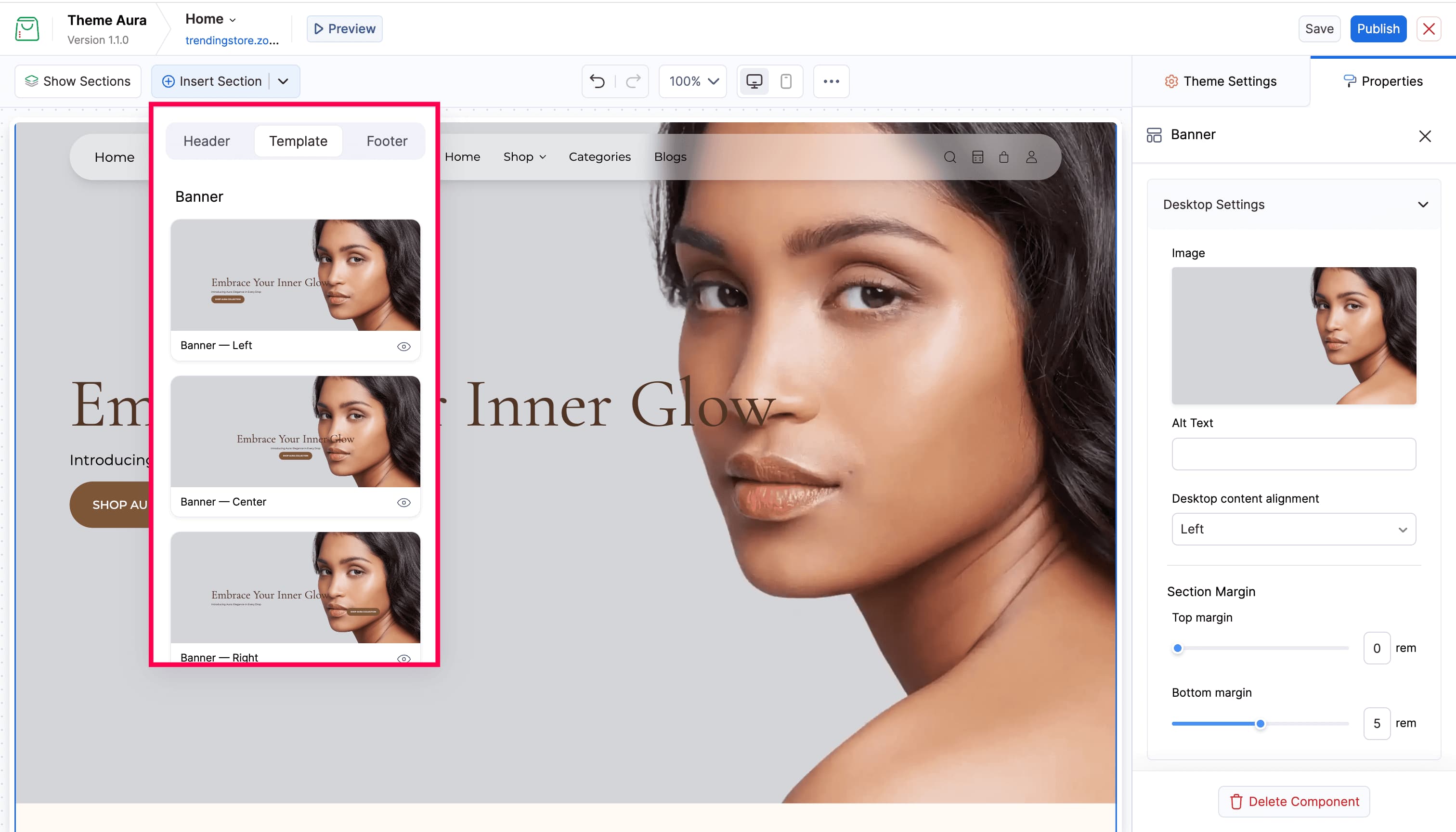
In the section picker, sections are organized into three tabs based on their position in the page:
| Tab | Description |
|---|---|
| Header | Sections that appear in the header area of the page |
| Template | Sections that appear in the main content area of the page |
| Footer | Sections that appear in the footer area of the page |
Each tab lists available presets for that area. Each entry is a preset - a named, ready-to-use layout variant. Some section types offer multiple presets (for example, “Banner - Left Aligned” and “Banner - Centered” are two presets of the same banner section). Click a preset to insert it.
Alternatively, you can add a section at a specific position:
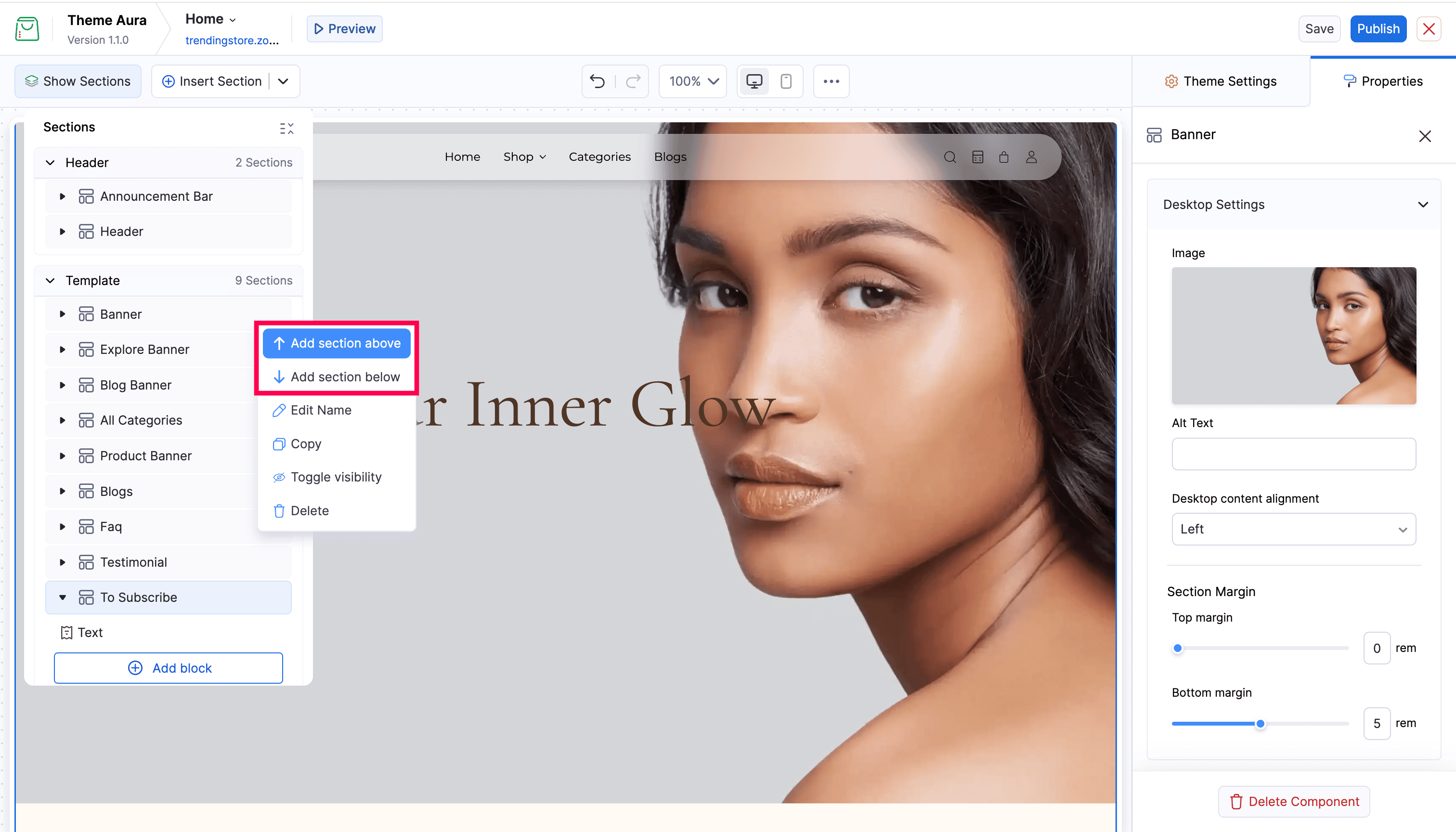
- Click Show Sections in the toolbar to open the Sections List panel.
- Select an existing section.
- Click the More Options icon (three dots) on the section.
- Choose Add section above to insert a new section above the selected section, or Add section below to insert below it. The Add Section panel opens, showing available presets for that area. Click a preset to insert it.
Selecting a Section
Click anywhere on a section in the canvas to select it. A solid blue outline appears around it and the Properties panel opens on the right.
You can also click the section’s name in the Sections List panel.

Editing Section Settings
With a section selected, the Properties panel on the right shows all the options for that section.
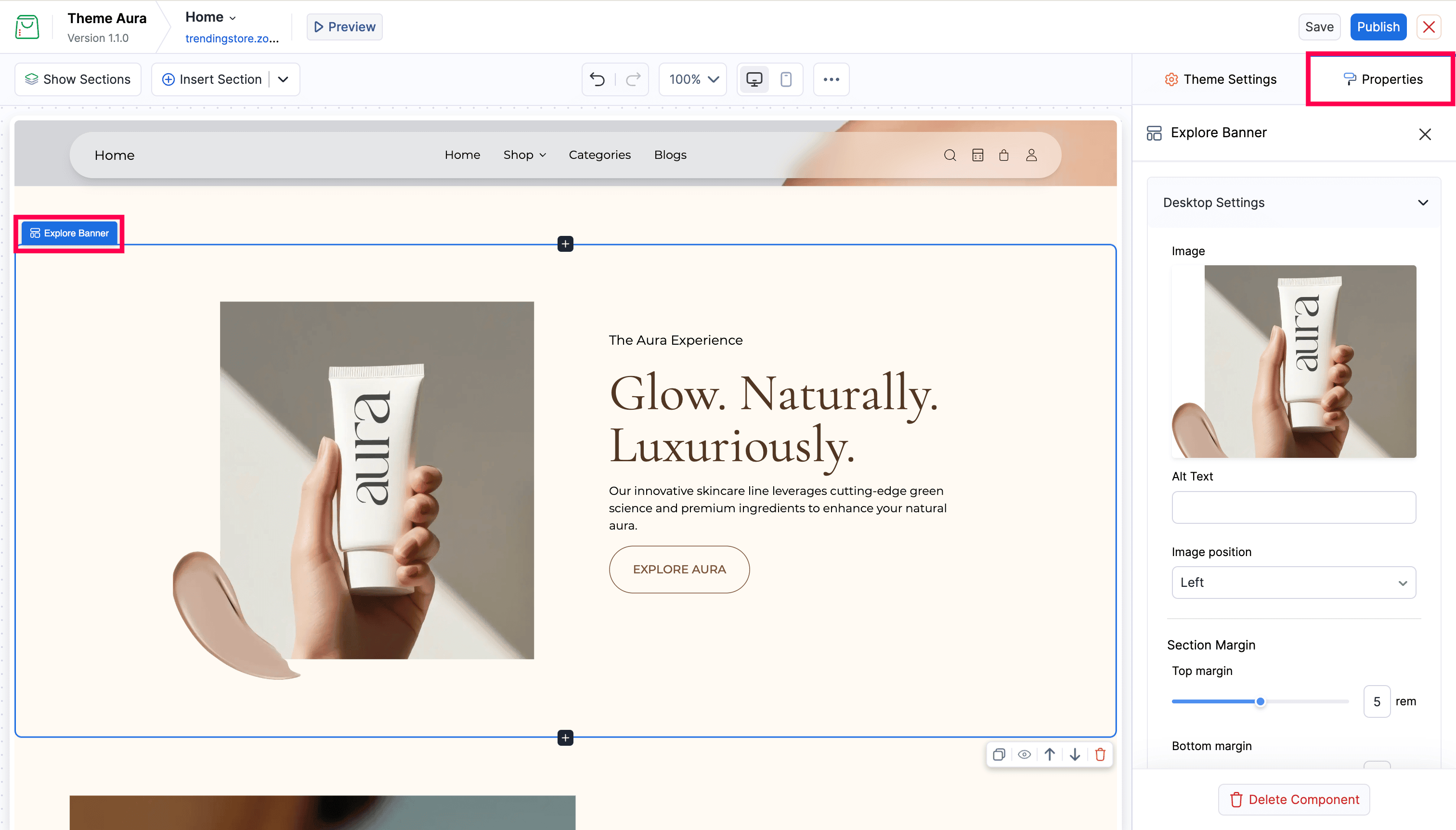
- Change images, text, colors, layout options, margins, and more directly in the panel.
- Changes update the canvas preview in real time.
- Scroll down to see all available settings for the section.
Reordering Sections
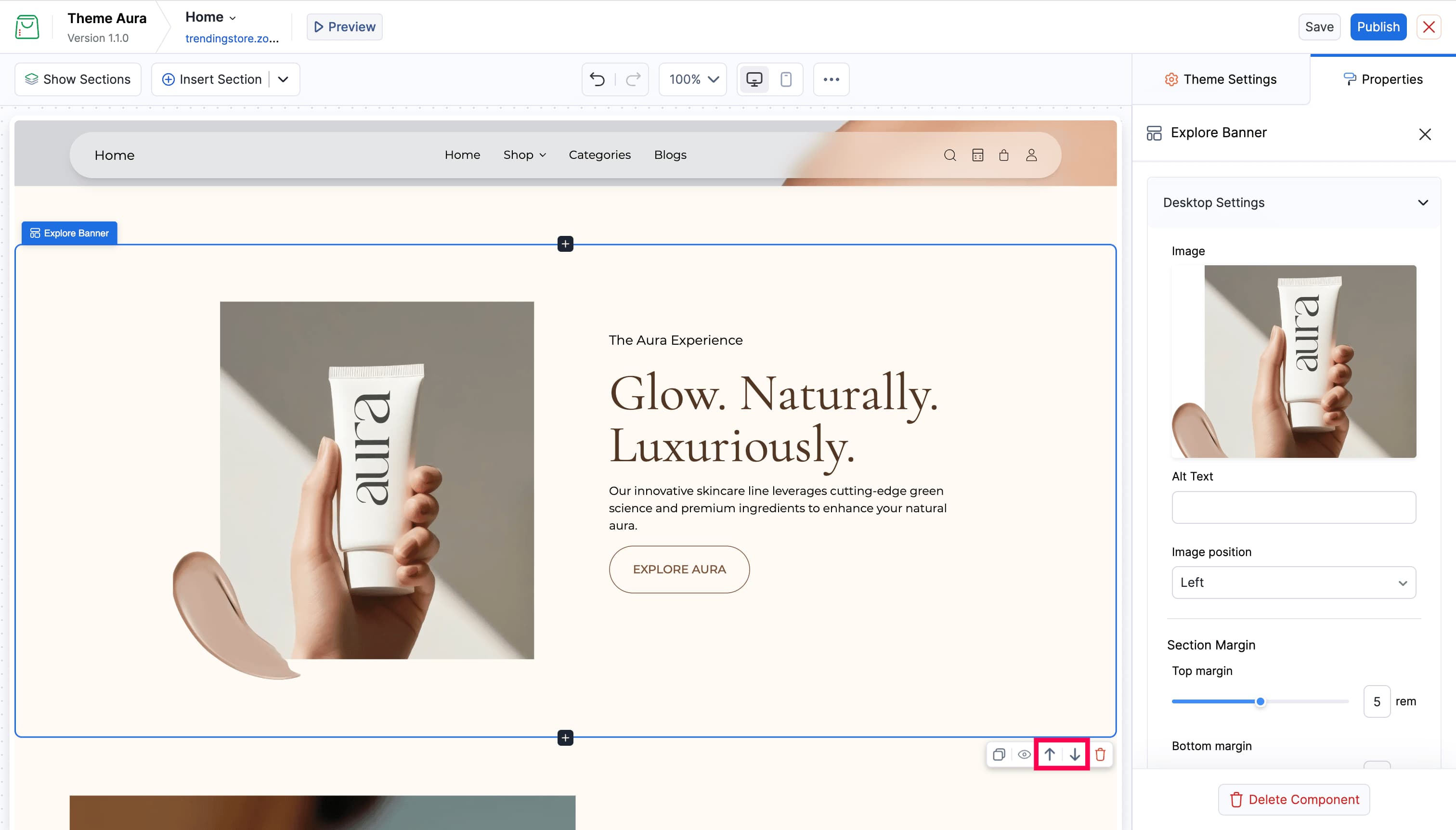
Using the in-canvas action toolbar: Select a section, then use the arrow up and arrow down buttons in the toolbar that appears above the section to reorder the section above or below.
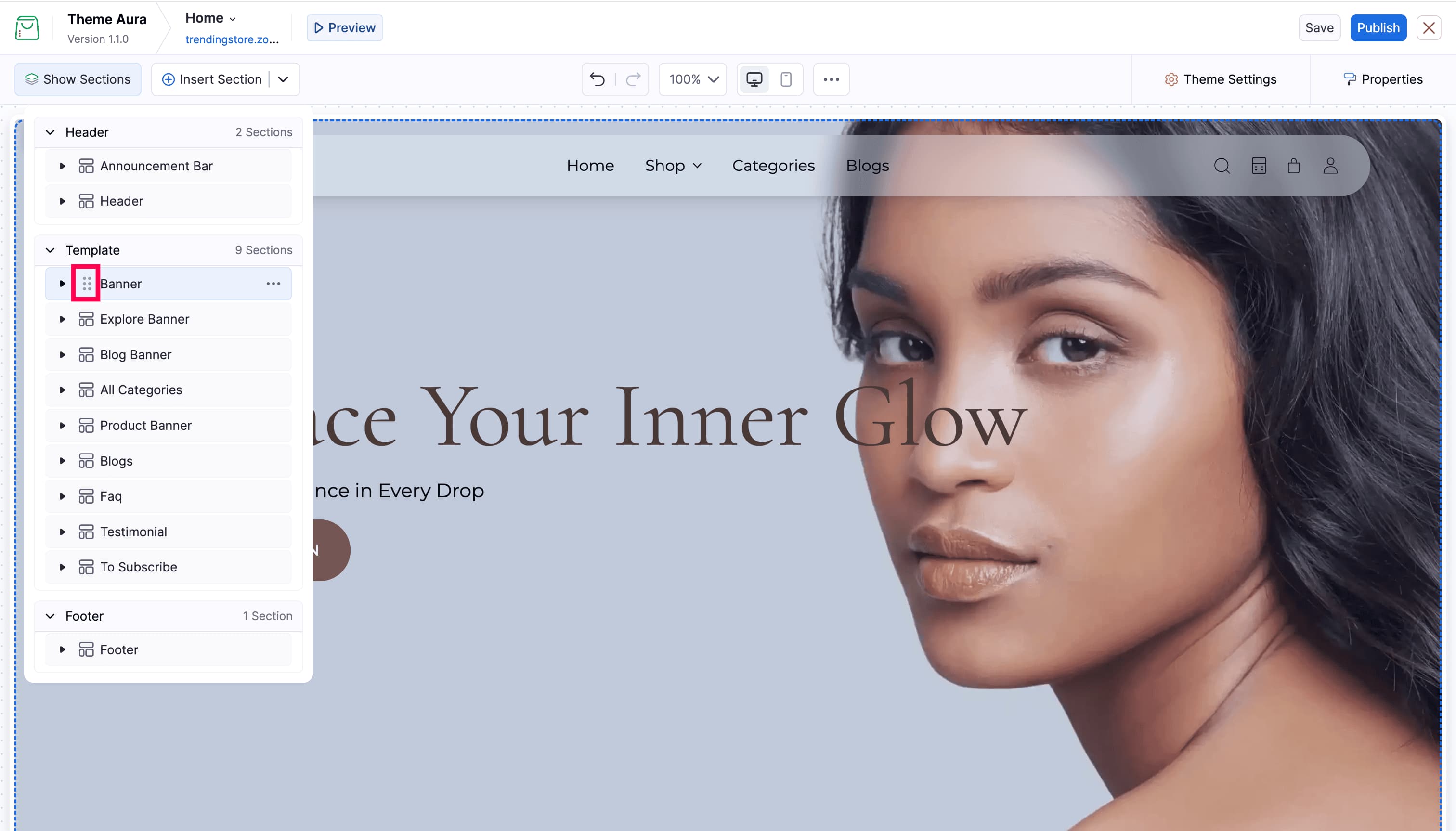
Using the Sections List: Open the Show Sections panel. Hover over the required section and click and hold the drag handle (six dots) to drag and move the sections listed in the required order and it will be reflected in the canvas immediately.
Renaming a Section
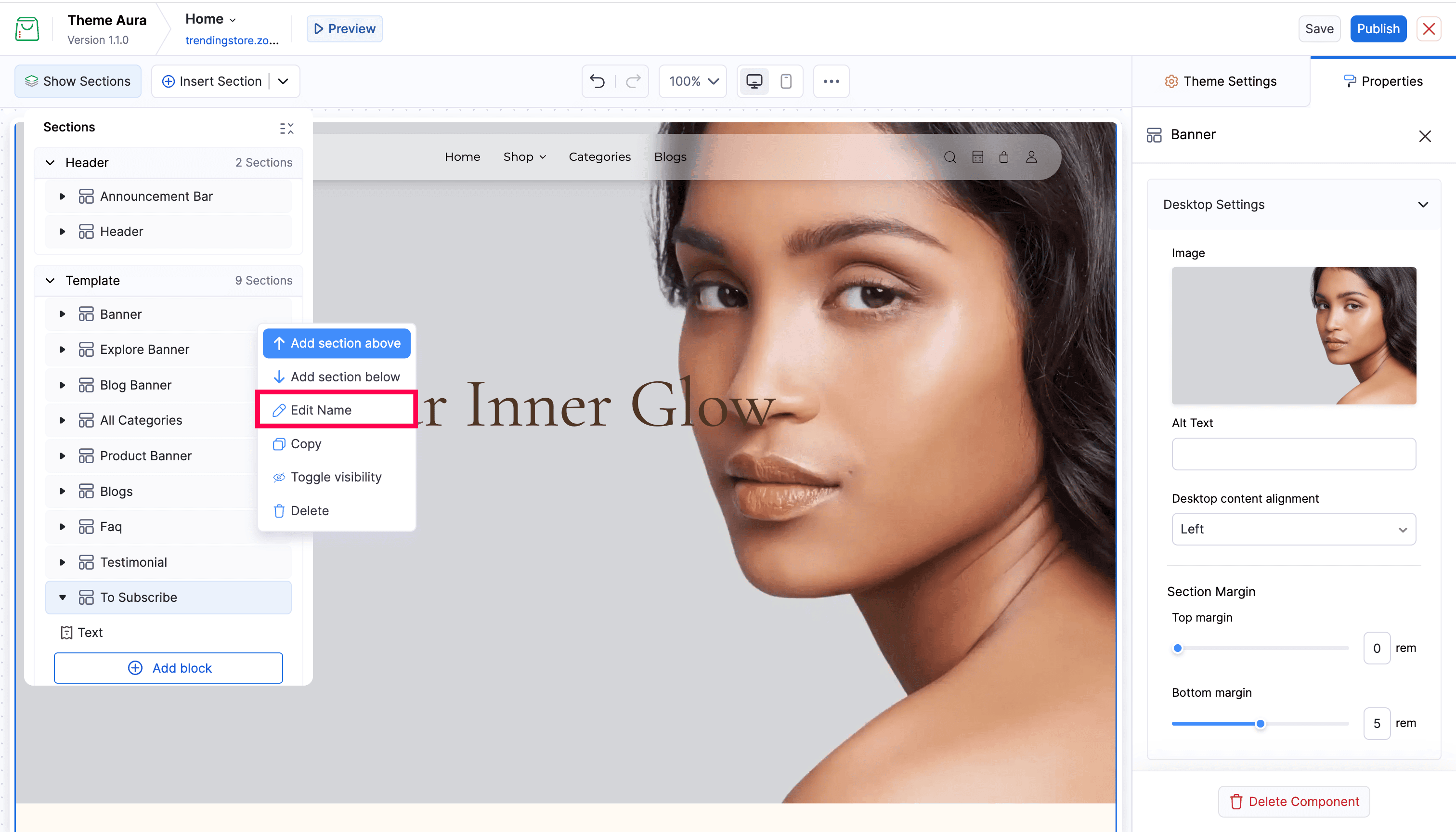
Click the More Options menu on a section row and choose Edit Name. Type the new name and confirm. This name is only visible inside the editor.
Renaming a Section
Click the More Options menu on a section row and choose Edit Name. Type the new name and confirm. This name is only visible inside the editor.
Copying a Section
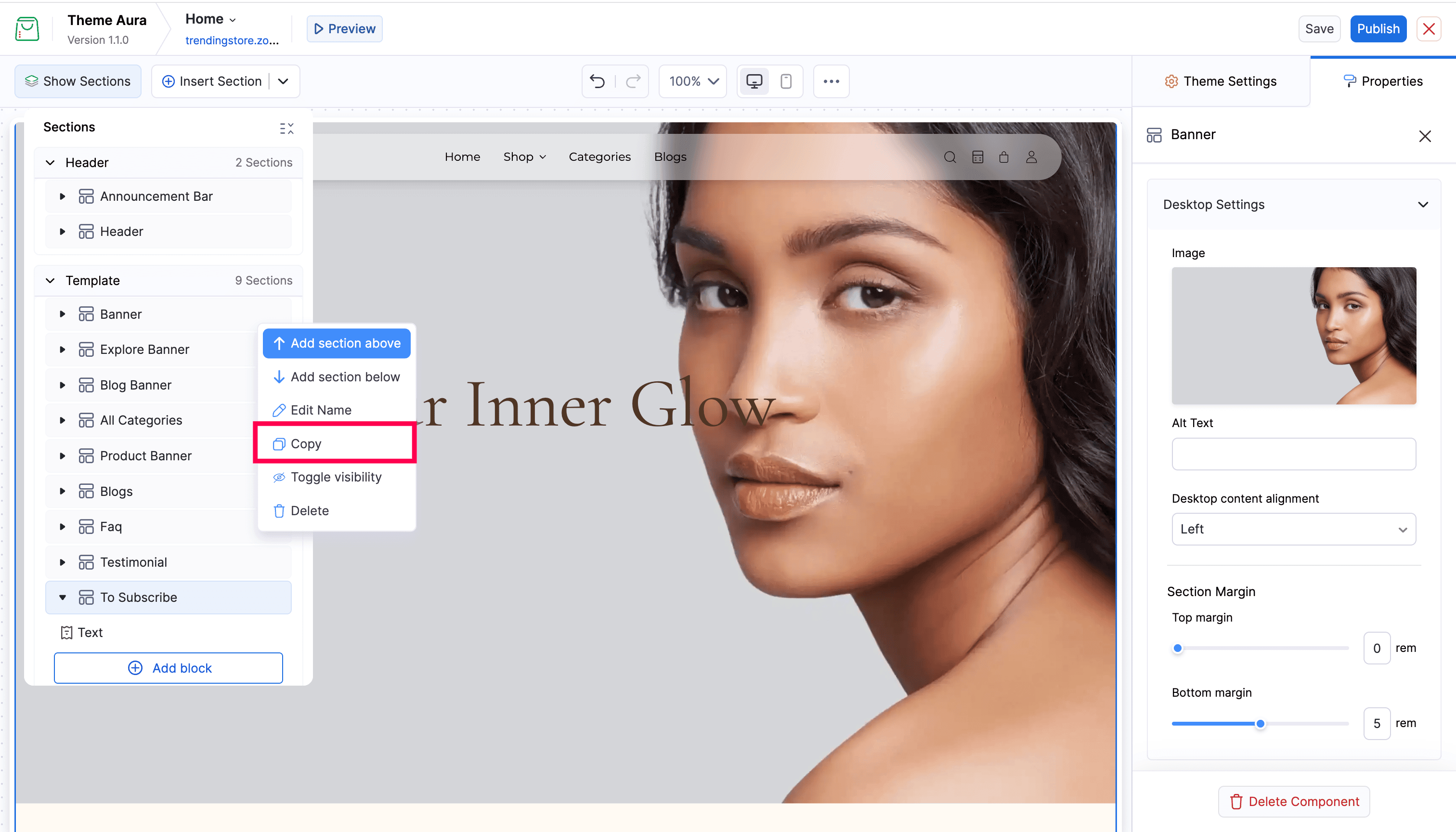
Click the More Options menu on a section row in the Sections List and choose Copy. The duplicate is inserted immediately below the original.
Hiding and Showing a Section
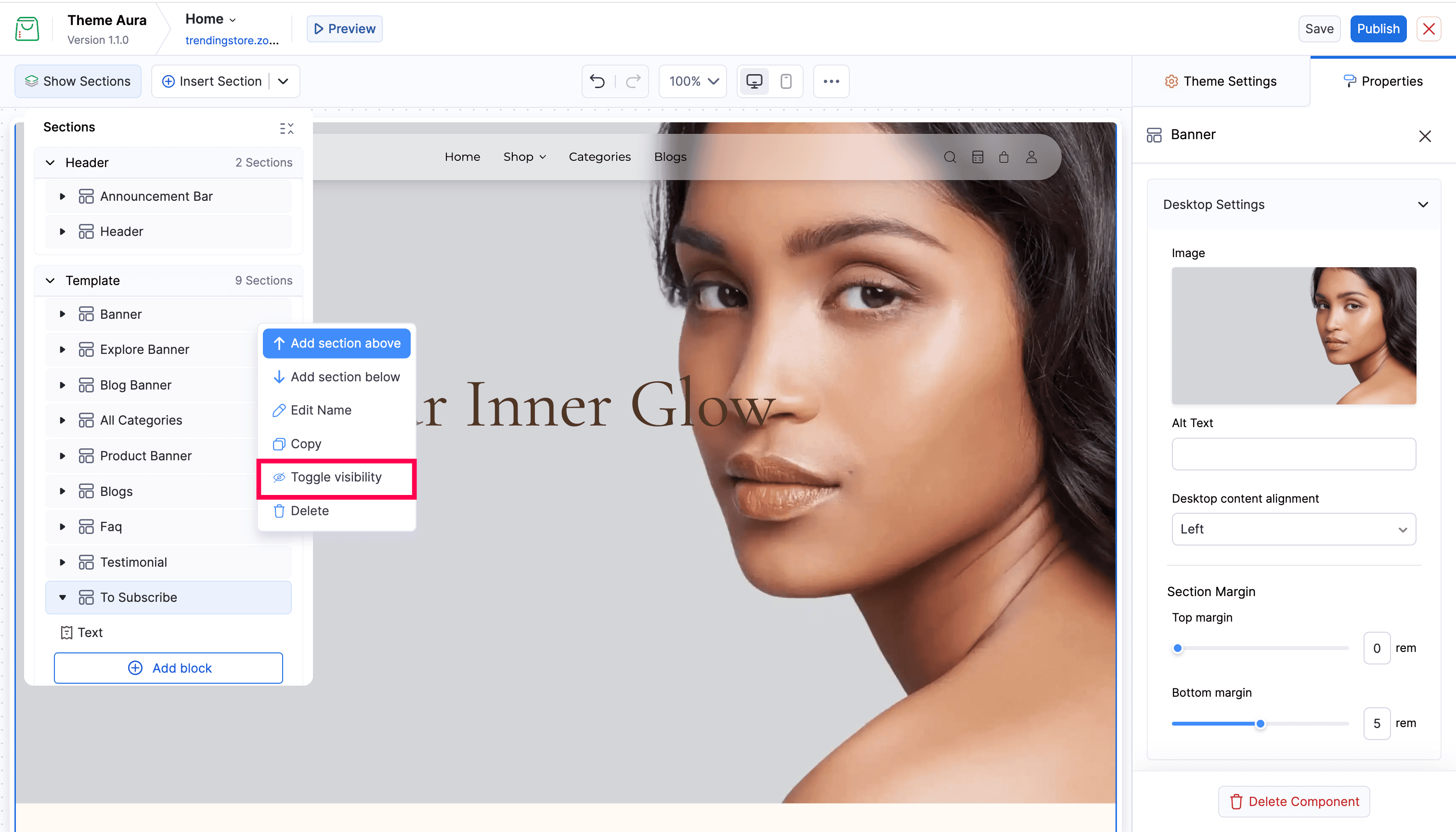
Click the More Options menu on a section row in the Sections List and choose Toggle visibility. Hidden sections remain in your page configuration but are invisible to visitors. Repeat to show it again.
Hiding and Showing a Section
Click the More Options menu on a section row in the Sections List and choose Toggle visibility. Hidden sections remain in your page configuration but are invisible to visitors. Repeat to show it again.
Deleting a Section
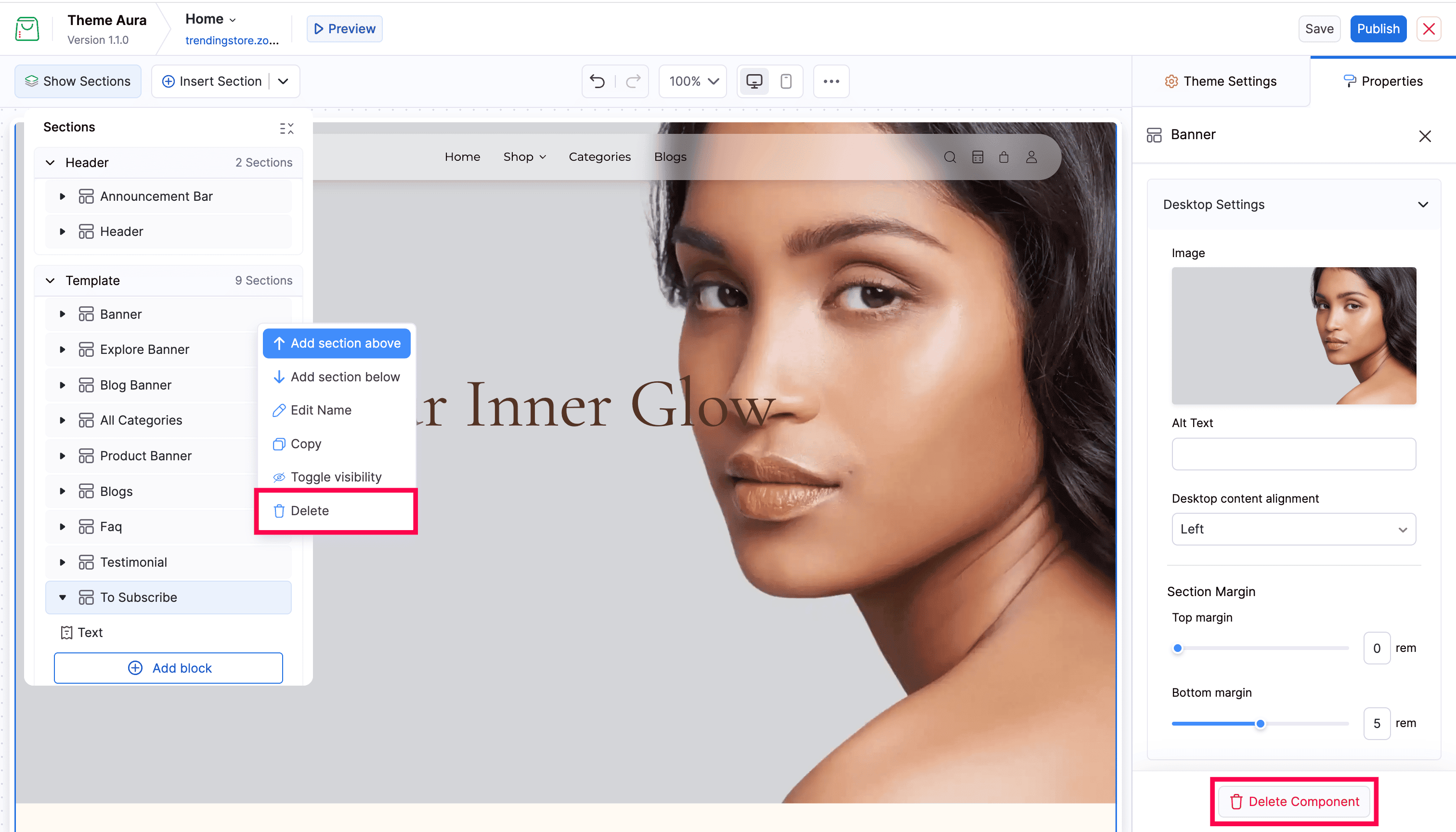
Click the More Options menu on a section row and choose Delete, or use the Delete Component button at the bottom of the Properties panel.
Note: Use Undo (Cmd/Ctrl+Z) if you delete a section by mistake.