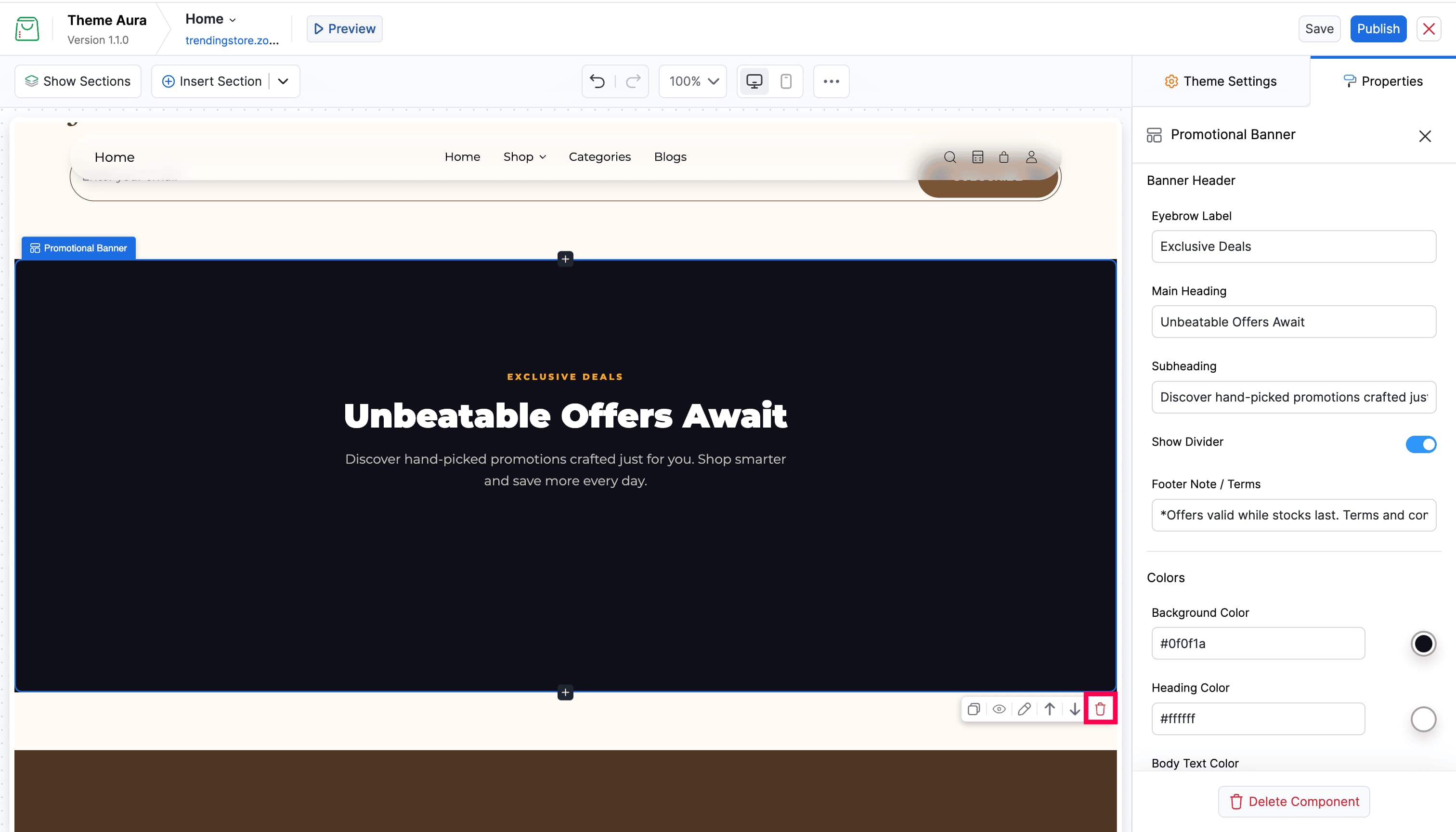

Custom Code

The Custom Code editor lets you add Liquid-powered sections by writing code directly in the editor. It appears in the Insert Section dropdown when supported by your theme.
Opening the Custom Code Editor
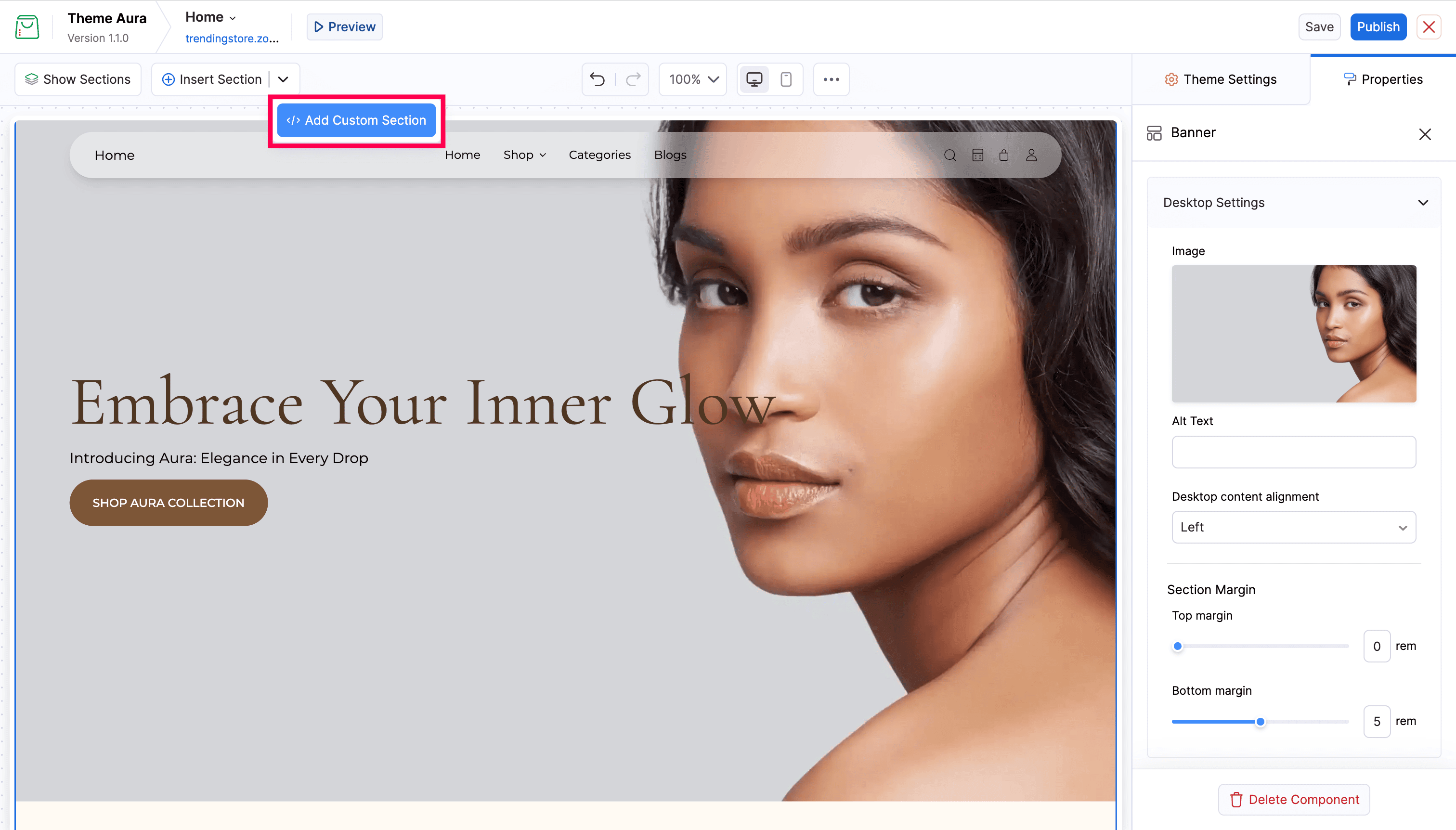
Click Insert Section in the toolbar, then choose Add Custom Section from the dropdown.
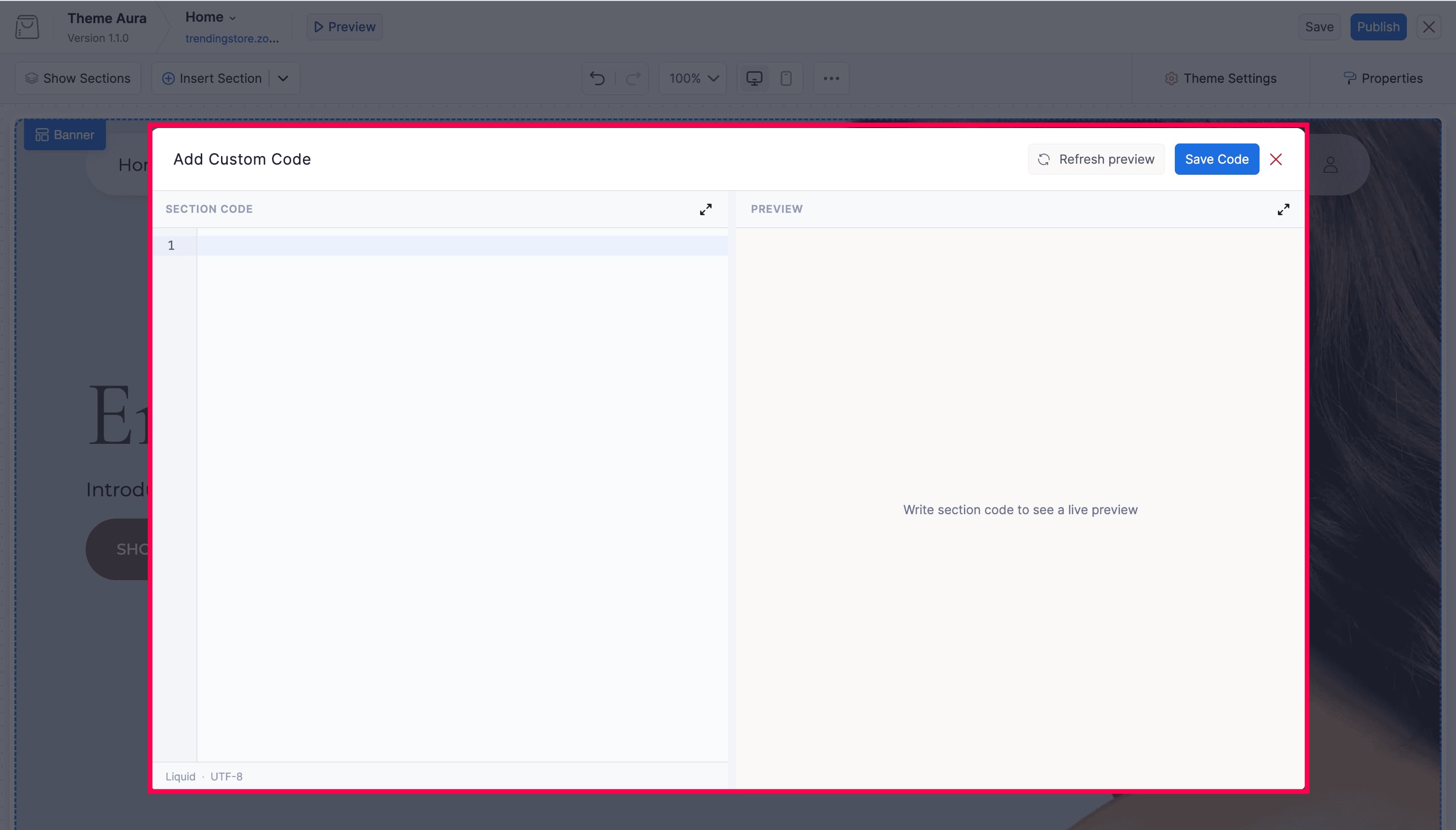
In the Section Code area, you can write or paste your Liquid code and the Preview area shows a live preview of your code.
Writing Your Code
Type or paste your Liquid code into the editor. The code can include standard Liquid tags, HTML, CSS, and JavaScript.
To make the section configurable in the Properties panel (like built-in sections), include a {% schema %} block:
{% schema %}
{
  "name": "My Custom Section",
  "available_in": {
    "pages": ["index", "collection"],
    "header-group": true,
    "footer-group": true
  },
  "settings": [
    {
      "type": "text",
      "id": "heading",
      "label": "Heading",
      "default": "Hello World"
    }
  ],
  "presets": [
    { "name": "My Custom Section" }
  ]
}
{% endschema %}
available_in.pagescontrols which pages the section is available on.- Set
"header-group": trueto make the section available in the header group. - Set
"footer-group": trueto make the section available in the footer group. - Keep header/footer group availability separate from page availability.
presetsis required for the section to appear in the Insert Section picker. Each preset entry needs at least a"name"field. To offer multiple layout variants of the same section, add multiple presets — each can include prefilledsettingsvalues alongside its name, and each will appear as a separate option in the picker.
Previewing
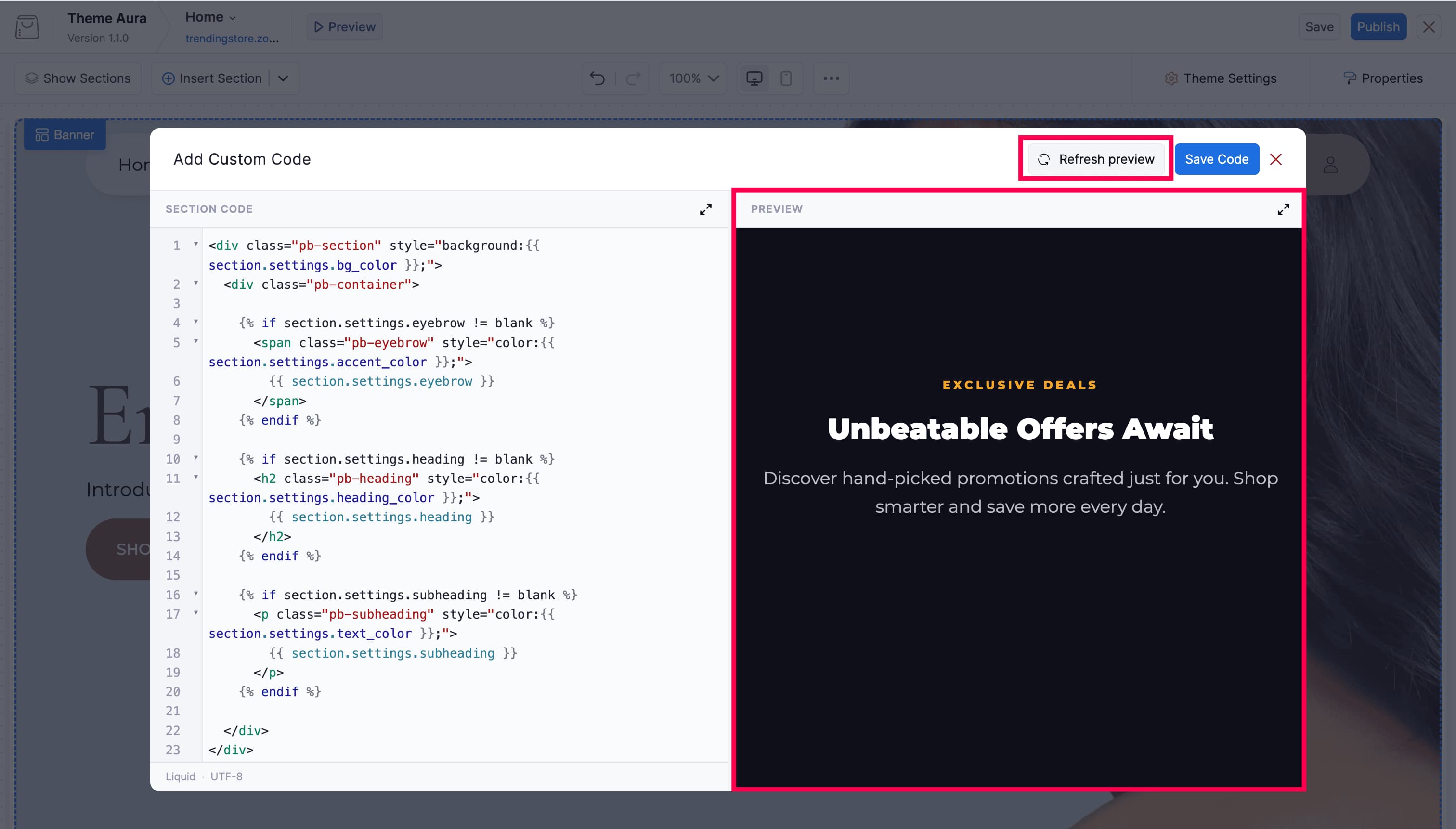
Click Refresh Preview inside the modal to render your code without saving and the respective output will be listed under Preview section on the right side of the modal. Edit and preview as many times as needed.
Saving
Click Save Code to save the code as a custom section.
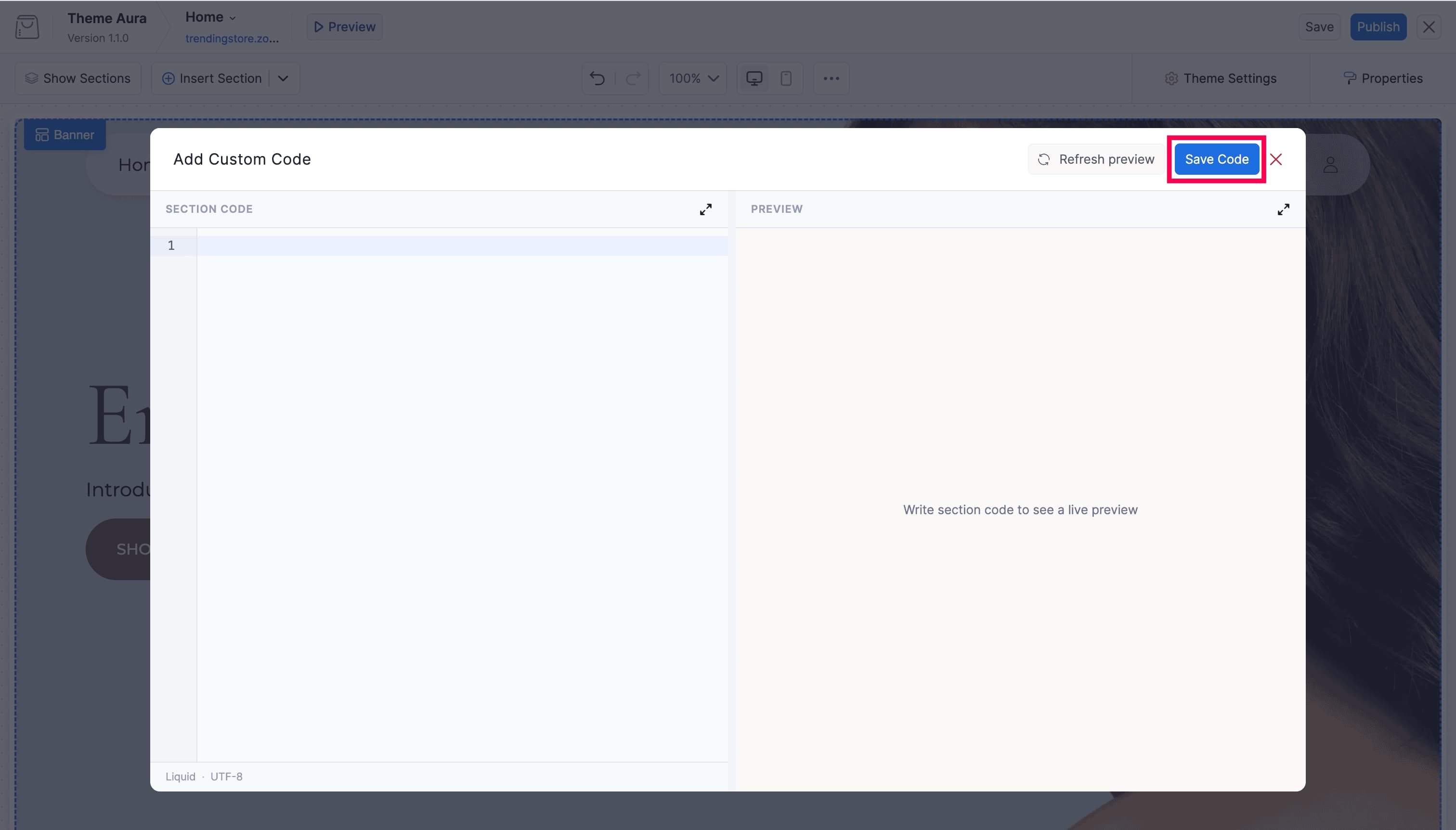
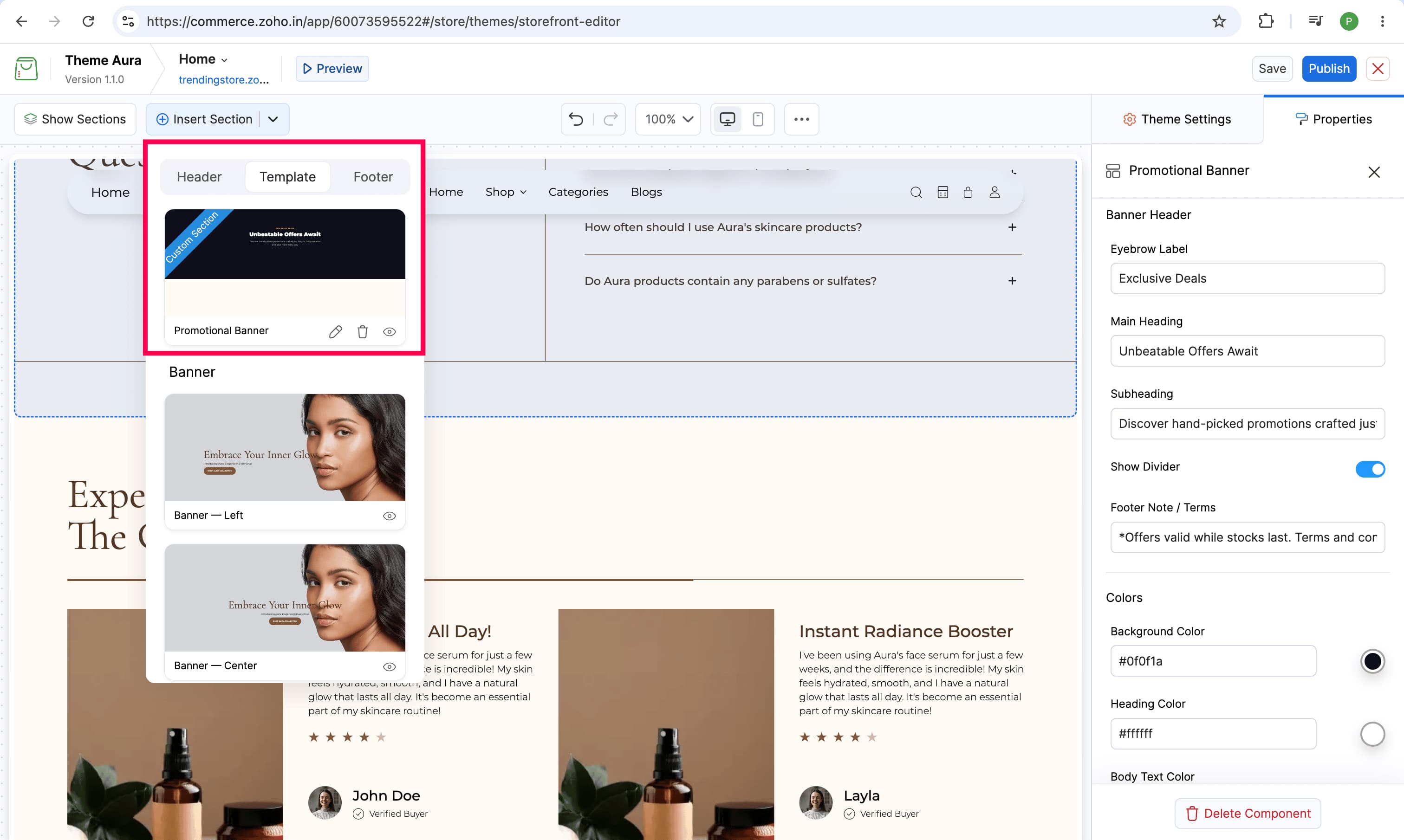
Once saved it appears on the current page (if available_in includes it) and in the Insert Section panel for future use.
Editing an Existing Custom Section
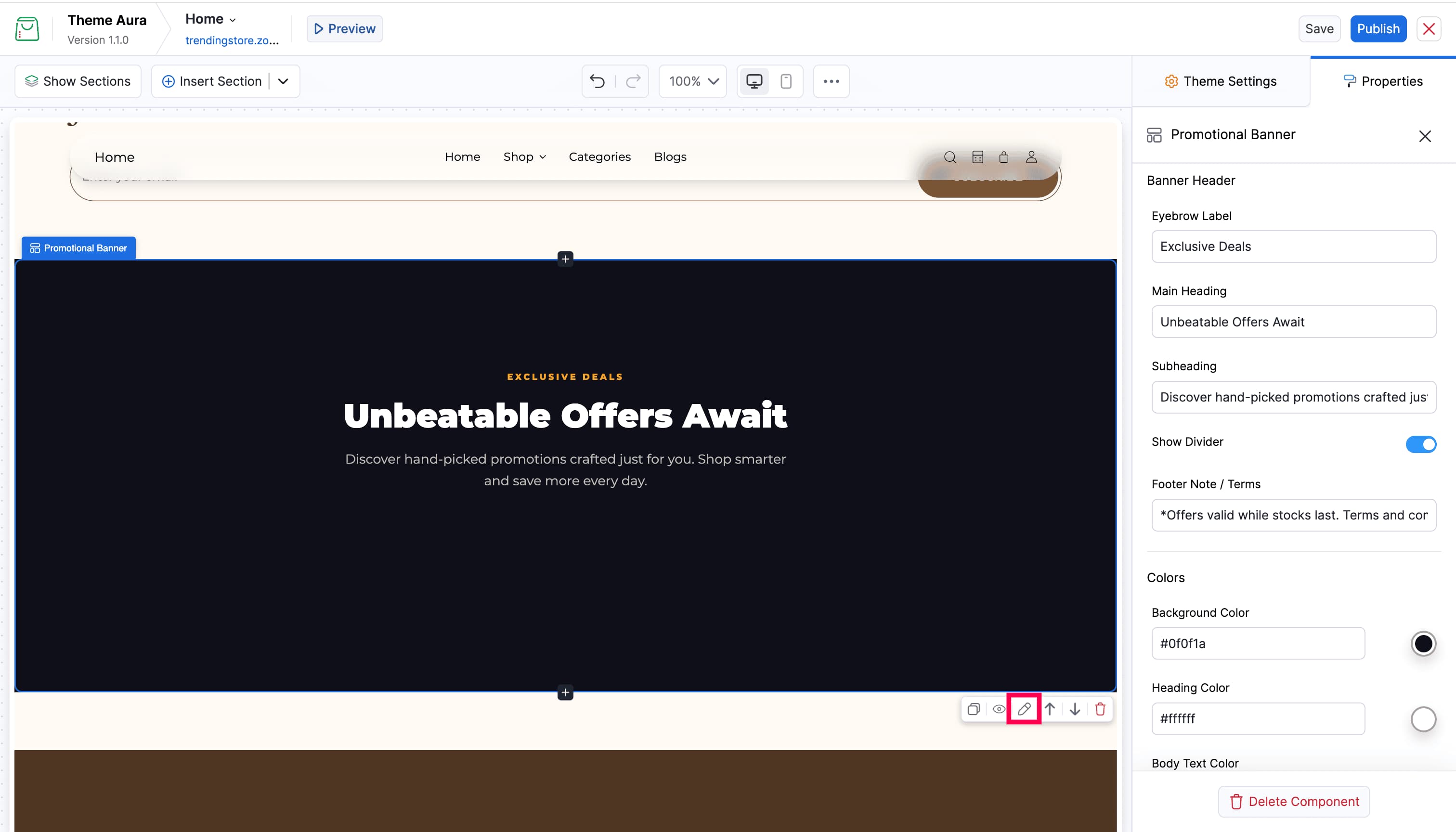
Custom sections show in the Sections List with a Edit icon. Click the edit icon, or select the section on the canvas and click the edit icon in the in-canvas action toolbar, to reopen the code editor with your existing code loaded.
Copying a Custom Section
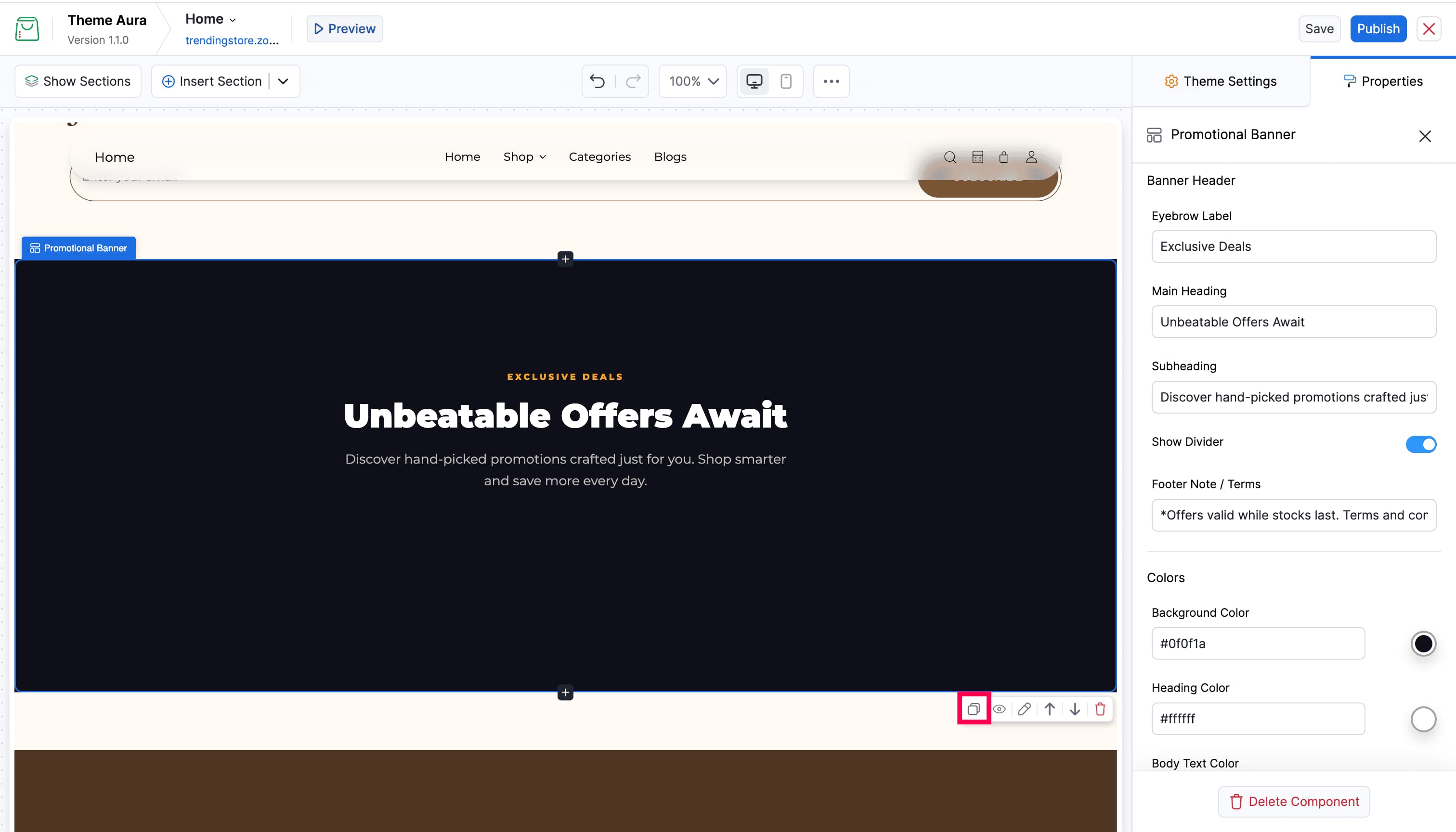
Select the custom section on the canvas and click the Copy button in the in-canvas action toolbar. A duplicate of the section is inserted immediately below the original.
Reordering a Custom Section
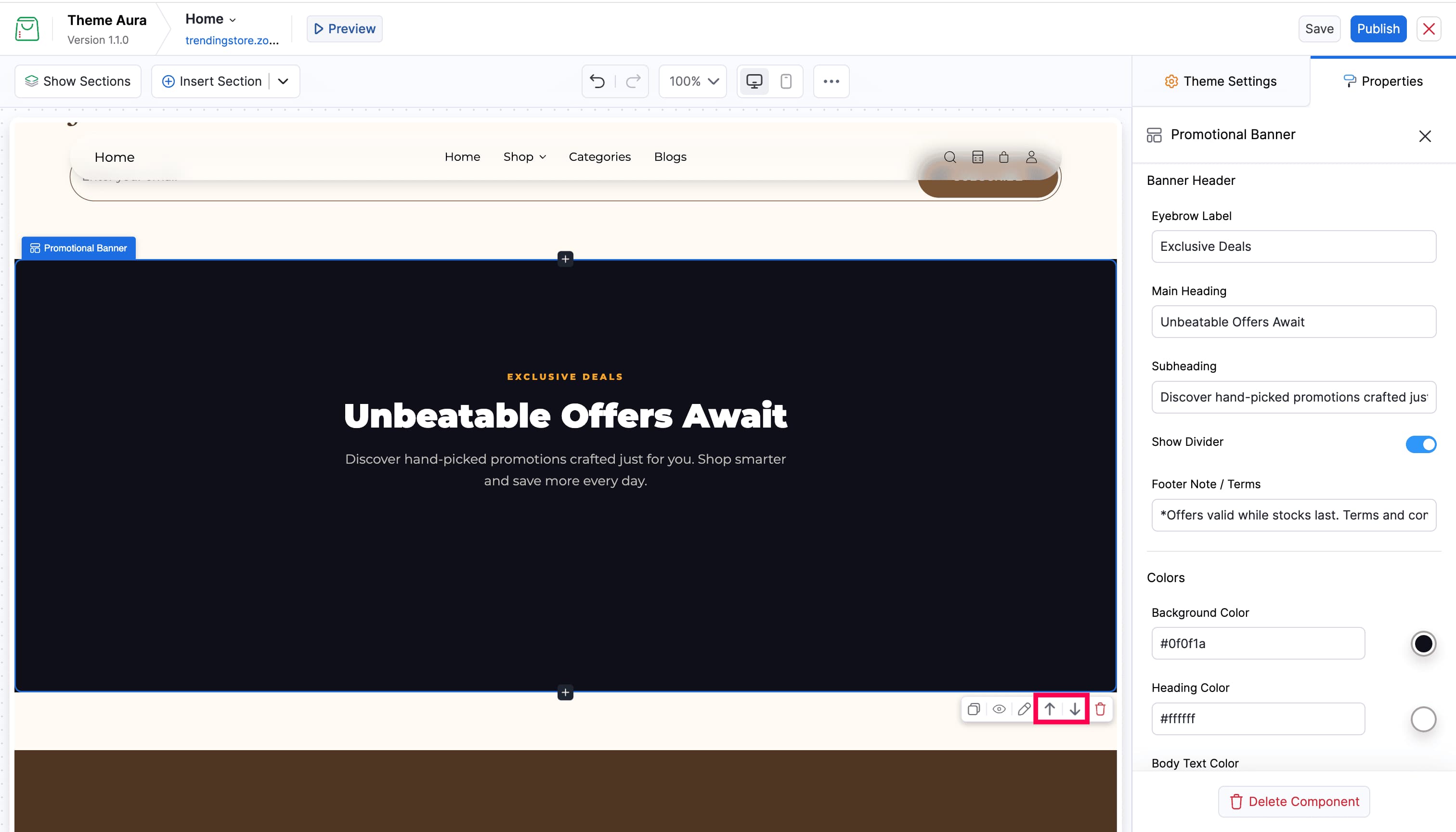
Select the custom section on the canvas, the in-canvas action toolbar appears below it. Use the arrow up and arrow down buttons to move the section up or down on the page.
Hiding and Showing a Custom Section
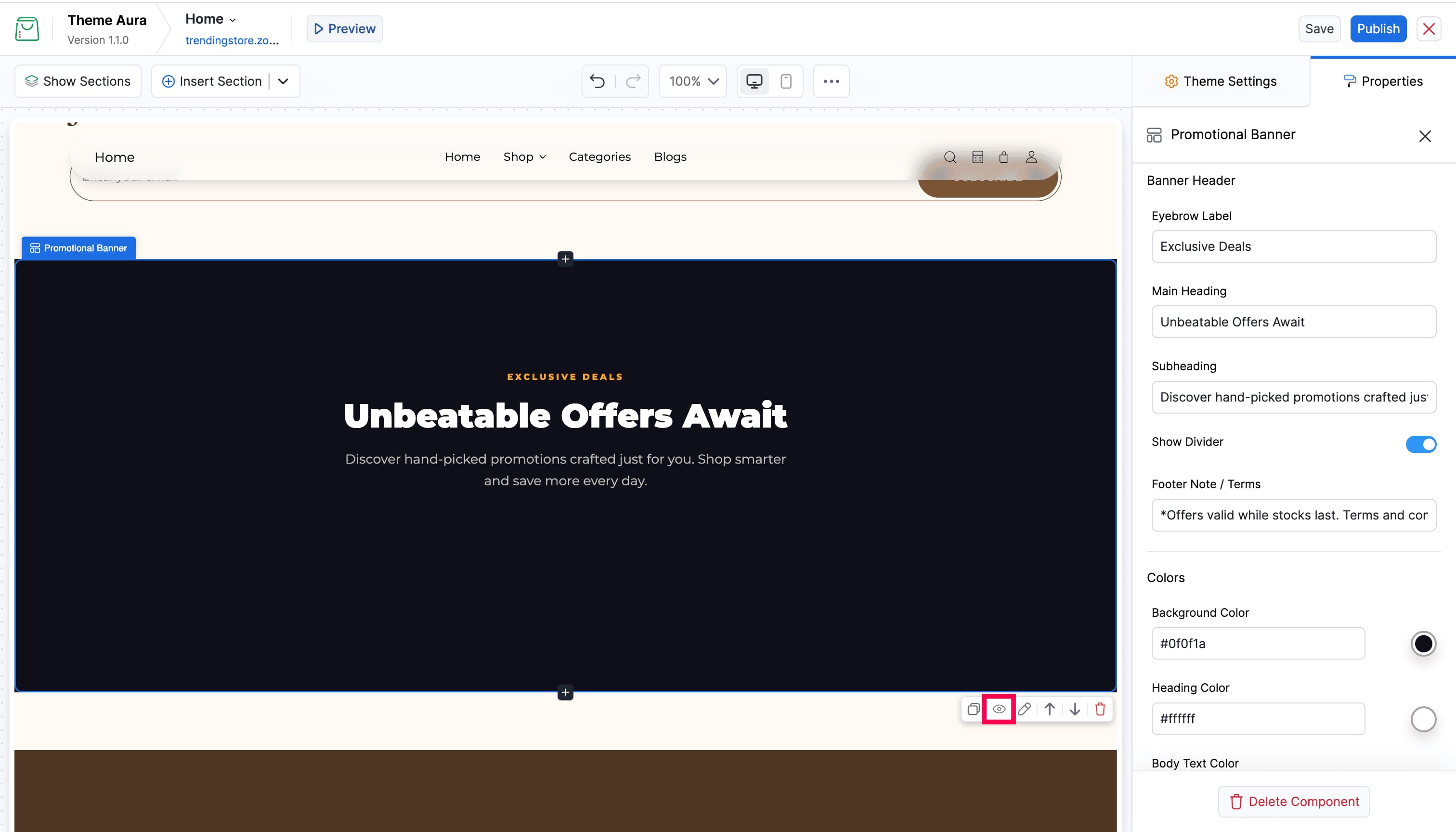
Select the custom section on the canvas and click the Toggle visibility icon in the in-canvas action toolbar to toggle its visibility. Hidden sections remain on the page but are not shown to visitors. Click the Toggle visibility icon again to make the section visible.
Deleting a Custom Section
Select the custom section and use Delete Component in the Properties panel, or use the Delete icon in the Sections List or the in-canvas action toolbar.