
How do I set up and configure Payflow Pro with Zoho Checkout?
Note: The Payflow Pro integration has been deprecated and is only available for existing users.
- Click the Settings icon and select Payment Gateways.
- Click the Configure button under Payflow Pro to begin the setup process.
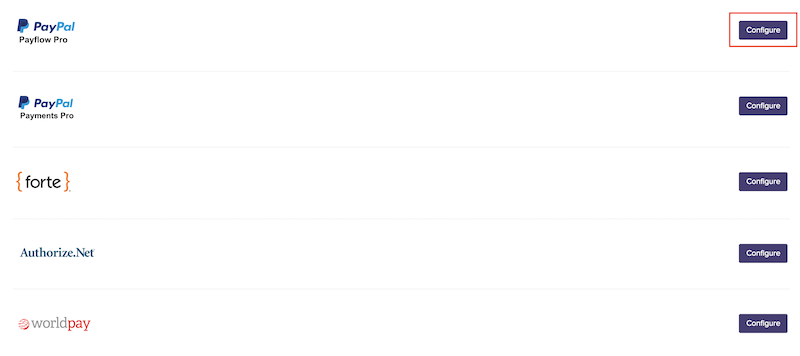
- When you register for a Payflow Pro account, you will receive an email with information containing your Partner ID and Vendor name. Please keep that email at hand while filling the details inside Zoho Checkout.
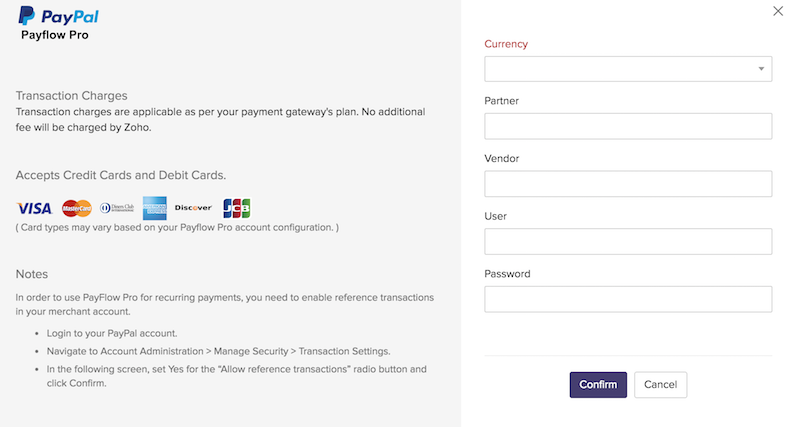
- In the popup that follows, fill in all the required fields. These fields signify:
- Currency: The currency you set up in your Payflow Pro account. The currency selected here should be the same as your base currency.
- Partner: The partner ID as mentioned in your Payflow Pro account.
- Vendor: Your vendor name as mentioned in your Payflow Pro account.
- User: Enter your Payflow Pro username.
- Password: Enter your Payflow Pro password.
- Your Payflow Pro account is now configured with Zoho Checkout.