BackHow do I change my page’s background color or add a background image?
- Click the Settings icon in the top right corner of the window.
- Select Templates.
- Hover over your default template to display the available actions.
- Click Edit to open the customization menu.
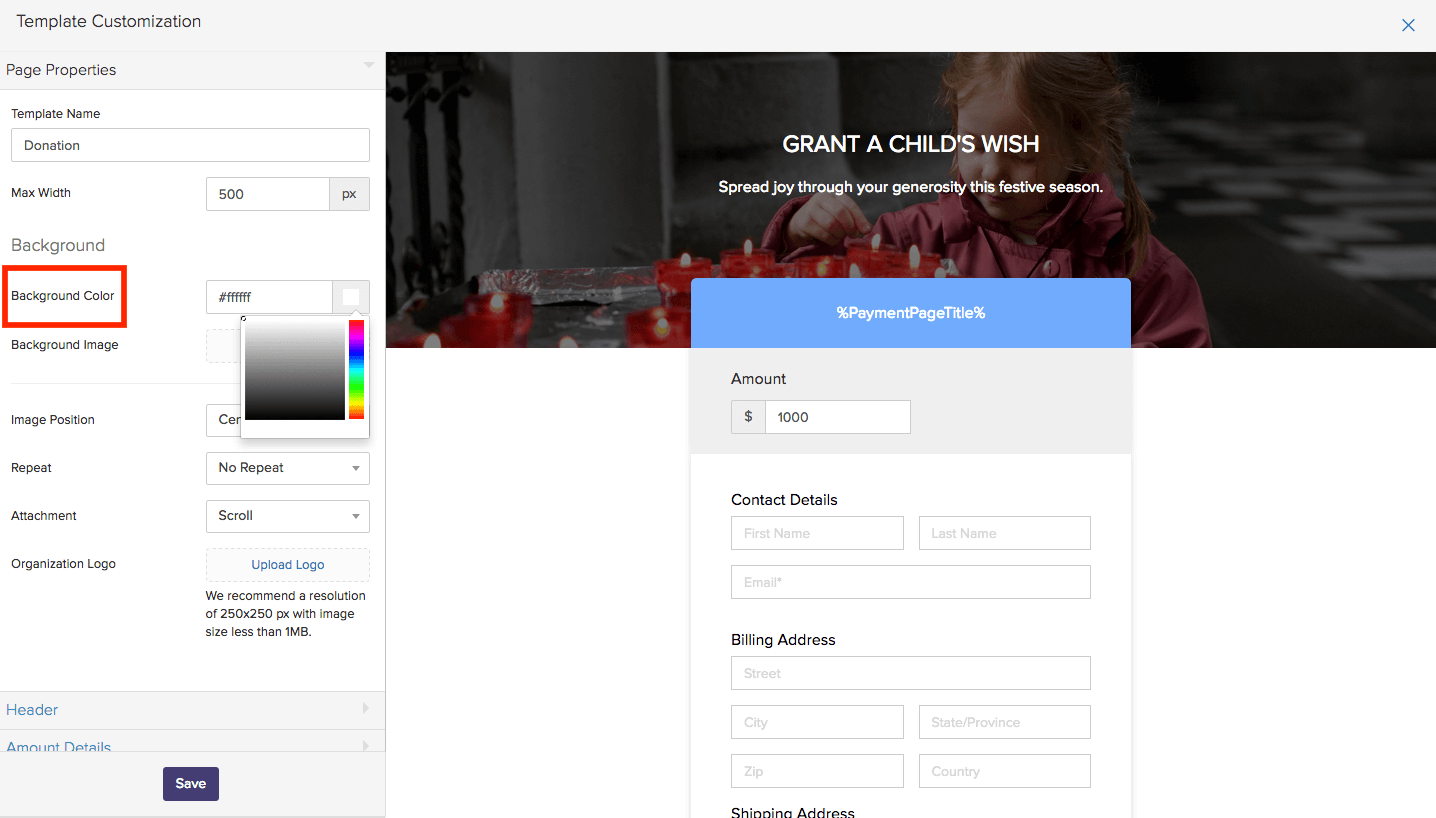
- Navigate to the Background section under Page Properties.
- Use the color picker to select the background color that you want.
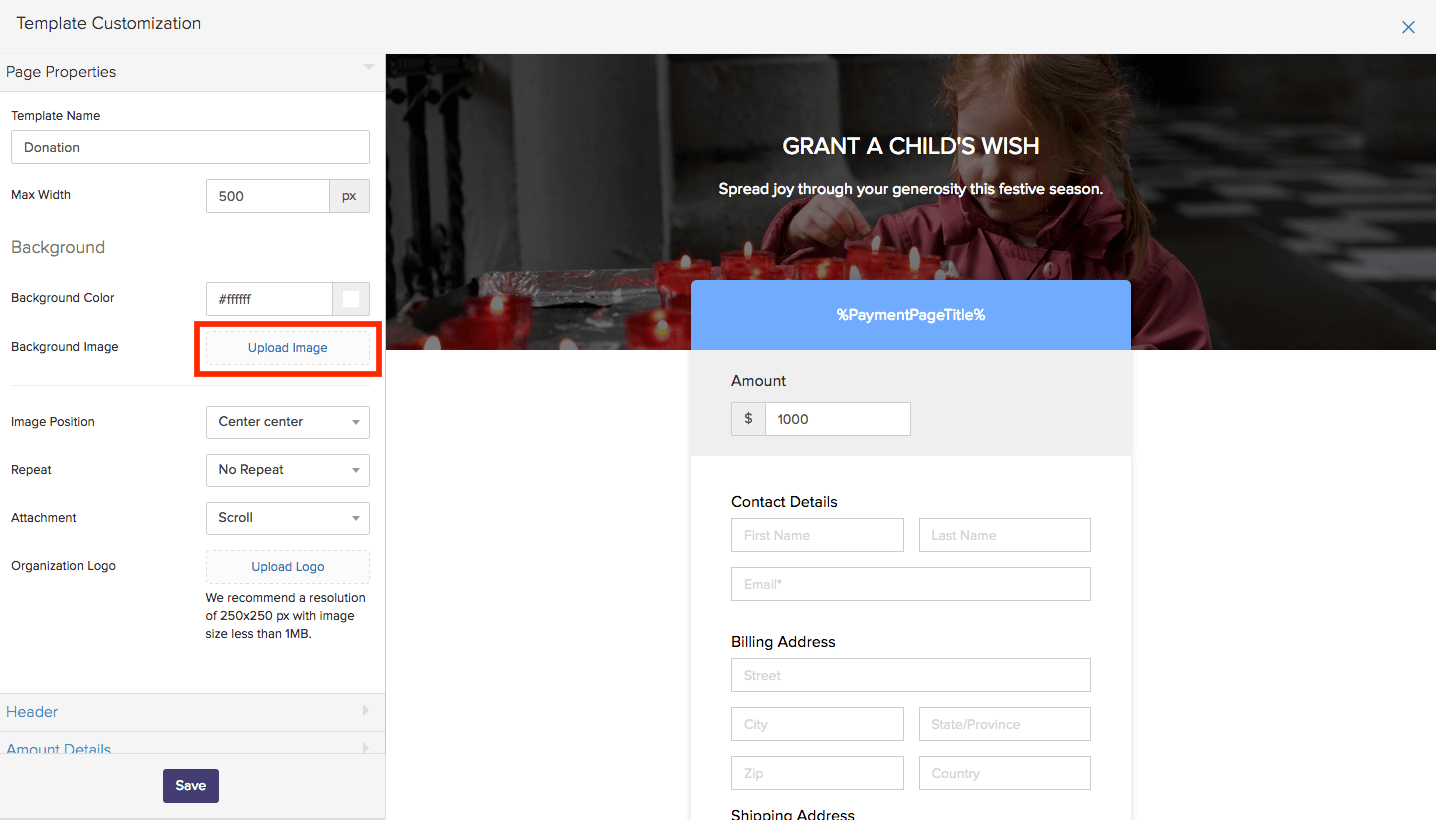
- To add a custom background image, click Upload and choose an image file from your computer.
- You can also scroll down to the Header and Footer sections to upload images or change background colors in those areas of the page.
- Click Save.
