

Batch Payments

The Batch Payments module allows you to make payments for bills of multiple vendors at once. You can create a batch, export it, and upload it into your bank portal to make the payment. Once done, you can mark the batch as processed in Zoho Books and update the status of the associated payments made.
Note: This feature is a part of the Zoho BillPay add-on for Zoho Books. Purchase the add-on to enable the feature for your organization.
Create a Batch
You need to create a batch to pay for bills of multiple vendors at once. Here’s how:
- Go to Purchases on the left sidebar.
- Click Batch Payments.
- Click + New in the top right corner of the page.
- Fill in the following details.
Field Name Description Batch Name A unique name to identify the batch. Batch# A unique number that is used to identify each batch. This will be auto-generated. Paid Through The bank through which you want to make the payment. Payment Date The date on which you’ll make the payment Description A short description explaining why you’re creating the batch. - Click Next to proceed. You’ll be redirected to the Add Bills page, where all your unpaid bills will be displayed.
- Select the bills you want to include in the batch.
- The bill amount will be auto-filled. If you want to update the amount to be paid, click Amount to Pay and enter the amount you want to pay for the bill.
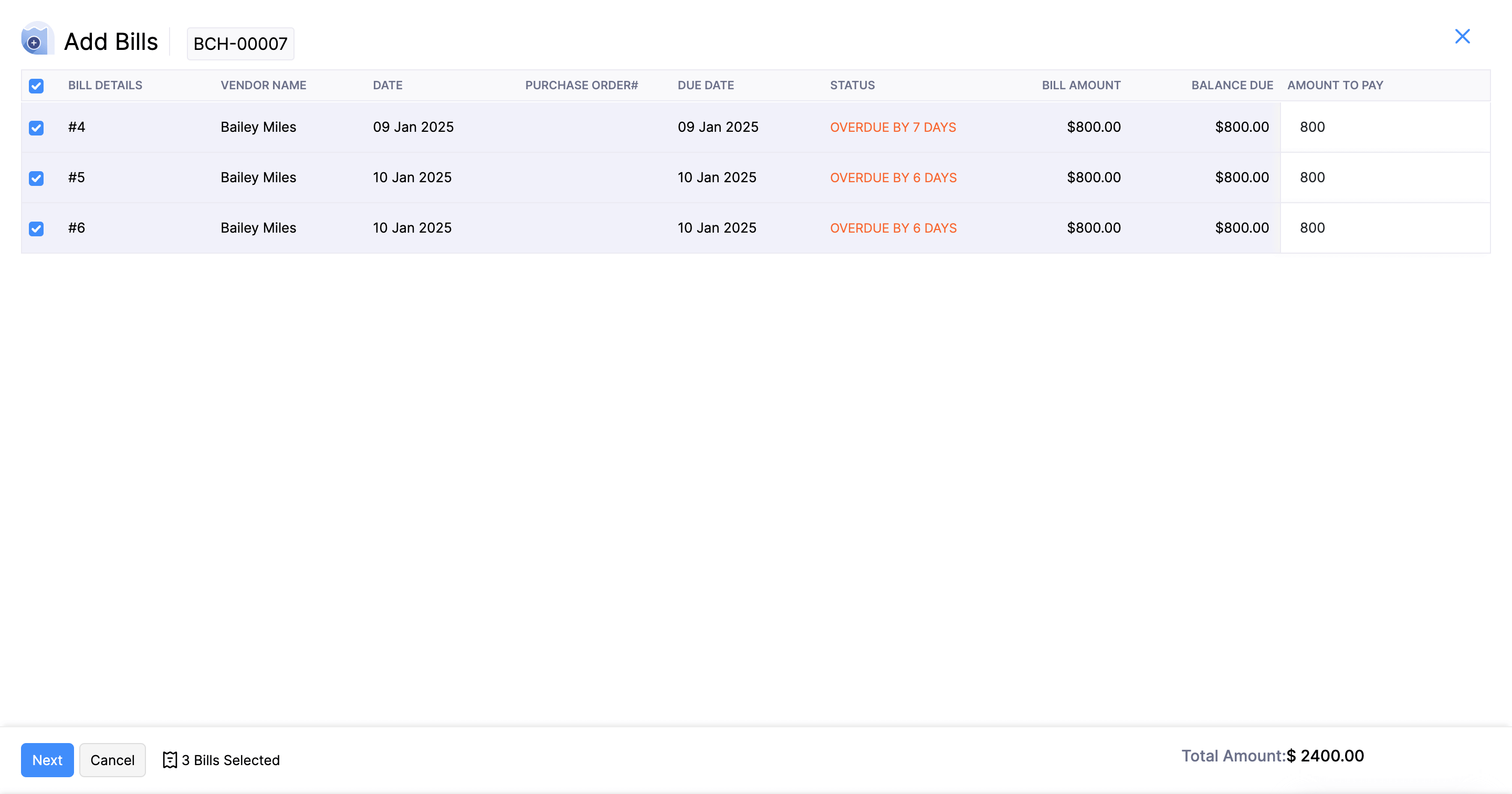
- Click Next. You will be redirected to the Pay Bills page, where the details of the vendors and their bills added to the batch will be available.
- Select the Bank Account in which each vendor will receive the payment.
- Click Save.
Submit a Batch for Approval
If Approvals is enabled for the Batch Payments module, you need to submit a batch for approval before you can process it. Set up an approval flow under Configure Approvals for the Batch Payments module. Here’s how to submit a batch for approval:
- Go to Purchases on the left sidebar.
- Click Batch Payments.
- Click the batch that has to be submitted for approval.
- Click Submit for Approval.
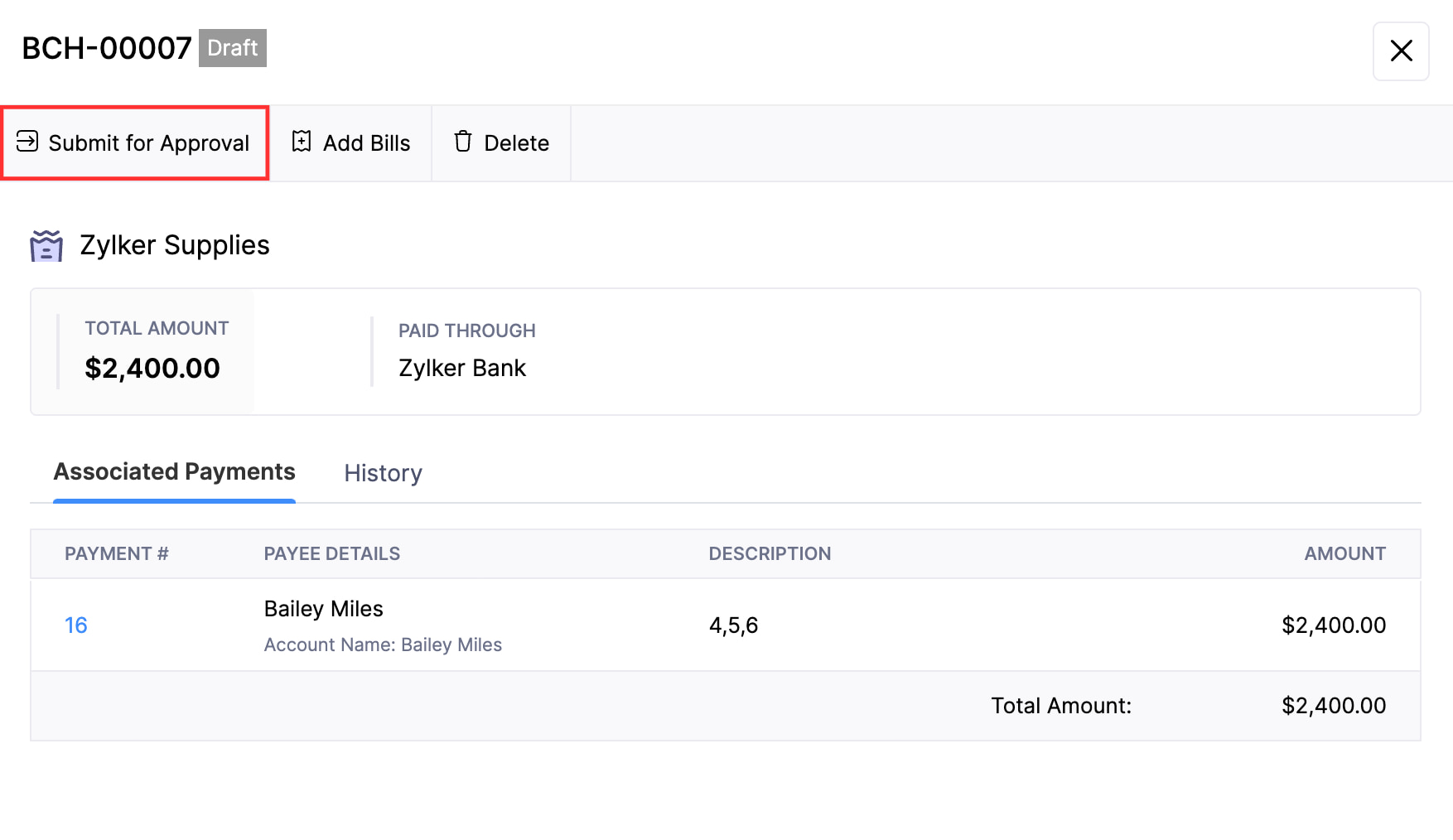
- Click Yes in the pop-up that appears.
Approve a Batch
If Approvals is enabled for the Batch Payments module, an approver must approve a batch before further action can be taken on it. Set up an approval flow under Configure Approvals for the Batch Payments module. Here’s how you can approve a batch submitted for approval:
- Go to Purchases on the left sidebar.
- Click Batch Payments.
- Click the batch that has to be approved.
- Click Approve.
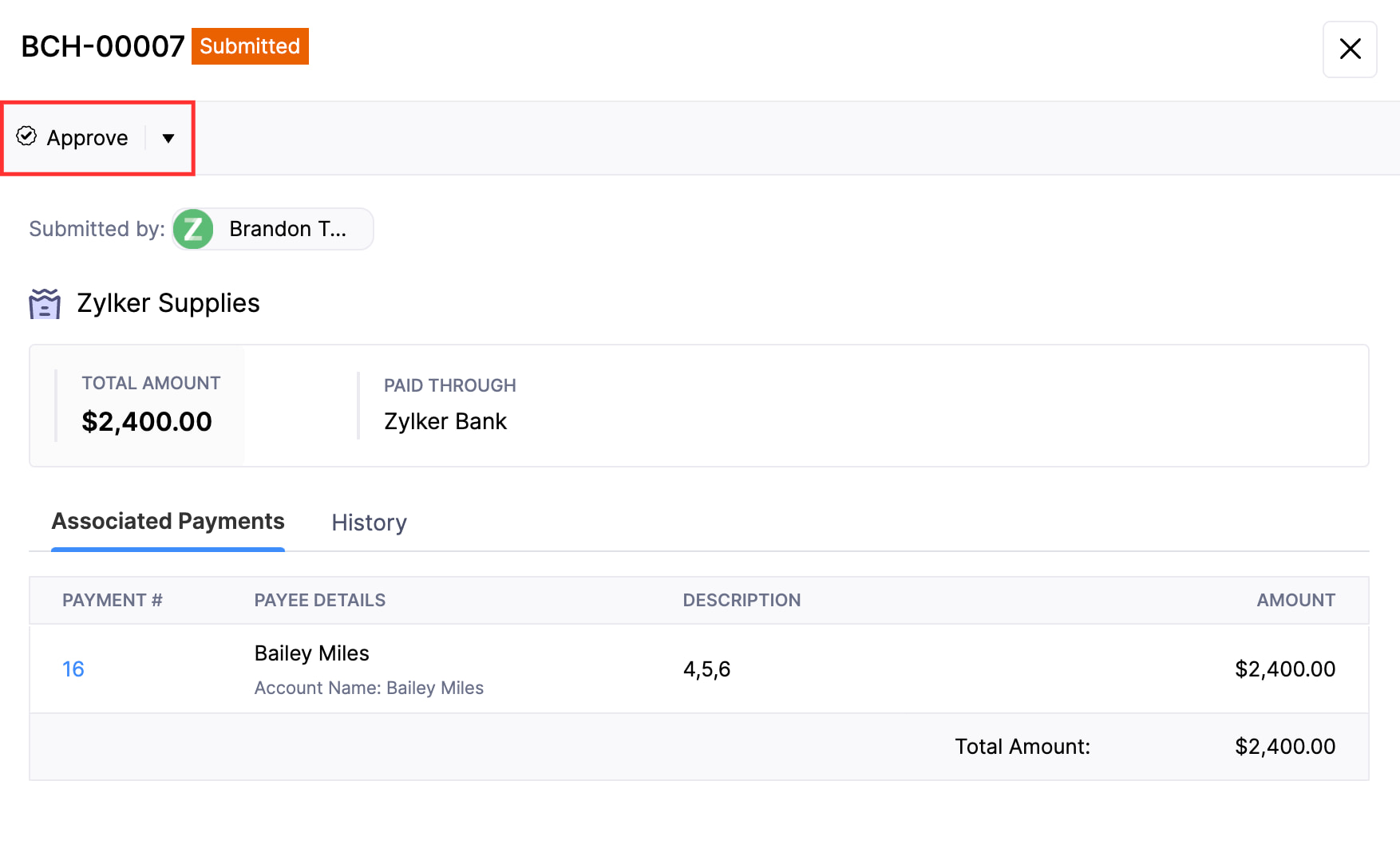
- Click Yes in the pop-up that appears.
If your organization uses Multi-Level Approval, the batch moves to the next approver in the approval hierarchy. The last approver sees a Final Approve button instead of Approve. Click Final Approve to complete the approval process.
Reject a Batch
If Approvals is enabled for the Batch Payments module, an approver can reject a batch that doesn’t meet requirements. Set up an approval flow under Configure Approvals for the Batch Payments module. Here’s how to reject a batch:
- Go to Purchases on the left sidebar.
- Click Batch Payments.
- Click the batch that has to be rejected.
- Click the dropdown next to Approve and select Reject.
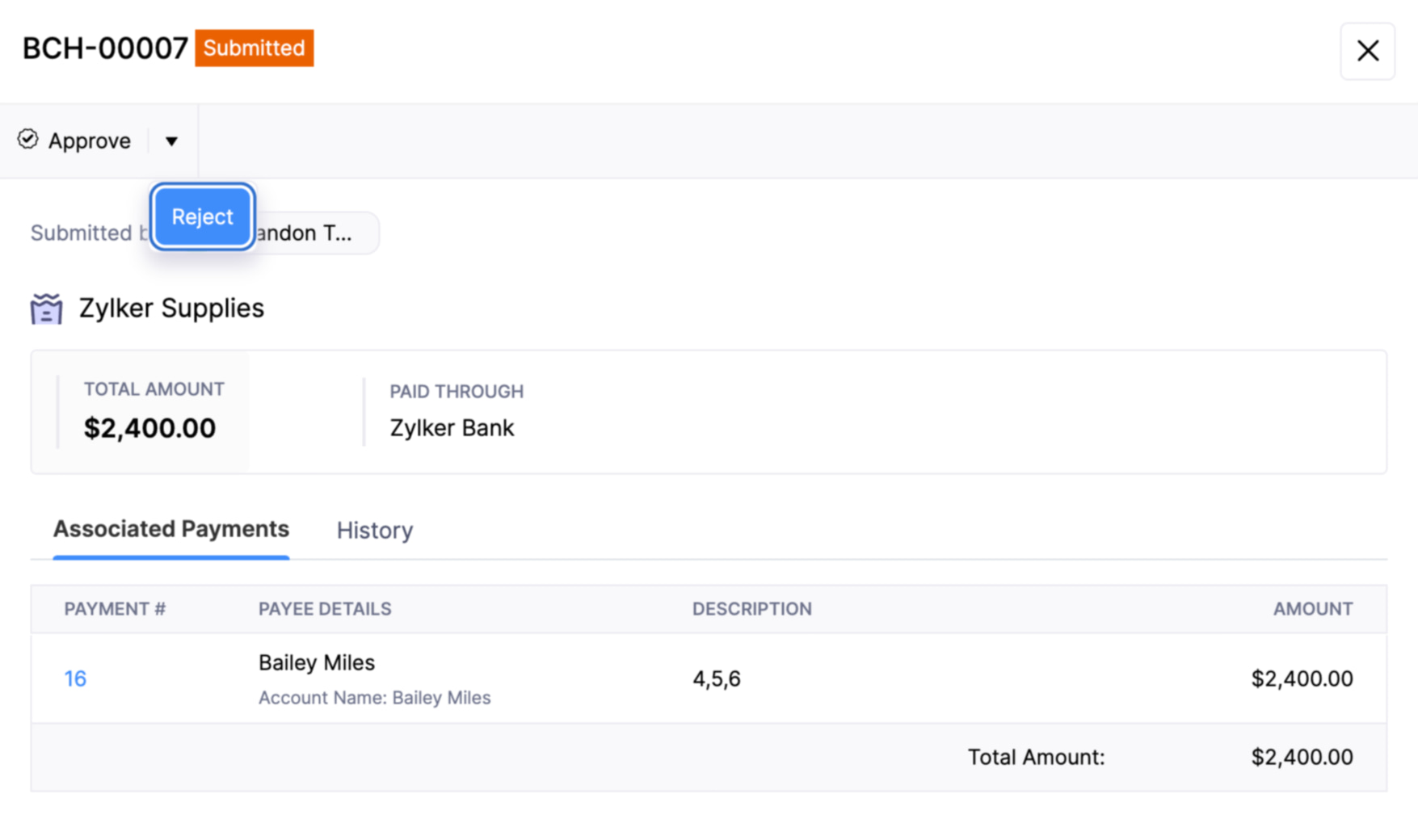
- Enter the reason for rejecting the batch and click Reject again in the pop-up that appears.
Export a Batch
After a batch has been approved, you need to export it in order to make a payment from your bank. Here’s how:
- Go to Purchases on the left sidebar.
- Click Batch Payments.
- Click the batch you want to export.
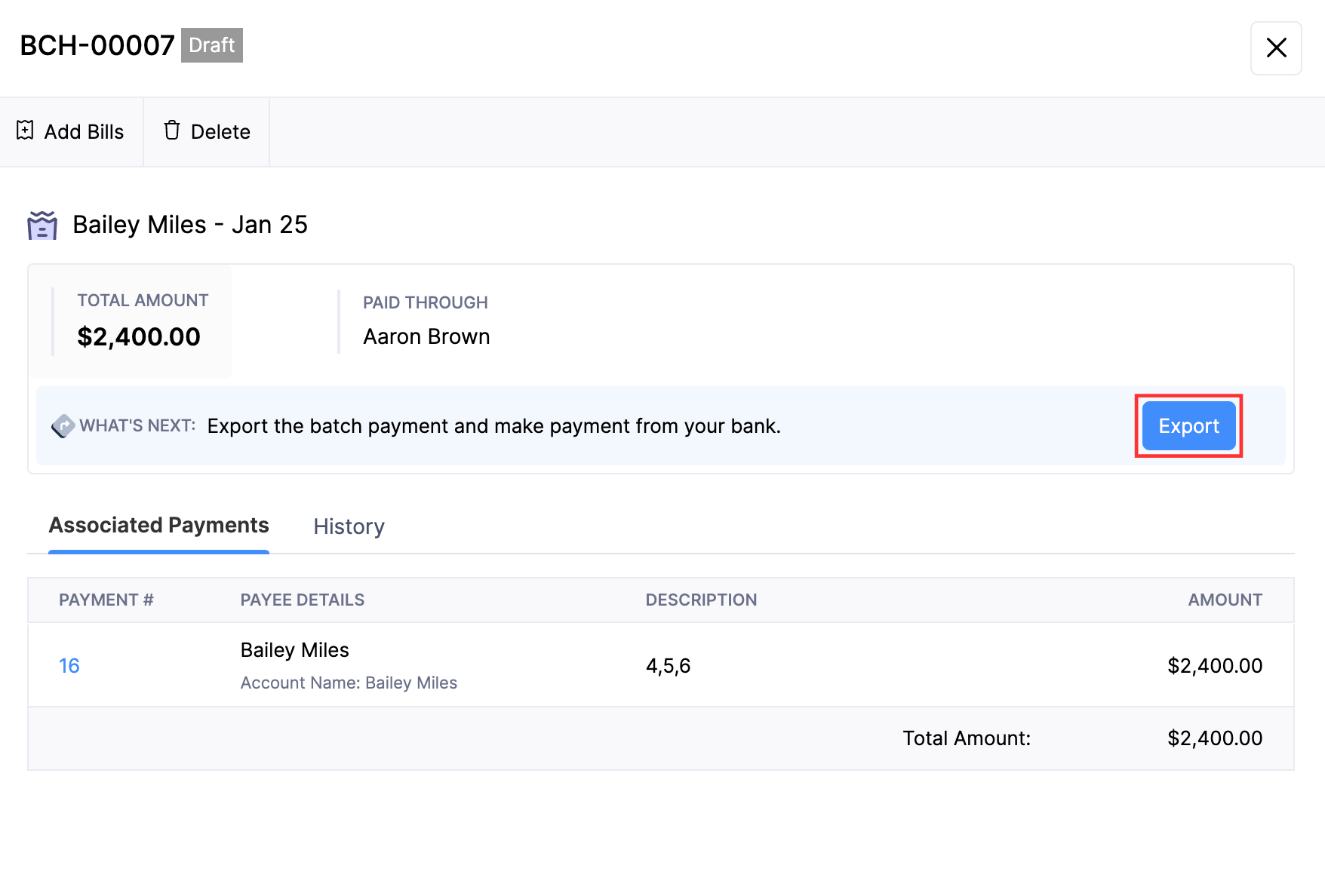
- Click Export.
- Select the Export File Format.
- Enter a password to protect a file, if required, in the File Protection Password field.
- Click Export. A file will be exported to your device.
Now, you can upload the exported file to your bank’s portal and make a payment.
Mark a Batch as Processed
Once you’ve made payment for the bills included in a batch, you can mark the batch as processed in Zoho Books to update the payment status. Here’s how:
- Go to Purchases on the left sidebar.
- Click Batch Payments.
- Click the batch for which you’ve made a payment.
- Click Mark as Processed.
- If the payment was successful, select Success as the Payment Status and enter the Reference Number of the payment.
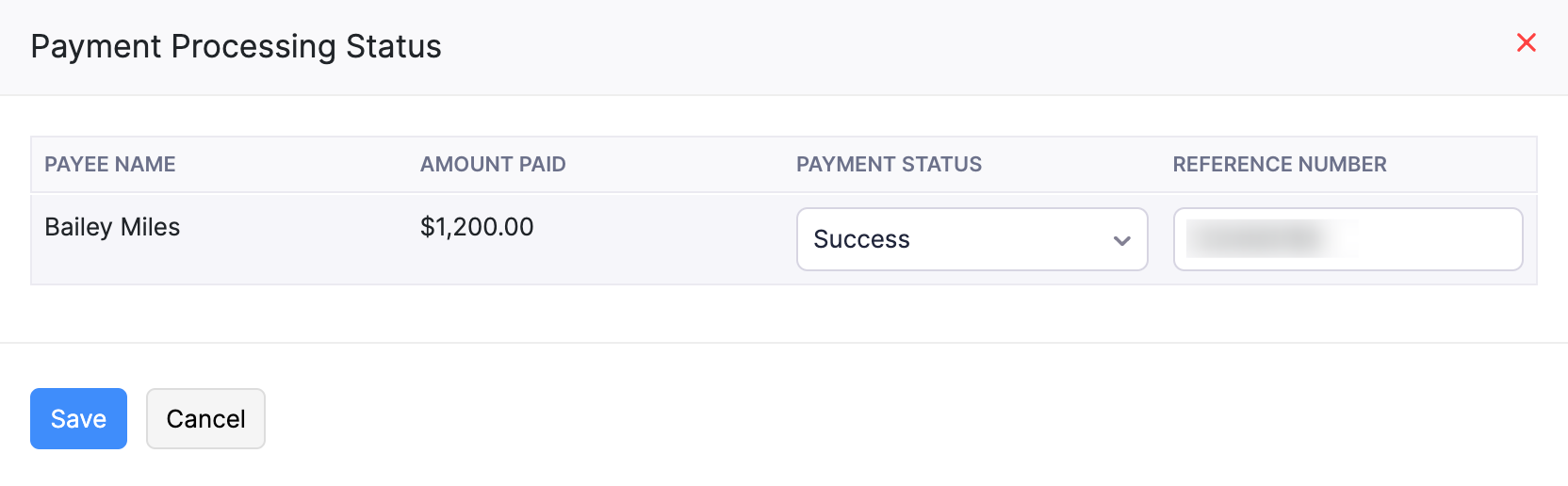
- If the payment was not successful, select Failed as the Payment Status. Click Add Reason and mention the reason the payment failed.

- Click Save.
The batch will be marked as Processed, and the status of the payments made will be updated.
Cancel a Batch
You can cancel a batch payment if you no longer want to proceed with it.
Note: Only batch payments in the Approved, Exported, Processed, or Failed status can be canceled.
To cancel a batch payment:
- Go to Purchases on the left sidebar.
- Click Batch Payments.
- Click the batch you want to cancel.
- Click Cancel.
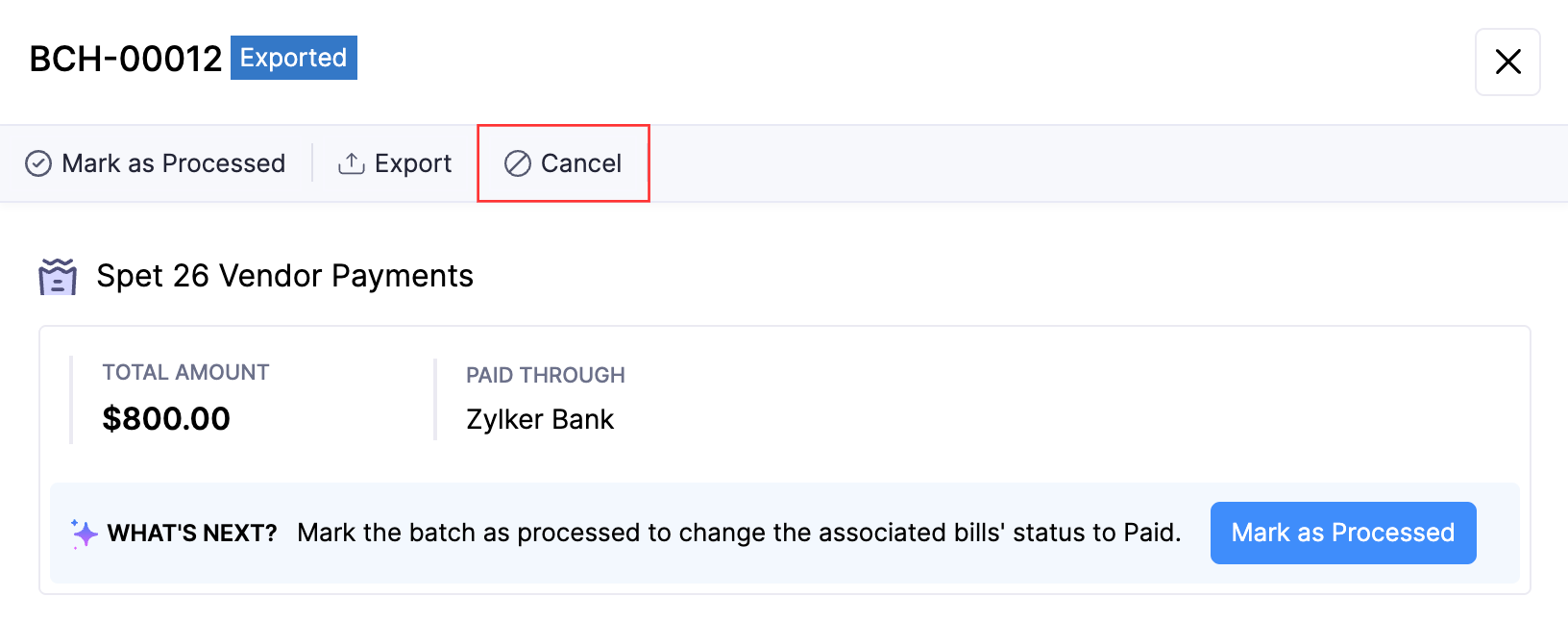
- Enter the reason for canceling the batch.
- Click Proceed.
Add More Bills to a Batch
You can add more bills to a batch if you missed to add them when creating it. Here’s how:
Note: You can only add more bills to batches in the Draft status.
- Go to Purchases on the left sidebar.
- Click Batch Payments.
- Click the batch in which you want to add more bills.
- Click Add Bills.
- Select the bills you want to add to the batch.
- The bill amount will be auto-filled. If you want to update the amount to be paid, click Amount to Pay and enter the amount you want to pay for the bill.
- Click Next. You will be redirected to the Pay Bills page, where the details of the vendors and their bills added to the batch will be available.
- Select the Bank Account in which each vendor will receive the payment.
- Click Save.
Delete a Batch
To delete a batch:
Note: You can only delete batches in the Draft status.
- Go to Purchases on the left sidebar.
- Click Batch Payments.
- Click the batch you want to delete.
- Click Delete.
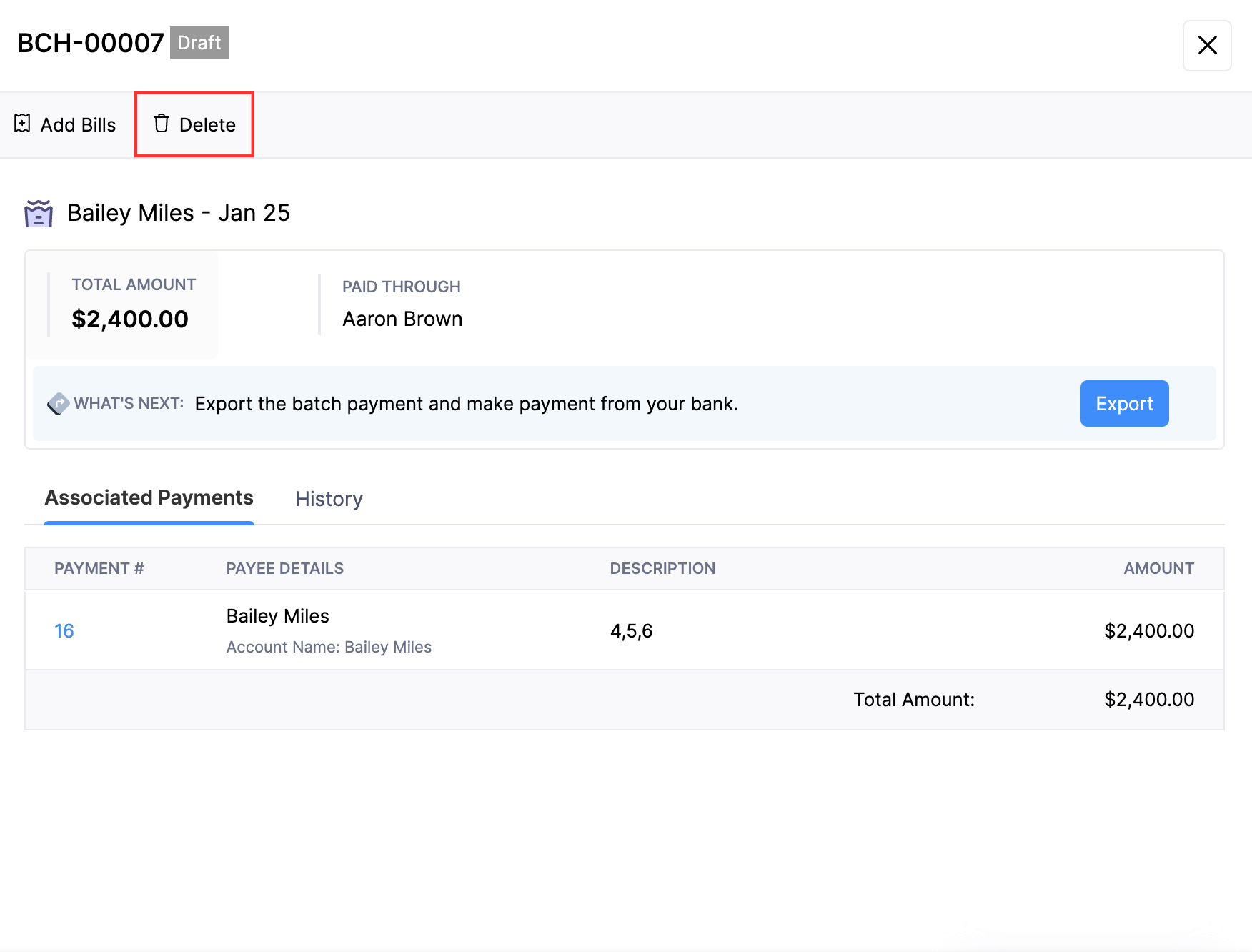
- Click Delete again in the pop-up that appears.
 Yes