

E-Invoicing in Belgium

Belgium is introducing mandatory electronic invoicing (E-Invoicing) for B2B transactions. Starting 1 January 2026, all VAT-registered businesses in Belgium will be required to issue, receive, and process structured electronic invoices for domestic B2B transactions. Invoices sent via email in PDF format will no longer be considered valid for VAT purposes. The invoices must comply with the European E-Invoicing standard and be transmitted through the Peppol network.
Note: If you’d like to test this feature in a sandbox environment, create a trial organization in Zoho Books with the location set to Belgium. Then, contact our support team at support@eu.zohobooks.com to have E-Invoicing enabled for that organization.
What Is an E-Invoice?
An e-invoice is a machine-readable invoice that is issued by a supplier in a structured data format that allows for its automatic processing. The buyer can then import it directly to their system instead of entering the details manually.
Role of Storecove in E-Invoicing
Zoho Books uses Storecove as its Peppol Access Point to send and receive documents over the Peppol network. When the organization owner enables E-Invoicing in Zoho Books, a Storecove account is automatically created for their organization. Here is how Storecove fits into the E-Invoicing workflow:
What Is Storecove?
Storecove is a certified Peppol Access Point that acts as the gateway between Zoho Books and the wider Peppol network. All e-invoices and related documents exchanged through Peppol pass through Storecove.
Why Is a Storecove Account Created?
A storecove account is created to:
- Connect Zoho Books to the Peppol network via a certified Access Point.
- Enable your organization to send (push) invoices and credit notes to customers and receive (fetch) bills and vendor credits from vendors through Peppol.
- Register your Peppol identifiers so that your organization can be discovered and reached by other participants on the network.
How E-Invoicing Works in Zoho Books
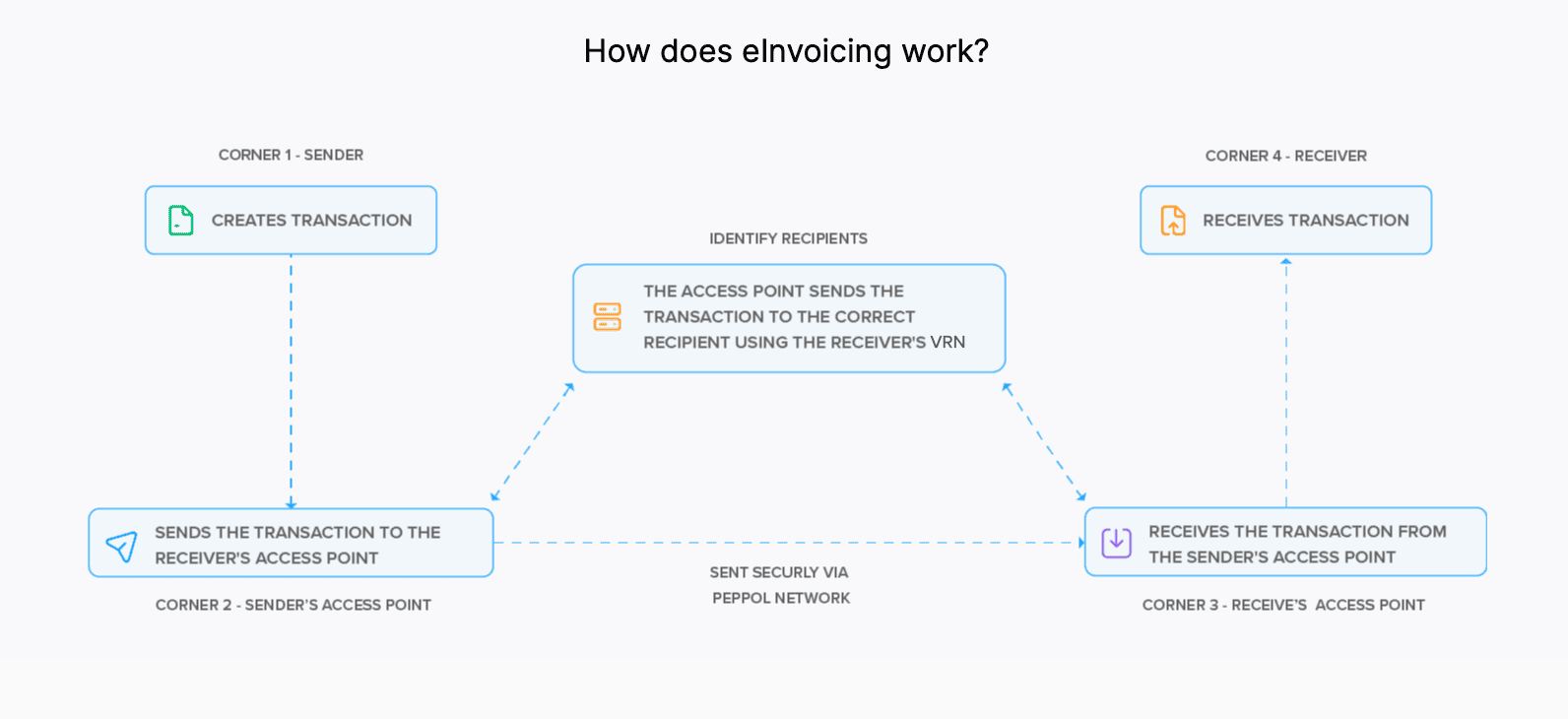
Peppol (Pan-European Public Procurement Online) is an EU standard that facilitates the exchange of electronic documents like invoices, credit notes and so on. When you enable E-Invoicing in Zoho Books, the following workflow applies to your transactions:
Create a Transaction
The workflow begins when you create a transaction (such as an invoice or credit note) in Zoho Books and save it. Once saved, the transaction is ready to be sent through Peppol.
Convert to Peppol Format
- The transaction is automatically converted into the Peppol format, which is the standard electronic format used for E-Invoicing in Belgium.
- The system then checks whether all required fields are included, such as your VAT ID, your customer’s VAT ID, and other transaction details.
Send Transactions
How a transaction is delivered depends on the recipient:
| Recipient | How It Is Sent |
|---|---|
| Customer registered on Peppol | The invoice is sent through your Peppol Access Point to the customer’s Access Point, validated, and delivered directly to their accounting or ERP system. Your customer receives your invoices as bills and your credit notes as debit notes. |
| Customer not registered on Peppol | You can send the invoice in PDF format via email. Once the customer registers on Peppol, future invoices can be sent electronically through the network. |
| Government agencies (B2G) | Zoho Books delivers the transaction through Peppol to Mercurius, Belgium’s government E-Invoicing platform. |
| B2C transactions | Businesses are not legally required to send these transactions through Peppol. |
| Cross-border transactions | You can send them through Peppol as you do for domestic transactions. |
Track and Handle Rejected Transactions
- After a transaction is sent, Zoho Books tracks and updates its status.
- You can view whether an invoice has been sent, accepted, or rejected.
- If a transaction is rejected, you will receive a notification that includes the reason specified by your customer.
- Since you cannot edit or delete an invoice once it is sent through Peppol, Zoho Books allows you to create a credit note for the invoice to nullify it. Then you can create a new invoice which can be sent through Peppol.
Receive Transactions
- When a vendor sends you an invoice through Peppol, you will receive it in Zoho Books as a bill, and any credit note as a debit note in your organization.
- You can accept or reject the received transaction.
Set Up E-Invoicing in Zoho Books
Setting up E-Invoicing in Zoho Books is a one-time process. Let’s see how you can set up E-Invoicing in Zoho Books.
Prerequisite: You can set up E-Invoicing only if you’ve enabled taxes in your Zoho Books organisation. Make sure to enter your tax registration number with “BE” as the label.
- Go to Settings.
- Select E-Invoicing under Taxes & Compliance in the Organization Settings pane.
- Click Configure E-Invoicing.

- Enter all the required details under Organization Details and Tax Settings.
- Read and accept the terms and conditions.
- Click Finish.
Sender and Receiver Configuration
In Zoho Books, you can configure your organization to both send and receive documents via Peppol, or restrict it to act as a sender only, depending on your business requirements:
| Configuration | Description |
|---|---|
| Push and Fetch | Your organization can send invoices and credit notes to customers and also receive bills and vendor credits from vendors through Peppol. |
| Push Only | Your organization can send invoices and credit notes to customers through Peppol but will not receive bills and vendor credits from vendors. |
Note: After a Storecove account is created, it may take up to 72 hours for your Peppol registration to be fully active on the SMP network. During this time, your Peppol IDs are being published so that other network participants can locate and transact with your organization.
Role of the SMP in Peppol
The SMP (Service Metadata Publisher) is a directory on the Peppol network that lists businesses registered to send and receive e-invoices. When your vendors want to send you a bill, they look up your organisation in the SMP to confirm you are registered and to find your Access Point.
Your organisation will appear in the SMP network only when both Push and Fetch are enabled in Zoho Books. If only Push or Fetch is enabled, your organisation may not appear in the SMP, and your vendors may not be able to send transactions to you.
Configure Field Mapping
You can map your Zoho Books fields to the corresponding Peppol fields to ensure your existing data is submitted correctly when e-invoices are generated. To do this, click Configure Field Mapping at the top right of the E-Invoicing settings page.
In the Configure E-Invoicing Fields popup, you can map the following:
Invoice Details
| Peppol Field | Description |
|---|---|
| Purchase Order Number | The purchase order reference associated with the invoice. |
| Buyer Reference Number | A reference number provided by the buyer for their internal tracking. |
Customer Details
| Peppol Field | Description |
|---|---|
| Contact Name | The name of the contact at the customer’s organization. |
Select the corresponding Zoho Books field from the dropdown for each Peppol field, and click Map Fields to save the mapping.
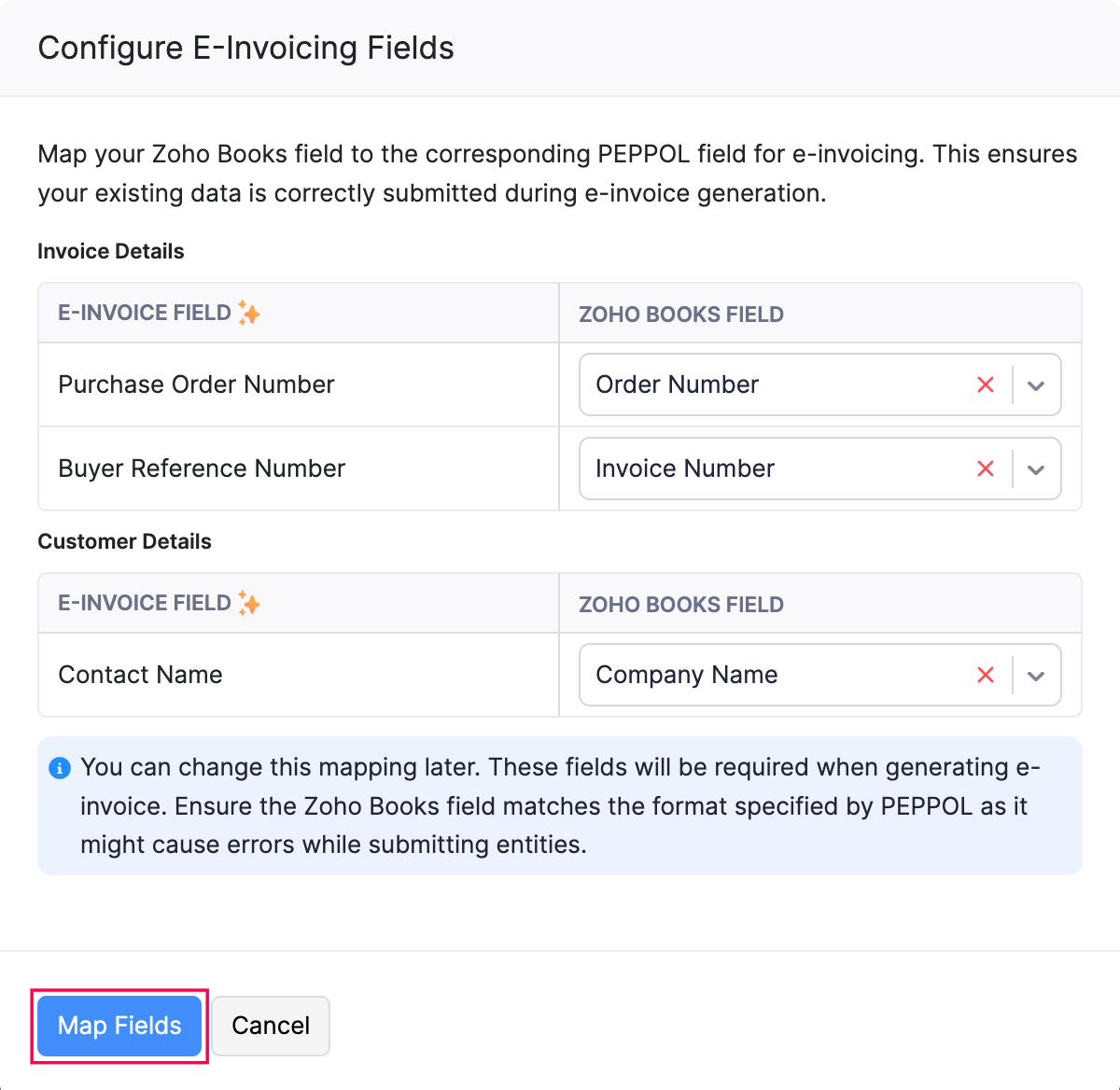
Note: You can update this field mapping at any time. Ensure the Zoho Books field value matches the format expected by Peppol, as incorrect formats may cause errors when submitting transactions.
Send Transactions via Peppol
Note: You can send e-invoices only to customers whose VAT Registration Number (VRN) is registered in PEPPOL.
To send e-invoices to a customer through Peppol:
Go to Sales on the left sidebar and select Invoices or Credit Notes, based on your preference.
Enter the required details.
Click Save as Draft.
Click Send Invoice at the top of the customer’s Details page.

Once the invoice is sent to your customer through Peppol, a unique UUID will be generated for the invoice. You can copy it by clicking Copy UUID next to the e-invoice status. A bill or vendor credit will be created in your customer’s system, and a copy of the invoice will also be sent as an attachment.
Insight: If the invoice is created from a project or a sales order, its reference number will also appear on the invoice and be included when it is sent through Peppol.
Note:
- Once an invoice is sent through Peppol, it cannot be edited or deleted. To cancel the invoice, you should create a credit note and send it through Peppol.
- Child invoices generated from recurring invoices will be sent automatically through Peppol. If there are any errors while sending an invoice, you will be notified both in the app and by email.
Receive Transactions via Peppol
In Zoho Books, you can receive transactions sent by your vendors via Peppol. When a vendor sends you an invoice, it will be received as a bill in your organization, and when a credit note is sent, it will be received as a vendor credit.
Here’s how to accept or reject transactions:
- Go to Bills or Vendor Credits under Purchases.
- Select the transaction and click Accept or Reject at the top.
The status of the transaction will be changed to Accepted or Rejected.
Statuses of Transactions in E-Invoicing
The status of each transaction will be displayed in the transaction’s overview page. The statuses of the transactions in E-Invoicing are:
| Status | Description |
|---|---|
| Yet To Be Pushed | When you create a transaction and save it as draft, the status of the transaction will be Yet To Be Pushed. |
| Pushed | When you send the transaction to your customer and there are no errors, then the status of the transaction will be changed to Pushed. |
| Failed | If there are any errors, such as missing fields in the transaction, then the e-invoice will not be sent and the status will be changed to Failed. You can rectify the errors and try again. |
| Accepted | If your customer accepts the transaction, the status of the transaction will be changed to Accepted. |
| Rejected | If your customer rejects your transaction, then the status of your transaction will be changed to Rejected. |
You can filter invoices based on these statuses by clicking the All Invoices dropdown at the top and then selecting the desired e-invoice status. If you want to filter invoices using your own criteria, you can create a custom view with these statuses.
Allow Users To Push and Cancel Invoices
You can allow users in your organization to push transactions through Peppol by assigning the appropriate roles. This ensures that only authorized users can push transactions through Peppol. Here’s how:
- Go to Settings.
- Select Roles under Users & Roles in the Organization Settings pane.
- Create a new role or edit an existing one.
- Mark Push and Cancel Transactions under e-Invoicing to allow users with this role to push transactions.
After enabling the permission for a role, users assigned to that role will be able to push transactions through Peppol. You can unmark this option at any time to restrict users from performing these actions.
Disable E-Invoicing
Note: After you disable E-Invoicing in Zoho Books, it may take up to 72 hours for the change to reflect in Peppol. We recommend waiting until E-Invoicing is disabled in Peppol before enabling it in Zoho Books again. The same applies when enabling E-Invoicing.
You can disable the E-Invoicing configuration if you want. Here’s how:
- Go to Settings.
- Select E-Invoicing under Taxes & Compliance in the Organization Settings pane.
- Click Disable at the top.
- In the popup, click Disable to confirm the action.
The configuration will be disabled. To push transactions again through Peppol, you should configure E-Invoicing in Settings.
Sometimes you may not want to fetch or push transactions through Peppol. Instead of disabling the E-Invoicing, you can disable push and fetch transactions separately in Zoho Books:
- Go to Settings.
- Select E-Invoicing under Taxes & Compliance.
- Slide the toggle near Fetch Transactions to Disabled if you don’t want to fetch transactions to your customers through Peppol.
- Slide the toggle near Push Transactions to Disabled if you don’t want to push transactions from Peppol.
You can enable them anytime by sliding the toggle to Enabled.
 Yes
Yes